New to Rust? Grab our free Rust for Beginners eBook Get it free →
Flutter Dialogs: A Step-by-Step Guide

A screen sometimes needs to offer a choice without sending the user to another page. A Flutter dialog displays a temporary message or set of options above the current screen.
I’ll show how to present choices with SimpleDialog and handle the result, including when the dialog closes without a selection.
What are Flutter dialogs?
A dialog is a temporary Material interface shown above the current route. showDialog pushes a route to display it, and its builder creates the dialog content.
The route result is a Future, and calling Navigator.pop with a value completes it for the code that opened the dialog. Use AlertDialog for a message with actions or SimpleDialog when the reader needs to choose an option.
| Widget | Use it for | Selection shape |
|---|---|---|
| AlertDialog | A message or confirmation | Actions such as Cancel and Delete |
| SimpleDialog | A choice among options | Rows such as Personal or Work |
| Dialog | A custom layout | You build the content and controls |
Prerequisites
The examples need MaterialApp and an import for package:flutter/material.dart. If Flutter is not set up, follow the Flutter setup guide.
- A Flutter app with MaterialApp in its widget tree
- A button callback whose BuildContext belongs to that app
- package:flutter/material.dart imported in the Dart file
Each example opens the route from a button callback under MaterialApp. Inside the builder, close that route with its dialog context rather than reusing the caller context.
Step 1: Show an AlertDialog from a button
For a confirmation, return a boolean from each action and let the caller decide whether to continue. The dialog route carries that result back to the button handler.
Future<void> confirmExit(BuildContext context, VoidCallback onConfirm) async {
  final shouldExit = await showDialog<bool>(
    context: context,
    builder: (dialogContext) => AlertDialog(
      title: const Text('Do you want to exit?'),
      actions: [
        TextButton(
          onPressed: () => Navigator.pop(dialogContext, false),
          child: const Text('No'),
        ),
        TextButton(
          onPressed: () => Navigator.pop(dialogContext, true),
          child: const Text('Yes'),
        ),
      ],
    ),
  );

  if (shouldExit == true) {
    onConfirm();
  }
}
showDialog<bool> makes the route result nullable, because tapping outside dismisses the dialog by default and returns null.
Checking for true means both No and outside dismissal leave the app untouched, while Yes returns true and runs the caller-provided callback.
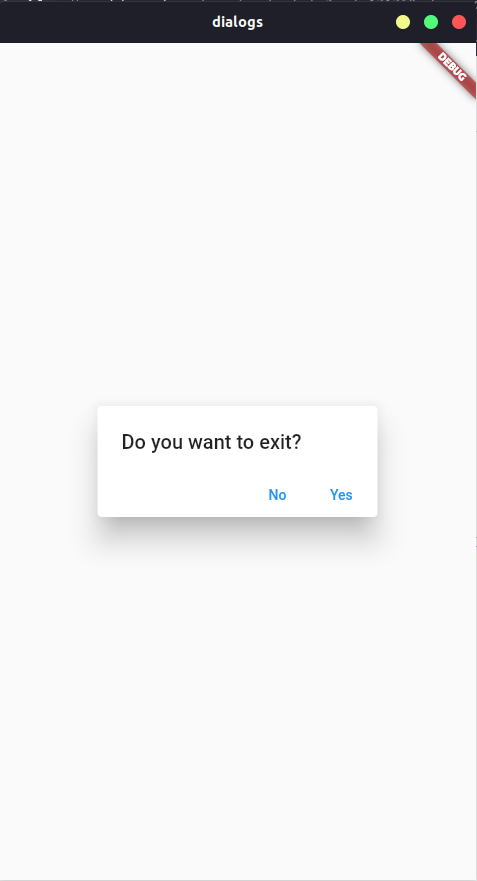
Set barrierDismissible to false only when closing without an explicit choice would leave the task in an unsafe state. A confirmation dialog should still provide a clear cancel action.
Step 2: Offer choices with SimpleDialog
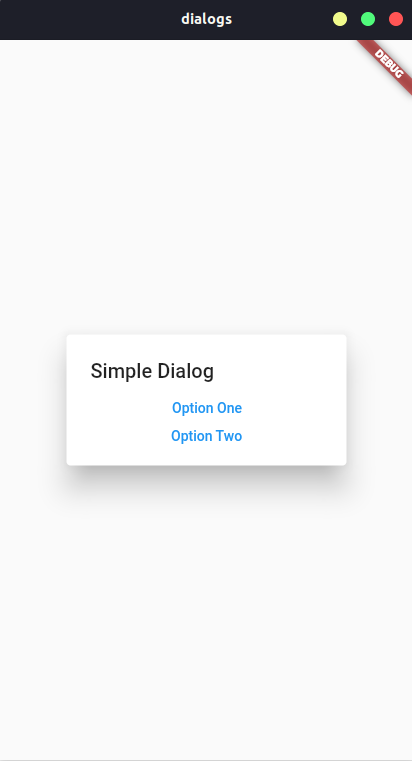
Use SimpleDialog when the user is picking one option rather than responding to a message. SimpleDialogOption calls Navigator.pop with the selected value, which completes the Future returned by showDialog.
| Part | Job | Value passed back |
|---|---|---|
| SimpleDialog | Displays the title and choices | None by itself |
| SimpleDialogOption | Runs when a choice is tapped | Navigator.pop(context, value) |
| showDialog<String> | Opens the dialog route | Future<String?> |
enum DialogChoice { optionOne, optionTwo }

Future<DialogChoice?> chooseDialogOption(BuildContext context) {
  return showDialog<DialogChoice>(
    context: context,
    builder: (dialogContext) => SimpleDialog(
      title: const Text('Simple Dialog'),
      children: [
        SimpleDialogOption(
          onPressed: () =>
              Navigator.pop(dialogContext, DialogChoice.optionOne),
          child: const Text('Option One'),
        ),
        SimpleDialogOption(
          onPressed: () =>
              Navigator.pop(dialogContext, DialogChoice.optionTwo),
          child: const Text('Option Two'),
        ),
      ],
    ),
  );
}
The enum returns an explicit value, so the caller does not need to compare the displayed option text.
SimpleDialog handles scrolling for its choices, while the Future still resolves to null if the user dismisses the route without choosing.
Step 3: Handle the dialog result in the caller
Await the dialog where you opened it, then handle both a selected value and dismissal. The generic type on showDialog keeps the caller’s result aligned with the values passed to Navigator.pop.
Future<void> handleDialogChoice(BuildContext context) async {
  final choice = await chooseDialogOption(context);

  if (!context.mounted || choice == null) {
    return;
  }

  debugPrint('Selected option: $choice');
}
A null result means the route closed without a selection, so the handler returns without acting. The mounted check protects later context use if the caller leaves the widget tree while it waits.
Verify the dialog flow
Check the whole route cycle in the app, not only whether the dialog appears. Each button should produce one visible outcome in the page that opened it.
- Tap the confirmation button and make sure the AlertDialog appears above the current screen.
- Choose Cancel and confirm the delete branch does not run.
- Choose Delete and confirm the caller receives true and runs its action.
- Open the choice dialog, select each option, and confirm the caller receives the matching enum value.
- Dismiss without choosing and confirm the caller handles null without acting.
When dismissal or layout surprises you
Dialog problems often come from route behavior or content sizing rather than the button widget. Check the matching boundary before changing the dialog’s design.
| Symptom | Cause to check | Adjustment |
|---|---|---|
| Result is null | The user dismissed the route without selecting, and barrier dismissal defaults to true | Handle null, or set barrierDismissible false if the task requires a choice |
| Long AlertDialog content overflows | AlertDialog sizes to its children’s intrinsic dimensions | Wrap long content in SingleChildScrollView. Give lazy lists a bounded size. |
| Dialog content does not update | The builder uses a route context separate from the caller | Use StatefulBuilder or move the dialog content into a StatefulWidget |
| Pop closes the wrong route | The app has nested Navigator objects | Close through Navigator.of(dialogContext, rootNavigator: true) when the root dialog route was used |
showDialog uses the root Navigator by default. An app with nested navigation may need to pop that same root route explicitly.
Let the dialog return a decision
A dialog works best when its result is part of the calling function’s control flow, rather than hidden inside a button callback. Give the route a result type, return one value for each action, and keep dismissal distinct from a choice.
final DialogChoice? choice = await chooseDialogOption(context);
if (choice == null) return;
debugPrint('Selected option: $choice');
Flutter dialog questions
showDialog pushes a route, so the dialog has its own builder context and returns its result to the code that opened it.
How do you show a dialog in Flutter?
Call showDialog with the current BuildContext and return an AlertDialog, SimpleDialog, or custom Dialog from its builder.
How do you get a value back from a Flutter dialog?
Call Navigator.pop with the selected value inside the dialog, then await the typed Future from showDialog in the caller.
Why can a Flutter dialog return null?
showDialog returns a nullable result. A barrier tap dismisses the dialog by default, so handle null or set barrierDismissible to false when dismissal is not allowed.
How do you stop AlertDialog content from overflowing?
Use a scrolling widget such as SingleChildScrollView for long content. A lazy list needs bounded dimensions because AlertDialog measures its children intrinsically.