New to Rust? Grab our free Rust for Beginners eBook Get it free →
Online HTML to Markdown Converter – Paste HTML, Get Markdown

When you move content from an HTML document into a Markdown editor, you may want to keep its headings and lists without carrying over the HTML tags. An HTML to Markdown converter rewrites supported structures as Markdown syntax.
I’ll show you how to convert a pasted HTML fragment and check the result before copying it.
TL;DR: Convert HTML to Markdown online
Paste the HTML fragment into the converter above, select Convert to Markdown, then inspect the result before copying it. HTML carries document structure in tags, while Markdown expresses common structure with plain-text markers such as hashes for headings and asterisks for emphasis.
- Choose the content fragment you actually need, not the entire webpage by default.
- Convert, then check headings, links, lists and code by comparing them with the source.
- Fix layout or table details that Markdown cannot express in your destination editor.
What does an HTML to Markdown converter do?
An HTML to Markdown converter parses tags and rewrites supported structures as Markdown syntax. For example, a heading, paragraph and link can become a hash heading, a plain text paragraph and a bracketed link with its destination.
The HTML is structural markup: tags identify roles such as headings, lists and links, while attributes carry details such as a link’s destination. Markdown is a plain-text format with conventions for common document structures. The two formats overlap, but HTML can describe visual and interactive features that Markdown does not model.
This page’s converter uses Turndown, a JavaScript library for turning HTML into Markdown. I ran the following named Node.js file using Turndown 7.2.4, with ATX headings and dash list markers. Its output shows the mapping for a heading, emphasis, link and list:
const TurndownService = require('turndown');
const html = '<h2>Release notes</h2><p>Fixes <strong>one bug</strong>. See <a href="https://example.com">details</a>.</p><ul><li>Parser</li><li>Docs</li></ul>';
const service = new TurndownService({ headingStyle: 'atx', bulletListMarker: '-' });
console.log(service.turndown(html));
## Release notes

Fixes **one bug**. See [details](https://example.com).

-   Parser
-   Docs
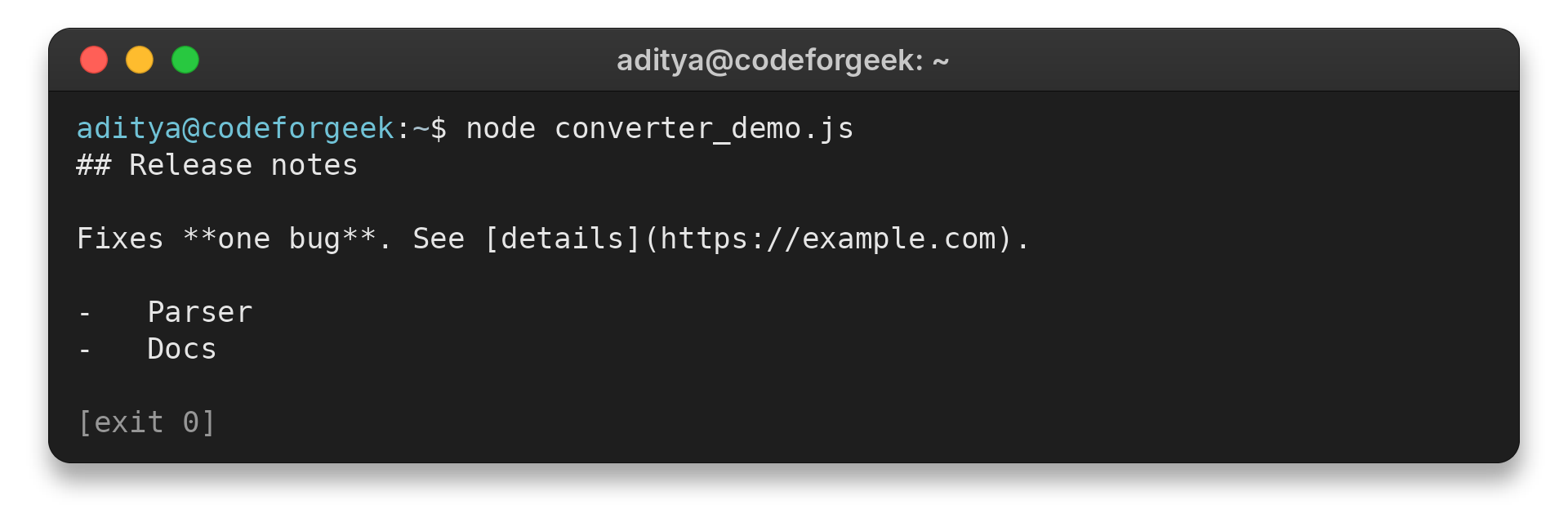
The captured output makes the mapping visible: a hash heading, bold markers, a Markdown link and list bullets appear in place of the corresponding HTML structures, with no CSS layout in the source sample.
How to convert HTML to Markdown step by step
Work from a small, meaningful source section and verify the converted text before moving it to another editor. The conversion step is quick, while selecting the correct source and reviewing the result prevent unwanted navigation or lost structure.
Step 1: Select the content you need
Copy the relevant HTML fragment from the source editor or document, such as an article body or a section you want to reuse. A whole page can include menus, sidebars, cookie notices and footer links, so extracting only the intended article or main-content region gives you less irrelevant output to remove.
If a heading or list disappears, copy a wider complete element and convert again. The tool accepts pasted HTML and does not fetch a webpage URL for you.
Step 2: Paste HTML and convert it
Paste the fragment into the HTML Input box and choose Convert to Markdown. The output appears in the Markdown Output box. For a minimal check, compare these source structures with their Markdown equivalents:
| HTML structure | Typical Markdown form |
|---|---|
| <h2>Heading</h2> | ## Heading |
| <strong>bold</strong> | **bold** |
| <a href=”/docs”>Docs</a> | [Docs](/docs) |
| <li>Item</li> | – Item or 1. Item |
Exact spacing and marker choices depend on converter settings. The table shows the structural mapping to look for, not a guarantee that every implementation emits identical characters.
Step 3: Review and copy the Markdown
Read the output from top to bottom. Confirm that heading levels remain in order, links point to the right destinations, list items remain grouped, and code has not blended into surrounding prose. Then select and copy the Markdown into your documentation editor, repository or notes.
Use Clear All to empty both boxes before another conversion. If you need to convert Markdown back into HTML, use the Markdown to HTML converter.
Common HTML to Markdown conversion issues
Markdown is a smaller format than HTML, so conversion is a structural rewrite rather than a pixel-for-pixel copy. Treat the output as editable text and check the features your destination supports.
- CSS and visual layout: colors, font sizes, columns and positioning usually have no direct Markdown equivalent. Keep a separate HTML or stylesheet copy if the appearance matters.
- Scripts and interactive widgets: a Markdown document cannot carry a working form or script. Expect behavior to be absent, and do not treat converted text as a runnable webpage.
- Tables: simple tables may convert when the target supports a table extension, but merged cells and nested tables do not have a uniform Markdown representation. Inspect every row and preserve the source HTML when cell relationships matter.
- Images: Markdown can store an image destination and alt text, but the image file itself is separate. Verify that the destination can access the referenced image.
- Incomplete fragments: partial or malformed markup can parse differently from the original page. If a heading or list disappears, copy a wider complete element and convert again.
Turndown supports custom rules and can keep selected HTML elements in its output, which is useful when a conversion needs exceptions. That retained HTML may not render in every Markdown editor, so test the result in the system where you plan to publish it.
Conclusion
An HTML to Markdown converter saves the manual work of rewriting standard headings, emphasis, links and lists. Keep the source for features Markdown cannot express, and check the converted document in its final editor before you publish or archive it.
For syntax details, see the Turndown documentation and the Markdown Guide’s basic syntax reference.
Can I convert a full webpage’s HTML source?
Yes, but a full page may include navigation, sidebars and footer content. Select the main content section when you only need the article.
Will the converter preserve CSS styling?
No. Markdown represents document structure, not most CSS styling such as colors, columns or font sizes. Keep the HTML and CSS if visual layout matters.
Does HTML to Markdown conversion keep links?
A supported anchor is usually represented as Markdown link text and a destination. Review the output to confirm the destination is intact.
Can Markdown represent complex HTML tables?
Not consistently. Simple tables may work in Markdown variants with table support, but merged or nested cells may need to remain HTML.