New to Rust? Grab our free Rust for Beginners eBook Get it free →
Online Markdown to HTML Converter – Paste and Convert Instantly

Markdown to HTML Converter
When content moves from a Markdown editor into a website or email editor, the destination may need HTML rather than Markdown. An online Markdown to HTML converter reads Markdown formatting marks and produces HTML for the destination to render.
I’ll show how to convert Markdown with the tool and check the output in its destination.
TL;DR
Paste Markdown into the input, select Convert to HTML, then inspect and copy the generated markup for your destination.
- Markdown is the source text. HTML is the tag-based structure a browser or publishing system can render.
- The converter’s output depends on the Markdown syntax its parser supports.
- Conversion does not guarantee safe HTML or identical styling in another website.
What is an online Markdown to HTML converter?
An online Markdown to HTML converter reads formatting marks in plain text and produces HTML tags for the same structure. Markdown is the source you edit. HTML is the output you can paste into a page editor or inspect in a browser.
For example, a line beginning with a hash can become a heading element, two asterisks around words can become a strong element, and a Markdown link can become an anchor tag. A blank line often separates paragraphs. The exact output markup and support for extensions depend on the parser and its settings.
A parser is the software that recognizes Markdown structure and maps it to HTML. It does not decide your website’s colors or layout. A browser applies CSS to the tags, while a content management system may add its own theme styles or filter the markup on paste.
| Part | Role |
|---|---|
| Markdown source | Text and formatting markers you provide |
| Parser | Recognizes syntax and creates HTML elements |
| HTML output | Markup for the destination to render or filter |
| Stylesheet | Controls how rendered elements look |
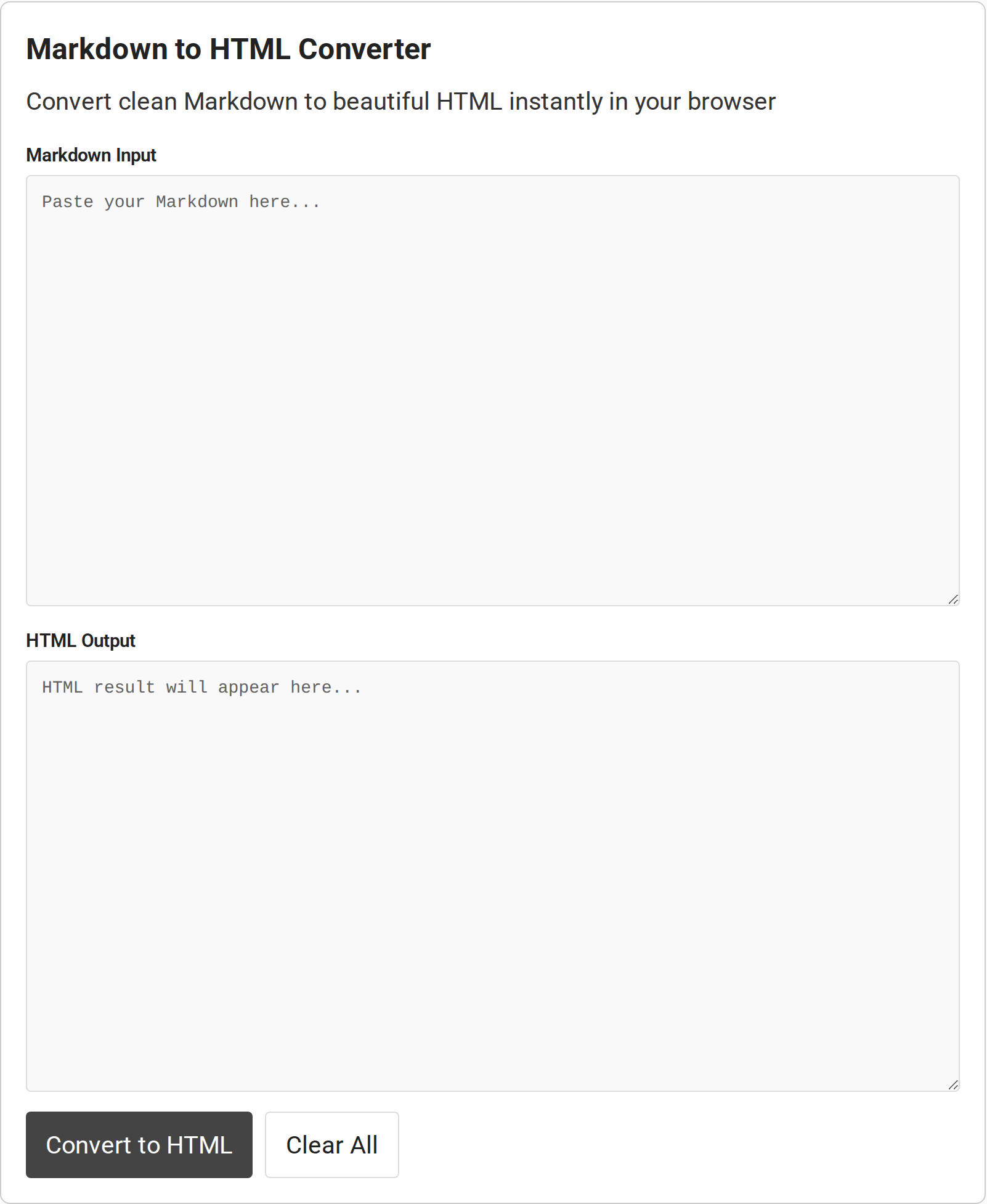
The visible converter has a Markdown Input box, an HTML Output box, a Convert to HTML button, and a Clear All button. Its page code loads Marked to parse the text and Prettier’s HTML parser to format the result.
That explains why the output can contain line breaks and indentation for readability. Formatting does not change the document’s meaning or verify that every desired feature rendered.
Markdown implementations can interpret edge syntax differently. CommonMark defines a core syntax, while GitHub Flavored Markdown adds conventions such as tables and task lists. A converter that supports one dialect may not produce the same result as a preview in an editor configured for another.
The output is markup for the converted content, not necessarily a complete HTML document. A heading or paragraph conversion can produce an h1 or p element without adding a doctype, head, page title or stylesheet. That is normal when the destination expects an HTML fragment to place inside an existing page.
This distinction helps when the destination displays tags as text or accepts the content but does not style it. A code editor may show the literal tags until you save or preview the page. If you need a standalone file, check whether your destination needs a document wrapper and add it there rather than assuming a fragment is a finished webpage.
| Markdown source | Typical HTML structure | What to verify |
|---|---|---|
| # Release notes | <h1>Release notes</h1> | Heading level fits the destination page |
| **Important** | <strong>Important</strong> | Emphasis survives when pasted |
| – First item | <ul> with <li> | List indentation and nesting |
| [Guide](https://example.com) | <a href=”…”> | URL and link text are correct |
How to convert Markdown to HTML with the online tool
The conversion takes place in the tool’s two text areas: the first holds the Markdown source, and the second displays HTML output. Prepare a small test first if the document uses extensions or content that needs careful handling.
Step 1: Prepare the Markdown source
Copy the Markdown from your editor, keeping its blank lines and code fences intact. A code fence is a pair of lines containing three backticks that marks a code block. Missing a closing fence can cause later text to be treated as code instead of paragraphs or headings.
For a first check, use a short sample with one heading, a paragraph, a link, and a list. That gives you an immediate way to see whether common structure becomes the tags you expect before pasting a longer document.
Step 2: Paste it into Markdown Input
Place the copied text in the box labeled Markdown Input. Keep the original file or source open until you have checked the result. The tool’s output box is read-only, so make corrections in the source and convert again rather than trying to edit that field.
Step 3: Select Convert to HTML
Select Convert to HTML to run the conversion. The output area is labeled HTML Output. If the result is empty or stops partway through, check that the source was pasted into the input field and that the browser finished loading the tool’s scripts.
Step 4: Inspect and copy the output
Read the generated HTML before copying it. Confirm that headings use the intended levels, links point to the right destinations, and fenced code appears within preformatted tags. If the source includes a table, task list or embedded HTML, check that the output contains the corresponding structure instead of assuming every Markdown dialect is supported.
The whitespace added by a formatter can make tags simpler to scan, but it is still markup, not a visual preview of your finished page.
Step 5: Test it in the destination
Paste the result into the destination’s HTML view, then preview it there. A CMS may strip tags or attributes, and its stylesheet can render headings, tables or code differently. For email, use the platform’s preview and send a test message because clients vary in their HTML and CSS support.
Edge cases: what to check when the HTML looks wrong
When the result differs from the preview you expected, check the source syntax and the parser’s Markdown dialect before changing the HTML by hand. Small formatting differences can change where a paragraph, list or code block ends.
| Symptom | Likely cause | Next check |
|---|---|---|
| Several paragraphs appear inside a code block | A closing backtick fence is missing or mismatched | Check both fence lines and their indentation |
| A table remains plain text | The parser may not support table syntax | Confirm whether its dialect includes GFM-style tables |
| Line breaks differ from the editor preview | Renderers can handle soft line breaks differently | Compare with the target platform’s Markdown rules |
| Raw tags appear or vanish | Raw HTML handling depends on parser settings and destination filters | Review the source and the destination’s allowed markup |
| HTML structure exists but looks unstyled | The destination stylesheet differs from the preview | Check in the destination, not only in the output text |
Markdown is a format family rather than one identical behavior shared by every application. A heading and a basic list are widely recognized, but extensions such as tables, checkboxes, footnotes or diagrams may require a specific parser or plugin. When a feature matters, verify it against the destination’s documentation and inspect the rendered page.
Prettier arranges tags and whitespace for scanning, but it cannot restore syntax the parser missed or confirm the destination accepts a tag. If line breaks look wrong, correct the Markdown or use a parser with the required dialect.
The Clear All control clears both text areas so you can begin another conversion. Before using it, copy any output you still need. Keep the original Markdown separately if it is the source of truth, because HTML is less convenient to edit as a document.
Is converted HTML safe to publish?
Not automatically. Conversion changes Markdown into HTML, while sanitization checks whether that HTML contains markup or attributes that should not be trusted. Treat the two as separate steps whenever a document contains content from someone else or will be shown to other users.
Marked’s documentation explicitly warns that it does not sanitize generated HTML. Its parser can produce HTML, but that does not make the output safe to insert into an application without additional checks. The markdown-it project describes a safer default that disables raw HTML, or enables it alongside an external sanitizer.
This distinction matters because unsafe HTML can create cross-site scripting (XSS), where injected browser code runs in a visitor’s session. A Markdown converter is not a security review, and a tidy-looking output is not evidence that scripts or dangerous attributes were removed.
- For content only you control, inspect the generated tags and test the page in the intended destination.
- For user-submitted or third-party Markdown, use a trusted sanitizer configured for your application’s allowed tags and attributes.
- Do not insert untrusted converted output directly into a page with an unsafe HTML injection method.
- Check links and image URLs as well as visible text, especially when the content can come from an unknown source.
Sanitizer configuration depends on where the HTML will be rendered and which elements the page needs. A policy suitable for a static personal note may not fit a multi-user application. Follow the security guidance for your framework, and test the sanitized result after conversion rather than assuming the converter applies that policy.
Conclusion
Use the online Markdown-to-HTML converter to turn source text into markup, then check that the output matches the syntax and dialect your destination accepts. Preview the pasted HTML in its actual site or email editor, and sanitize it when the source is not trusted.
For parser behavior, see the Marked documentation and its security warning. For the baseline Markdown syntax, consult the CommonMark specification. If your application uses markdown-it, its safety guide explains the project’s HTML and sanitizer choices.
How do I convert Markdown to HTML online?
Paste the Markdown into the input box, select Convert to HTML, inspect the generated markup, then copy it into your destination and preview it there.
Does every Markdown converter support tables and task lists?
No. Support depends on the parser and its dialect. Check whether the converter supports the syntax you use, then verify the output in the destination.
Is Markdown converted to HTML safe to publish?
Not by conversion alone. A parser can generate HTML without sanitizing it. Sanitize untrusted content using a policy suited to the application where it will be rendered.