New to Rust? Grab our free Rust for Beginners eBook Get it free →
Node Sass Binding Error: Fix and Migration

When a Node Sass binding error interrupts a build, first check whether the binding matches the build environment. Node Sass runs Sass builds through LibSass using a compiled native binding.
This article shows how to check the Node runtime and decide whether to rebuild node-sass or migrate to sass.
TL;DR
Check the failing build environment first, then rebuild only if its Node release is supported. Otherwise replace Node Sass with the sass package.
- Compare Node version, ABI, operating system and architecture from the failed build.
- Use npm rebuild node-sass only when that Node release appears in its support table.
- Otherwise migrate to sass and check for packages that still depend on node-sass.
What Is the Node Sass Binding Error?
Node Sass pairs LibSass with a compiled native binding, and the exact error text distinguishes a missing module from an ABI mismatch or compiler failure.
The Node module ABI identifies the binding interface. Platform and CPU architecture matter too, which is why dependencies copied from a host may fail inside a container.
| Message clue | What it indicates |
|---|---|
| Missing binding or ABI mismatch | The installed binary does not match the build runtime |
| Cannot find module node-sass | The package is absent or its installation did not finish |
| node-gyp compilation failure | No usable prebuilt binding was found, or native build prerequisites are missing |
Node Sass 9 lists support through Node 20. The Sass team declared the package end-of-life on July 24, 2024, and recommends Dart Sass.
How to Fix the Node Sass Binding Error Step by Step
Collect the runtime details from the command that actually launches the failing build.
Step 1: Check the Node runtime and binding details
Run these commands from the project directory in that build environment:
node --version
node -p "process.platform + ' ' + process.arch + ' ABI ' + process.versions.modules"
v26.7.0
linux arm64 ABI 147
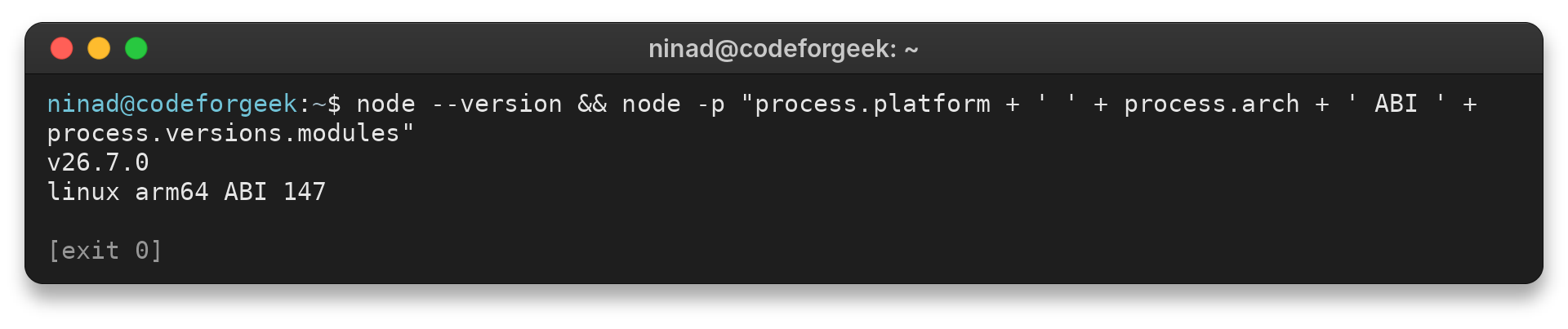
Compare these values with the error’s “current environment” and “Found bindings” lines. Run npm ls node-sass to locate the direct or transitive dependency.
Step 2: Rebuild only when the runtime is supported
If Node Sass supports the project runtime, execute its install script in the build environment:
npm rebuild node-sass
Keep this command inside the same container, CI job or shell that runs the application. The rebuild can download a matching prebuilt binding or attempt a source build. If no binary exists for that platform, compilation needs the prerequisites listed by node-gyp, including Python and a C++ toolchain.
I compiled a small SCSS file with the maintained sass package. Running node compile_sass.js printed this CSS:
.button {
  color: #2457c5;
}
.button:hover {
  color: #fff;
}
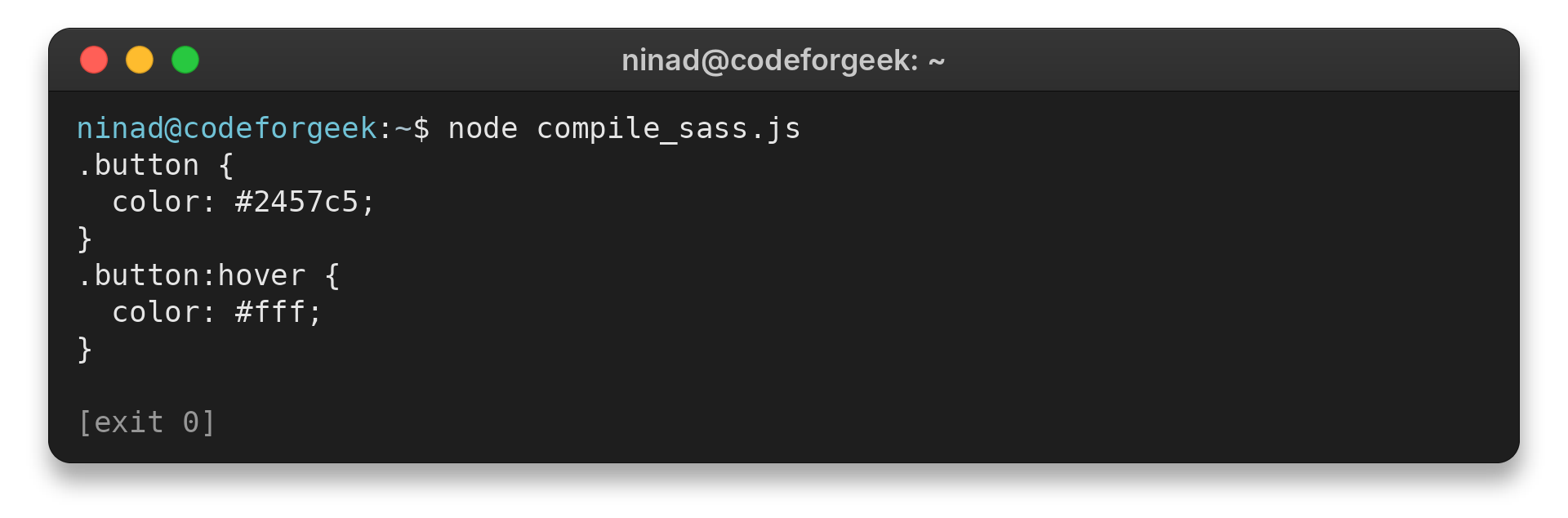
The command exited successfully and produced both rules. That confirms the replacement can compile this fixture without Node Sass. Project-specific Sass functions or imports may need changes.
Step 3: Migrate from node-sass to sass
Replace Node Sass when its support table excludes your runtime or the package is no longer viable for the project.
npm uninstall node-sass
npm install --save-dev sass
Change scripts from node-sass to sass. For JavaScript imports, check whether the project uses the legacy render API or the current compile API. Run the build and compare generated CSS.
Loaders and plugins may select an implementation in configuration. Follow their documentation and upgrade any parent package that still requires node-sass.
Edge Cases and Next Steps
I ran node node_sass_probe.js without the package installed and got “MODULE_NOT_FOUND: Cannot find module ‘node-sass’” (exit 1). Install completion or dependency resolution needs attention before rebuilding.
Use the symptom to choose the next check:
| Symptom | Likely cause | Next move |
|---|---|---|
| “Cannot find module” for node-sass | Package is absent or install did not complete | Inspect npm ls node-sass and the install log |
| “Could not find a binding” and found bindings list another ABI or platform | Environment changed after installation | Run the build and rebuild under the same supported Node and platform |
| node-gyp compilation fails | No matching prebuilt binding, or missing compiler prerequisites | Check node-gyp’s OS prerequisites. Prefer migration when Node is unsupported |
| Binding error after copying dependencies into a container | Host and container platforms differ | Exclude node_modules from the image context and install dependencies inside the image |
If compilation fails in node-gyp, read how to fix a Make failed with exit code 2 build for the compiler failure path. On macOS, the separate Xcode Command Line Tools error guide covers that prerequisite.
A lockfile change alters dependency resolution, so inspect the runtime and npm ls output first. If a build differs between a shell and CI, print process.version and process.execPath from the failing process.
Conclusion
Match the dependency installation environment to the build, and choose Dart Sass when the project runtime falls outside Node Sass support.
FAQ
These answers cover the common version and migration questions behind the binding message.
How do I check my Node Sass version?
Run npm ls node-sass in the project. Check node --version and process.versions.modules in the same environment that runs the build.
Can npm rebuild node-sass fix a binding error?
It can repair an environment mismatch when the Node release and platform are supported. Run it under the same runtime as the failing build. It cannot add official support for an unsupported Node release.
Is Node Sass deprecated?
Yes. The Sass team declared Node Sass end-of-life in July 2024 and recommends Dart Sass, published as the sass package.
How do I migrate from node-sass to Dart Sass?
Replace node-sass with the sass package, update direct CLI or JavaScript calls as needed, then run the project’s build and check for transitive node-sass dependencies.