New to Rust? Grab our free Rust for Beginners eBook Get it free →
Free PDF to JPG Converter: Convert Pages Online

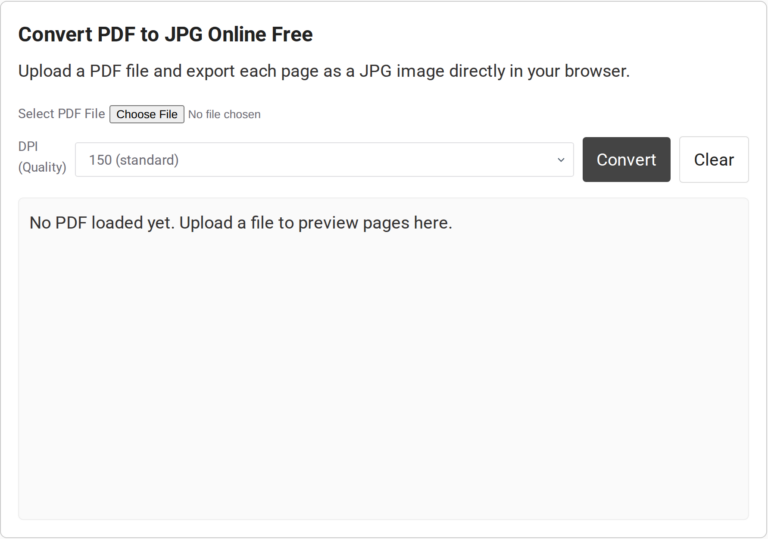
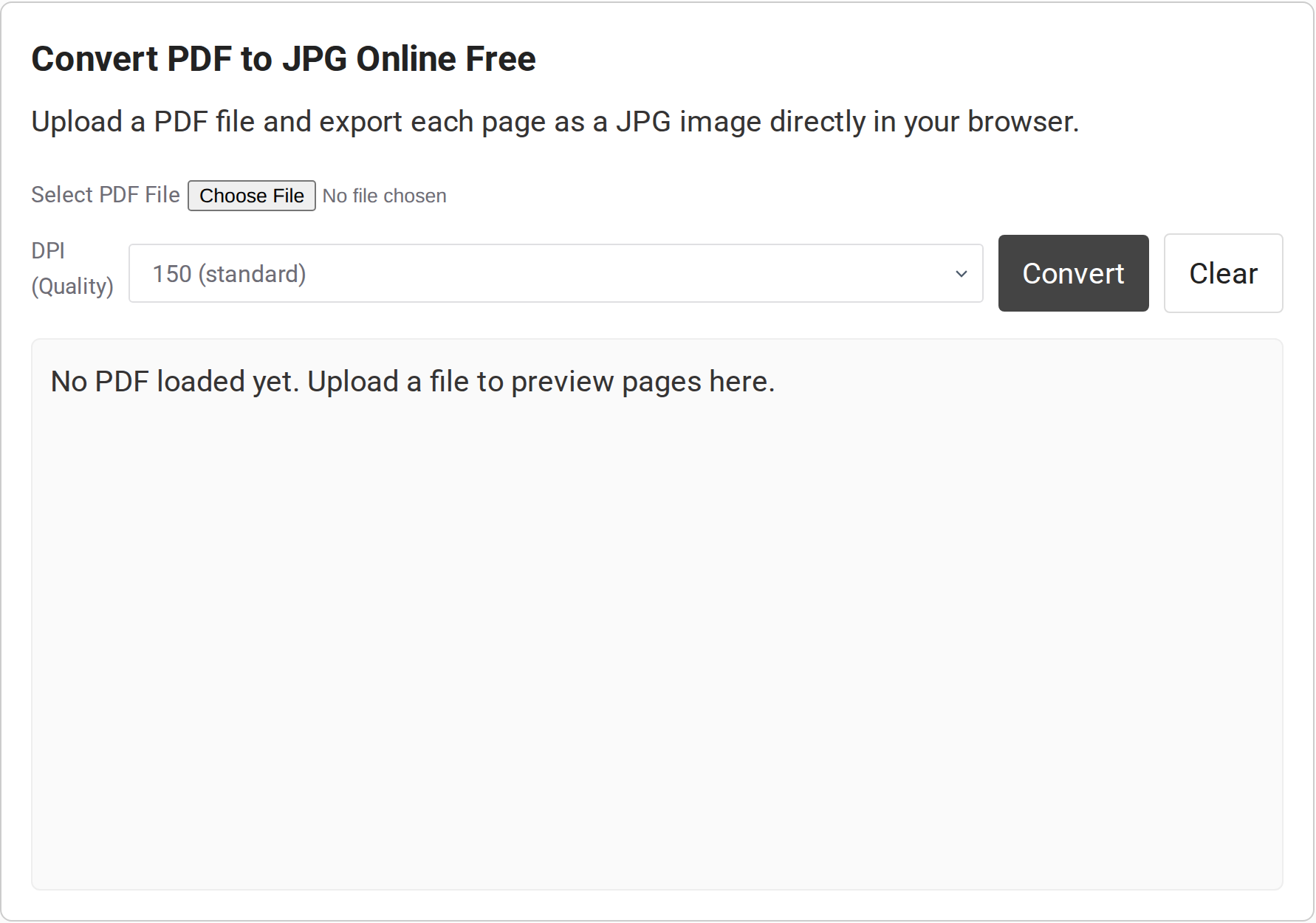
Convert PDF to JPG Online Free
Upload a PDF file and export each page as a JPG image directly in your browser.
No PDF loaded yet. Upload a file to preview pages here.
A site may ask for image files when you have a document saved as a PDF. A PDF-to-JPG converter renders each PDF page as a separate JPG in your browser.
I’ll show you how to convert the pages and choose a render size that keeps the details you need readable.
TL;DR
This converter renders each PDF page as a separate JPG in your browser. Start with the default 150 DPI (dots per inch), then choose 300 only when small text needs more pixels.
- Select a PDF and choose 72, 150, or 300 in the DPI menu.
- Click Convert, then save the page links you need.
- Use another tool if you need embedded pictures extracted rather than full pages rendered.
What Is a PDF-to-JPG Converter?
JPG is a raster format that stores a page as pixels, so text and shapes appear inside the image. PDFs can also contain embedded pictures. Extraction saves one picture by itself, while a page render keeps the surrounding layout and JPEG compression can change pixel values.
| Source or output | What it contains | Choose it when |
|---|---|---|
| PDF page | Text, shapes, and pictures arranged as one page | You need a visual copy of the full layout |
| Embedded image | A picture object inside the PDF, without the surrounding page | You need the original picture asset |
| JPG page image | A flattened pixel image of a rendered page | The destination accepts images but not PDFs |
How to Convert a PDF to JPG Online
Start at the default 150 DPI. Raise it only when fine details need more pixels because a larger render needs more browser memory.
Step 1: Select the PDF
Select the PDF. The browser reads it and shows its page count. If the file picker still says no file chosen, select it before Convert.
Step 2: Choose a render size
The tool passes the chosen value divided by 72 to PDF.js as the page scale. This changes pixel dimensions rather than promising print sharpness. Pick the lowest setting that keeps the details you need readable.
| DPI setting | Use it for | Trade-off |
|---|---|---|
| 72 | Small screen previews | Fewer output pixels |
| 150 | General viewing | Default middle setting |
| 300 | Fine text and detail | Larger canvas and more browser work |
Step 3: Convert and save pages
Click Convert and wait for previews. The code creates one download link per page, named page-1.jpg, page-2.jpg, and so on. Save the links you need.
PDF-to-JPG Quality and Browser Limits
Higher DPI can keep small details legible, but it increases image size and browser work. Pick the lowest setting that remains readable at the final display size.
| Situation | What you may see | What to try |
|---|---|---|
| Small text looks soft | Letters lose detail when enlarged | Convert again at 300 DPI, then check the image at its intended display size |
| Large page or many pages | The browser slows, stalls, or cannot create an image | Try 150 or 72 DPI, then split a long PDF into smaller parts |
| Blank or failed download | The PDF may not have loaded, or the browser canvas may have hit a size limit | Confirm the page count first, lower DPI, and try the affected pages again |
| Password prompt needed | The visible converter has no password field | Open the PDF in software that supports its protection, then use an allowed export route |
JPEG compression is lossy. MDN notes that an over-limit canvas can return the value data:, instead of an image, and that the limit depends on the browser and device.
Conclusion: Choose the Output You Need
Use this when the destination needs page images, not original picture files.
- If your next step is gathering image files into a PDF, use CodeForGeek’s image-to-PDF converter.
- For a new PDF from text, Markdown, or HTML, see the text-to-PDF tool.
- For the rendering model, read Mozilla’s PDF.js examples and MDN’s guide to canvas JPEG export.
FAQ
Check the output your destination accepts, because full-page JPGs and embedded pictures are different results.
Can I save one page from a multi-page PDF?
Yes. The converter renders each page and creates a separate download link, so save the page you need.
Does a higher DPI make the JPG lossless?
No. A higher render scale creates more pixels, but JPG still uses lossy compression. It cannot restore detail that was not present in the source PDF.
Can I convert a password-protected PDF here?
The visible converter has no password field, so support for a protected PDF is not established. Use a PDF app that can open it if the browser tool cannot load it.