New to Rust? Grab our free Rust for Beginners eBook Get it free →
Convert Images to PDF Online Free

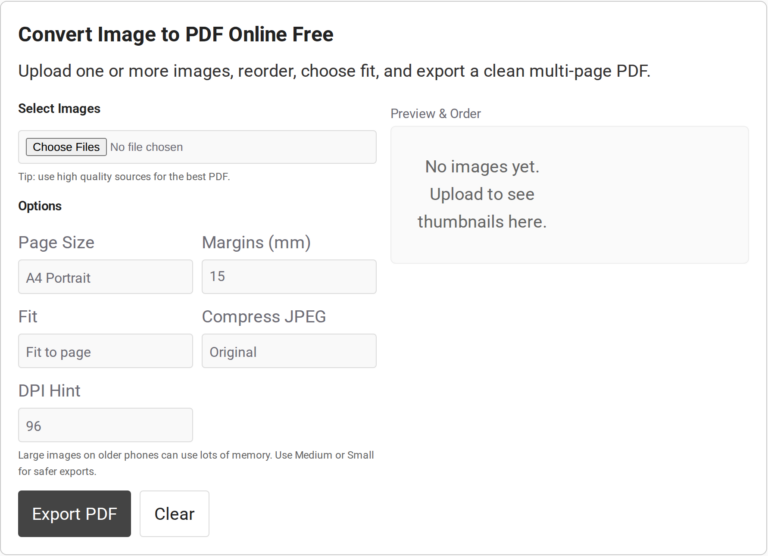
Several photos can go in one file for sharing. The CodeForGeek image-to-PDF tool puts each selected picture on its own PDF page in your browser.
I’ll show how to make one PDF from selected images and explain how the browser processes those files.
TL;DR
Select JPG or PNG images, put them in the PDF page order, choose a fit and page size, then export. The CodeForGeek tool creates one PDF page per image in your browser.
- Choose Fit to page when the full image must remain visible.
- Use Fill page only when cropping the edges is acceptable.
- Use JPEG quality settings for photos. Split a large batch if the browser struggles.
What Is Image to PDF Conversion?
Image-to-PDF conversion places each picture on a PDF page. Choose it when pictures are the source, because the output remains raster content.
Several pictures can travel as one file. Text in a photo remains pixels because this converter does not run OCR.
| Input | PDF result | Check before export |
|---|---|---|
| One image | One page | Choose portrait or landscape to suit its shape. |
| Several images | One page per image | Reorder the thumbnails before exporting. |
| Scanned text | An image on a PDF page | Use OCR later if the words must be searchable. |
How to Convert Images to PDF Step by Step
Arrange thumbnails first because the converter adds one PDF page in that order. Then choose the page layout and export.
Step 1: Select the images
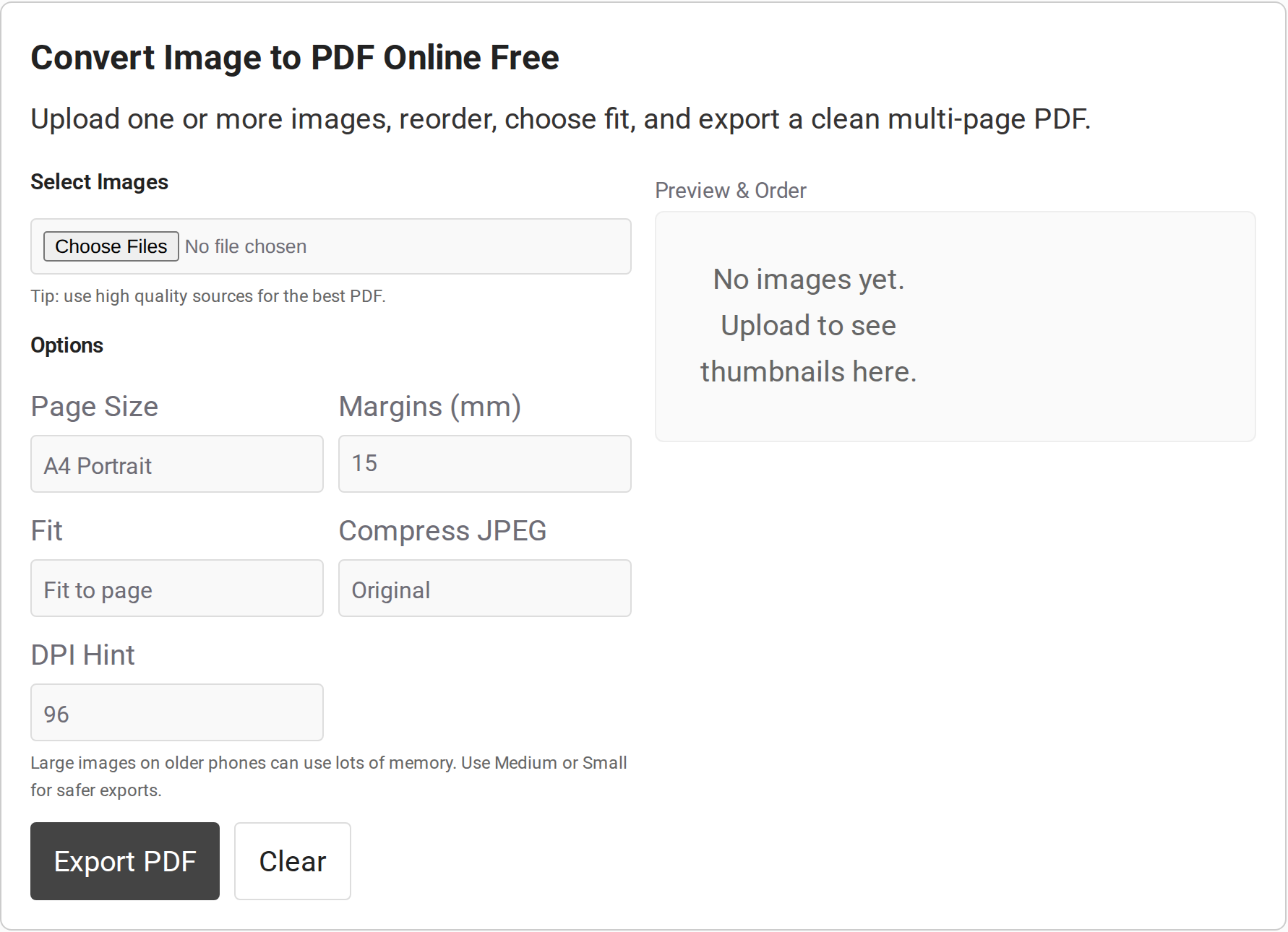
Choose Select Images and add the files. The preview shows thumbnails after selection. The screenshot below is the empty starting state, not a completed conversion.
Step 2: Set the page order
Use Up or Down on a preview card to change its position. Pages follow the image-list order, so check thumbnails before exporting.
Step 3: Choose the page layout
Select A4 or Letter, orientation, a margin in millimeters, and Fit to page, Fill page, or Original size. Choose the fit after checking the image shape.
Step 4: Export and save the PDF
Choose Export PDF, save the result, and open it once. Check that the pages follow the selected order and each image fits before sharing.
Which PDF Settings Should You Choose?
Match A4 or Letter to the recipient’s requirement because the page dimensions are part of the exported PDF.
| Control | What it changes | Use it when |
|---|---|---|
| Fit to page | Scales the whole image inside the page area. | Text or borders must stay visible. |
| Fill page | Fills the page area and may crop edges. | A full-frame page matters more than every edge. |
| Original size | Uses DPI to map pixels to physical size. | Print dimensions matter. Check for clipping. |
| A4 or Letter | Sets paper dimensions. | Match the recipient’s or printer’s paper. |
| Margins | Sets space around the image in millimeters. | Leave room for notes or printer limits. |
Original size can spill past the page at a high DPI. For receipts, use Fit to page when every edge matters.
JPEG can be re-encoded at Original, High, Medium, or Small quality. PNG follows the PNG path, so the JPEG setting does not reduce a PNG file.
What Does “No Upload” Mean for Privacy?
The page says it works offline. I compared that claim with the current code: the custom converter loads pdf-lib from unpkg, so I do not describe the whole page as network-free. I found no conversion request sending selected image bytes to a server in that block.
- The selected images are processed by browser JavaScript.
- Page code receives access to files selected for processing, so use only a site you trust with those files.
- This source review covers the custom converter block only.
If your policy forbids third-party scripts, choose an offline tool that does not load them.
What Should You Check if the PDF Looks Wrong?
Check the file type first when an image will not embed, because the picker accepts image/* while the PDF code handles JPEG or PNG.
| Symptom | Check | Next move |
|---|---|---|
| An edge is missing | Fit mode | Choose Fit to page instead of Fill page or Original size. |
| Export stalls or fails | Batch size | Remove files and export smaller groups. |
| The PDF is large | JPEG quality | Try High or Medium for JPEG. PNG quality does not reduce the file. |
| A format will not embed | File type | Use JPG/JPEG or PNG. The code does not support GIF, HEIC, or WebP. |
| Words cannot be selected | Image-only page | Run OCR separately if text search is required. |
Check one scan before a large batch. The tool warns above 100 megapixels in total, which can strain browser memory. If the first page is legible and its edges fit, add the remaining images in order.
Conclusion: Keep the Image Order and Fit in View
Check the order and page edges in the exported file before sharing. If the source is text, use a text-to-PDF workflow instead.
- For plain text or HTML, use CodeForGeek’s text-to-PDF tool.
- For Markdown notes, use the Markdown-to-PDF converter.
- For the browser APIs behind local file handling, see the MDN File API and the PDF-LIB PDFDocument API.
FAQ
Quick answers before export.
Can I convert several images into one PDF?
Yes. Select multiple images, arrange their order in the preview, and export. The tool creates one PDF page for each image.
Can I use the image-to-PDF tool on a phone?
Open the page in a phone browser, choose images through its file picker, and save the exported PDF from the browser download. Split a large batch if the browser runs short on memory.
Will text in a photo become searchable in the PDF?
No. The tool places the picture on a PDF page but does not run OCR. Use a separate OCR tool when you need searchable text.