New to Rust? Grab our free Rust for Beginners eBook Get it free →
Convert Text to PDF Online for Free

A note with formatting can look different after it moves from an editor into a PDF. This page converts pasted content into a PDF and gives you a preview to review before exporting.
The article explains which input formats the page handles and how to check the saved file for page or formatting problems.
TL;DR
Paste plain text, Markdown, or HTML into the converter, render the preview, then select Export PDF. The page turns the preview into an image-backed PDF, so inspect long documents and formatting before you save the file.
- Use the text box for content you can paste. This page does not provide a Word or PDF file upload control.
- Choose Render Preview to see how the input is interpreted.
- Choose Export PDF only after checking the preview and downloaded file.
What Is This Online PDF Converter?
Use this page to turn pasted plain text, Markdown, or HTML into a PDF, with a preview between input and export.
| Input | How the page handles it | What to check |
|---|---|---|
| Plain text | Displays the text as text in the preview. | Line breaks and long lines may wrap differently in the PDF. |
| Markdown | Uses markdown-it to turn recognized markup into preview HTML. | Check headings, lists, tables, and code formatting in the preview. |
| HTML | Sanitizes markup with DOMPurify before placing it in the preview. | Complex CSS, scripts, and unsupported elements may not appear as expected. |
After trimming whitespace, the converter uses a leading less-than sign to identify HTML, checks for Markdown punctuation such as hashes, asterisks, underscores, tildes, plus signs, and hyphens, and treats other content as plain text.
When a paragraph appears too dense, split it with a blank line in the input and check the updated block in the preview.
The export captures the preview with html2canvas, then jsPDF inserts that canvas as a PNG image on A4 pages, so the PDF contains visual page content rather than structured text. A block that crosses a page boundary can split.
Convert to PDF File Online Free
Paste plain text, Markdown, or HTML and export it as a PDF instantly.
How to Convert Text to PDF Online With This Tool
Choose the input format first, then follow the four steps below to enter the content and finish with a downloaded file.
Step 1: Enter Text, Markdown, or HTML
Click in the Input Content box and paste the material you want to convert. If an example is already there, select it and replace it with your own content.
The Clear button empties the input and preview. Paste your content after clearing the box. Before copying from another editor, remove repeated blank lines and decorative characters that do not belong in the final document.
For HTML, use tags that describe the document, such as headings and paragraphs. A complete site with scripts and external dependencies is not needed for this conversion.
- Remove copied navigation, editor toolbars, and repeated blank lines that should not appear in the PDF.
- Keep section headings and paragraph breaks so the preview has a clear reading order.
- Shorten very wide lines or tables before conversion when they need to fit on a page.
For a long source, decide which headings should become sections and shorten any lines that will create very wide blocks. This gives the review a clear order.
Step 2: Render and Inspect the Preview
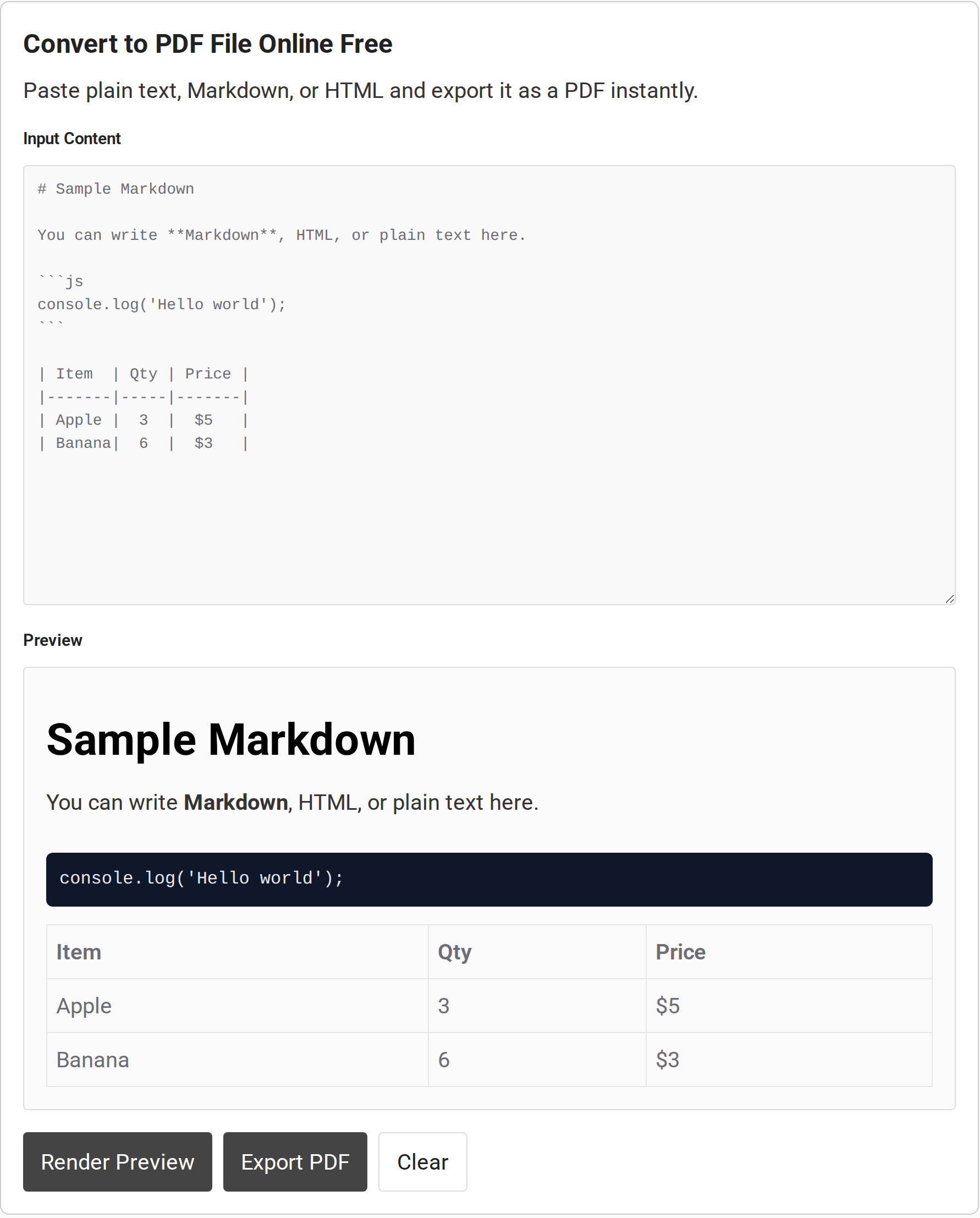
Select Render Preview to update the panel below the input. Look for the document title, paragraphs, lists, tables, and code blocks you expect to see. If the preview still shows the sample content, replace the input and render again.
On page load, the sample illustrates the preview’s support for headings, bold text, code, and a table. Treat it as an interface example, then compare your own content after selecting Render Preview.
- Render Preview updates the panel so you can inspect the current input.
- Clear removes the input and preview so you can start with a blank box.
Compare headings, lists, spacing, and symbols against your source. If a detail changed, edit the input and select Render Preview again.
Step 3: Fix the Input Before Exporting
Make corrections in the input box, then select Render Preview again. If Markdown markers show up literally, check whether the page chose the plain-text path. If a basic HTML heading or paragraph is missing, simplify the markup and review the preview once more.
Use short lines and narrow tables when the document needs to fit a page. Long tables and unbroken paragraphs can be difficult to review at page boundaries, so split very long sections into smaller headings before export. The preview does not offer word-processor controls for keeping a heading with the following paragraph or moving a table to the next page.
Keep HTML styling simple: DOMPurify sanitizes markup before it reaches the preview, and the export captures what the browser rendered. Sanitization reduces unsafe markup but cannot promise that every tag, style, or embedded asset will appear.
Step 4: Export and Open the PDF
Select Export PDF after the preview looks right. The export handler captures the current preview, places it into an A4 PDF with margins, and saves the file as converted.pdf.
Open the downloaded PDF instead of stopping at the browser message. Check the first page, the last page, and any page where a table or long paragraph crosses a boundary. Confirm that the file has the expected page count and that the content is legible at normal zoom.
The converter uses the same base filename for each export. If you run it more than once, check the browser downloads panel for the latest copy and confirm its timestamp before opening or sharing it.
If the browser asks where to save the file, choose a folder you can find again. When a download seems missing, check the browser’s downloads panel before repeating the export. A repeated click may create another copy with a numbered filename.
What to Check When the PDF Looks Wrong
Common problems come from input being interpreted in a different format than expected, unsupported rendering details, or content that does not fit cleanly across pages. Use the preview and saved PDF to identify which stage needs attention.
| Symptom | Likely cause | What to do |
|---|---|---|
| Preview is empty | The input was cleared or contains only whitespace. | Paste content, select Render Preview, and confirm that the panel shows it. |
| Symbols become headings or lists | Characters in the input caused automatic Markdown parsing. | Remove or escape the marker, or rewrite the content so the preview matches your intent. |
| HTML styling is missing | The converter sanitizes markup and does not reproduce a full site stylesheet. | Use simple headings and paragraphs, then inspect the preview. |
| A table or paragraph splits awkwardly | The export places a tall image across A4 pages and does not offer page-break controls. | Shorten or split the content, simplify wide tables, and reopen the exported file to check each page. |
| Images are absent from the preview | Cross-origin image restrictions can prevent a browser canvas from reading an image. | Use content that does not depend on external images, or switch to a renderer designed for that source. |
| You have a DOCX, image, or existing PDF | This page accepts pasted content rather than uploaded files. | Use a converter for that specific source format instead of pasting binary file data. |
The export uses A4 pages with fixed margins, and the converter interface does not expose paper-size or orientation controls. Wide tables and landscape material may need a different PDF workflow with settings for page size and layout.
The browser’s print dialog can create a PDF from content already displayed in a browser. Open Print from the browser menu and choose a PDF destination if the dialog offers one. Paper size, margins, background, and scale options vary by browser and operating system, so inspect the preview before saving because scaling a wide page can reduce text size.
Printing the full converter page may include its text box, buttons, and navigation. Use the print route only when the content is presented cleanly in the browser and its preview shows the pages you intend to save. Check headers, footers, and page numbers in print preview because some browser dialogs add them automatically.
If readers need screen-reader support or searchable text, keep a source document with a text layer available alongside the PDF. Verify the reading order and output with the tools your audience uses.
Before pasting sensitive material, consider whether an online page is allowed for it. The converter processes the textarea in browser JavaScript and shows no upload step. Its minified libraries come from CodeForGeek, but this check does not cover site-wide requests or trackers.
Keep passwords, access tokens, and confidential records out of a web tool unless its data handling has been reviewed for that material.
Conclusion: Check the Preview Before Exporting
Render the preview, export the file, and inspect the saved PDF before sharing it. Check page boundaries on long content and verify that the output supports the way readers need to use it.
For other format pairs, CodeForGeek has separate tools to convert images to PDF and export PDF pages as JPG.
FAQ
These answers cover input and output questions that come up after the basic conversion steps.
Can I convert a Word document with this page?
No. This page’s converter accepts text, Markdown, or HTML pasted into its text area. It does not provide a control for uploading a Word file.
Can I select or search the words in the exported PDF?
The export captures the rendered preview as an image and adds that image to the PDF. The words may not be selectable or searchable as text.
Can I change the PDF page size or orientation?
The converter export uses A4 pages and does not show page-size or orientation controls. A browser print dialog may provide separate layout settings for content already displayed in the browser.
Does the preview prove that the whole site makes no external requests?
No. The conversion code processes pasted content in the browser. Its libraries load from CodeForGeek, and this article does not claim a site-wide network or tracking audit.