New to Rust? Grab our free Rust for Beginners eBook Get it free →
Convert Markdown to PDF Online Free

Convert Markdown to PDF Online Free
Markdown notes may be the format you already have, while someone reading them needs a copy to print or share. CodeForGeek’s online converter turns pasted Markdown text into an A4 portrait PDF.
I’ll walk through converting the text and explain what to check before sharing the PDF.
TL;DR
CodeForGeek turns pasted Markdown into an A4 portrait PDF. The page has no .md file picker, and the PDF is an image rather than selectable text. In this piece, I’ll show the three steps and explain when this output is enough.
- Open your Markdown file and copy its contents into Markdown Input.
- Choose Render Preview and check the layout, links and images before exporting.
- Choose Export PDF, then open markdown.pdf and inspect each page.
What Is Markdown to PDF Conversion?
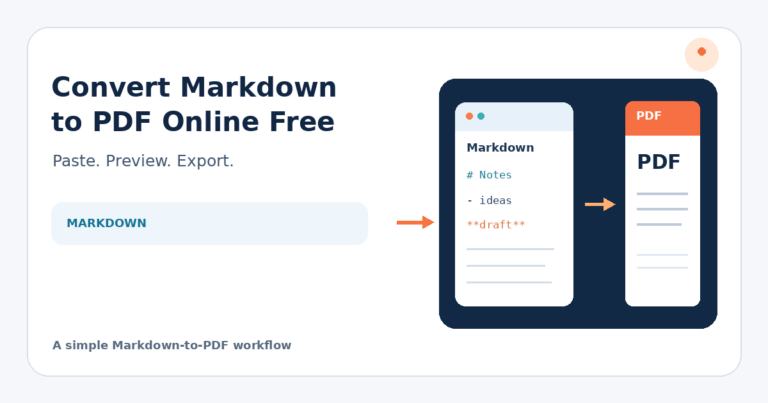
Markdown is plain text marked with headings, lists, links and emphasis. This page renders pasted text as HTML, captures the preview as an image and places it in an A4 portrait PDF. The result is not selectable or searchable text because jsPDF inserts the canvas as an image.
| Stage | What happens | What it means for you |
|---|---|---|
| Paste | Reads pasted text. | Copy the .md contents, there is no file picker. |
| Preview | markdown-it makes HTML. | Check common syntax, raw HTML is disabled. |
| html2canvas captures a PNG, jsPDF puts it on A4. | Text and links are pixels, not searchable text or active links. |
The parser linkifies URLs and keeps line breaks. It has no math or Mermaid extension, and Markdown dialects vary.
How to Convert Markdown to PDF Online with CodeForGeek
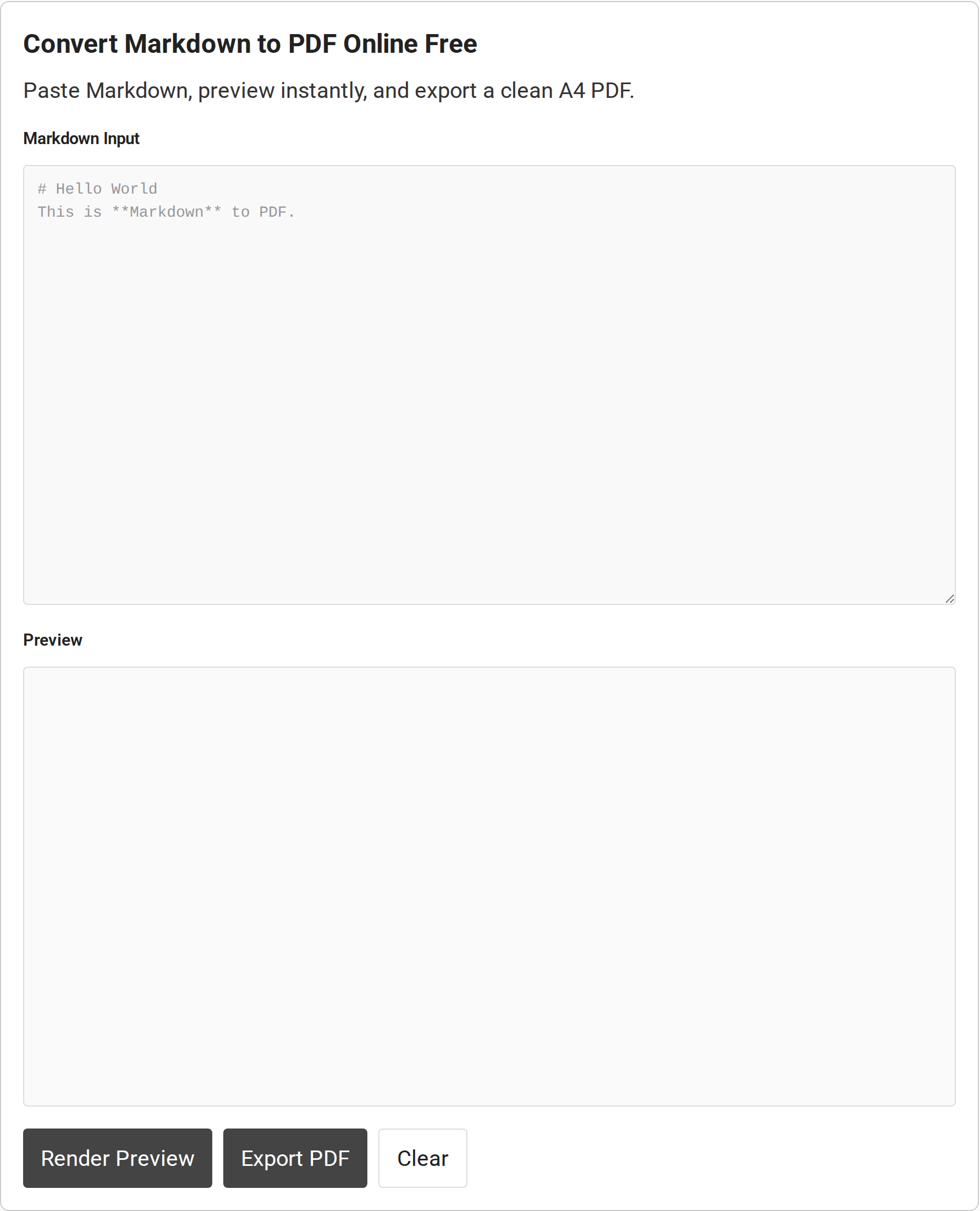
Copy the file’s contents, then use the three controls in order because each action prepares the next one. There is no file upload.
1. Paste the Markdown text
Open the .md file in a text editor and paste its contents into Markdown Input. Local image files are not attached with the text.
2. Render and check the preview
Select Render Preview. Check headings, tables and images, including one representative section of a long file. If Preview stays blank after a reload, external libraries may not have loaded, so do not export.
3. Export and open the PDF
Select Export PDF and open markdown.pdf. Check every page against Preview, especially wide tables, long lines and page breaks.
Check These Limits Before Sharing the PDF
Check the saved file against how the recipient needs to use it.
| What to check | Why it can happen | Next step |
|---|---|---|
| Links and text search | The PDF is a canvas image, not text or link annotations. URLs may look linked onscreen, but the image has no click targets. | Use a text-based export if readers need links, selection or search. |
| Wide tables | The tool uses portrait A4 and has no landscape control. | Shorten or split the table, then inspect the PDF. |
| Images | Local paths lose their .md folder context. Remote images may fail browser CORS checks. | Confirm images in Preview or use a renderer that can access them. |
| Long files and page breaks | One tall canvas is placed across A4 pages, browsers also cap canvas size. | Inspect breaks and split the file if the canvas clips. |
| HTML, math or Mermaid | Raw HTML is disabled, no math or Mermaid extension is loaded. | Use supported syntax or a renderer with the required extension. |
In a Reddit thread about another converter, a user reported that emphasis looked right in Preview but “was lost upon export.” (Source: Reddit)
Conclusion
Use this converter for short notes when an image-based page is enough. For searchable text, working links or controlled layout, choose a document workflow instead. Pandoc’s guide explains PDF output and its LaTeX requirement.
- If your source is a set of photos or screenshots, use CodeForGeek’s image-to-PDF tool.
- If you need to turn pages from a PDF into image files, use the PDF-to-JPG converter.
- For a fuller Markdown workflow, see the Pandoc Getting Started guide and the CommonMark specification.
FAQ
These answers cover the input and output questions that matter before you share a converted document.
Can I upload a .md file to this converter?
No. There is a text area but no file picker. Copy the file contents and paste them into Markdown Input.
Will links in the PDF remain clickable?
No. The PDF contains an image of the preview, not active PDF links or selectable text.
Why are images missing from my PDF?
Pasted text loses its local file path, and browser CORS rules can block remote images. Confirm images in Preview before export.
Can I use the converter offline or with confidential text?
Do not assume so. The page loads JavaScript libraries from external CDNs, and no network or privacy audit was run. That requires a network connection but does not show whether pasted text is stored or transmitted, so follow your data rules for sensitive material.