New to Rust? Grab our free Rust for Beginners eBook Get it free →
How to Use Google Gemini API for Free with Google AI Studio

Google AI Studio lets you create a Gemini API key and start on the Gemini API Free Tier. Free access is useful for learning, prototypes, and low-volume experiments, but quotas depend on the selected model and Google can change them.
Google publishes the source of truth on its Gemini API pricing page and rate-limit page. Read both before choosing a model or promising a request volume to your users.
Create a key in Google AI Studio
Open Google AI Studio, sign in, and create an API key for the Google Cloud project you want to use. The key authenticates requests and associates usage with that project.
Keep the key out of your repository. Store it in an environment variable on your development machine or deployment platform, then rotate it in AI Studio if it reaches a public commit, issue, or log.
Install the maintained JavaScript SDK
Google recommends the Google GenAI SDK for JavaScript. Start in an empty project so package files stay separate from the rest of your application.
mkdir gemini-api-demo
cd gemini-api-demo
npm init -y
npm install @google/genai
The package import is a useful setup check because it verifies that Node can resolve the SDK before an API key or model choice enters the picture.
node -e "import('@google/genai').then(({GoogleGenAI}) => console.log(typeof GoogleGenAI))"
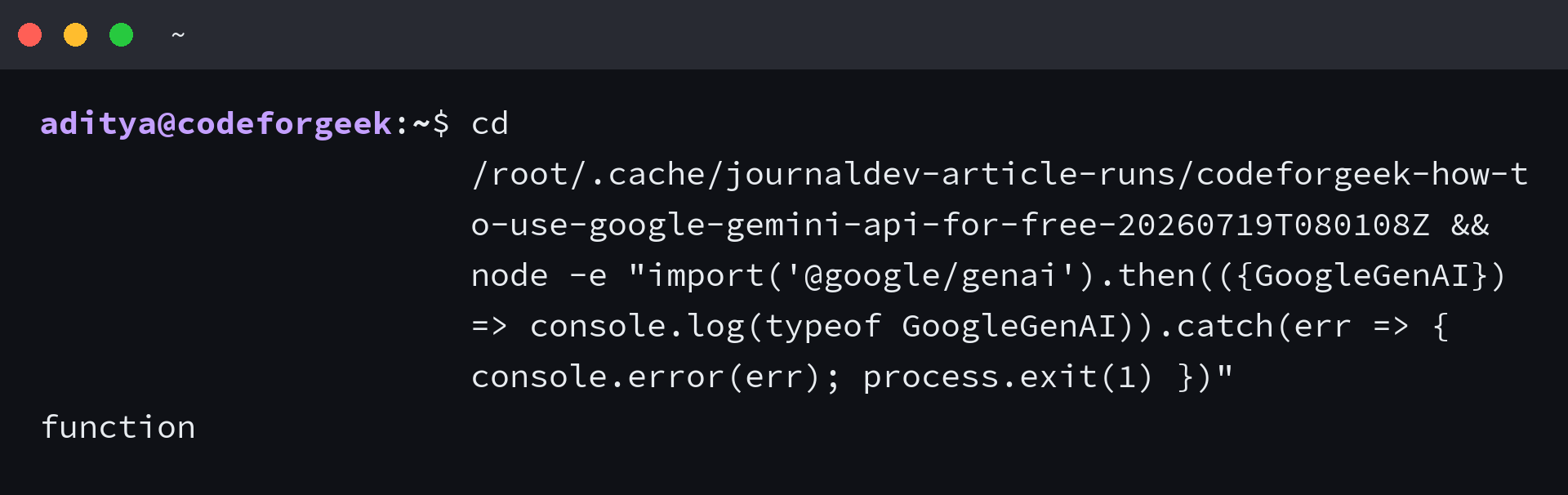
The command returns function when the SDK import succeeds. The check above ran with Node.js 22.23.1 and the current @google/genai package available during this refresh.
Choose a model and make the first request
Use the current models catalog to choose a model that supports your input type and is available to your account. Google changes model availability and free-tier limits independently, so avoid copying an old model ID from an unrelated tutorial.
Google keeps the current request shape in its text generation guide. Set GEMINI_API_KEY in your shell, use the official example for the model you selected, and keep the key on the server rather than in browser-delivered JavaScript.
Handle free-tier limits without guessing
A free key does not mean every model or workload has the same allowance. Google assigns quotas by project and model, and the rate-limit documentation separates request, token, and daily limits where they apply.
- Read the pricing page before selecting a model for a new feature.
- Check the rate-limit page when a request returns HTTP 429.
- Add usage monitoring before you connect a prototype to a public endpoint.
- Link billing only when the documented Free Tier no longer fits the workload.
If you are comparing providers instead of building a Gemini integration, the DeepSeek API guide explains a separate free-access path. CodeForGeek also has a Gemini API key tester for checking a key without placing it in an application.
Can you use the Gemini API without adding billing?
Google starts new Gemini API accounts on the Free Tier. Model availability and quota differ by model and can change, so check Google’s pricing and rate-limit pages before planning a production workload.
Where do you create a Gemini API key?
Create and manage Gemini API keys in Google AI Studio. Keep the key in an environment variable or another secret store instead of committing it to source control.
Which JavaScript package should you use for Gemini API projects?
Google recommends the Google GenAI SDK. Install @google/genai and use the model identifier shown in Google’s current models documentation for the feature you need.