New to Rust? Grab our free Rust for Beginners eBook Get it free →
5 Best ChatGPT Chrome Extensions in 2025

Chrome extensions add features to the browser itself, so you stop tab-hopping every time you need AI help. The five I reach for still load cleanly in 2026, and they cover the three jobs that come up most in my day: drafting replies, looking things up, and pulling prompts from a library. Each one is free to start, ships from the official Chrome Web Store, and gets a usage walkthrough below with screenshots from the actual install.
Why a ChatGPT Chrome Extension Beats a New Tab
The whole point is to skip the round trip. You highlight text on the page you’re reading, the extension feeds it to ChatGPT, and the answer lands inline.
- Writing help without leaving the page. I live in Gmail for most of my email work, and pulling ChatGPT into a side panel means I stop copying paragraphs into the web app and back.
- Search that does the reading for you. WebChatGPT pulls web sources into the prompt, so the answer cites things that exist this week, not in the model’s training window.
- Prompts you don’t have to invent. AIPRM’s library saves you from writing the same SEO brief or commit-message template for the hundredth time.
5 ChatGPT Chrome Extensions Worth Installing
The list is ordered by how often I reach for each one. WebChatGPT is first because live data is the only feature that beats a model with a stale training cutoff.
1. WebChatGPT
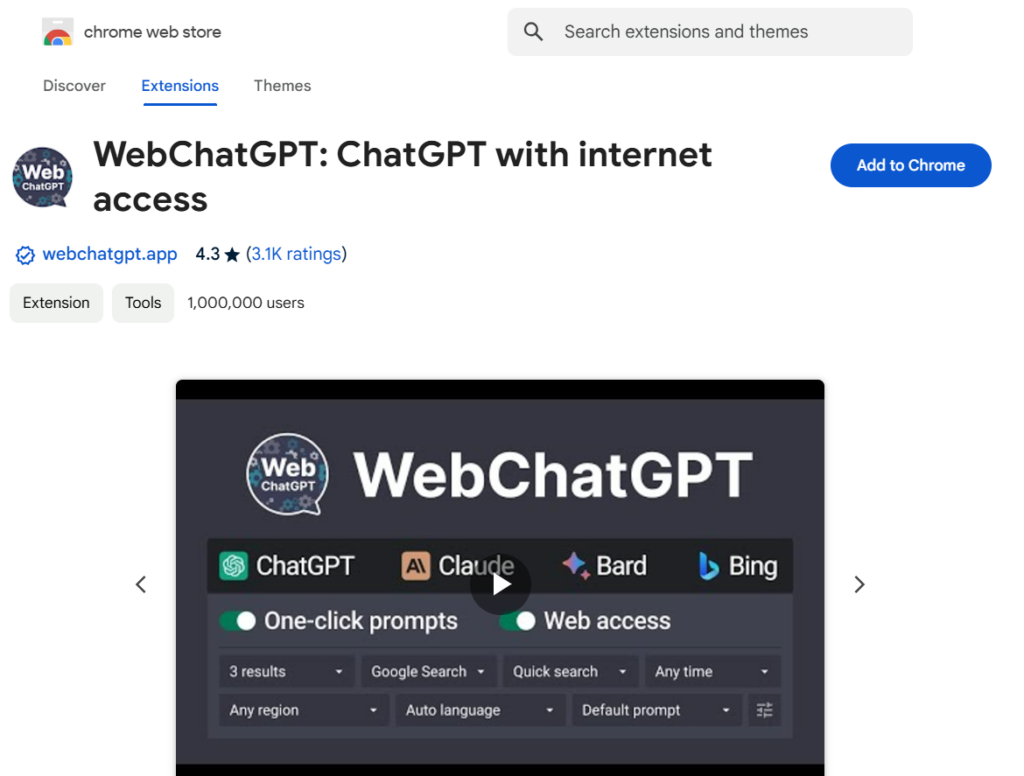
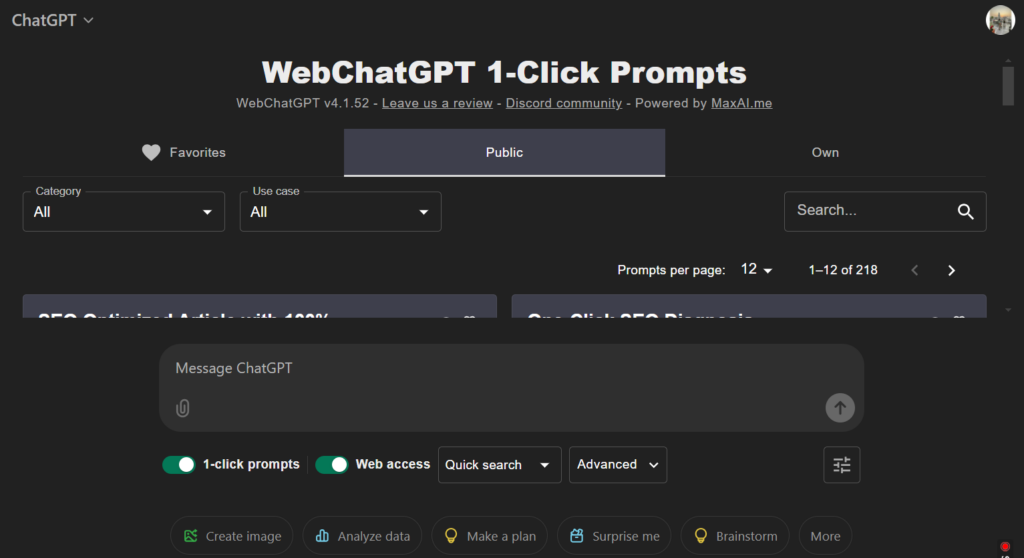
WebChatGPT adds live web results to every ChatGPT prompt, so the model stops quoting training data and starts quoting the current page. The free tier includes a prompt library and a small template manager. It’s the only extension on this list that solves the cutoff-date problem.
Install and use
- Install: Open the Chrome Web Store, search for WebChatGPT, click Add to Chrome.
- Use: Open ChatGPT in a new tab, toggle WebChatGPT on, and type your prompt. The extension appends search results and cites them under the answer.
- Best for: Recent-news questions, product comparisons, anything where the model’s training cutoff is the wrong answer.
Tradeoffs
- Web queries add a second or two to every response.
- Citation quality varies. Always click the source before quoting it.
2. ChatGPT for Google
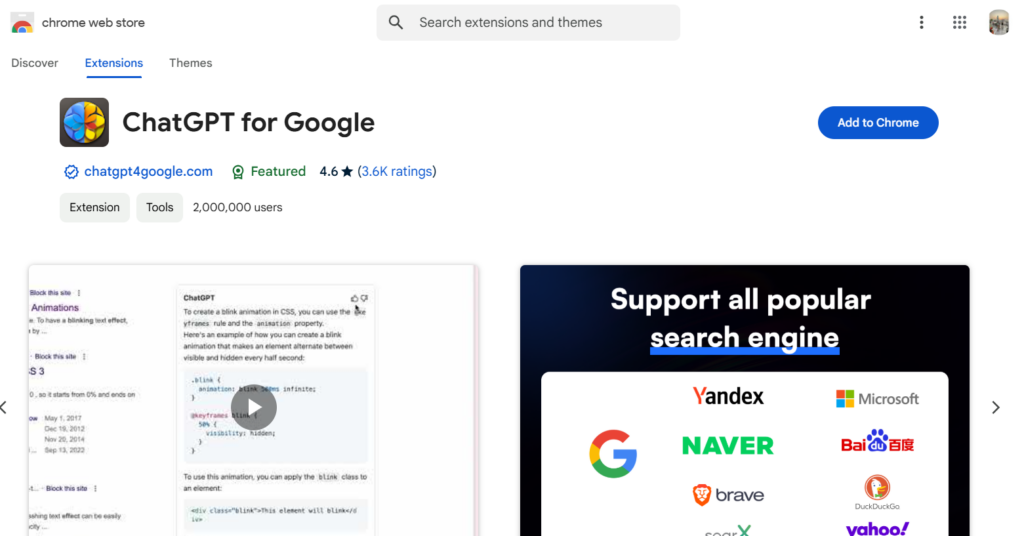
ChatGPT for Google puts ChatGPT answers next to the standard Google results, so a single search page becomes a side-by-side comparison. The free tier covers most everyday queries, and a paid upgrade unlocks GPT-4-class models. It pairs well with WebChatGPT when you want the web citations plus a structured AI summary.
Install and use
- Install: Open the Chrome Web Store, search for ChatGPT for Google, click Add to Chrome.
- Use: Run any Google search. The extension panel appears on the right with a ChatGPT response alongside the normal results.
- Best for: Quick research where you want one AI answer plus a page of links, not a long chat session.

Tradeoffs
- Search engine support is uneven. DuckDuckGo and Bing work, but results look different.
- The side panel can crowd the page on narrow viewports.
3. ChatGPT Writer
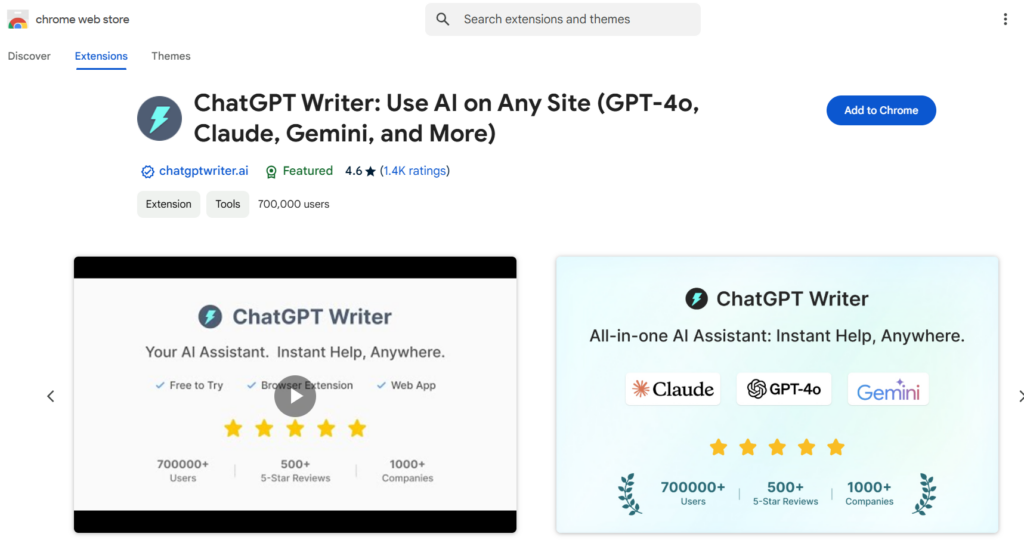
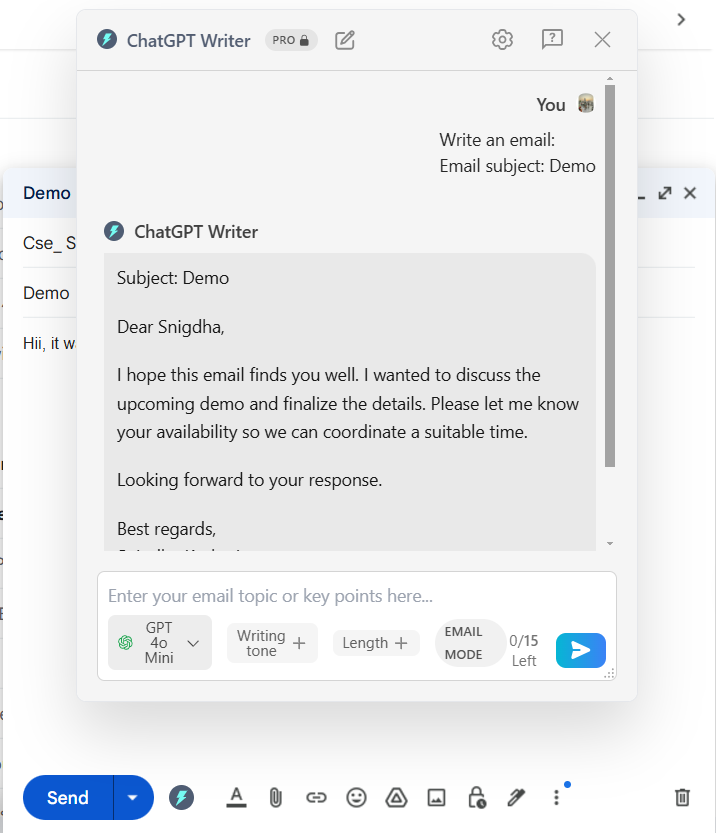
ChatGPT Writer drafts entire emails from a short subject line, then drops the result into the compose window. It works on Gmail, Outlook web, and most form fields. For the kind of cold email I send to sources, the free tier is enough.
Install and use
- Install: Open the Chrome Web Store, search for ChatGPT Writer, click Add to Chrome.
- Use: Open an email compose box, type a one-line description of what you need, hit Generate, and the extension pastes a draft reply.
- Best for: Out-of-office replies, support tickets, and any message where the structure is repetitive and the substance is small.
Tradeoffs
- It sometimes misreads tone, especially in long threads.
- Word choice can feel generic, so a quick edit pass is always needed.
4. AIPRM for ChatGPT
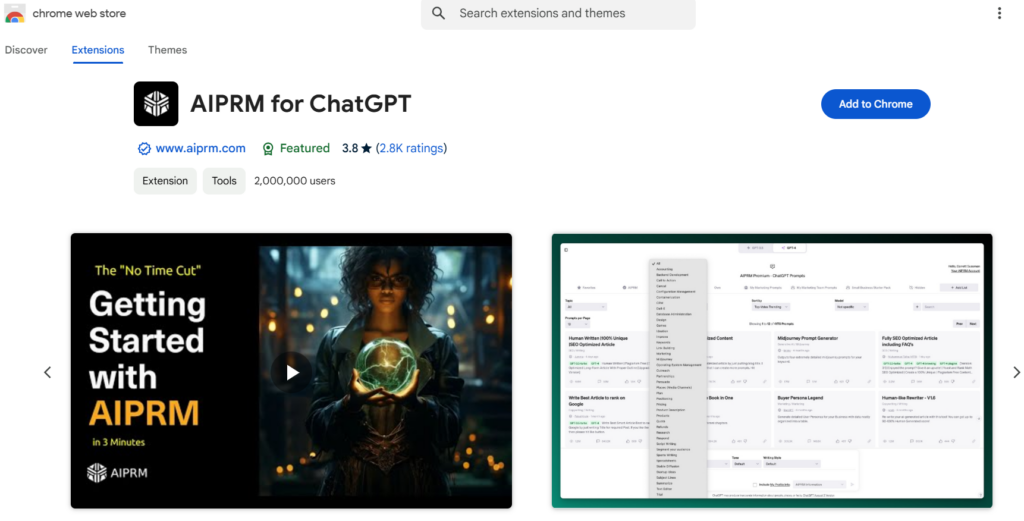
AIPRM is a community prompt library with vetted templates for SEO briefs, commit messages, YouTube scripts, and a hundred other jobs. The free tier gives you thousands of prompts. The paid plan unlocks private prompts and team sharing.
If you keep writing the same prompt from scratch, this is the fix.
Install and use
- Install: Open the Chrome Web Store, search for AIPRM, click Add to Chrome.
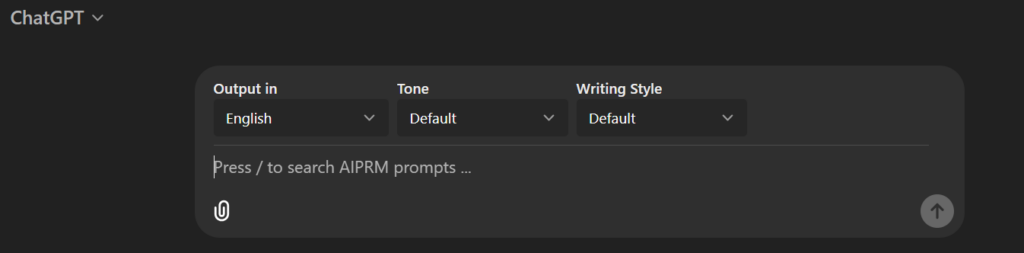
- Use: Open ChatGPT, pick a topic from the AIPRM sidebar, and click a template. The prompt fills itself in, ready to send.
- Best for: Repeat work where you have a known good prompt but don’t want to retype it each time.
Tradeoffs
- The free library rotates, so a prompt you like may move to the paid tier.
- Community prompts vary in quality. Preview a few before settling on one.
5. Merlin
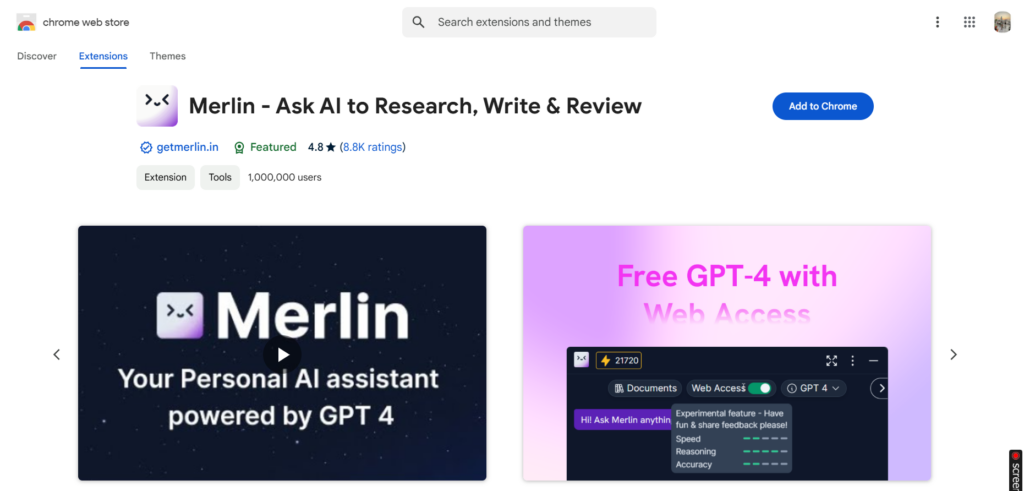
Merlin works as a sidebar on any site, so you can run a ChatGPT query while reading the page that prompted the question. The free tier gives you a small daily quota, and the paid plan removes the cap. It is the closest thing to a general-purpose AI copilot for the browser.
Install and use
- Install: Open the Chrome Web Store, search for Merlin, click Add to Chrome.
- Use: Press Ctrl+M on any page to open the Merlin sidebar, then ask a question or paste text for a summary.
- Best for: Reading a long article, summarizing a YouTube transcript, or asking a follow-up question without leaving the page.
Tradeoffs
- The free tier’s daily quota runs out fast during heavy research sessions.
- Some deep topics return shallow answers, especially in non-English contexts.
Picking One to Start With
Pick the job you do most, not the extension with the most features. If you live in Gmail, install ChatGPT Writer first.
If you research for a living, start with WebChatGPT. If you write the same prompt fifty times a week, AIPRM is the obvious pick. Merlin is the right answer when you want one sidebar to handle everything.
You can stack them, but each extension adds a small amount of memory and a UI element, so two is the practical limit. If you want a broader tour of AI browser tools, the 10 best AI-powered Chrome extensions roundup covers tools that don’t use ChatGPT under the hood, and the best ChatGPT prompts for writing guide gives you a starter set of templates once AIPRM is in place.
FAQ
Quick answers to the questions readers send in most often about installing and combining these extensions.
Are ChatGPT Chrome extensions free?
All five on this list are free to install, and the free tier covers the most common tasks. Paid plans typically unlock GPT-4-class models, raise daily quotas, or open private prompt libraries. ChatGPT Writer and WebChatGPT are fully usable on their free tiers. Merlin and ChatGPT for Google hit the quota faster under heavy use.
Do these extensions work with the free ChatGPT plan?
Yes. Each extension talks to ChatGPT through your existing login, so the same free, Plus, or Team plan applies. The extension does not change which model you can use. It changes how you reach it. If you want GPT-4, sign in to ChatGPT Plus in the same browser.
Which extension is best for research with current sources?
WebChatGPT. It injects live web results into every prompt, so the answer cites the current week, not the training cutoff. Pair it with ChatGPT for Google if you also want a quick AI summary next to the standard search results.
Can I install more than one of these at once?
You can, but two is the practical limit on most machines. Each extension adds browser memory and a UI element, and overlapping tools (Merlin and ChatGPT for Google, for example) can both try to occupy the same sidebar slot. Pick one writing helper and one research helper, and skip the rest until you feel the gap.
Reference
https://www.reddit.com/r/ChatGPT/comments/16qkaqc/chrome_extensions_utilizing_chatgpt/