New to Rust? Grab our free Rust for Beginners eBook Get it free →
Online XML JSON Converter

Data from a service or file may arrive as XML even when the next tool expects JSON. An online XML-to-JSON converter maps XML elements into JSON objects and arrays for you to review and copy.
You’ll learn how to convert XML online and check whether the JSON output has the shape your next step expects.
TL;DR
Paste well-formed XML into the converter above, select Convert XML to JSON, then inspect and copy the JSON it returns.
- XML elements become nested object properties.
- Attributes and repeated elements need special attention when you reuse the result.
- Fix parser errors in the XML before relying on a conversion.
What Is XML to JSON Conversion?
XML stores data in named elements, which can contain attributes, text, and other elements. JSON represents data as objects, arrays, and values, so conversion means mapping the XML tree into those JSON shapes.
The page uses x2js 1.2.0 to convert the input before JSON.stringify formats the result.
| XML part | What to look for in the JSON |
|---|---|
| Nested element | A property nested under its parent object |
| Attribute | An underscore-prefixed property |
| Text inside an attributed element | A separate text property alongside the attribute |
| Repeated same-name elements | A collection represented as an array when the parser detects repeats |
Namespace declarations can be inherited from ancestors, including a default namespace with no visible prefix. When a consumer depends on namespace identity, check the URI and local name rather than relying on prefix spelling.
How to Convert XML to JSON Online
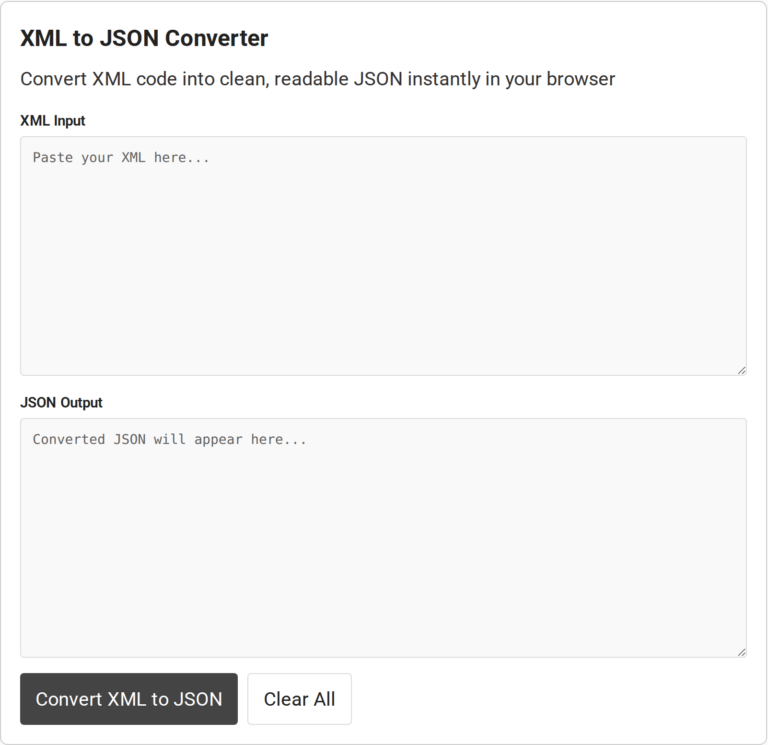
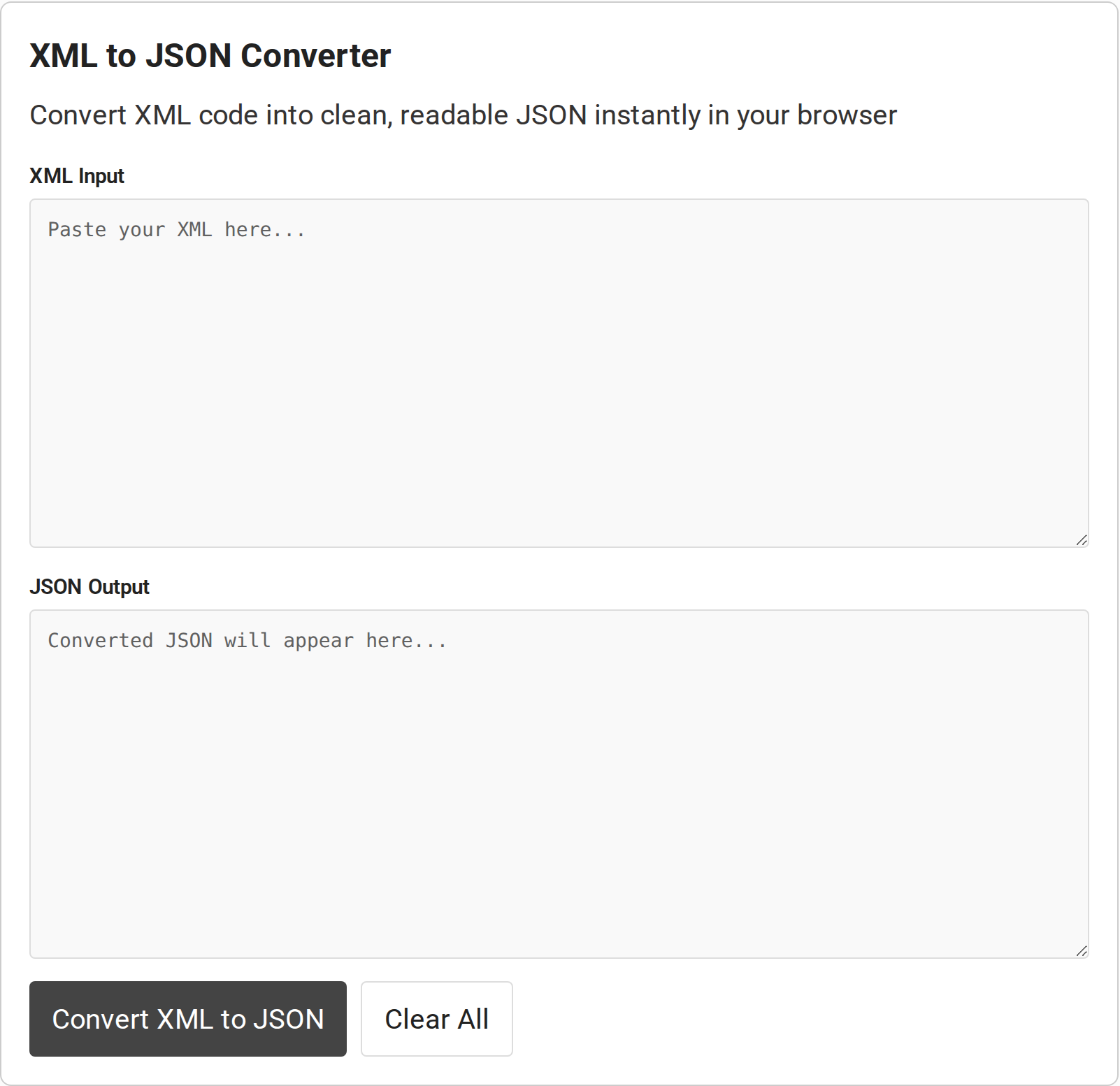
The screenshot shows the current controls, not a completed conversion.
Step 1: Prepare the XML document
Well-formed XML has closed, case-matched tags and one root element. Check that structure before you convert the document.
| Source detail | What to check before pasting |
|---|---|
| XML declaration | It can appear before the root element and identify the XML version and encoding |
| Reserved characters | Less-than signs and ampersands used as data need XML character references |
| Namespaces | Keep the declarations that define prefixes used in element and attribute names |
Keep a copy of the source if you will edit or reuse the result.
Step 2: Paste the XML into the input field
Paste the markup into XML Input. Include the complete parent element around the values you need.
For data copied from an API response, remove surrounding text outside the XML document. Keep the relevant root element and any declarations that define names used by the document.
The page accepts pasted XML text. Open a local file in an editor and paste its contents, or copy the XML text from a response before using this converter. No input-size maximum is stated, so move very large documents to a local parser rather than assuming a browser limit.
Step 3: Convert the XML
Select Convert XML to JSON. If the input field is empty, the page displays a prompt asking for XML instead of a JSON object.
The embedded script catches conversion exceptions and writes an error label and message into the output field. Read that message as a clue about the parser’s rejection, then check the source markup.
Wait for the result to appear in JSON Output before copying it. This page uses a button rather than a live, as-you-type conversion, so changing the source means selecting the conversion button again.
Step 4: Inspect and copy the JSON
Read the output from the outer object inward. Compare its root property with the XML root and scan the nested values in the same order as their parent-child relationship.
Select the text in JSON Output and copy it before using Clear All, which removes both fields. Keep the original XML available until you have finished checking the converted data.
The indentation comes from JSON.stringify’s two-space formatting option.
What Should You Check in the JSON Output?
Inspect the output before sending it to another tool because valid JSON syntax does not guarantee the receiving application expects that shape.
| XML case | What can surprise you | What to verify |
|---|---|---|
| Repeated sibling tags | A single occurrence and repeated occurrences may have different JSON shapes | Confirm your code handles both a value and an array where relevant |
| Attributes | Attribute names may use a prefix rather than matching child-element names | Check underscore-prefixed fields and the consumer’s expected key names |
| Text plus attributes | Text may be stored under a special property rather than as a plain string | Read the text field and attribute fields separately |
| Namespaces | Prefixes can appear in names or affect how names are represented | Compare output keys with the namespace-aware names your application expects |
| Comments or processing instructions | XML features may not have a direct JSON equivalent | Check whether the destination needs those details |
| Mixed text and child elements | Order and node boundaries may be represented differently | Compare the converted data with the source when order matters |
| CDATA | CDATA is XML syntax for character data, not a separate JSON value type | Confirm the text content is present in the representation |
Object property names are case-sensitive. A consumer looking for Item may not find a key named item, so match spelling and capitalization to the receiving contract. Do not normalize keys without checking.
If you edit the copied result, keep to JSON syntax. Property names and strings use double quotes, and trailing commas or comments can make a JSON document invalid. Recheck the text after manual edits before pasting it into an application.
The x2js project says its conversion is not necessarily lossless. If comments, processing instructions, or mixed text matter, compare the source with the output before reuse.
Run the result through the schema or validation step used by its destination. Conversion itself does not check that your application’s required fields or business rules are satisfied.
How Do You Fix XML Conversion Errors?
Start with malformed XML because the parser must accept the source before a JSON result can be produced.
| Symptom | Likely cause | Fix |
|---|---|---|
| Unclosed or mismatched tag | Missing close tag or capitalization differs | Add the closing tag and match its name exactly |
| Unexpected ampersand | A literal ampersand is unescaped in text or an attribute | Escape the character using its XML entity |
| Multiple root-level elements | Related elements have no single parent | Wrap them in one root element |
| Unexpected JSON shape | A tag repeats, has attributes, or mixes text and children | Inspect the corresponding XML node and mapping rule |
The browser’s DOMParser can parse XML text into a document. Malformed input may be reported in the parsed document. The error wording can differ between parsers.
The page markup references x2js from a CDN. That identifies where the library is hosted, but it does not show whether pasted text is transmitted or retained. For confidential records, use an approved local workflow and follow your organization’s handling rules.
Conclusion
This page works for one-off conversion and inspection. For recurring transformations, put conversion in application code and keep a small XML fixture with its expected JSON beside your tests.
Include a nested element and a repeated tag so the fixture exposes shape changes. Rerun it when the source format or parser version changes.
If you need the reverse transformation, use CodeForGeek’s JSON to XML converter. For larger server-side XML workloads, read how to parse large XML files in Node.
For browser parsing behavior, see MDN’s DOMParser documentation. The x2js project documentation describes the library used by this page.
FAQ
These answers cover common questions about the output and its limits.
Can repeated XML tags become a JSON array?
Repeated tags need to be checked in the converter output. Confirm that the result uses an array for repeated values and that your application can handle the single-item case too.
Does XML to JSON conversion preserve every XML feature?
No single JSON shape directly represents every XML feature. Comments, processing instructions, namespaces, mixed content, and element ordering may need special handling, so compare the output with the source when those details matter.
Why does the converter show a parse error?
The source may have an unclosed or mismatched tag, an unescaped ampersand, or more than one top-level element. Correct the XML so it is well-formed, then convert again.
Can I change the output indentation?
The visible tool has no indentation setting. The embedded code formats the result with a two-space indent.
Does the output update as I type?
No. Select Convert XML to JSON to refresh the separate output field.
Can I download the converted JSON?
The visible page has no download control. Select and copy the output, then save it in your editor.