New to Rust? Grab our free Rust for Beginners eBook Get it free →
JSON to YAML Converter Online

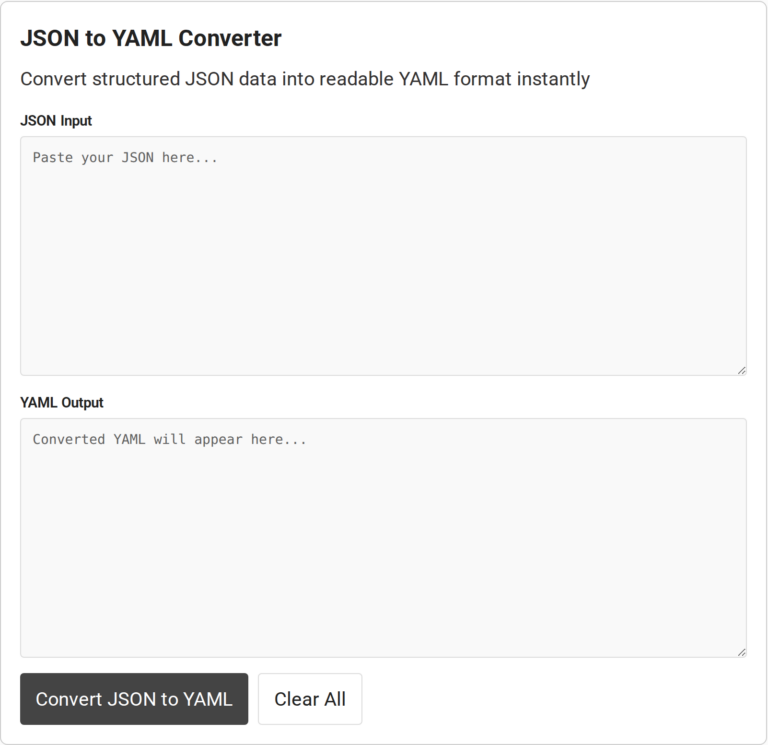
You have JSON data and need to give it to an application that accepts YAML. A JSON to YAML converter changes the data into YAML, another text format for representing structured data.
I’ll walk through using the online converter and checking its output with the application that will read it.
TL;DR
Paste valid JSON into the converter, select Convert JSON to YAML, then review and copy the YAML output.
- JSON objects become YAML mappings, and JSON arrays become YAML sequences.
- Fix JSON syntax errors before converting, then check indentation and scalar values.
- Validate the result with the application that will read the YAML.
- Do not paste passwords, tokens or private customer data into a web tool.
What Is JSON to YAML Conversion?
JSON and YAML are text formats for representing structured data. A converter reads a JSON value and writes it with YAML syntax, which a YAML-capable tool can then parse.
If an application or configuration accepts YAML in place of JSON, convert the value before adding it there. The destination’s documentation determines which format it accepts.
JSON marks nesting with braces and commas, while YAML uses indentation to show parent and child levels. Keep sequence items at the correct depth and use spaces rather than tabs. A small indentation change can alter structure without changing any key names.
A syntactically valid YAML document can still violate the consuming application’s schema. Conversion changes how values are written, but it cannot determine which keys or types that application requires.
{
“service”: “catalog”,
“port”: 8080
}
A YAML serializer can write the same mapping like this:
service: catalog
port: 8080
I ran the same service-and-port example with a local Node.js script using js-yaml 5.4.3. It printed the output shown here. This checks the sample conversion, not the live browser tool.
service: catalog
port: 8080
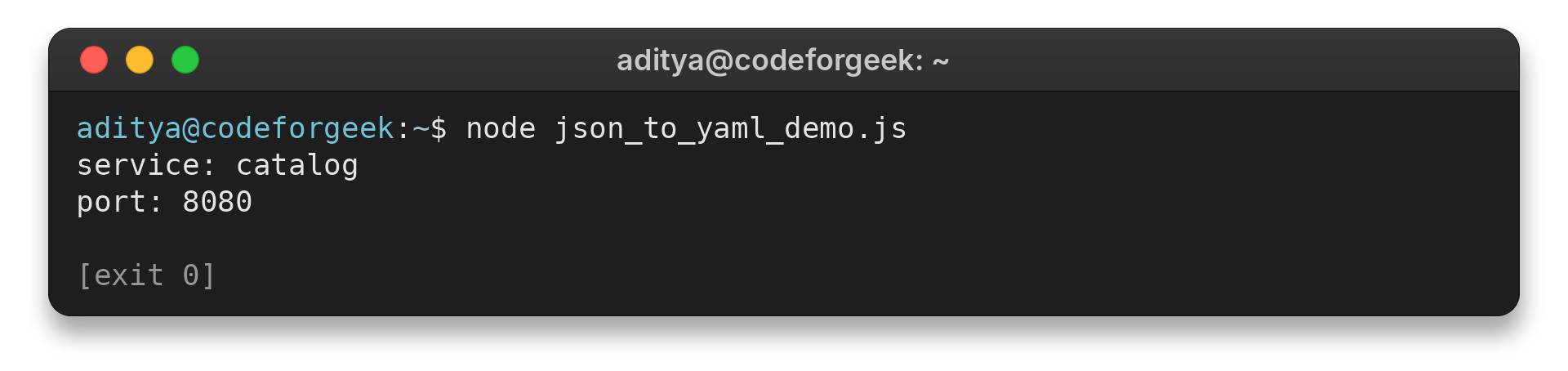
The visible script loads js-yaml 4.1.0 from cdnjs and serializes a parsed value with the library’s dump method. The procedure below explains how to use the fields.
How to Convert JSON to YAML with the Online Tool
Paste a complete JSON value, convert it, then review the generated YAML before copying it into a configuration file.
Step 1: Prepare a complete JSON value
JSON must use double quotes around strings and property names. It does not allow comments or a trailing comma after the last property or array item. The document can begin with an object or an array, and it may contain nested objects and arrays.
Run the complete value through a JSON parser after checking its matching braces and brackets.
For a configuration fragment, include the complete value you plan to use. Check the destination’s expected top-level shape because the application may require specific keys.
Format or edit the JSON before conversion
Online-JSON is a separate online JSON editor for formatting and inspecting source text. Its live view remains JSON, and validation checks source syntax rather than YAML output.
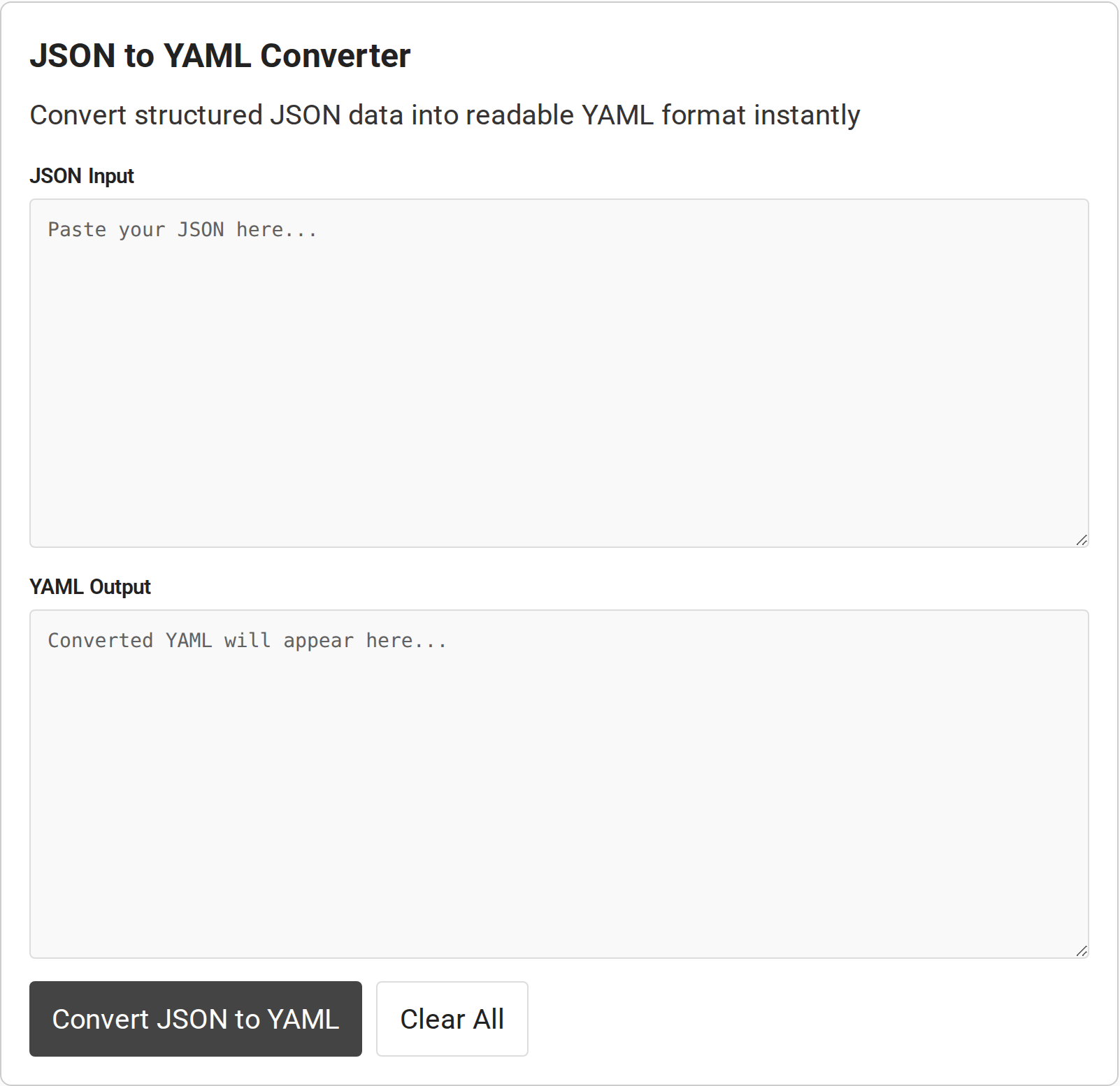
The CodeForGeek page shows JSON Input and YAML Output fields, with Convert and Clear actions. Choose a source route below, then review the generated YAML with the target application.
| Source route | When to use it | Check first |
|---|---|---|
| Paste JSON text | Use a complete JSON object or array you already have. | Confirm the text includes the whole value and parses as JSON. |
| Local file | Open the file in an editor when a converter has no file picker. | Review the full content before copying it into the converter. |
| URL import | Use only on a page that explicitly supports URL retrieval. | Make sure the endpoint is permitted and the URL contains no credentials. |
| Live JSON editor | Use formatting to inspect or edit the source. | The formatted preview is still JSON. Convert it separately to produce YAML. |
Step 2: Paste the JSON into the input area
Paste the document into the box labeled JSON Input. Keep a copy of important input in its original file before using the page.
Step 3: Convert the parsed value
Select Convert JSON to YAML to process the input. The result appears in the YAML Output area.
An object such as {“user”:{“id”:12,”active”:true}} becomes a mapping with an indented user section. An array such as [“red”,”blue”] becomes a YAML sequence with one dash-marked entry per value.
Step 4: Review and copy the YAML output
Read the output area from the top down. Confirm that each nested key is indented under the correct parent and each array item appears at the right level.
Copy the checked text into the intended YAML file or editor.
Step 5: Clear the boxes before another conversion
Select Clear All to empty both the JSON input and YAML output areas. This gives the next conversion a clean starting point, with no old result beside the new source.
Keep a separate copy of any result that matters before clearing the page. The live interface includes a clear action, not a save or download control.
What Should You Check After Conversion?
After conversion, use the table to match each output detail to its next check.
| Case | What you may see | What to check |
|---|---|---|
| Invalid JSON | The output area shows an error instead of YAML. | Use the first parser message to locate the input to inspect, correct the source, then convert the complete document again. |
| Nested object or array | JSON hierarchy becomes indented mappings or dash-marked sequences in YAML. | Compare parent and child levels with the source. YAML indentation uses spaces, so parse again if you edit the output by hand. |
| String with punctuation | The serializer may quote a scalar to preserve its meaning. | Keep the quotes unless the destination parser confirms an unquoted value is read as intended. |
| Parser or scalar mismatch | Two YAML tools may interpret a value differently. | Check the YAML version and scalar rules supported by the consuming tool. A number, boolean, string and null are different data types. |
| Empty or null value | An empty string, empty sequence and null appear similar at a glance. | Compare each value with the destination schema. Keep the distinction required by the application. |
| Top-level sequence | The converted YAML starts with a list, but the application expects a mapping. | Check the destination schema’s required root shape before replacing its configuration. |
| Comments added after conversion | Notes appear in the YAML document after editing. | JSON has no comment syntax. Keep explanatory comments in the YAML file because conversion back to JSON drops them. |
| Large input stalls | The browser stops responding or the output looks incomplete. | The page does not publish a maximum size. Use a local parser and confirm it processed the full file. |
| Sensitive input | The document contains credentials or personal data. | Use only a service approved for the sensitivity of this data. |
| YAML parses, application rejects it | The destination reports an unknown field, unsupported resource or invalid value. | Check the application schema, required keys, and deployment context or namespace. A successful conversion cannot verify those conditions. |
- Validate source JSON before conversion and fix any parser error.
- Parse YAML with the target application’s parser version and compare values with the source.
- Confirm nesting, scalar types and sequence order remain appropriate.
- Check the application schema or run an approved safe test before replacing configuration.
The page states that conversion runs in the browser and makes no network requests, but its visible code does not audit every page resource or browser extension. For sensitive data, follow your organization’s policy and use an approved local parser when required. In examples, replace secret values with synthetic ones while preserving nesting and scalar types.
For Kubernetes objects, the kubectl command guide covers YAML resource inspection. For broader configuration-file choices in Node.js projects, see Managing and Creating Configuration Files in Node.js.
Conclusion: Check the YAML in Its Target Tool
The YAML specification defines how the document is parsed. Use the linked JavaScript serializer documentation for details about its API.
For format details, consult the YAML 1.2.2 specification and the js-yaml project documentation.
FAQ
These answers cover common questions about the conversion and its output.
Can I convert a JSON array to YAML?
Yes. A JSON array becomes a YAML sequence, usually shown as dash-marked entries. Check that each item stays at the right indentation level.
Why does the converter show an error?
The page parses the input as JSON before serializing it. Check for double quotes around strings and keys, commas between entries, and matching brackets and braces.
Does JSON to YAML conversion change my data?
The converter changes the syntax used to represent the parsed value. Review strings, numbers, booleans, nulls and nested levels, then validate the YAML with the destination application.
Can I paste passwords or API keys into an online converter?
Do not paste secrets or private records into a web page. The conversion code shown on the page does not by itself prove how every site script or network component handles submitted data.