New to Rust? Grab our free Rust for Beginners eBook Get it free →
Online JSON Prettify

An API response can be hard to inspect when its JSON fields run together on one line. The CodeForGeek formatter lays valid JSON out with two-space indentation while preserving its intended values.
I’ll explain how JSON prettifying works and show how to format and copy a response in the browser.
TL;DR: Prettify JSON in the Browser
Paste valid JSON into the input field and select Prettify JSON to see the same data arranged with two-space indentation.
- Formatting changes whitespace, not the intended values.
- Invalid syntax prevents parsing, so fix the input before formatting.
- Check a site’s data-handling policy before pasting sensitive content.
What Is JSON Prettifying?
JSON, short for JavaScript Object Notation, is a text syntax that applications use to exchange structured data. Prettifying lays out nested objects and arrays on separate lines so their boundaries are visible.
Objects group named values in curly braces, and arrays hold ordered values in square brackets. RFC 8259 defines JSON syntax.
Prettifying changes whitespace around a parsed value so its nesting is clearer to scan. The formatter preserves the parsed value’s type and changes its spacing. It reads the input with JSON.parse() and writes it with JSON.stringify() using two spaces for indentation.
A nested JSON value can be difficult to scan when its fields run together. Indentation makes the start and end of each nested value visible. It does not add missing keys or decide whether a value is correct for an API.
JSON accepts top-level values beyond objects. This page passes an array or scalar through JSON.parse() and JSON.stringify() as well. A receiving API may still require an object with particular properties, so a successful formatting result does not validate the schema.
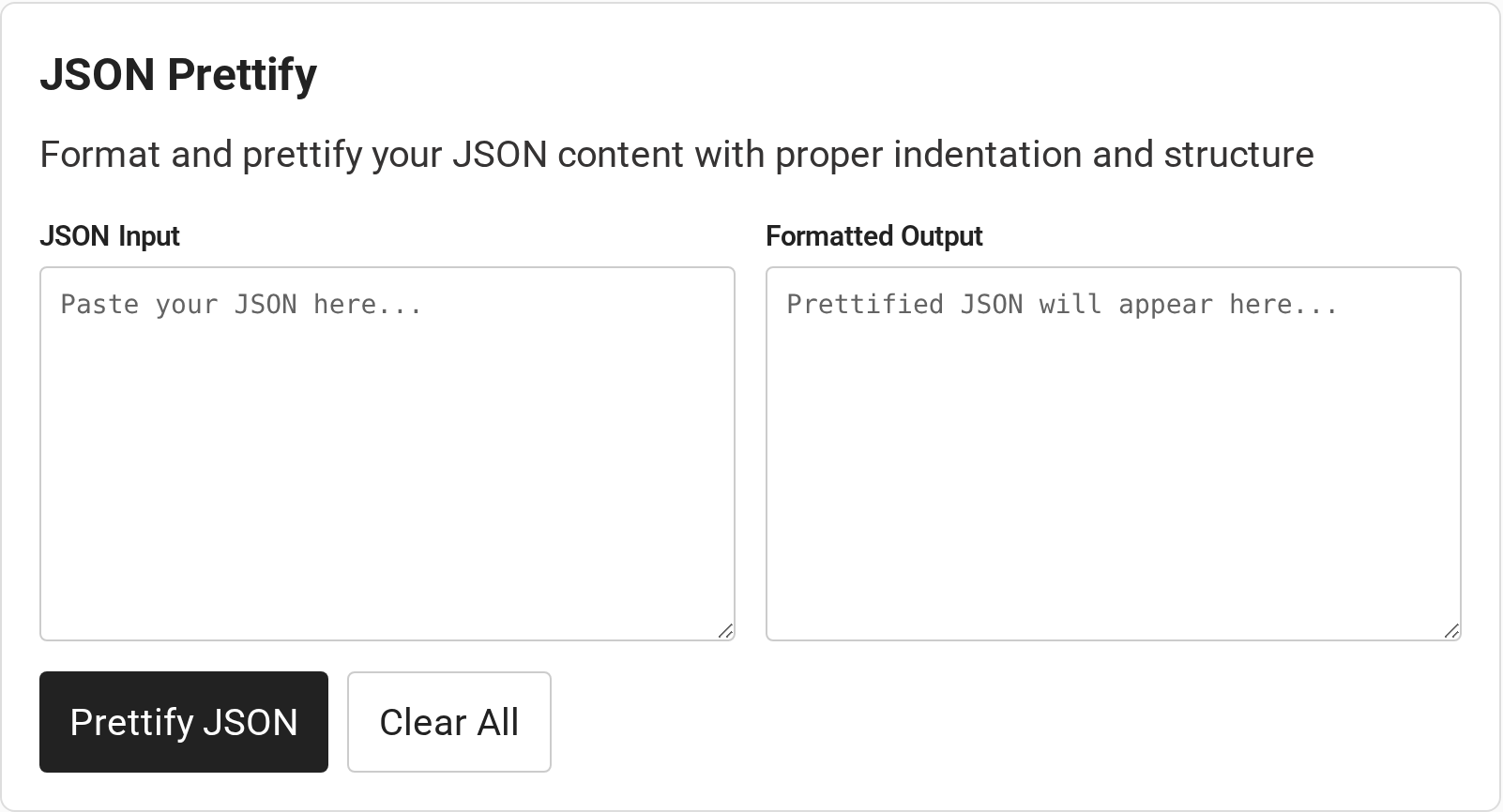
The CodeForGeek formatter presents separate JSON Input and Formatted Output fields. Its page code reads the input with JSON.parse() and serializes the result with JSON.stringify().
How to Prettify JSON Step by Step
Enter one complete JSON value in the input field and read or copy its formatted result from the output field.
Step 1: Copy a JSON value into the input
Copy the response body, configuration value, or sample you want to inspect, then paste it into JSON Input. When the source is an API response, copy the JSON body rather than surrounding log text or a status message.
For example, {“service”:”search”,”enabled”:true,”limits”:{“daily”:120}} contains a nested limits value.
Step 2: Select Prettify JSON
Press the Prettify JSON button after the input contains the full value. The formatted result appears in the read-only Formatted Output field.
The output uses two spaces for each nested level. Keep that fixed setting in mind if a repository expects a different style, since valid JSON can still fail a formatting check in a code review.
The tool has no indentation selector, key sorter, or minification option. It produces a readable two-space layout each time. If a project uses tabs or another spacing rule, apply that project’s formatter after checking the data rather than treating this output as its required style.
Whitespace outside JSON strings can change without changing the parsed value. Spaces inside a string are data, so they remain part of that value. Compare the formatted output with the original when a field stores significant spaces or line breaks.
Step 3: Review and copy the result
Read the output before copying it into a code review, configuration file, or issue report. Check key-value relationships against the task that needs the data.
Select the output text and use your browser’s copy command. If your next task is checking how two JSON documents differ, use CodeForGeek’s online JSON comparison tool instead of comparing long strings by eye.
Step 4: Clear both fields when finished
Select Clear All to empty the input and output fields together. This gives the next sample a clean starting point and helps prevent copying a result from the previous input.
JSON Prettifier Limits and Common Errors
When the input does not follow JSON syntax, the page reports a parsing error in an alert instead of filling the output field. JSON.parse() throws a SyntaxError for invalid text, as documented by MDN.
Check the location reported by the message, then compare the surrounding characters with JSON’s grammar. These common cases are quick to inspect:
| Input problem | Why parsing fails | What to check |
|---|---|---|
| Single quotes around a string | JSON strings use double quotes | Replace quote marks only when they are syntax, not part of the value |
| Comma after the final item | JSON objects and arrays do not allow trailing commas | Remove the comma before the closing brace or bracket |
| Unquoted object key | An object key must be a string | Put double quotes around the key |
| Missing comma or closing bracket | The structure is incomplete | Inspect the characters immediately before the reported position |
Fix the original text and run the formatter again. Review any edit against the source data, since guessing at a missing comma can change how values are grouped.
Some boundaries need a different workflow:
- JSON Lines, often called JSONL, stores one JSON value per line. A parser expecting one document may reject a file containing multiple line-delimited values.
- Very large documents can take longer to parse and display. This page states no fixed size limit, so use a local workflow if the browser becomes unresponsive.
- JavaScript represents parsed numbers with its Number type. For identifiers or integers that require exact digit preservation, keep them as quoted strings or use a tool designed for arbitrary-precision JSON numbers.
The page parses numbers into JavaScript values before it writes them back out. JavaScript cannot represent every long integer exactly, so a numeral beyond its safe-integer range may lose digits during formatting. Keep identifiers and other exact digit strings quoted in the JSON input.
For instance, a large account number can still be valid JSON syntax while changing when a JavaScript number is parsed and serialized. If every digit matters, preserve it as a string or use a formatter that supports arbitrary-precision numbers. The JSON grammar alone does not guarantee the same precision in every implementation.
Prettifying also does not decide whether values fit an API’s contract. A payload can parse and display clearly while using the wrong property name or value type. Compare the result with the receiving system’s accepted fields before sending it.
The output box is read-only, so make any correction in the input and run the formatter again. That keeps the displayed result tied to the text you can review. Keep a separate original if you are investigating a response or configuration file.
Before pasting credentials, tokens, personal records, or unreleased data, check the site’s privacy policy and network behavior. Use a local editor when the data must stay within a controlled environment.
A browser alert’s wording can vary between browsers, so treat any displayed position as a place to inspect rather than a complete explanation. Look at the nearby comma, quote, or closing bracket in the original input. Make one syntax correction at a time, then run the formatter again to see whether the parser accepts it.
A syntactically valid object can still fail an API request because a required property is missing, a name differs from the schema, or a value has the wrong type. Compare the payload with the interface’s accepted field names and types.
The page accepts pasted text, with no file control in the interface shown. For a saved JSON file, open it in an editor and copy its contents, or format it directly in an approved local editor.
When sharing a formatted sample in a ticket, remove credentials and other private values first. Replace them with representative dummy values while keeping the same field structure, so another developer can follow the example without receiving the original secret.
If your source starts as a CSV file, convert it before using a JSON formatter. CodeForGeek’s CSV to JSON converter handles that separate task.
Conclusion: Format Without Changing Meaning
Use the formatted result as a readable view of the parsed text, then confirm it still fits the task that prompted the check. Syntax, schema validity, privacy, and number precision each need their own decision.
For the underlying behavior, read MDN’s documentation for JSON.parse() and JSON.stringify(), then consult RFC 8259 for the JSON data format.
FAQ
These answers cover common questions about formatting and valid JSON.
Does prettifying JSON change its values?
Prettifying adds whitespace and indentation to valid JSON text. Review the formatted output before using it, especially when numbers must retain exact precision.
Why does the formatter show an error?
The input may not follow JSON syntax. Check for single-quoted strings, trailing commas, unquoted keys, or missing commas and brackets, then try again.
Can I paste sensitive JSON into an online formatter?
Check the site’s privacy policy and data flow first. Use an approved local formatter when the data must remain in a controlled environment.