New to Rust? Grab our free Rust for Beginners eBook Get it free →
Online CSV Excel Converter for XLSX

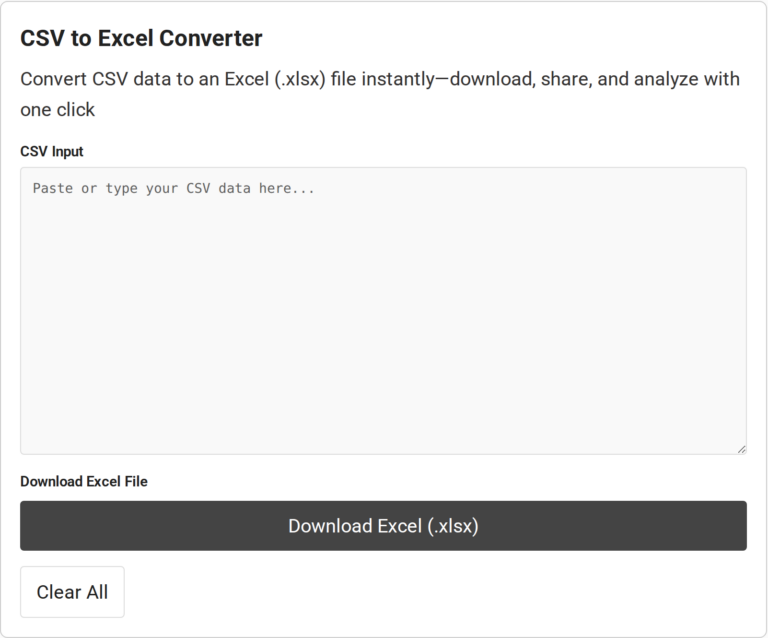
When a table is ready to share, a block of CSV text may not be the workbook you want to send. The CodeForGeek converter lets you paste CSV text and download an XLSX workbook.
I’ll show you how to turn CSV text into an XLSX workbook and explain which CSV cases call for a different importer.
TL;DR: Convert CSV Text to an XLSX File
Paste CSV text into the CodeForGeek converter, choose Download Excel (.xlsx), then check the columns. It accepts pasted text only. Its parser splits at line breaks and commas, so use another importer for quoted commas, embedded line breaks, or alternate delimiters.
- Use it for plain comma-separated tables.
- For quoted or semicolon-delimited data, use a CSV-aware importer.
What CSV-to-XLSX Conversion Changes
CSV is plain text arranged as rows and fields. It carries no workbook formatting or formulas, unlike an XLSX workbook. This tool puts the text into one worksheet called Sheet1, but it cannot restore features absent from the CSV.
| CSV text | Downloaded XLSX |
|---|---|
| Lines and comma-separated fields | Rows and cells in one worksheet |
| No cell styles, formulas, or multiple sheets | A workbook container, not restored formatting or formulas |
| Each field is text before conversion | The tool writes the split values as string cells |
I found identifiers such as 00123 are passed to SheetJS as strings, not parsed as the number 123. SheetJS documentation says strings become string cells. That matters if another system will import the workbook.
How to Convert CSV to Excel Online
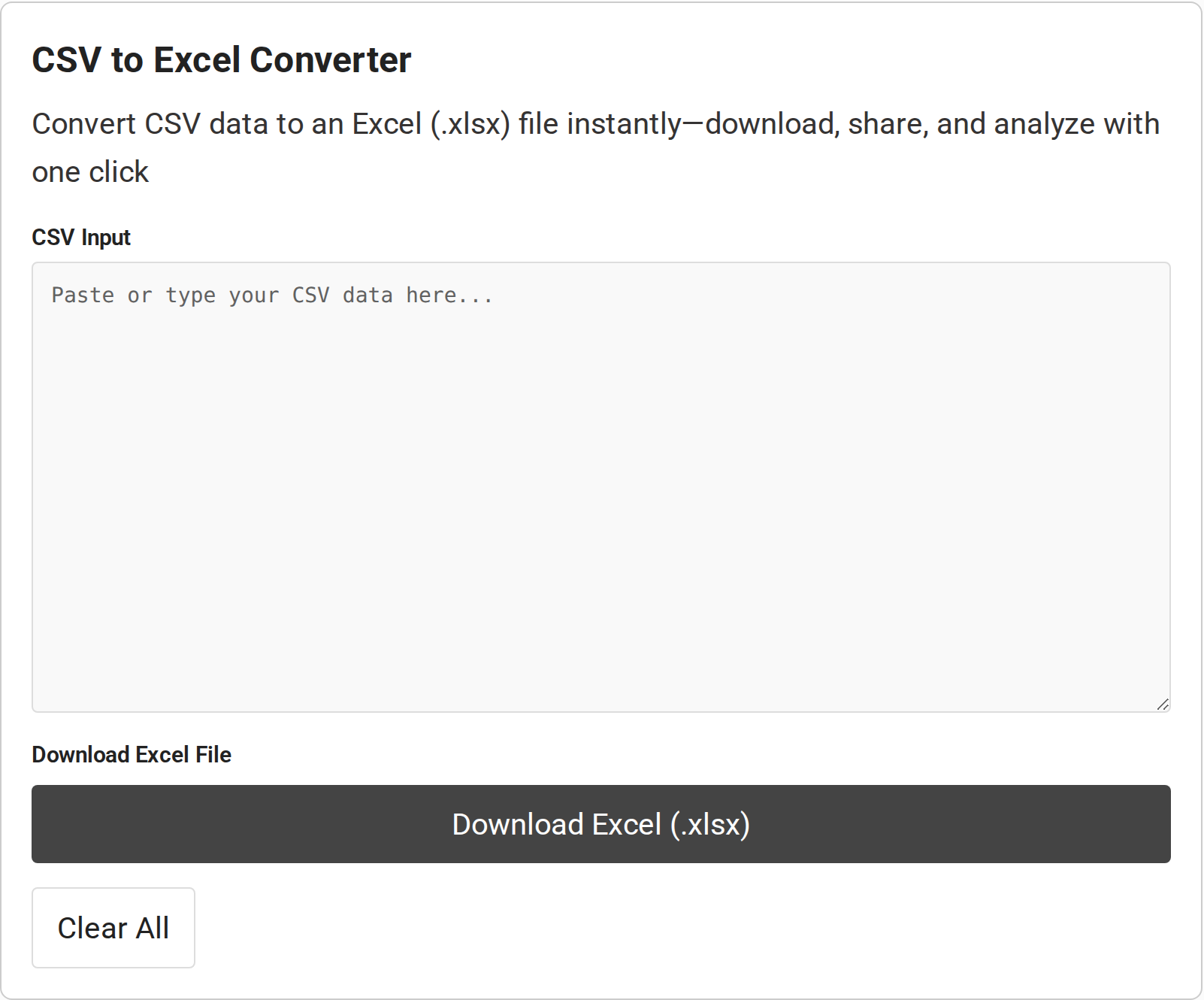
I saw a text box, a download control, and a clear button on the live page, but no file picker. So use these steps with a simple comma-separated table.
1. Paste the header and rows
Copy the header and rows, then paste them into CSV Input, with one row per line and commas between fields. There is no file picker or delimiter menu. An empty box triggers a “Please enter CSV data” alert.
2. Download the workbook
Choose Download Excel (.xlsx). The page builds one worksheet named Sheet1 and saves the file as converted.xlsx.
3. Check the result before sharing
Open the workbook and compare the header and data-row counts with the CSV. Check a row near the end as well as the first one, then inspect IDs, dates, decimal values, and any field that contains punctuation. Use Clear All before pasting another table.
Check These CSV Cases Before You Use the Workbook
I found the saved parser splits each line at commas without checking quote marks or letting you choose another separator. Check your file against these cases:
| Input case | What to check | Safer next step |
|---|---|---|
| Quoted comma, such as “Smith, John” | The comma still becomes a split point, shifting later values into extra cells. | Use a quote-aware CSV importer. |
| Quoted text spanning lines | A line break starts another worksheet row, even inside quotes. | Import with a CSV parser that supports multiline fields. |
| Semicolon, tab, or pipe separator | The page has no delimiter choice. Fields may stay together, or commas inside values may split them. | Choose the delimiter in Excel’s text/CSV import flow. |
| IDs with leading zeros | The page passes split text as string cells. Verify the identifier survives any later import or system handoff. | Keep the destination column as text and test a sample ID. |
| Dates, decimals, and empty cells | Values are written from the pasted text. Confirm the resulting cells and blank positions. | Check representative rows before using the workbook for calculations. |
These cases do not necessarily mean the source is malformed. RFC 4180 describes how quotes can keep commas and line breaks inside a field. For those files, use a quote-aware importer.
Conclusion: Use This Converter for Simple CSV Tables
Use this online CSV Excel converter for simple comma-separated text when an XLSX workbook is the desired output. Verify it before relying on the data. For quoted, multiline, or locale-specific input, choose a CSV-aware importer.
- For a standards overview, read RFC 4180.
- For a different output, use CodeForGeek’s CSV to JSON converter for API-shaped data or its CSV to TSV converter for tab-separated text.
Frequently Asked Questions
These answers reflect the current controls and source review, not untested guarantees.
Can I upload a CSV file?
The current page shows a text box, not a file picker. Open the CSV in a text editor or spreadsheet, copy its rows, and paste them into CSV Input.
Will quoted commas stay in one cell?
Not reliably with this page’s current parser. It splits every line at each comma without checking quotation marks, so a comma inside a quoted field can create an extra cell.
Does the converter create XLS or XLSX?
It creates an XLSX workbook named converted.xlsx with one worksheet named Sheet1.
What happens to leading zeros?
The current code passes pasted fields to SheetJS as strings, and SheetJS documents strings as string cells. Check the workbook and any downstream import before relying on an identifier.
Is the conversion private?
The source shows browser-side code reading the text box and loading SheetJS from a CDN, but this review did not test network traffic or establish a privacy guarantee. Do not paste confidential data unless the site’s current privacy terms meet your needs.