New to Rust? Grab our free Rust for Beginners eBook Get it free →
Online Base64 Encoder: Encode Text

Some forms ask for Base64 even when the value you have is ordinary text. The online Base64 encoder turns pasted text into a Base64 string representing its bytes.
I’ll show you how to encode and copy pasted text, then explain which Base64 format the destination expects.
TL;DR
Paste text into Text to Encode, select Encode Base64, and copy the value from Encoded Output.
- This page accepts pasted text, not file uploads.
- Base64 represents bytes as text. It does not encrypt them.
- Use Base64URL only when the receiving format requires it.
What Is Base64 Encoding?
Base64 represents bytes as text, so binary data can pass through text-based systems. Standard Base64 maps groups of input bytes to four characters.
| Format | Alphabet and padding | Use when |
|---|---|---|
| Standard Base64 | + and / with = padding when required | The destination expects the standard form |
| Base64URL | – and _ with optional = padding | The destination specifies URL-safe encoding |
RFC 4648 includes test vectors for checking implementations. Its ASCII example maps the bytes for Man to TWFu, a standard-alphabet result without padding. This example comes from the RFC rather than a run of the page.
Base64 does not conceal a value because anyone can decode it.
How to Encode Text with the Online Base64 Encoder
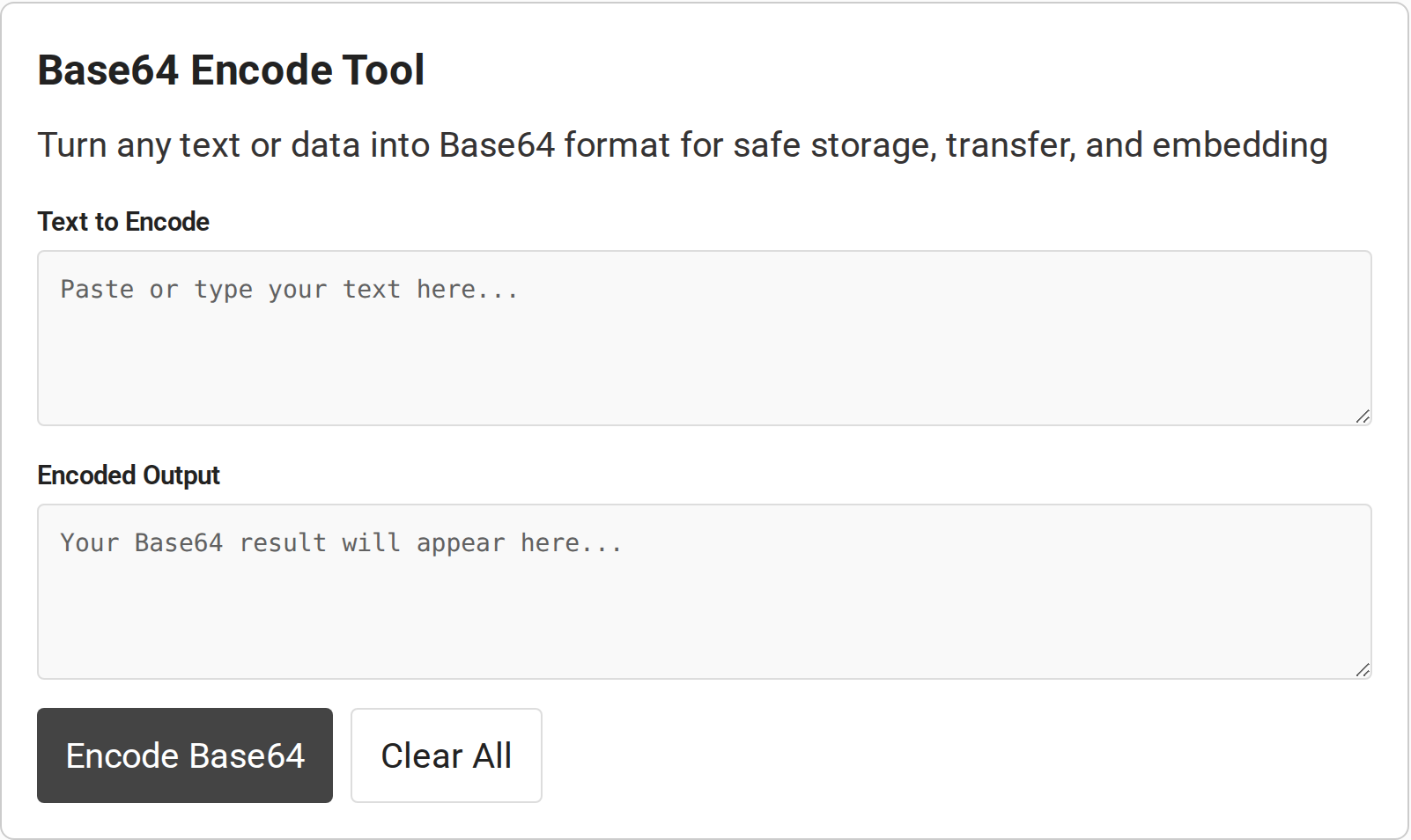
The encoder takes text from its first box and displays a result in the second. Keep the original string unchanged because even an extra space or newline changes the bytes and the encoded output.
Step 1: Enter the text
Enter the value in Text to Encode.
When a receiving field asks for Base64 instead of the original words, enter those original words here and copy the encoded result into the field. If the field asks for plain text, use the original string instead.
Step 2: Select Encode Base64
The capture shows both fields and buttons in their starting state, with no encoded result yet.
Step 3: Copy the result
Copy the exact result into the field that expects encoded text.
Step 4: Clear or decode
Select Clear All before entering another value. To reverse the operation, use the online Base64 decoder and interpret the decoded bytes using the right text encoding.
Base64 Output, Unicode, and File Limits
Unicode text, binary files and MIME messages each have different input or output requirements.
| Case | Check and next step |
|---|---|
| Emoji or accented text | Use a Unicode-aware tool that converts text to UTF-8 bytes first. JavaScript btoa accepts byte-valued strings, not arbitrary Unicode characters. |
| Different output | Compare spaces, line endings, character encoding, alphabet and padding. Match the destination’s required format. |
| URL or filename | Use Base64URL only when specified. It replaces + and / with – and _. |
| Image or other file | Use a file-capable encoder because this page’s input fields accept pasted text. |
| Unreadable decoded result | The bytes may be binary rather than text. Decode them as a file or use the correct text encoding. |
MDN explains that btoa can reject characters outside its byte-string range. Convert Unicode text to UTF-8 bytes before Base64 encoding. Base64 expands data, so a large file may exceed a text field or the receiver’s payload limit.
RFC 2045 limits MIME Base64 lines to 76 characters for email transfer. Those line breaks are formatting for the message body, not part of the original bytes. An API may expect one continuous value, so match its contract instead of copying mail line wrapping.
Base64’s alphabet is case-sensitive, so preserve each letter’s case while copying a value. A changed character can produce different decoded bytes, even when the result still looks like valid Base64.
An image data URL combines a media type and Base64 marker with data, with the type identifying the resource and the marker introducing its encoded bytes. MDN’s FileReader documentation describes returning the complete URL. A field that accepts only Base64 needs the payload alone, so check the receiver’s instructions before trimming a prefix.
Conclusion: Match the Base64 Format to Its Destination
Use the encoder for text you can paste, then follow the receiving format’s instructions. Check the linked standards and browser documentation when implementing the same conversion in an application.
For the rules, read RFC 4648. MDN covers btoa and Unicode and the TextEncoder interface. When data needs confidentiality rather than representation, see the site’s Node.js encryption guide.
FAQ
These answers address common questions about encoding text and using the result.
Can I encode an image with this page?
This page has text fields, not a file picker. Use a file-capable encoder or encode the image bytes in your application.
Does Base64 protect a password?
No. Base64 is reversible and has no secret key. Do not use it to protect passwords or tokens.
Why can Base64 output differ between tools?
The input bytes, text encoding, whitespace, alphabet, padding or line breaks may differ. Match the receiving system’s requirements.