New to Rust? Grab our free Rust for Beginners eBook Get it free →
pd.concat in pandas: 3 ways to concatenate DataFrames


Pandas concat is the function built for combining DataFrames, and it handles both row-wise and column-wise combinations without much fuss. Anyone pulling data from different files, APIs, or database queries runs into a point where two or more DataFrames need to become one, and pd.concat is the tool for that job. In this guide I’ll show you three ways to concatenate DataFrames with pd.concat, cover the keys parameter for tracking sources, and walk through the errors you’ll hit if you’re migrating from the removed append() method.
What is DataFrame concatenation and why you need it
While working with pandas you’ll often end up with multiple DataFrames in a single project that you want to combine into one. This is where concatenation comes in. It simply means joining two or more DataFrames together, and pandas gives you two directions to do it in: row-wise (stacking DataFrames on top of each other) and column-wise (placing them side by side). Concatenation keeps your data organized in fewer, larger DataFrames instead of scattered across many small ones.
You’ll hit this pattern constantly in real projects. Say you pull sales data month by month from a database, or you load a dozen CSV exports from a DataFrame pipeline that each cover a different region. Rather than processing each piece separately, pd.concat lets you merge them into a single DataFrame so your analysis, filtering, and plotting all run against one consistent object.
pandas concat() function explained
Before touching concat(), install pandas into your virtual environment or system if you haven’t already.
Install command:
pip install pandas
Once installed, import it into your file. Pandas concat is a top-level function, not a method on the DataFrame itself, which is a distinction that trips up a lot of people (more on that error later in this article).
Syntax:
pandas.concat(objs, axis=0, join='outer', ignore_index=False, keys=None, levels=None, verify_integrity=False, sort=False, copy=None)
- objs: The DataFrames or Series you want to concatenate. You need at least two.
- axis: Defaults to 0, meaning vertical (row-wise) concatenation. Set it to axis=1 for horizontal (column-wise) concatenation.
- join: Controls how pandas handles labels on the other axis, either ‘outer’ (keep everything) or ‘inner’ (keep only what overlaps).
- ignore_index: When True, drops the original index values and assigns a fresh 0, 1, 2… index to the result.
- keys: Builds a hierarchical index so you can trace which source DataFrame each row came from.
- levels: Lets you set exact values for building a MultiIndex, rather than inferring them from keys.
- verify_integrity: Checks the new DataFrame for duplicate index values and raises an error if it finds any.
- sort: Sorts the non-concatenating axis when it isn’t already aligned.
- copy: Controls whether data gets copied unnecessarily. Recent pandas releases (3.0 and later) have deprecated this parameter since the library now defers copies automatically through a Copy-on-Write mechanism, so don’t be surprised if you see it flagged in a future upgrade.
Ways to concatenate DataFrames using concat() are
- Using concat() for row-wise concatenation
- Using concat() for column-wise concatenation
- Concatenating DataFrames with different columns
Let’s go through each of these in detail with examples.
1. Row-wise concatenation with concat()
Row-wise (vertical) concatenation is what you reach for when two DataFrames share the same column names but hold different values you want combined. The DataFrames stack on top of each other.
Example:
import pandas as pd

data1 = {'Name': ['Tony', 'Natasha', 'Steve'],
        'Marks': ['89', '93', '72']}
data2 = {'Name': ['Bruce', 'Clark', 'Diana'],
        'Marks': ['91', '87', '98']}

df1 = pd.DataFrame(data1)
df2 = pd.DataFrame(data2)

result_df = pd.concat([df1, df2], axis=0)

print(result_df)
Here, df1 and df2 both contain the fields Name and Marks. Setting axis=0 tells concat() to stack them row-wise. The result is a single DataFrame with all 6 rows.
Output:
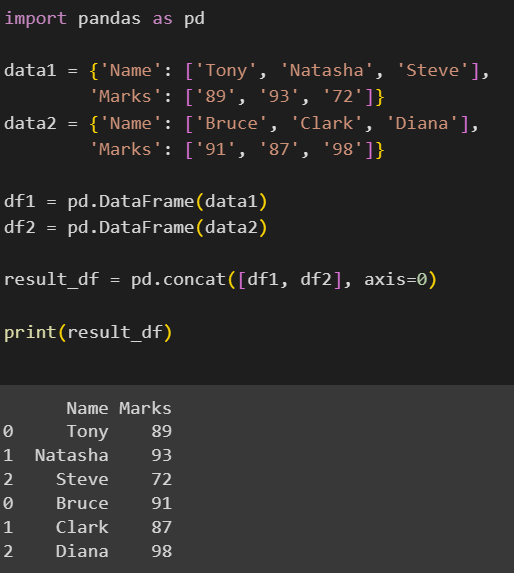
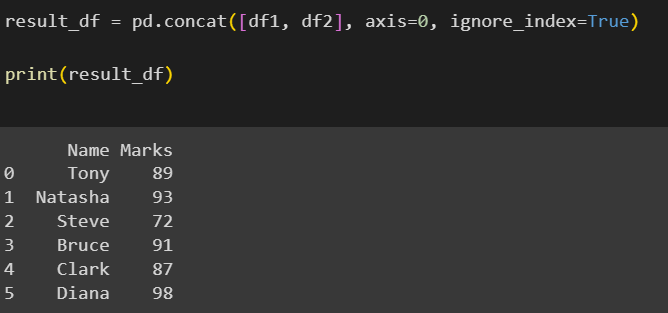
Notice the index restarts at 0 for the second DataFrame’s rows, since pandas preserves the original index from each source by default. Set ignore_index=True to give the result a clean, consecutive index instead.
Output (using ignore_index=True):
2. Column-wise concatenation with concat()
Column-wise (horizontal) concatenation works the same way, except you pass axis=1. You’ll use this mostly when your DataFrames hold different columns that describe the same set of rows.
Example:
import pandas as pd

data1 = {'Name': ['Tony', 'Natasha', 'Steve'],
        'Marks': ['89', '93', '72']}
data2 = {'Rollno': ['21', '39', '50'],
        'Grade': ['B', 'A', 'C']}

df1 = pd.DataFrame(data1)
df2 = pd.DataFrame(data2)

result_df = pd.concat([df1, df2], axis=1)

print(result_df)
df1 and df2 have entirely different fields here. axis=1 tells concat() to line them up side by side by index, so the result carries every column from both DataFrames.
Output:
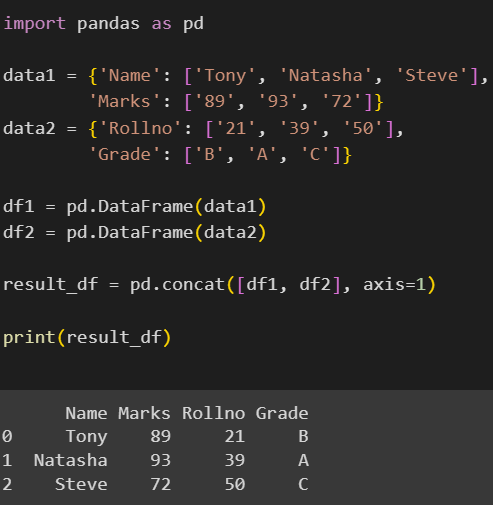
One thing worth watching here: column-wise concat aligns rows by their index position, not by any shared key. If your two DataFrames don’t share the same index values, you’ll get NaN in the gaps rather than the alignment you expected.
3. Concatenating DataFrames with different columns
Sometimes the DataFrame you’re concatenating doesn’t have a matching field for every column. Pandas fills those gaps with NaN (Not a Number) rather than throwing an error. Here’s an example concatenating two DataFrames with different column names row-wise, instead of column-wise.
Example:
import pandas as pd

data1 = {'Name': ['Tony', 'Natasha', 'Steve'],
        'Marks': ['89', '93', '72']}
data2 = {'Name': ['Bruce', 'Clark', 'Diana'],
        'Grade': ['B', 'A', 'C']}

df1 = pd.DataFrame(data1)
df2 = pd.DataFrame(data2)

result_df = pd.concat([df1, df2], axis=0, ignore_index=True)

print(result_df)
df1 and df2 share the Name field, so that column ends up with all 6 rows filled. Since df1 has no Grade column, those rows show NaN under Grade. Since df2 has no Marks column, those rows show NaN under Marks.
Output:
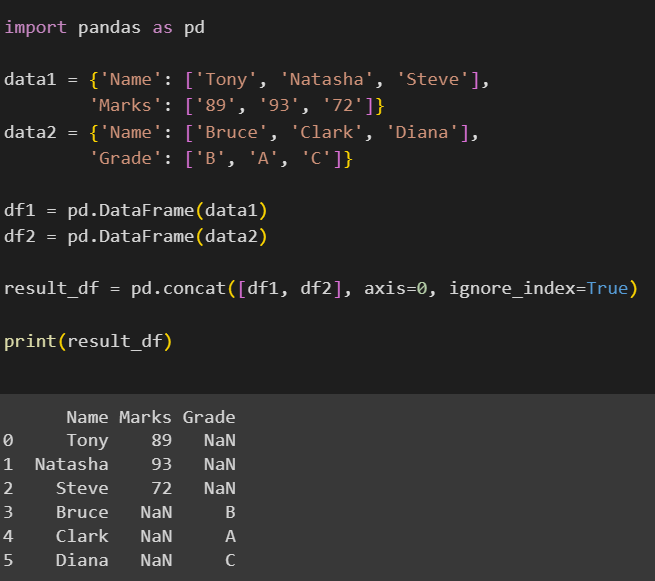
This NaN-filling behavior is one reason pd.concat scales so well. You don’t need every source DataFrame to share an identical schema before combining them, though you should still check the mismatched columns are intentional rather than a sign of a typo in a column name.
Adding a hierarchical index with the keys parameter
The examples above lose track of which row came from which original DataFrame once they’re combined. The keys parameter fixes that by building a hierarchical (MultiIndex) label on top of your existing index, tagging every row with the source it came from.
Example:
import pandas as pd

data1 = {'Name': ['Tony', 'Natasha', 'Steve'],
        'Marks': ['89', '93', '72']}
data2 = {'Name': ['Bruce', 'Clark', 'Diana'],
        'Marks': ['91', '87', '98']}

df1 = pd.DataFrame(data1)
df2 = pd.DataFrame(data2)

result_df = pd.concat([df1, df2], keys=['team_a', 'team_b'])

print(result_df)
print(result_df.loc['team_b'])
Passing keys=[‘team_a’, ‘team_b’] adds an outer index level labeled team_a for every row from df1 and team_b for every row from df2. You can then pull out just one group with result_df.loc[‘team_b’], which is handy when you’ve combined data from several sources but still need to isolate one of them later for a query or a spot check. Add a names argument alongside keys if you also want to label the new index level itself, for example names=[‘team’, ‘row’].
Concatenating multiple DataFrames at once
pd.concat can combine more than two DataFrames in a single call. The objs argument accepts any list, so you combine as many as you have at once. This comes up often when you’re looping through a folder of files, for example monthly CSV exports you’ve loaded with read_csv, and want a single combined dataset at the end.
Example:
import pandas as pd

monthly_frames = []

for month in ['jan', 'feb', 'mar']:
    data = {'Region': ['North', 'South'], 'Sales': [100, 150]}
    df = pd.DataFrame(data)
    df['Month'] = month
    monthly_frames.append(df)

full_year = pd.concat(monthly_frames, ignore_index=True)

print(full_year)
Each pass through the loop builds a small DataFrame and appends it to a plain Python list. Once the loop finishes, a single pd.concat call combines everything, with ignore_index=True producing a clean index across all 6 rows. This is significantly faster than concatenating inside the loop itself, since building the list first and calling concat once avoids repeatedly rebuilding a growing DataFrame in memory.
pd.concat vs DataFrame.append
If you’ve used older pandas code, you’ve probably seen DataFrame.append() used to add rows from one DataFrame to another. Pandas removed append() in recent major versions, and pd.concat is its full replacement. The two aren’t quite identical in the code you write, so here’s the direct swap.
Old code (no longer works):
data = train_dataset.append(test_dataset, ignore_index=True)
Current replacement:
data = pd.concat([train_dataset, test_dataset], ignore_index=True)
The core difference is that append() was a method called on a DataFrame, while concat() is a standalone pandas function that takes a list of DataFrames. If you’re combining or appending rows inside a loop, building a list and calling pd.concat once at the end, as shown in the previous section, avoids the performance hit that repeated appends used to cause.
pd.concat vs merge and join
pd.concat isn’t the only way pandas combines data, and it’s worth knowing when to reach for something else. concat() stacks or aligns DataFrames based on their index or column labels alone. It doesn’t know anything about matching keys the way a database join does. If you need to combine two DataFrames based on a shared column, like joining a customers table to an orders table on a customer ID, you want merge() or join() instead. Reach for pd.concat when you’re stacking DataFrames that already share a shape or structure, and reach for merge() when you’re relating two DataFrames through a common key.
Fixing the DataFrame object has no attribute concat error
This is one of the most common mistakes people hit when switching away from append(). Since concat() lives on the pandas module itself rather than on the DataFrame class, calling it as a method throws an error.
This fails:
data = train_dataset.concat(test_dataset, ignore_index=True)
AttributeError: 'DataFrame' object has no attribute 'concat'
This works:
data = pd.concat([train_dataset, test_dataset], ignore_index=True)
The fix is always the same: call concat() on the pandas module (usually imported as pd), and pass every DataFrame you want combined as items in a single list, rather than calling it off one of the DataFrames directly. This mistake shows up constantly in code that’s being migrated away from the older append() pattern, since append() genuinely was a DataFrame method and old muscle memory carries the dot-notation habit over to concat() without realizing the two functions don’t share an interface.
Performance tips for pd.concat
A few practical notes that will save you time once your DataFrames get bigger than a toy example.
Watch for dtype upcasting
Mixing data types across the DataFrames you’re combining can force pandas to upcast an entire column to a more general type, for example turning a column of integers into floats once a NaN shows up. Keep dtypes consistent across your source DataFrames where you can, and clean up the result afterward with something like replace() or fillna() if mismatched types slip through.
Avoid concatenating inside a loop
Avoid calling pd.concat repeatedly inside a loop, one pair at a time. Collect your DataFrames into a list first, then call concat once, as shown earlier in this article. Repeated concatenation forces pandas to copy the growing result on every iteration, which gets slow fast as your row count climbs.
Scale beyond memory when needed
For datasets too large to comfortably fit in memory, pd.concat itself won’t help you scale further. Tools like Dask offer a parallel, chunked version of the same concatenation pattern, letting you combine datasets that exceed your machine’s RAM. It’s worth knowing this exists, though for most day-to-day pandas work, plain pd.concat handles the job fine. After a concat, it’s good practice to check the row and column count on the result to confirm you got the row total you expected, especially with ignore_index=True where duplicate rows can otherwise hide in plain sight.
Key takeaways
- pd.concat combines DataFrames along rows (axis=0) or columns (axis=1)
- ignore_index=True gives you a clean, non-duplicate index in the result
- Use keys to track which rows came from which source DataFrame
- pd.concat fills missing columns with NaN instead of raising an error
- DataFrame.append() no longer exists, so pd.concat is its full replacement
- concat() is a pandas function, not a DataFrame method, so df.concat() fails
- pd.concat accepts a list of many DataFrames, not only two
- Build a list first and concat once rather than looping calls to concat
Frequently asked questions
What is the difference between pd.concat and pandas append?
DataFrame.append() was a method for adding rows to a DataFrame and has been removed from pandas. pd.concat() is the standalone function that replaces it, called as pd.concat([df1, df2]).
Why do I get an AttributeError when I call df.concat()?
concat() lives on the pandas module, not on the DataFrame class. Call it as pd.concat([df1, df2]) instead of df1.concat(df2) to fix the error.
How do I stop pd.concat from keeping duplicate index values?
Pass ignore_index=True to pd.concat. This drops the original indexes from every source DataFrame and assigns a fresh, consecutive index to the combined result.
Can pd.concat combine more than two DataFrames at once?
Yes. Pass a list of any length, such as pd.concat([df1, df2, df3]). This is common when looping through several files and combining them in one final call.
Does pd.concat work on Series as well as DataFrames?
Yes. pd.concat accepts a list of Series objects the same way it accepts DataFrames, stacking them into a combined Series or DataFrame depending on the axis used.
What is the difference between pd.concat and pd.merge?
pd.concat stacks or aligns DataFrames by index or column labels. pd.merge combines DataFrames based on a shared key column, similar to a SQL join.
Why does pd.concat fill some cells with NaN?
When the DataFrames you’re combining don’t share every column, pandas fills the missing spots with NaN rather than raising an error, keeping the combined result usable.
Conclusion
Concatenating DataFrames is one of those pandas operations you end up using in nearly every project that pulls data from more than one source. Once you’ve got pd.concat down, along with its keys parameter and its quirks around index alignment, combining datasets stops being a chore and becomes a one-line habit.