New to Rust? Grab our free Rust for Beginners eBook Get it free →
Multimodal AI for Developer Workflows: A Practical Guide

A multimodal AI developer workflow gives a model the visual evidence that text logs leave out, but a screenshot alone rarely explains a bug. My image-preparation test used Node.js 26.5.0 and Sharp 0.35.3 so the workflow starts with a reproducible artifact rather than a vague request to “look at this.”
Build an evidence bundle before you ask the model
A useful request combines the smallest screenshot that shows the failure with the text artifacts needed to explain it. Give the model the same evidence you would send to a teammate who cannot open your machine.
| Artifact | What to include | Why it changes the answer |
|---|---|---|
| Screenshot | The failed state, relevant control, and visible message | Shows layout, hierarchy, clipping, or missing content |
| Expected state | A reference image, design frame, or one precise sentence | Stops the model from guessing the intended UI |
| Runtime evidence | Console error, network response, trace, or test failure | Connects the visible symptom to a code path |
| Scope | Component name, route, recent commit, and allowed files | Keeps the proposed edit narrow |
| Success check | A selector assertion, visual comparison, or output condition | Turns the suggestion into a testable change |
Crop unrelated tabs, notifications, customer data, API keys, and account details before upload. A clean crop reduces disclosure risk and gives the model fewer visual elements to misclassify.
Normalize screenshots before sending them
Large screenshots add transfer time and may be resized by the provider before analysis. Anthropic documents automatic downscaling when an image exceeds 1568 pixels on its long edge, which makes 1568 pixels a practical ceiling for a general preflight step.
The script below rotates the image from its metadata, keeps the aspect ratio, prevents enlargement, strips unnecessary metadata during conversion, and writes a WebP file. It accepts any input format supported by Sharp.
import sharp from "sharp";
import { stat } from "node:fs/promises";

const input = process.argv[2];
const output = process.argv[3] ?? "vision-input.webp";

if (!input) {
  console.error("Usage: node prepare-vision-input.mjs <input> [output]");
  process.exit(1);
}

const before = await sharp(input).metadata();

await sharp(input)
  .rotate()
  .resize({ width: 1568, height: 1568, fit: "inside", withoutEnlargement: true })
  .webp({ quality: 82 })
  .toFile(output);

const after = await sharp(output).metadata();
const inputBytes = (await stat(input)).size;
const outputBytes = (await stat(output)).size;

console.log(`Input:  ${before.width}x${before.height}, ${inputBytes} bytes`);
console.log(`Output: ${after.width}x${after.height}, ${outputBytes} bytes`);
console.log(`Saved:  ${output}`);
Install the current Sharp release and run the script against the screenshot you plan to submit.
npm install --no-save --no-package-lock sharp
node prepare-vision-input.mjs bug-report.png vision-input.webp
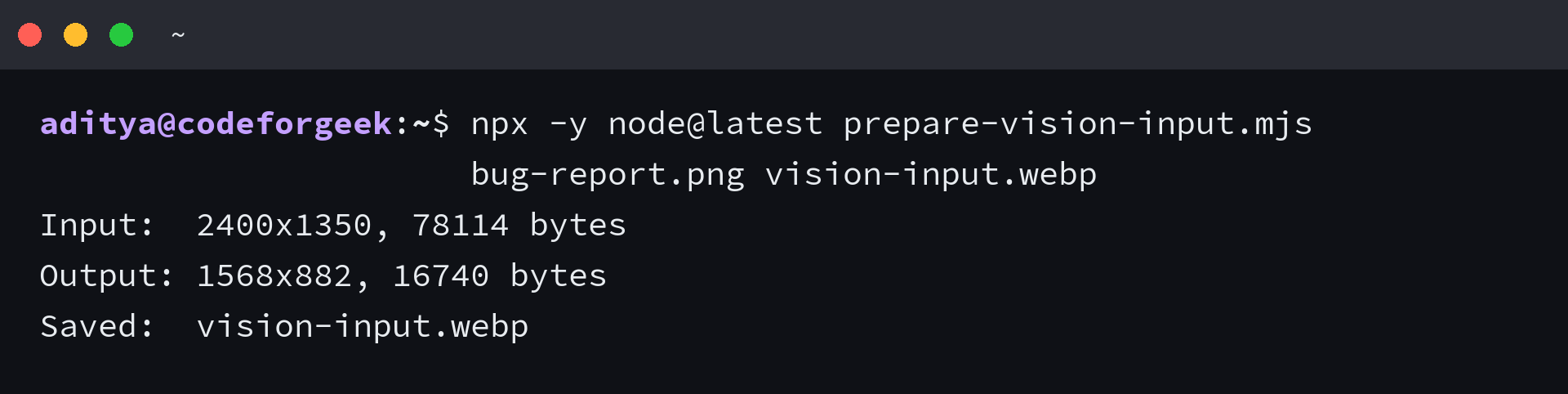
My test reduced a 2400 by 1350 PNG from 78,114 bytes to a 1568 by 882 WebP of 16,740 bytes. The dimensions matter more than that compression ratio because content and image complexity change the byte count.
Google exposes media-resolution controls for Gemini image inputs, and the OpenAI Responses API can process multiple images in one request. Provider controls differ, so check the current image guide before you standardize dimensions or detail settings across a team.
Prompt for diagnosis before code
A model can jump from a screenshot to a plausible patch before it has identified the failed state, so ask for an evidence table and a diagnosis before permitting code.
Task: Diagnose the failed profile page.

Inputs:
- actual-ui.webp shows the failed state
- expected-ui.webp shows the approved design
- console.txt contains browser errors
- network.json contains the failed request

Return:
1. Observations that are directly visible
2. Claims supported by console or network evidence
3. Unknowns that still require inspection
4. The smallest proposed code change
5. A Playwright assertion that would catch the regression

Do not infer hidden application state from the screenshot alone.
That separation makes unsupported claims easy to spot because a screenshot can prove that an avatar is missing without proving whether the cause is a bad URL, an authorization failure, a rendering branch, or a content security policy.
Use multimodal input where vision changes the task
Screenshots help when the failure depends on position, styling, visual hierarchy, a diagram, a chart, or an operating-system dialog, but plain text remains the better input for stack traces, source files, application logs, and structured responses because you can search, diff, and quote it without optical character recognition errors.
| Developer task | Useful visual input | Keep as text |
|---|---|---|
| UI debugging | Failed state and approved state | DOM snapshot, console, network trace |
| Design to code | Component frame and responsive variants | Design tokens, accessibility rules, component API |
| Architecture review | Diagram with readable labels | Threat model, service contracts, constraints |
| Chart analysis | Rendered chart when shape matters | Source data and axis definitions |
| Agent validation | Screenshot after an action | Action log and deterministic assertions |
If you want to call a vision model from JavaScript, the multimodal AI with Node.js tutorial covers the request path, but compare coding assistants separately when you need repository edits, terminal access, or autonomous execution because image support does not prove that an agent can operate safely inside your project.
Validate the answer with deterministic checks
Visual reasoning is useful for diagnosis and review, but the model should not become the only test oracle. Playwright visual comparisons produce expected, actual, and diff images, and the documentation warns that rendering varies across browsers and operating systems.
Keep baseline screenshots in the same browser and platform environment used by the test runner. Pair visual comparisons with locator assertions for text, role, visibility, and state so a cosmetically similar screen cannot hide a functional failure.
- Require the model to name the pixel evidence behind each visual claim.
- Run generated code and tests outside the model response.
- Reject patches that change unrelated files or suppress the failing assertion.
- Capture a fresh screenshot after the fix and compare it with the approved state.
- Route security, accessibility, and payment flows through human review.
A broader AI coding agent comparison helps when your decision includes repository context and tool execution. Vision quality is one axis, not a substitute for permission controls, test integration, or review.
Keep image handling inside your security boundary
Screenshots often contain more data than the prompt mentions because browser chrome can expose workspace names, email addresses, internal URLs, extension icons, and session details.
Define retention, provider training, regional processing, and access rules before a team sends production screenshots to an external API. Redact at the source, store the unedited capture only when incident policy requires it, and log which image supported each generated change.
Questions about multimodal developer workflows
What is multimodal AI in a developer workflow?
Multimodal AI accepts more than one data type, such as text plus images. A developer workflow can pair a UI screenshot with console output, network data, source context, and a precise success check.
Should I send a screenshot or paste the error text?
Send the screenshot when layout or visual state changes the diagnosis. Paste errors, logs, source, and structured responses as text because those artifacts stay searchable and exact.
How large should a screenshot be for vision analysis?
Use the smallest readable crop that preserves the failed state. Provider limits differ, but a 1568-pixel long edge is a practical general target because Anthropic documents downscaling beyond that point.
Can a vision model verify that a UI bug is fixed?
A vision model can review the new state, but deterministic checks should decide whether the fix passes. Pair a screenshot comparison with Playwright locator assertions and the original runtime failure.
What should I remove before uploading a screenshot?
Remove API keys, account details, customer records, internal URLs, unrelated browser tabs, and notifications. Keep only the region and surrounding context needed to understand the failure.
The safest default is a focused crop, exact text artifacts, and an automated check that can reject the proposed change.
Make the last step a test
A useful multimodal workflow ends with a result your build can check. Give the model focused visual evidence, preserve machine-readable artifacts as text, and turn the proposed repair into a Playwright assertion before you accept the patch.