New to Rust? Grab our free Rust for Beginners eBook Get it free →
How to Use Elicit AI: A Beginner’s Guide


I used to type a few keywords into Google Scholar and skim a stack of results to figure out which papers were worth reading. Elicit AI cuts that loop short by taking a plain research question and giving back a table of papers with summaries, filters, and a saved library you can return to.
What is Elicit AI?
Elicit AI is an artificial intelligence research assistant built for scientific papers. It can search academic literature, summarize papers, extract data into columns, and help you chat with papers after you add them to your library.
Elicit says its search covers more than 138 million papers from Semantic Scholar and other sources, along with clinical trials from ClinicalTrials.gov. That makes it useful when Google gives broad pages but you need research papers with titles, abstracts, citations, and evidence tables.
Why beginners use Elicit AI
Elicit is useful because it starts with a natural language question instead of a perfect keyword string and lets you refine the result table instead of opening twenty tabs at once.
- Fast paper discovery: Elicit finds papers related to your question and shows a short summary for each result.
- Structured reading: The table format helps you compare papers by year, study type, abstract, findings, and custom columns.
- Better filtering: You can narrow results by publication year, study type, journal quality, keywords, and PDF availability.
- Project memory: Saved papers can go into your Elicit library, so a research project does not disappear after one search.
For coding-focused AI work, tools like Blackbox AI for coding and an AI coding agent comparison solve a different problem. Elicit is the better fit when the question depends on published research rather than code generation.
How to use Elicit AI step by step
The beginner flow starts with a question, then moves through search results, filters, columns, and saved papers.
Step 1. Sign up and open Elicit
Open the Elicit website and create an account with your email or Google account, then choose from options such as Research Report, Systematic Review, Find Papers, Chat with Papers, Extract Data, and Research Agent.
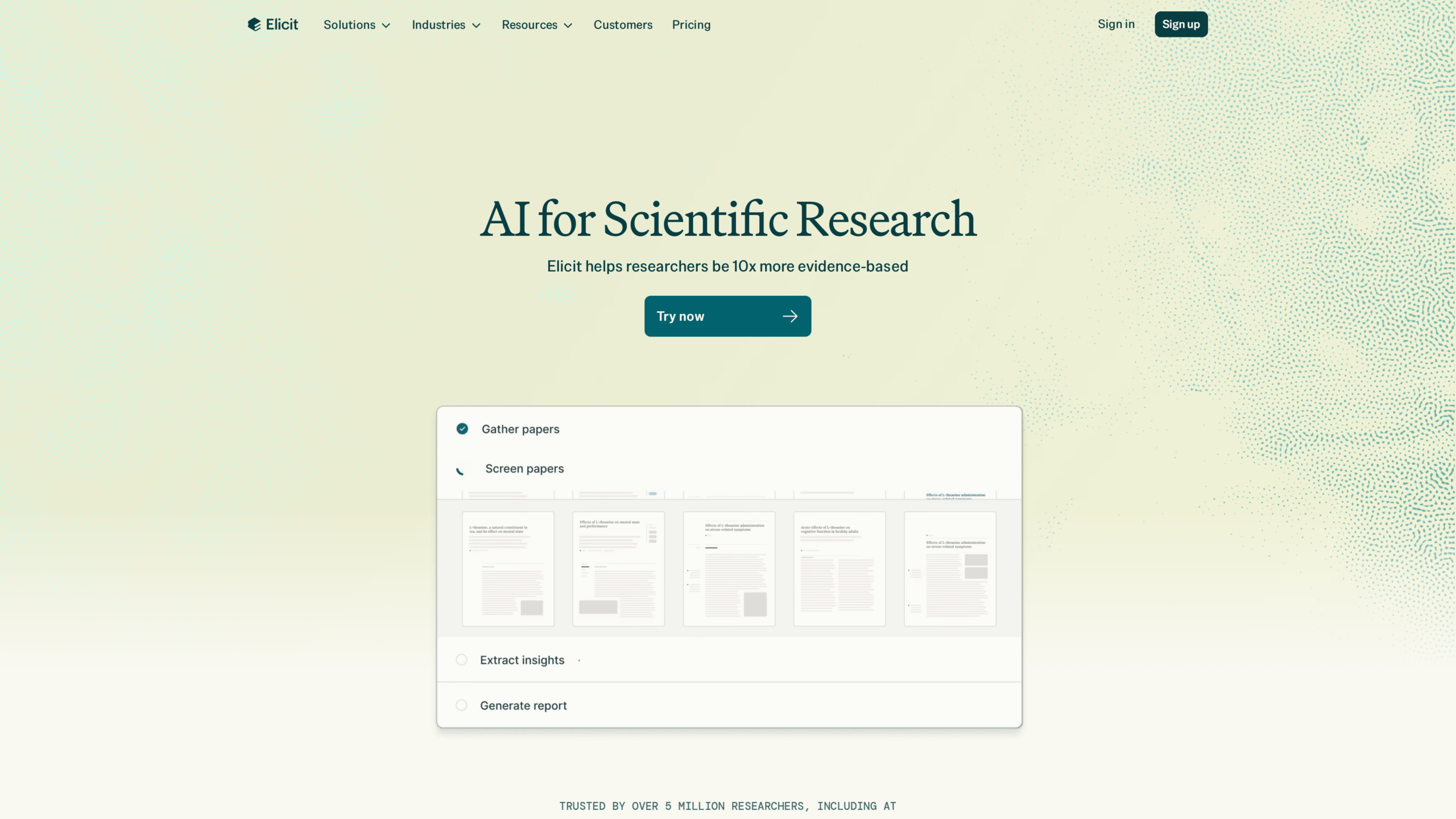
New users should usually begin with Find Papers because it is available on all plans and gives you the core Elicit workflow without forcing you into a systematic review setup.
Step 2. Choose Find Papers for your first search
The interface is built around a search box and a results table, and Find Papers is the simplest place to learn how Elicit thinks because the tool returns papers first and lets you add analysis after that.
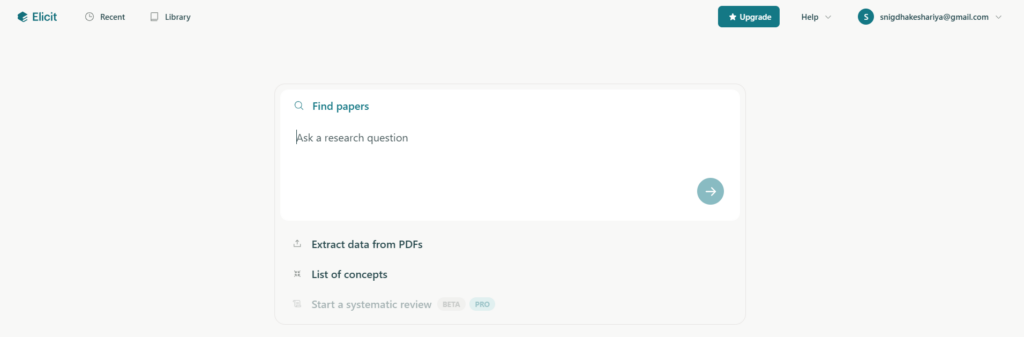
Choose Research Report when you want a generated overview with citations, and choose Systematic Review only when you need a stricter review process with screening and extraction steps.
Step 3. Ask a clear research question
A clear question gives Elicit more context than a short keyword phrase, so replace climate change farming with How does climate change affect crop yields in South Asia?
Elicit’s own guidance recommends asking a clear and unambiguous question, then broadening it, tightening it, or changing the wording when the first results miss your intent.
Step 4. Review the paper table
After you submit the question, Elicit shows a table of papers with the top results and lets you load more papers when the first group is too small.
- Title and authors: Use these fields to spot whether the paper matches your topic and source expectations.
- Abstract summary: Read the summary before opening the full paper, especially when you are scanning many studies.
- Year and venue: Recent papers are not always better, but dates help when the topic changes quickly.
- Citation and source links: Open the source when you need to verify a claim or quote the paper in your own work.
Elicit summaries are a starting point, not a replacement for reading the paper.
Step 5. Use filters to narrow results
Filters help when the table contains papers that are close to your topic but not useful enough, and Elicit supports natural language filters in the query, a Filter button in the interface, and advanced search syntax for stricter searches.
- Publication year: Ask for papers after a chosen year when you need newer studies.
- Study type: Limit the table to review papers, meta-analyses, randomized controlled trials, longitudinal studies, or systematic reviews when the evidence level matters.
- Keywords: Include or exclude words from abstracts when Elicit keeps drifting away from your topic.
- Has PDF: Use this when you need papers that are easier to open from the source database.
Step 6. Add columns for data extraction
The table becomes more useful when you add columns that answer your research question. You might add columns for sample size, intervention, location, measurement method, outcome, or limitation.
Column answers can still need checking, especially for paywalled papers where the tool may only have title or abstract information. Open the paper before you rely on a column answer in an assignment, report, or literature review.
Step 7. Open promising papers and save them
Click a promising paper to inspect the abstract, summary, citation details, and source link, then save useful papers to your library so you can return to them, chat with them, or organize them inside a project.
If your work moves into citations, export options can help because Elicit supports exports for reports, tables, and reference formats depending on the workflow and plan.
Tips for better Elicit AI results
Good results usually come from adjusting the question after reading the first table, since small changes can shift the papers from generic background reading to studies that answer the exact decision you need to make.
- Ask full questions: Write the question you would ask a research librarian, not the two words you would type into a search engine.
- Start broad, then filter: A broad first search can reveal useful terms, and filters can remove the noise after that.
- Check the source paper: Use summaries to choose papers, but verify claims from the original paper before citing them.
- Save papers as you go: A saved library matters once your project has more than a few strong sources.
If you are comparing research assistants with general chatbots, our Perplexity vs ChatGPT comparison explains how answer engines differ from chat tools. For everyday productivity outside research papers, these AI Chrome extensions are a better place to look.
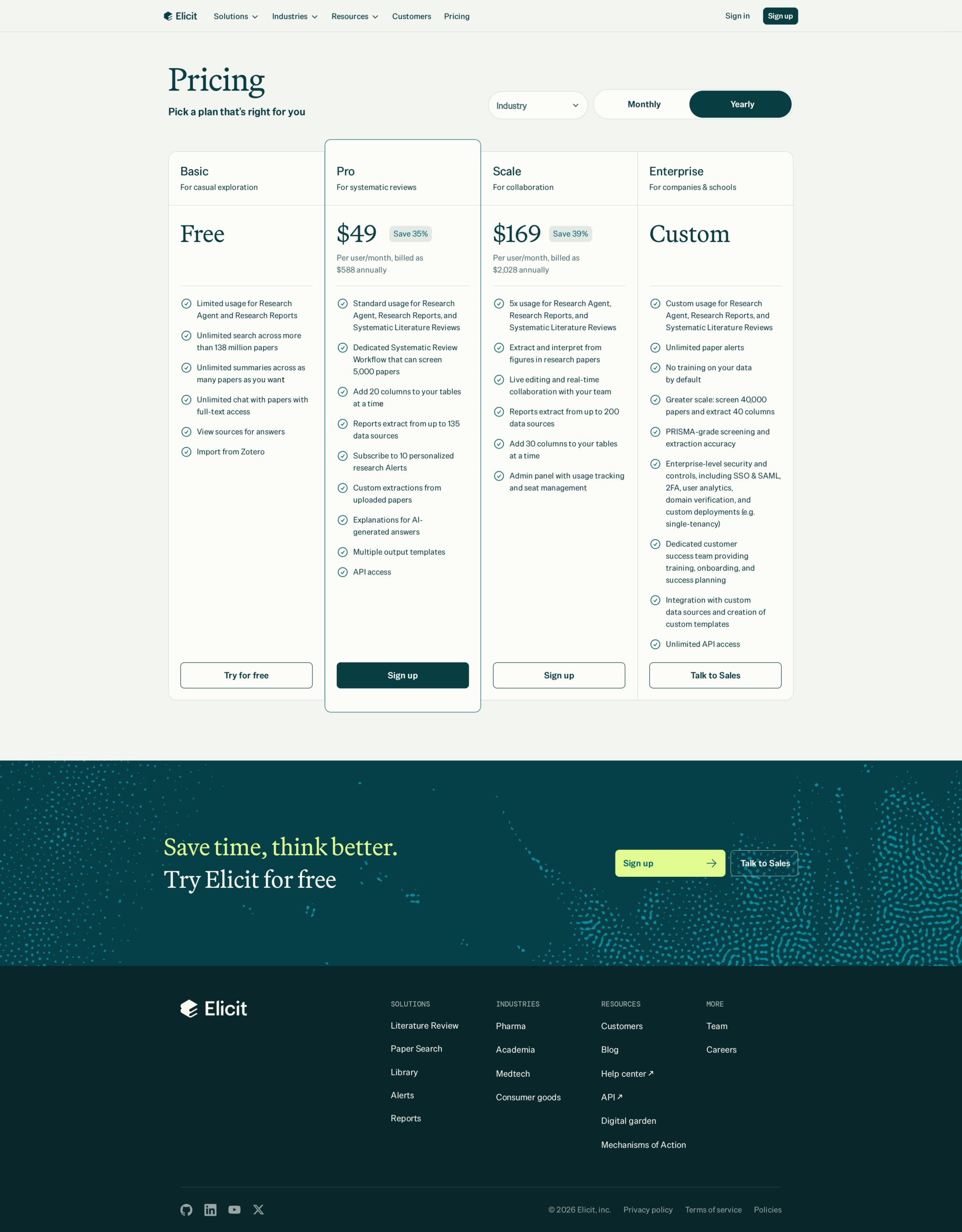
Free plan, paid plans, and usage limits
Elicit has free and paid access, but exact plan limits can change, so use the free plan for a few searches and upgrade only if you need larger reports, heavier extraction, or team features.
Elicit’s help center says usage now comes from a shared monthly pool across available workflows, where a quick question uses less usage than a long agent session that reads files, extracts several columns, or builds a larger report.
If you only need a general AI assistant, you may not need a research-specific plan at all, and our guide to using DeepSeek AI for free is better for broad chat tasks while AI CLI agent commands are more useful for terminal and coding workflows.
Common beginner mistakes
Beginners usually run into trouble when they stop after the first search table, while Elicit works best when you revise the question, add filters, compare columns, and open the strongest papers.
- Using vague prompts: Replace AI education with a question such as How do tutoring chatbots affect math learning outcomes for middle school students?
- Trusting summaries without checking: Summaries help you screen papers, but your final claim should come from the source.
- Ignoring study type: A blog-like overview, a review paper, and a randomized controlled trial do not carry the same evidence weight.
- Forgetting to save useful papers: Save papers while reading, because finding the same paper again later wastes time.
Conclusion
Elicit AI is a strong beginner tool for literature discovery because it turns a research question into a table of papers you can filter, inspect, and save. It does not remove the need to read sources, but it makes the first pass through a topic much cleaner.
Start with Find Papers, ask one clear question, scan the summaries, add filters, then open the studies that matter. That workflow is enough to move from a blank search box to a usable research shortlist.
Is Elicit AI free to use?
Elicit has free access and paid plans. Plan details and usage limits can change, so check the current pricing page before relying on a limit for a large project.
What should a beginner use first in Elicit?
Find Papers is the best first workflow for beginners. It lets you ask a research question, review papers in a table, add filters, and save useful papers to your library.
Can Elicit replace reading research papers?
Elicit should not replace reading the source paper. Use it to find and screen studies, then open the original paper before you cite a claim or use the evidence in serious work.
Reference
- Elicit Help Center: Getting started with Elicit
- Elicit Help Center: Filtering in Elicit
- Elicit Help Center: Improve Search Results