New to Rust? Grab our free Rust for Beginners eBook Get it free →
Best-Looking Linux Distros: Eight Picks and the Desktops Behind Them


Distributions don’t look like anything. The desktop environment is what you see, and these eight distributions run six desktop environments between them, so two entries can boot to the same panel, the same icons and the same window buttons.
I checked each project’s download page for the release it lists today, then grouped the picks by desktop, so you can choose the look first and the base underneath it second.
The desktop environment decides how Linux looks, not the distribution
A distribution is a package repository, an installer, a kernel and a set of defaults. The panel, the dock, the window buttons and the animations come from whichever desktop environment it starts by default.
That layer is replaceable. On Ubuntu 24.04 both Cinnamon and KDE’s base package are ordinary installs, which I ran on the Ubuntu 24.04 machine behind these checks:
apt-cache policy cinnamon-desktop-environment kde-plasma-desktop
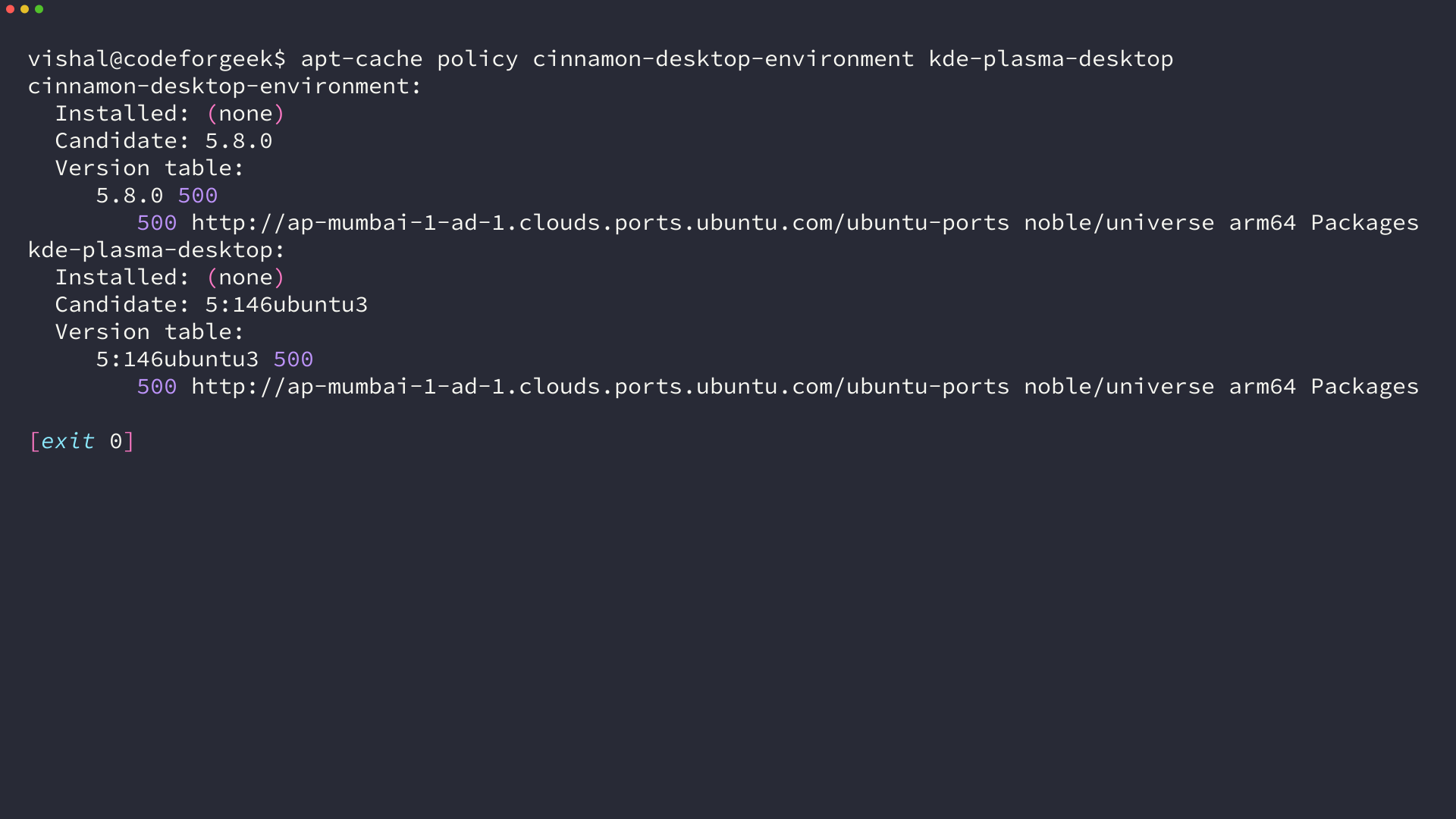
The output names a candidate version for each package and reports both as not installed on this system. The desktop is a choice you can make after the base.
I grouped the eight picks by the environment each one starts, after checking that every project still ships a current release:
| Distribution | Desktop it ships | Base | Current release |
|---|---|---|---|
| elementary OS | Pantheon | Ubuntu LTS | 8.1.1 Circe |
| deepin | DDE 7.0 | Debian | 25.2.0 |
| Linux Mint | Cinnamon | Ubuntu LTS | 22.3 Zena |
| Pop!_OS | COSMIC | Ubuntu LTS | 24.04 LTS |
| KDE neon | Plasma 6.7 | Ubuntu 24.04 LTS | User Edition |
| Manjaro | Plasma, Xfce or GNOME | Arch | rolling |
| Solus | Budgie, GNOME, Plasma or Xfce | Independent | 4.9 |
| EndeavourOS | Chosen at install | Arch | Titan-Nova 2026.08.15 |
Plasma appears in three of the picks and GNOME in two, which means the base and the update model are what separate those entries from each other. The look alone rarely settles the choice.
What to check before you download a 4 GB ISO
The smallest image in this group is 3.3 GB and the largest is 4.1 GB, so the machine is worth checking before the download starts:
free -h | head -2; nproc; df -h / | tail -1
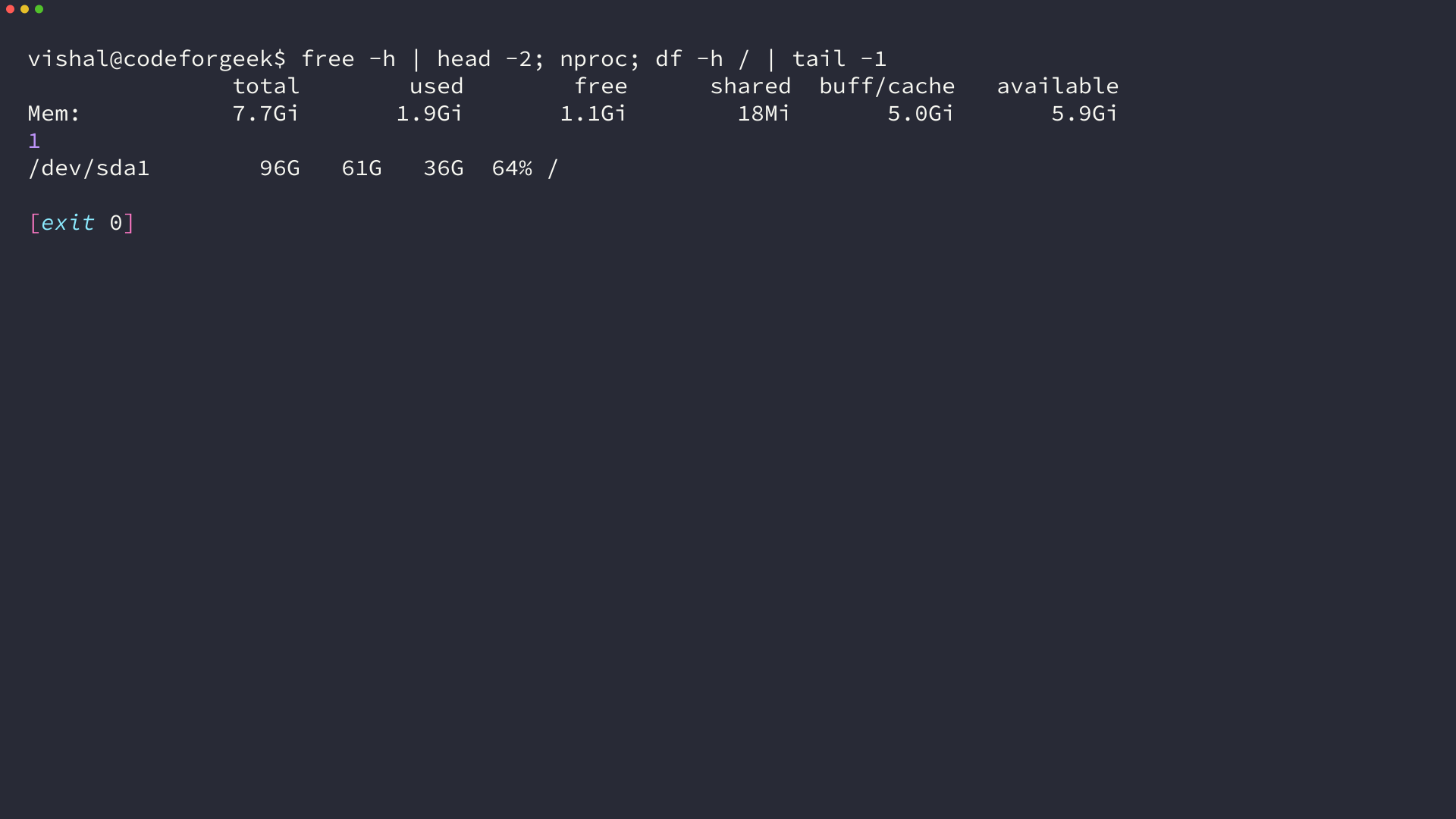
That command reports 7.7 GB of memory, one processor and 36 GB of free disk on the box I ran it on, which clears every requirement in the picks below. A machine sitting on 4 GB of memory and 16 GB of free disk meets the published minimum for Pop!_OS and Solus, and falls short of the 32 GB that elementary OS asks for.
Memory decides how comfortable a heavy desktop feels once a browser is open. Free disk decides whether the old system can stay on the same drive while you try the new one.
Memory carries more weight than the processor in practice, since every project here states its memory and disk figure in the minimum and leaves the processor at a modern dual core. Memory is also the cheaper thing to add, which is why the Xfce images exist for machines that fall short of the heavier desktops.
The look you already like is the last thing to settle before the download, because that is what you stare at all day:
- macOS-style dock and window controls: Pantheon on elementary OS, or DDE on deepin
- Windows-style taskbar, tray and start menu: Cinnamon on Linux Mint
- Tiling and a keyboard-driven launcher: COSMIC on Pop!_OS
- Widgets and heavy customization: Plasma on KDE neon, Manjaro or Solus
- Old or minimal hardware: the Xfce images from Solus and Linux Mint
The eight picks, grouped by the desktop they ship
Read this way, the list becomes six choices rather than eight, with the desktop deciding the look and the base deciding how the software arrives and how often it changes.
Pantheon: elementary OS 8.1.1
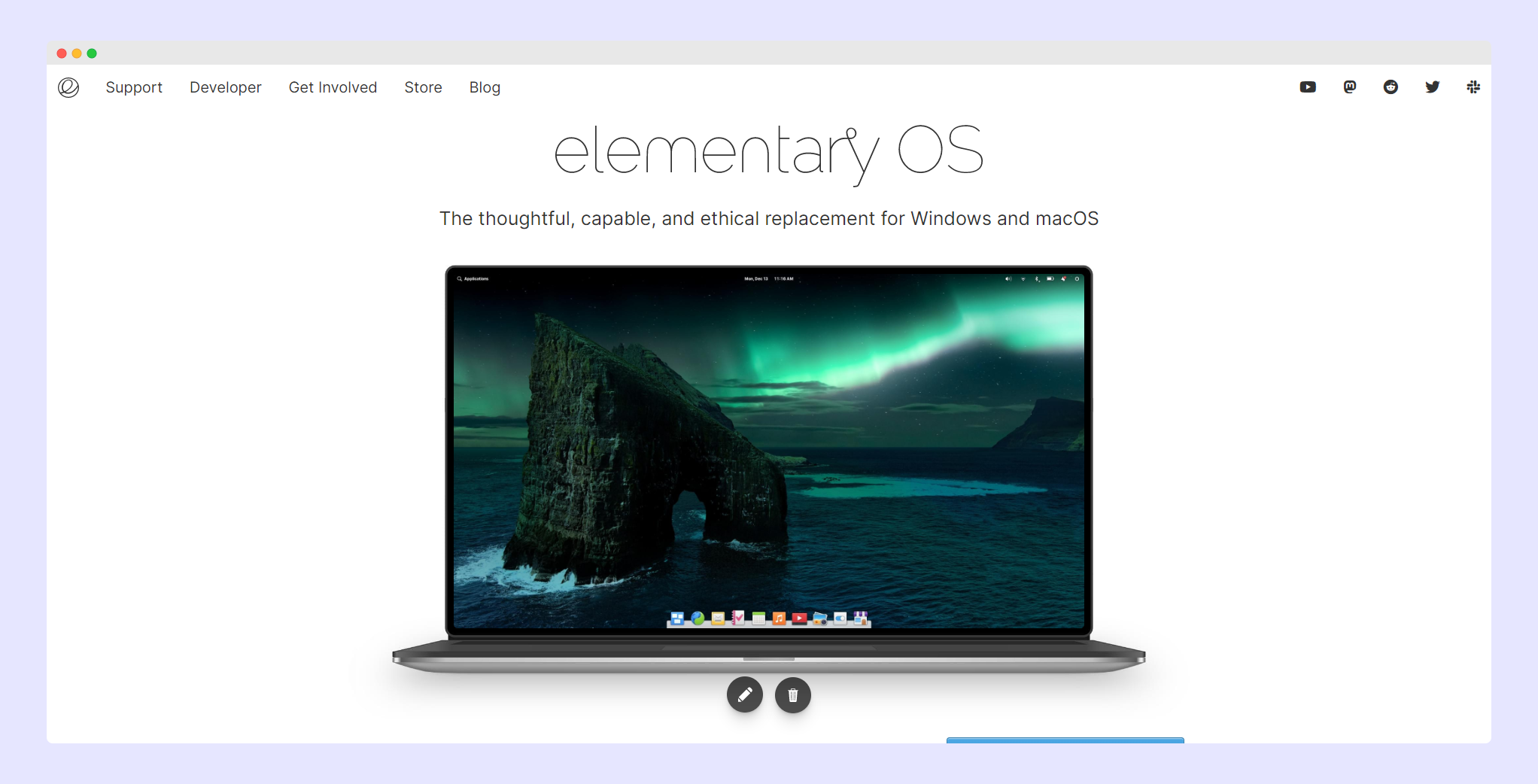
Pantheon is elementary’s own desktop and no other distribution here ships it. The dock, the app menu and the window controls are all built by the project, so the look and the distribution are one decision in this case.
The current image is elementary OS 8.1.1 Circe at 3.3 GB. Its default session is branded Secure Session and runs on Wayland, which is what produces the permission prompt when an application asks for access to your files or your screen.
The project recommends a recent dual-core 64-bit processor, 4 GB of memory and an SSD with 32 GB free, and it warns that a virtual machine will feel slower than an install.
DDE 7.0: deepin 25.2
deepin treats the interface as the product. DDE was rebuilt in QML for version 25, and the control center became a sidebar with content beside it instead of a stack of panels behind one icon.
The compositor underneath is Treeland, deepin’s own Wayland compositor, and the base is Debian with deepin’s repositories on top.
The current image is deepin 25.2.0, published for AMD64, ARM64, Loong64 and RISC-V, with the RISC-V build labelled a technology preview rather than a supported desktop.

Cinnamon: Linux Mint 22.3 Zena
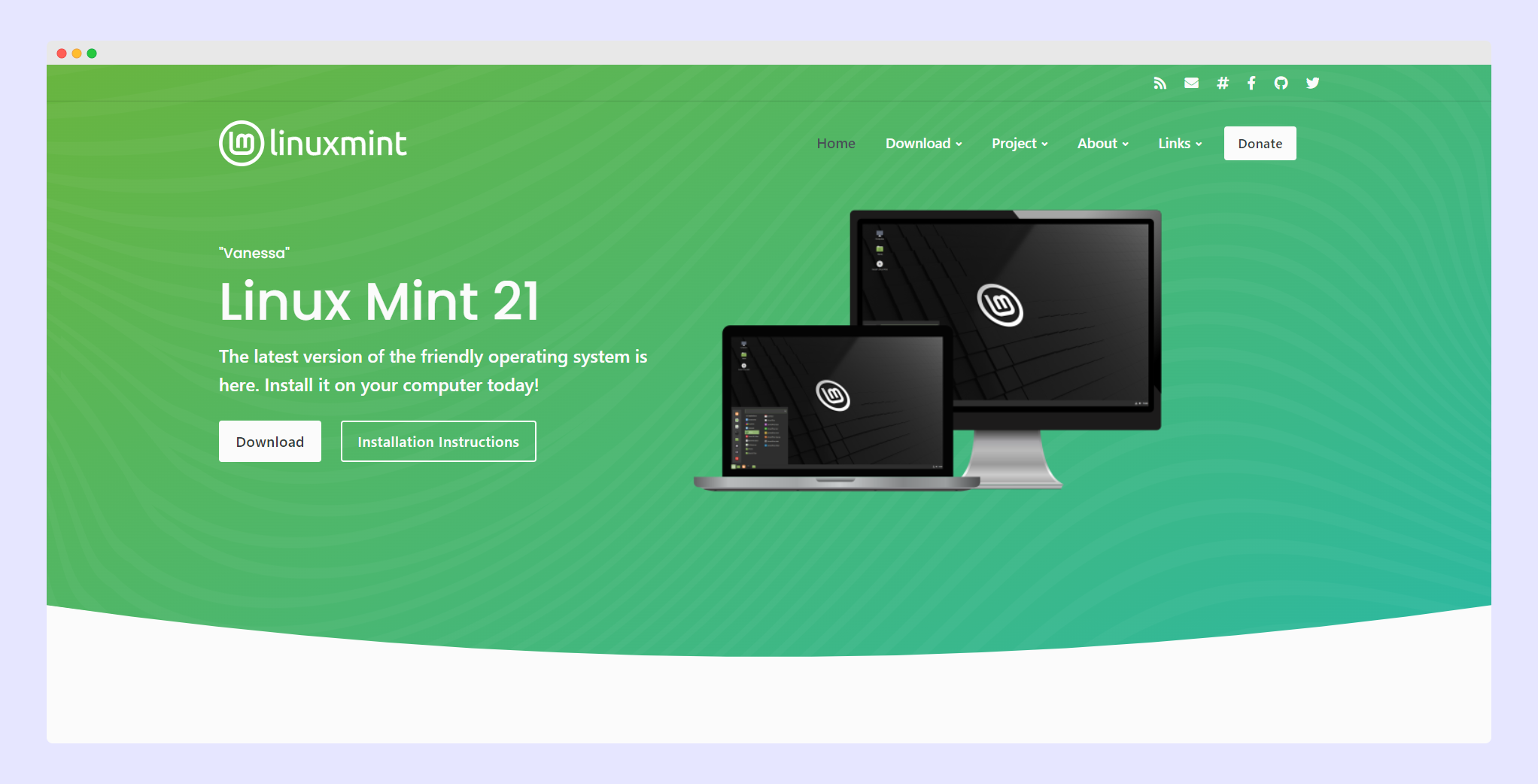
Cinnamon is Linux Mint’s own desktop and the shortest path for anyone arriving from Windows. A taskbar, a system tray and a start menu sit where the muscle memory expects them, and the theme settings accept third-party themes without much argument.
The current release is Linux Mint 22.3 Zena, a long term support release with updates until April 2029. Cinnamon is the default download, with Xfce and MATE images for lighter machines.
A line from the release notes matters before you test it in a virtual machine. Mint 22.2 and 22.3 ship the 6.14 hardware enablement kernel, which has known problems with VirtualBox and with the NVIDIA 470 driver for older cards.
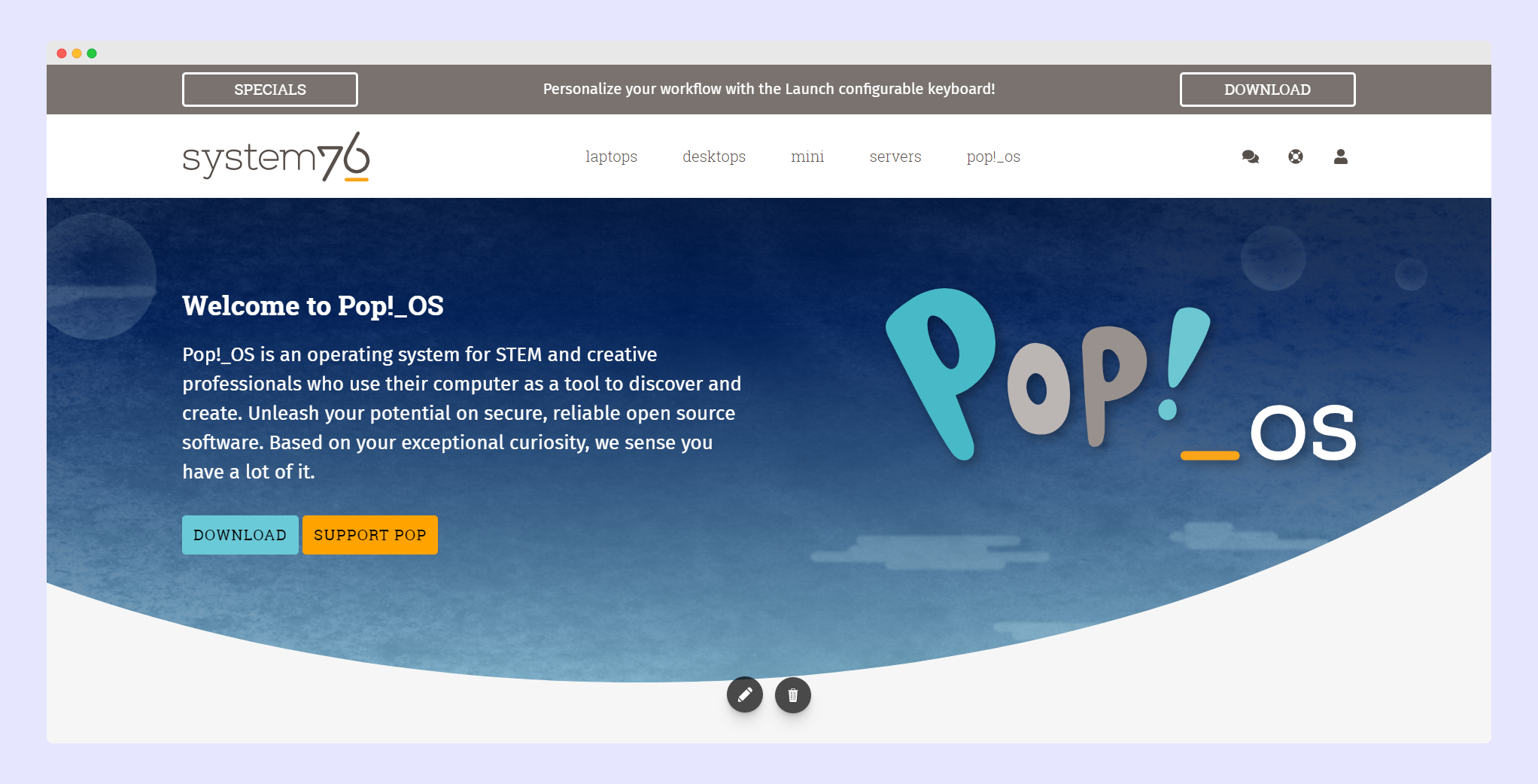
COSMIC: Pop!_OS 24.04 LTS
COSMIC is the newest desktop on this list. System76 wrote it in Rust and it tiles windows by default, so the layout does work that a floating desktop leaves to you.
Pop!_OS 24.04 LTS is current, with a separate image for NVIDIA 16-series cards and newer, and System76 packages COSMIC for other distributions as well. The recommended hardware is 4 GB of memory and 16 GB of storage.
The installer expects Secure Boot to be switched off, so that is a firmware setting to change before the USB goes in.
Plasma 6.7, the reference build: KDE neon
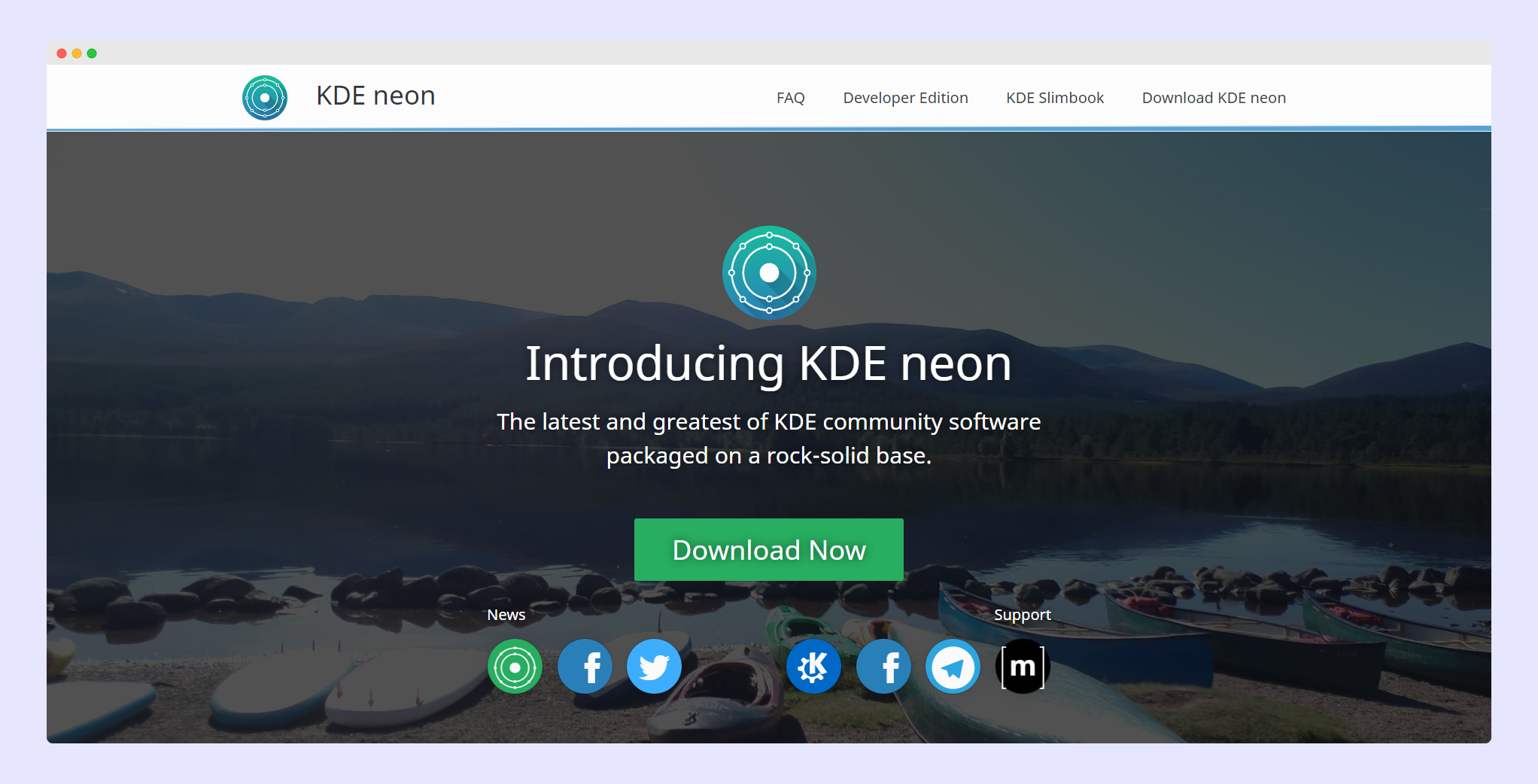
KDE neon exists to ship KDE software exactly as the KDE developers build it, on an Ubuntu 24.04 LTS base. That makes it the clearest view of what Plasma is before a distributor reworks the defaults.
Plasma itself is at 6.7. The project publishes User, Testing and Unstable editions, and the User edition is the one for anyone who is not trying to file bug reports against KDE.
Plasma, Xfce or GNOME over Arch: Manjaro
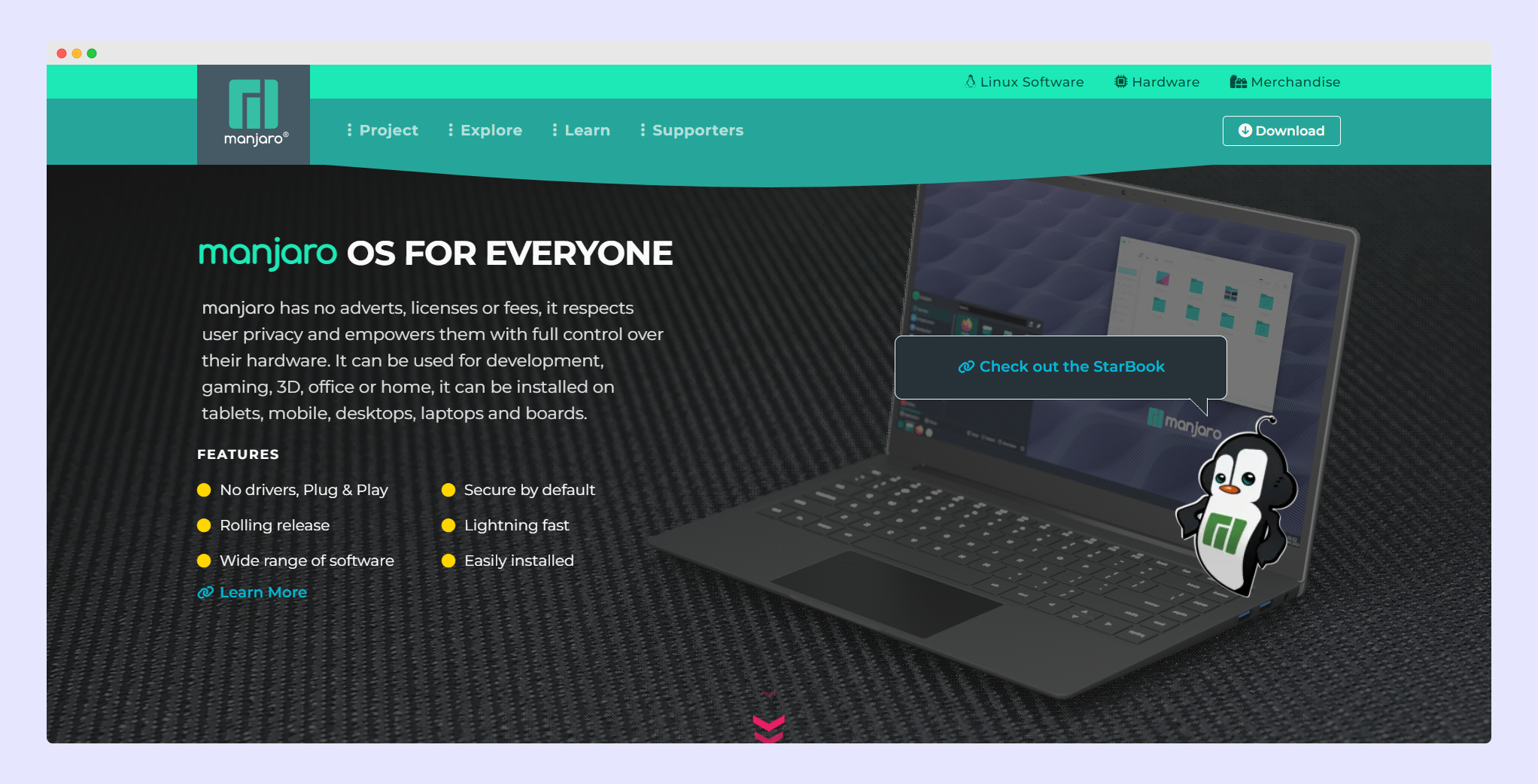
Manjaro wraps Arch with its own installer, kernel management and testing pipeline, then asks which desktop you want at download time. The official images are Plasma, Xfce and GNOME.
Community images add Cinnamon, i3 and Sway, which makes this the widest single download page in the group.
It rolls, so the software keeps moving. Rolling updates are the trade against Mint’s support window, and the reason a rolling install often sits beside an LTS one rather than replacing it.
Budgie, GNOME, Plasma or Xfce: Solus 4.9
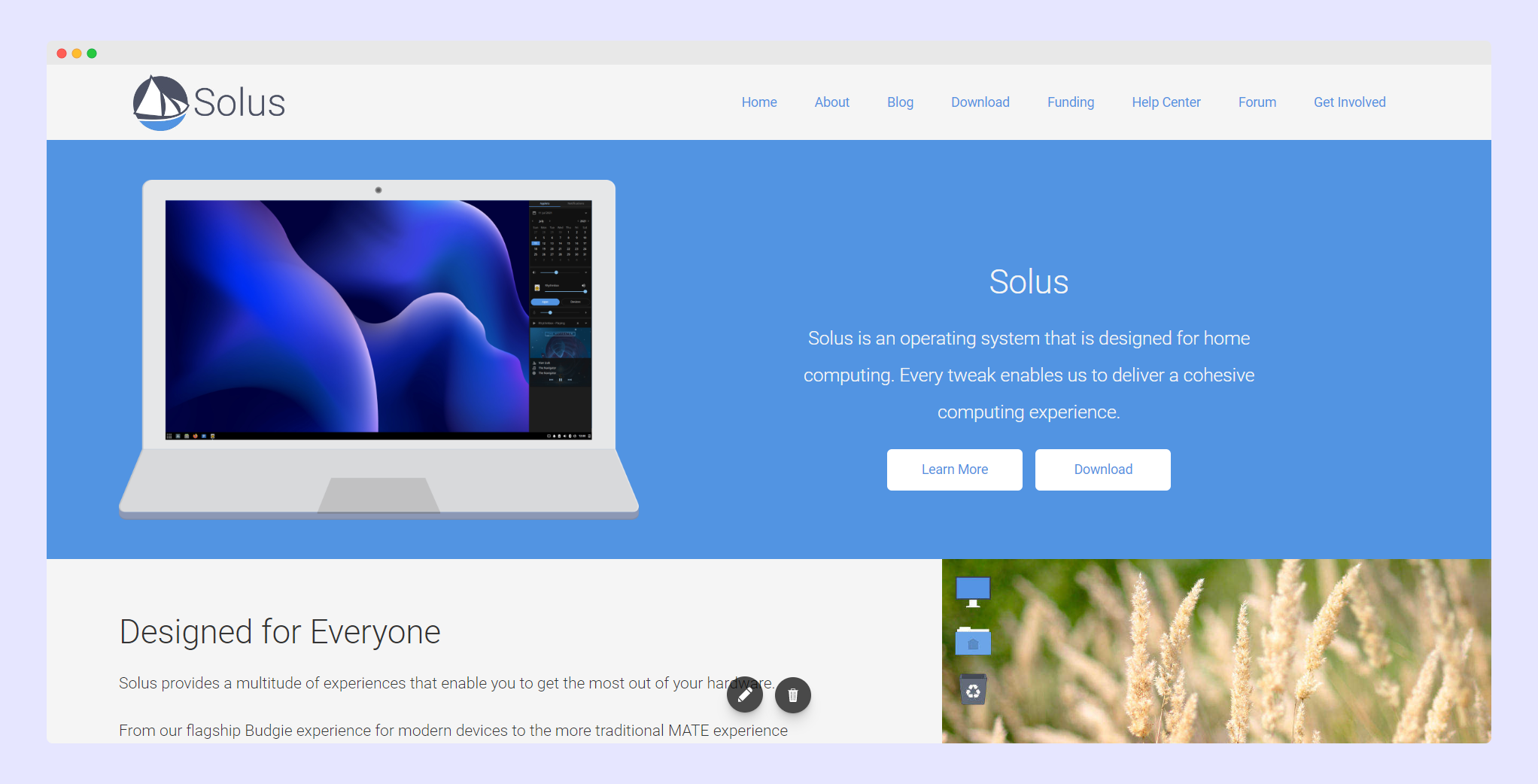
Solus sits outside the Debian, Ubuntu and Arch families with its own package manager and its own release process, and 4.9 is the current release.
The project publishes an image per desktop, and the file sizes hint at the weight of each one. Budgie is 4.1 GB, GNOME is 3.9 GB, Plasma is 3.8 GB and Xfce is 3.6 GB.
The published minimum is 4 GB of memory and 10 GB of disk, with 8 GB and 25 GB recommended for a comfortable install.
Pick your own desktop: EndeavourOS
EndeavourOS installs Arch from a terminal-centric image and asks which desktop you want during setup, so the environment is a decision in the installer rather than one made for you.
The current image is Titan-Nova, dated 2026.08.15 and 3.63 GiB. Each of its 26 mirrors publishes a sha512 checksum and a GPG signature beside the ISO.
It rolls like Manjaro, and it suits trying several environments on one base before settling on the one you keep.
What breaks after the first boot
A desktop that looks right can still run into trouble with the hardware underneath it. These are the failures the projects document themselves, along with what to do about each one.
| What goes wrong | What you see | What to do |
|---|---|---|
| Secure Boot left on | The Pop!_OS installer stops, or the NVIDIA image refuses to boot | Turn Secure Boot off in the firmware, then boot the USB again |
| An older NVIDIA card | Mint 22.3 runs the 6.14 kernel, which has no support for the 470 driver | Test on another machine, or move to a card the kernel still supports |
| A desktop inside VirtualBox | Mint’s hardware enablement kernel reports known issues under VirtualBox | Expect display problems, or test from the USB on the machine itself |
| A Wayland session | Screen sharing fails in some applications, or an older tool misbehaves | Pick the Xorg session at the login screen where the project offers it |
| 4 GB of memory | Plasma or GNOME with a browser open starts swapping and the animations stutter | Take an Xfce image from Solus or Linux Mint, or add memory |
| A rolling release | An update replaces a graphics driver and something stops working | Keep an LTS install beside it, or take a snapshot before each update |
None of those failures are about appearance, which is the argument for choosing the desktop first and the base second.
Verify the ISO, then judge the look from the live session
A download that corrupts in transit looks exactly like an install that fails for some other reason, so the file is worth checking before the USB gets written. Linux Mint publishes a checksum file and a detached signature for each release:
mkdir -p ~/iso-check && cd ~/iso-check
curl -sSLO https://mirrors.edge.kernel.org/linuxmint/stable/22.3/sha256sum.txt
curl -sSLO https://mirrors.edge.kernel.org/linuxmint/stable/22.3/sha256sum.txt.gpg
gpg --recv-keys 27DEB15644C6B3CF3BD7D291300F846BA25BAE09
gpg --verify sha256sum.txt.gpg sha256sum.txt
The last command decides whether the rest of the file can be trusted, and this is what it printed when I ran it:
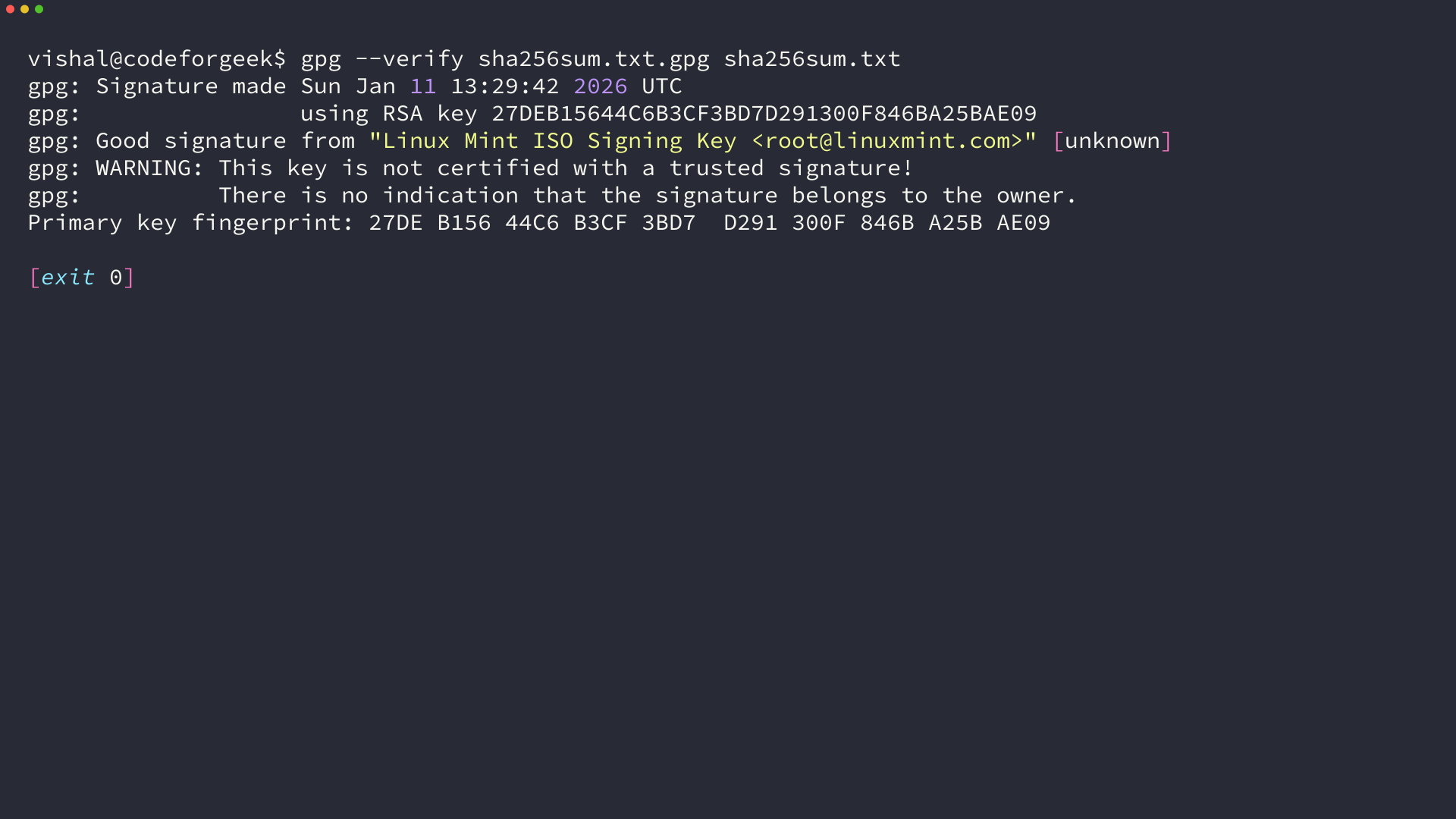
A good signature means the checksum file is the one Mint published. The warning about an uncertified key appears because nothing on your keyring has signed it, so compare the fingerprint with the one printed on the project’s own page.
The same file lists one hash per edition, so the check compares your download against its own line once the image sits in that folder:
sha256sum -c --ignore-missing sha256sum.txt
Run it before the download finishes and it reports nothing verified, which is the signal to wait for the image rather than to skip the check. Once it passes, write the image to a USB and boot the live session, where the desktop runs from the stick and your disk stays exactly as it was.
Judge the desktop from that session rather than from a screenshot, because the panel behavior and the animations are what you notice on the second day.
If the environment turns out to be wrong, install a different one instead of reinstalling the distribution, since both Cinnamon and Plasma are single packages on a base like Ubuntu. For pushing the look past the defaults, my guide to Conky themes for Linux covers the system monitor layer that desktops leave empty.
Frequently Asked Questions (FAQs)
What is the best-looking Linux distro?
It depends on the desktop you like rather than the name on the ISO. For a macOS-style dock and window style, start with Pantheon on elementary OS or DDE on deepin, and for a Windows-style taskbar start with Cinnamon on Linux Mint.
Which Linux distro is best for 4 GB of RAM?
Take an Xfce edition. Solus publishes one at 3.6 GB and Linux Mint ships an Xfce image beside its Cinnamon default, and both projects state 4 GB of memory as the floor, which is the same figure Pop!_OS 24.04 LTS recommends for COSMIC.
Can I change the desktop after installing?
Yes on any base that packages it, and Cinnamon and Plasma are both packages on Ubuntu 24.04. Expect some tidying afterwards, because the display manager and the login session list keep entries from the environment you leave behind.
Why do several picks ship the same desktop?
Because the desktop is upstream software that any distribution can package. Plasma is maintained by KDE, GNOME by the GNOME project and Xfce by its own team, so a distribution chooses which one to default to and how much to theme it.
Does a rolling release change how the desktop looks?
No, the desktop is the same code either way, and what changes is how often everything else moves. Manjaro, EndeavourOS and Solus update continuously, while Linux Mint 22.3 stays supported until April 2029.