New to Rust? Grab our free Rust for Beginners eBook Get it free →
Modern Linux Commands 2026: A Practical Guide

Finding one file in a project can take more than a directory listing. Modern Linux commands are optional command-line programs that help you find paths and work with command output.
I’ll explain how these tools differ, then show a practical workflow for adding a few while keeping scripts predictable.
TL;DR: Modern Linux commands to start with
Modern Linux commands are optional command-line tools for inspecting, searching, navigating, or composing tasks. Choose a small set for work you do today, and leave familiar utilities in scripts that must run across varied machines.
- eza adds directory listings and tree views.
- fd (sometimes named fdfind) finds paths, while rg searches file contents.
- fzf filters a supplied list, and zoxide ranks visited directories.
- bat views source files, and jq filters JSON.
- Try one connected workflow before changing aliases or automation.
What are modern Linux commands?
A modern Linux command is a standalone command-line interface (CLI) tool for file discovery, content search, navigation, or output inspection. The label describes its interface, not an official compatibility level, because projects ship independently with different options.
I kept this shortlist to projects with upstream documentation for their behavior and setup.
The table below pairs each utility with a familiar command and the behavior to compare:
| Task | Tool | Familiar command | What changes |
|---|---|---|---|
| List files or view a tree | eza | ls | Tree and Git-aware views, with optional icons. |
| Find paths by name | fd / fdfind | find | A compact interface with ignore-aware defaults. |
| Search text recursively | rg | grep | Recursive search that respects ignore rules by default. |
| View a source file | bat / batcat | cat | Syntax highlighting and an interactive pager when appropriate. |
| Choose from many matches | fzf | Shell history or manual filtering | Fuzzy selection that can consume another command’s output. |
| Return to a visited directory | zoxide (z) | cd | A shell hook learns frequently visited locations. |
| Filter JSON | jq | Manual text search | Reads JSON structure rather than guessing from lines. |
| Inspect processes or disks | btop, duf | top, df | Interactive process and readable filesystem views. |
| Review Git diffs | delta | git diff | Syntax-aware diff presentation when configured as a pager. |
Find can combine file type, size, and time predicates. Grep matches text, while cat joins files in order. Their flags and output conventions still matter when you decide what a script or alias can safely accept.
What you need before changing your shell workflow
An installed executable and shell-specific shortcuts are separate checks because a binary can work when its optional integration is absent.
- On some Debian or Ubuntu setups, the executable is named fdfind rather than fd, and batcat rather than bat. Check the package notes for the name your shell can resolve.
- Check whether you use Bash, Zsh, or Fish before enabling shell-specific key bindings or hooks. Follow the upstream instructions for that shell rather than copying a Bash snippet into a Zsh startup file.
- Limit aliases to your interactive shell and test them before using them in scripts or remote sessions.
- A distribution package can lag its upstream release or use another executable name. Compare its package details with the project’s supported-platform notes before choosing.
- Eza offers optional icons when a compatible terminal font is installed. Its tree and Git-status views do not require icon fonts.
In the captured environment, I found fdfind and batcat under those names.
After changing a shell hook, open a fresh interactive session and test the command there. Login and non-interactive shells can read different startup files, so an alias available at a prompt may not exist in a scheduled script.
How to build a practical modern Linux command workflow
The demo reads app.conf and README.md from the workspace fixture without changing system state. I kept the scope small because each path and result can be checked against the files beside the script.
1. Start with one known directory
Use a project directory whose contents you recognize. Eza’s tree view shows hierarchy within the path you pass to it. Switch to a long view when permissions or Git status matter, since a short tree does not show every metadata field.
2. Find candidates, then filter them
Use a path finder to supply candidates to a fuzzy selector when the list is long. In this environment, I used fdfind because fd was absent under that command name. I chose fzf’s filter option for reproducible output rather than its interactive keypress-based selection.
Fd treats its filename query as a regular expression by default. Use its glob option when you mean shell-style matching, and quote the query so the shell passes it unchanged.
Run the example script from the workspace containing its fixture files:
bash modern_cli_demo.shThe output begins with the two fixture paths, then shows the selected config file and its matching line. The complete captured output, including the terminal prompt and exit status, is:
aditya@codeforgeek:~$ bash modern_cli_demo.sh
$ eza --tree --color=never fixtures/
fixtures
├── app.conf
└── README.md

$ fdfind -t f . fixtures/ | fzf --filter='app.conf'
fixtures/app.conf

$ rg -n "request_timeout" fixtures/
fixtures/app.conf:2:request_timeout=30

[exit 0]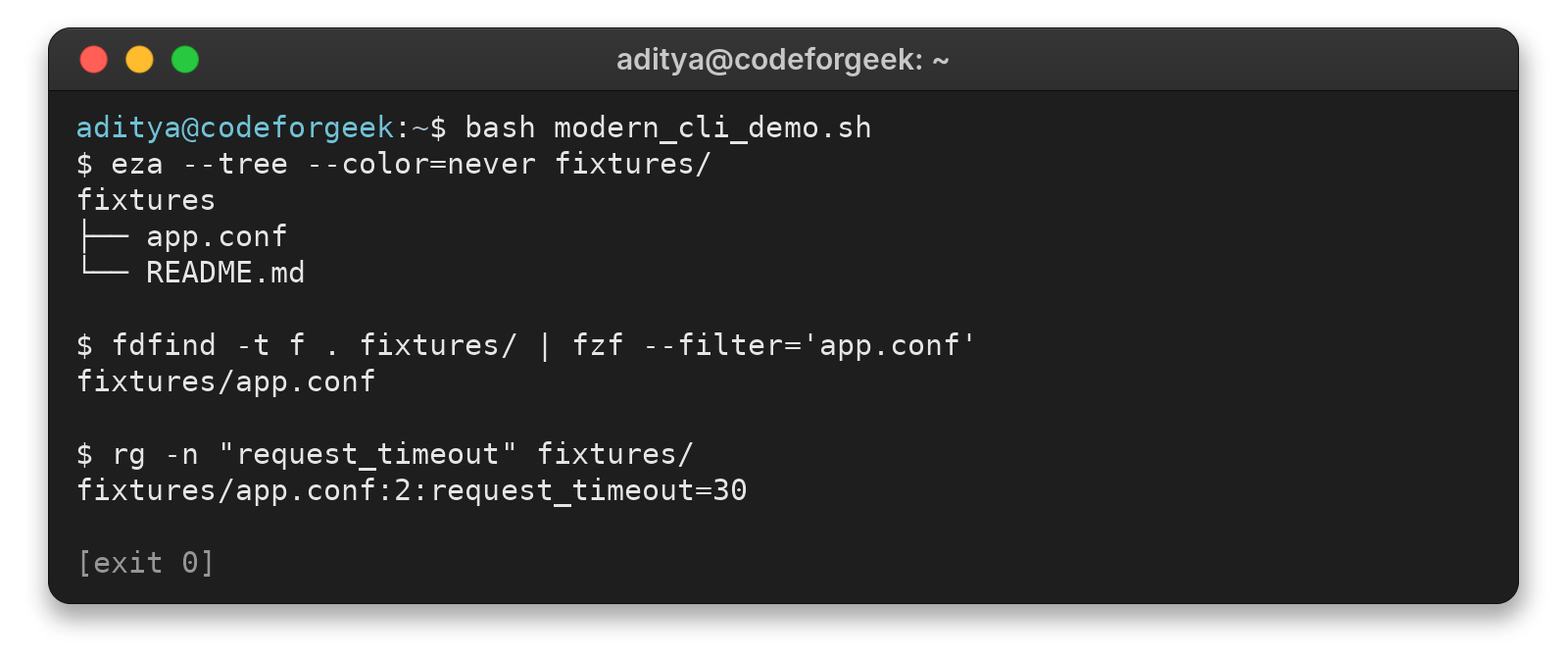
The final match is on line 2 of app.conf. Ripgrep prints both the line number and the matching value.
The selected fixture path is relative to the directory where the script runs. Keep later commands in that directory or resolve the path before saving it for use elsewhere.
3. Search content with the right scope
Ripgrep respects ignore files and skips hidden paths by default, two separate filters. Use its hidden-file option if dotfiles matter. Disable ignore handling only when you intend to search generated or dependency paths.
Ripgrep reads regular expressions by default. When punctuation should match literally, use its fixed-string option instead of escaping every character by hand. The line-number option identifies where to reopen a match in a larger file.
4. Add interactive navigation only if you want it
Zoxide ranks visited directories, so a new profile may not yet return the intended path. Its shell hook defines navigation behavior that a child executable cannot provide alone. For file-changing commands, pass an explicit path rather than a short fuzzy query.
5. Use purpose-built viewers for structured output
Check the input shape before selecting a display or parser.
- Bat displays source with syntax highlighting. When output is piped, it writes a stream instead of opening an interactive pager.
- Jq selects keys and array entries from JSON. For an array, a filter can return the same field from each object. Its raw-output mode is useful when the next program expects an unquoted string.
- Plain cat remains useful when you only need to concatenate text files without a pager or highlighting.
Malformed JSON or a missing key can return an error or an empty value. Validate a representative sample before chaining it.
6. Keep scripts predictable
For Bash automation, quote variable expansions to keep filenames containing spaces as one argument. Without pipefail, the pipeline reports the last command’s status even if an earlier command failed. Enable pipefail for overall failure detection, and read PIPESTATUS immediately when each component’s result matters.
When filenames include whitespace or newlines, pair the producer’s and consumer’s documented NUL-delimited options. A human-readable list does not preserve argument boundaries.
For a Node.js program that launches an external command, see CodeForGeek’s guide to executing command-line binaries.
Where modern command replacements can surprise you
Check these cases because search scope, fuzzy selection, and pager behavior can change what the next command receives:
| Surprise | Why it happens | Safer response |
|---|---|---|
| A selected path no longer resolves | Many finders return a path relative to their starting directory. | Continue from that directory or resolve the path before saving it. |
| A shortcut returns the wrong directory | Fuzzy matching and learned ranking can select an unexpected candidate. | Read the selected path, or use the explicit path for important operations. |
| A hook or key binding does nothing | Shell integration is configured separately from the program. | Check the installed binary and shell-specific setup. Review the startup file before reloading. |
| A viewer pauses a pipeline | An interactive pager expects terminal input. | Use its noninteractive mode or send plain output through the pipe. |
- Performance: compare the same files, ignore rules, options, and hardware only when speed would change your choice. A roundup does not benchmark your workload.
- System status: btop is an interactive process and resource monitor. Duf and df show mounted-filesystem capacity, not which directory uses the space.
- Git output: delta changes how diffs are presented, not the patch itself, and requires pager configuration.
Conclusion: add modern Linux commands one at a time
Keep adoption reversible: test a tool before changing an alias, and remove the shortcut if it hides a default you rely on. The upstream pages below document each project’s options and shell setup.
- For directory listings, see the eza upstream documentation.
- For file search and content search, compare the fd and ripgrep upstream guides.
- For fuzzy selection and directory jumping, use the fzf and zoxide shell setup instructions.
- For machine-readable JSON, start with the jq manual and examples.
- For container command-line tasks, see CodeForGeek’s Docker commands reference.
Modern Linux commands FAQs
These answers cover the compatibility and setup questions that matter when adding optional command-line tools to a Linux workflow.
Which modern Linux command should I install first?
Start with the task that currently slows you down. Choose fd or fdfind for path names, ripgrep (rg) for file contents, or eza for directory listings. One useful tool is better than a bundle you do not use.
Do fd and ripgrep search the same thing?
No. fd (or fdfind) finds file paths by name, while ripgrep (rg) searches text inside files. Use the first to locate candidates and the second to find matching lines.
Can I use modern Linux commands in Zsh?
File and search utilities can run as standalone executables, but shortcuts, completions, and hooks need Zsh-specific setup. Follow each project’s Zsh instructions and check that the binary is on your PATH.
Why is fd called fdfind or bat called batcat?
Some distribution packages use a different executable name to avoid conflicts. Check your package documentation and command -v output, then use the installed name or configure an alias for interactive use.
Are modern Linux commands installed by default?
Not reliably. A base system may omit them, and package names vary across distributions. Check the package catalog and verify the executable name before configuring an alias or hook.
Should I replace grep and find in scripts?
Not automatically. Optional tools may not be installed on every host, and classic find and grep remain broadly available. Declare dependencies, control the target environment, or keep portable commands in scripts that run on unfamiliar systems.