New to Rust? Grab our free Rust for Beginners eBook Get it free →
Docker Commands: A Practical Reference for Containers, Images, and Compose (2026)

Plain docker ps lists running containers only, so a stopped one can be absent from the output. I’m interested in how a missing name can point to container state rather than prove no container exists.
Follow the command’s target to the object you need to work with. Let that object’s state guide your next operation.
Docker commands operate on different objects and states
An image is the package Docker uses to create a container. A container is one instance created from that image, while Compose groups services into a project.
Choose the object first, then choose the action that matches its state.
| Object | Commands to start with | What they change |
|---|---|---|
| Image | docker pull, docker build, docker image ls | Local image references and image layers |
| Container | docker run, docker ps, docker start | A new container or the state of one that exists |
| Running container | docker logs, docker inspect, docker exec | Output, configuration, or an additional process |
| Volume or network | docker volume ls, docker network ls | Resources managed separately from a container |
| Compose project | docker compose up, docker compose ps, docker compose down | Services and the project’s default network |
The Docker CLI reference groups commands by resource and lists the shorter forms. Match an action to whether its container exists and is running.
Check the CLI, context, and Docker Engine
The Docker CLI is the client, and Docker Engine handles its requests. A client version alone does not prove the selected Engine is reachable.
docker --version && docker context ls
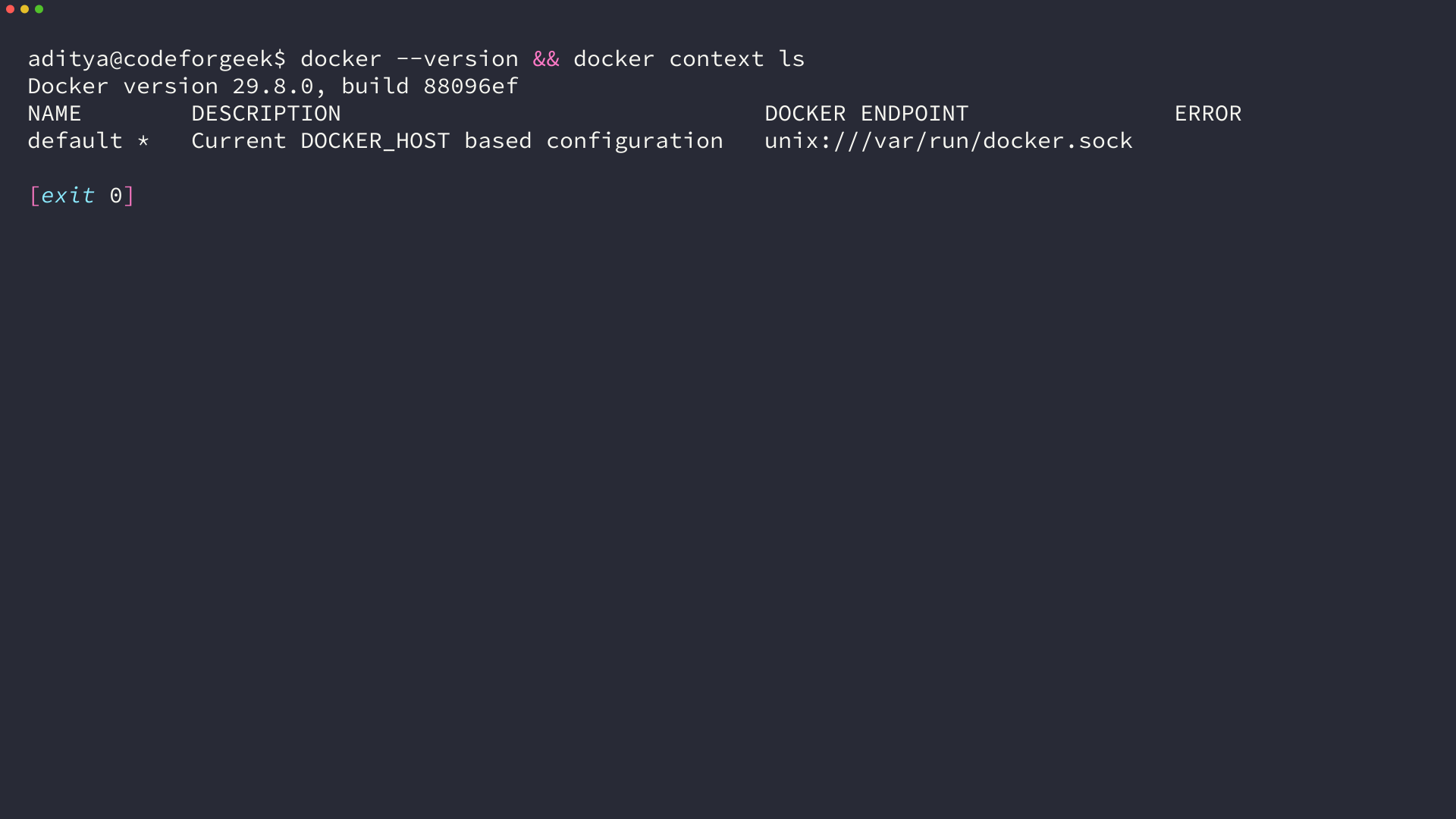
The asterisk marks the active context, which selects the Engine endpoint for later commands. Run docker version when you need both client and server details, then resolve any connection error before trying container operations.
docker version
If the response names a Unix socket and says permission denied, the CLI cannot access that Engine endpoint. Check the context and the account’s access to the socket instead of reinstalling the client.
Choose Docker commands by the job
The command groups follow the resource they change. An image can produce a container, while Compose manages service containers as a project.
Build, pull, and tag images
Pull an image when a registry holds the starting point, or build one from a Dockerfile in a build context. Docker’s build reference explains that the final dot sends the current directory as context.
| Task | Command | Effect |
|---|---|---|
| Download an image | docker pull nginx:alpine | Retrieves the tagged image from its registry |
| List local images | docker image ls | Shows images available to the selected Engine |
| Build from a Dockerfile | docker build -t web:dev . | Builds an image from the current directory |
| Add another image reference | docker image tag web:dev web:test | Creates a second tag for the same image |
The tag names an image reference rather than copying its layers. A build fails if the selected context does not contain the Dockerfile or files the build expects.
Create a container or start one that exists
Docker’s run reference says the command creates and starts a new container, pulling its image if needed. The start reference covers an existing stopped container.
docker run -d --name web -p 8080:80 nginx:alpine
docker ps
docker ps -a
The run flags assign a name and publish host port 8080 to container port 80. Plain docker ps lists running containers, while docker ps -a includes stopped ones so you can find a container before starting it.
| Action | Command | Use it when |
|---|---|---|
| Start | docker start web | The named container exists and is stopped |
| Stop | docker stop web | The named container is running |
| Remove | docker rm web | The stopped container and its writable layer are no longer needed |
The container removal reference limits its volume flag to anonymous volumes, so removing a container does not delete its named volume. If you’re packaging a Node.js service, the Dockerize Node.js application walkthrough applies this image-to-container flow to an app.
Read logs, inspect settings, or run a process
Docker logs reads output captured from a container’s main process, while docker inspect returns detailed configuration and state. The exec reference says it starts a process only while the container’s primary process is running.
docker logs --tail 50 web
docker inspect web
docker exec web nginx -v
docker exec -it web sh
The final command opens an interactive shell because -i keeps input open and -t allocates a terminal. For a shell expression with operators, pass a shell such as sh -c explicitly because exec expects an executable command.
Keep data and services in their own lifecycle
A container’s writable layer belongs to that container, so removing it removes changes stored there. A Docker volume stores data separately and can be mounted by another container.
services:
  web:
    image: nginx:alpine
    ports:
      - "8080:80"
    volumes:
      - web-data:/usr/share/nginx/html
volumes:
  web-data:
Compose treats the file as a project, and the config reference says docker compose config prints resolved service settings without starting containers.
docker compose config
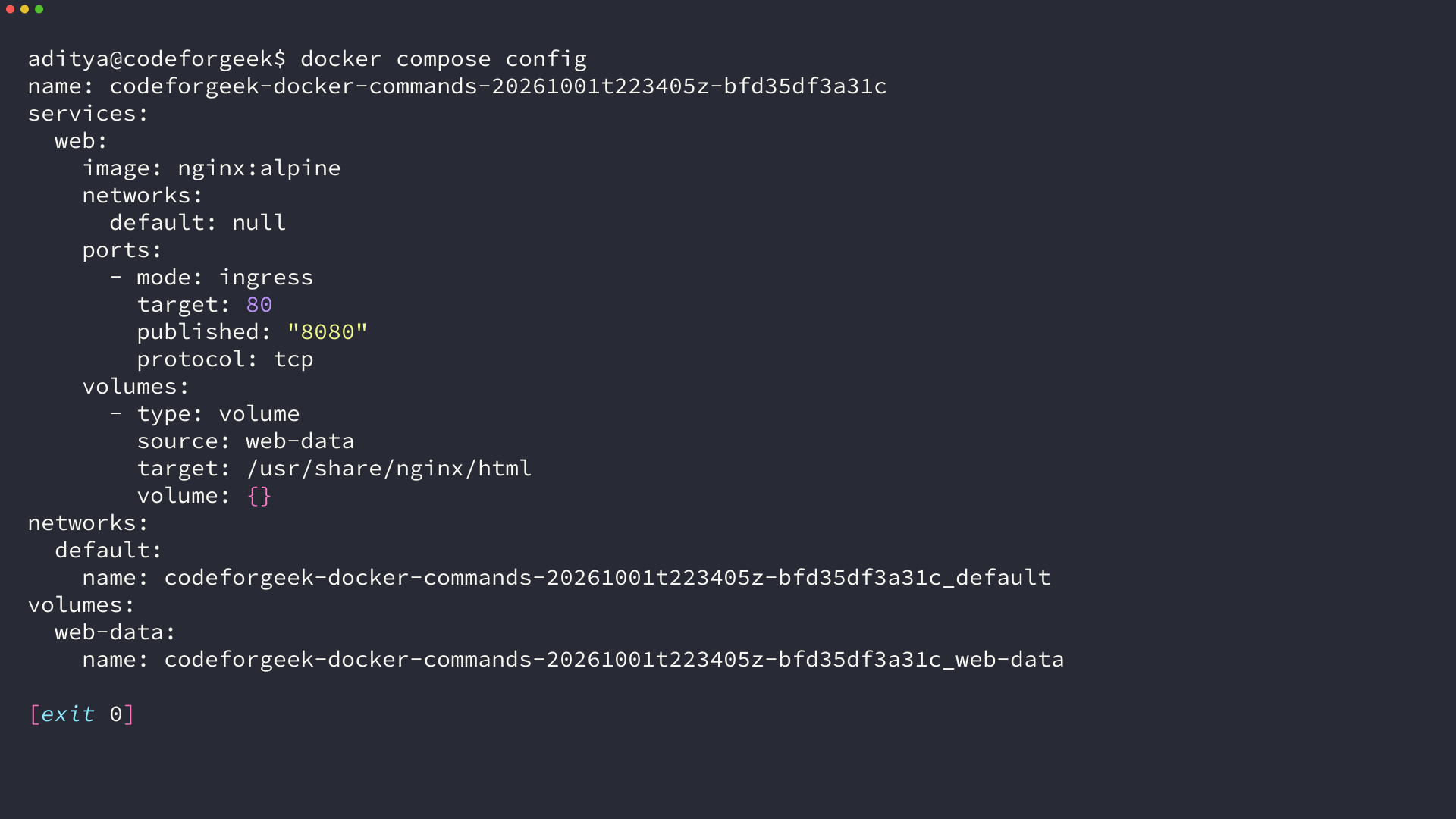
Docker compose up -d creates and starts the project services, while docker compose ps lists their state and docker compose logs reads their output. Docker compose exec adds another process inside a running service.
| Compose command | Job |
|---|---|
| docker compose ps | List the project’s service containers |
| docker compose logs –tail 50 | Read recent output from its services |
| docker compose exec web sh | Open a shell in the running web service |
| docker compose down | Stop and remove project containers and the default network |
Diagnose connection and cleanup mistakes
When a command fails, first separate an Engine connection problem from a container-state problem. An inaccessible context affects every Engine operation, while a stopped container prevents exec from starting a process inside it.
| Symptom | Next check |
|---|---|
| CLI cannot reach the server | docker context ls and docker version |
| Container is missing from the running list | docker ps -a |
| Container has exited | docker inspect NAME and docker logs NAME |
| Published service cannot be reached | Check the host-to-container port mapping and whether the application listens on the container port |
Docker system df reports disk use without removing resources. The system prune reference says this command removes unused containers and networks, along with unused images and build cache.
Inspect the confirmation prompt before accepting a prune command.
docker system df
docker system prune
Docker system prune does not remove volumes by default. Add –volumes to prune unused anonymous volumes. The Compose down reference says its volumes option removes the project’s named volumes and attached anonymous volumes, so check for data you need before using it.
Let the container’s state choose the next command
A stopped container still exists, which is why start can reuse it and run cannot. Check the container list before creating another instance from the same image.
docker ps -a
Docker command FAQ
Docker run creates a new container, and docker start reuses a stopped one. Docker exec starts another process only while the container’s primary process is running.
What is the difference between docker run and docker start?
docker run creates and starts a new container from an image, pulling it when needed. docker start starts an existing stopped container.
Can docker exec run in a stopped container?
No. docker exec starts an additional process only while the container’s primary process is running. Start the existing container before using exec.
Does docker compose down remove named volumes?
No, not by default. docker compose down –volumes removes the project’s declared named volumes and attached anonymous volumes. External volumes are not removed.
How do I list stopped Docker containers?
Run docker ps -a to include stopped containers. Plain docker ps lists running containers only.