New to Rust? Grab our free Rust for Beginners eBook Get it free →
4 WordPress Page Builder Plugins to Compare

Building a campaign page in WordPress starts with choosing how to arrange its content. A page builder plugin adds an editing interface for page content and visual elements, often with a live preview and drag-and-drop controls.
This article compares four builders, including SeedProd’s landing-page features, and explains how to test a shortlist on staging.
TL;DR: Pick a WordPress Page Builder by the Job
Choose a WordPress page builder plugin by the pages you plan to create, the editor your team can maintain, and the cost of the features you will actually use. Elementor is a broad visual editor, Beaver Builder has a distinct free Lite edition, SeedProd focuses on landing pages and site-building features across tiers, and Divi Builder fits users who want Elegant Themes’ visual system.
- Start with the WordPress block editor if blocks already meet the layout need.
- Try each shortlisted builder on a staging copy before changing a live page.
- Check the free-versus-paid boundary, theme compatibility, mobile preview, and what remains after deactivation.
What Is a WordPress Page Builder Plugin?
A WordPress page builder plugin adds an editing interface for arranging page content and visual elements, often with a live preview and drag-and-drop controls. It can make custom layouts available without hand-writing every page’s markup, while the theme still controls important parts of the site’s appearance.
The word “builder” covers different products. Some plugins focus on arranging content inside a page, while broader site builders can also offer templates for headers, footers, posts, and archives. Read each product’s description in that context.
WordPress also has a built-in block editor. It edits content as blocks and, with a block theme, the Site Editor can manage site templates. A separate page builder is useful when its editing model or supplied components solve a task that the core editor does not handle for your team.
Some builders store layout data in product-specific formats or depend on their editor to render a design.
| Need | What to evaluate |
|---|---|
| One campaign landing page | Landing-page templates, forms or integrations you need, and whether the free tier includes them |
| Reusable site layouts | Theme-level templates, global styles, and which license unlocks them |
| Editing existing posts | Compatibility with the current theme, blocks, and post content |
| Long-term portability | What the page looks like on a staging copy after the builder is disabled |
How to Choose a WordPress Page Builder Step by Step
Compare the products by the page type, editing workflow, and maintenance needs of your site.
Step 1: Check Whether Elementor Fits Your Editing Needs
The WordPress.org listing describes installation and activation through WordPress, followed by opening a page and choosing “Edit with Elementor.”
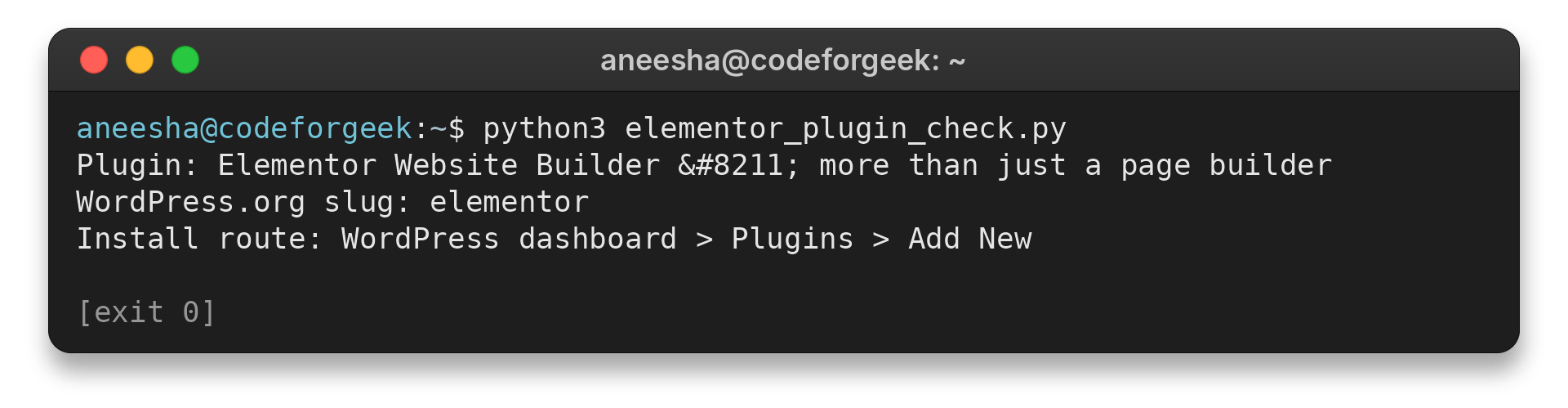
I queried WordPress.org’s plugin information API with this small Python file. The response confirms the plugin’s repository name and slug, while the dashboard install route remains the practical next step for a WordPress site.
import json
from urllib.parse import urlencode
from urllib.request import Request, urlopen

params = urlencode({"action": "plugin_information", "request[slug]": "elementor"})
url = f"https://api.wordpress.org/plugins/info/1.2/?{params}"
request = Request(url, headers={"User-Agent": "Mozilla/5.0"})
with urlopen(request, timeout=20) as response:
    data = json.load(response)
print(f"Plugin: {data['name']}")
print(f"WordPress.org slug: {data['slug']}")
print("Install route: WordPress dashboard > Plugins > Add New")
Plugin: Elementor Website Builder – more than just a page builder
WordPress.org slug: elementor
Install route: WordPress dashboard > Plugins > Add New
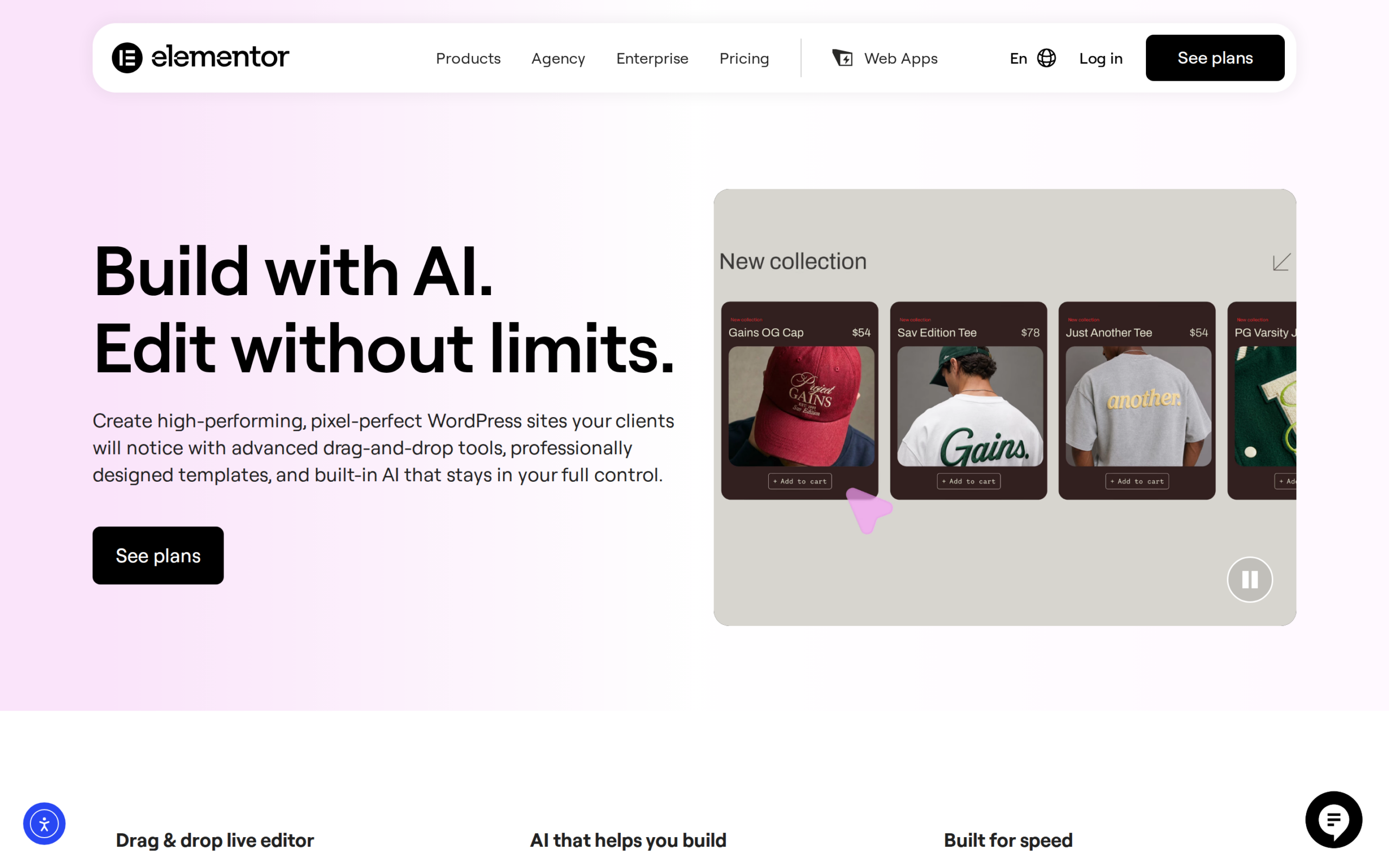
Use the free plugin to check whether the editor’s controls suit your page. Add a heading, image, call-to-action, and one layout variation before considering a paid upgrade.
Elementor’s free plugin is listed in the WordPress.org directory, while its listing also describes paid commercial upgrades. Decide whether the free widgets solve the page you are testing before pricing an upgrade. Add only extensions that serve a named requirement, since each extra plugin adds another compatibility and update decision.
Elementor’s documentation also describes compatibility with the WordPress block editor. That can matter if a team keeps blog posts in blocks but uses a visual editor for selected landing pages. Test both editing routes on a copy and decide which page types belong in each one.
Elementor’s repository listing notes compatibility with themes that follow WordPress coding standards. Its WordPress.org page also describes the plugin as free with paid commercial upgrades.
Step 2: Try Beaver Builder Lite Before Buying
The Beaver Builder Lite FAQ lists a module subset, including headings, buttons, HTML, audio, and video.
Old roundups may describe a different version or licensing setup, so use the vendor’s current feature information when planning an upgrade.
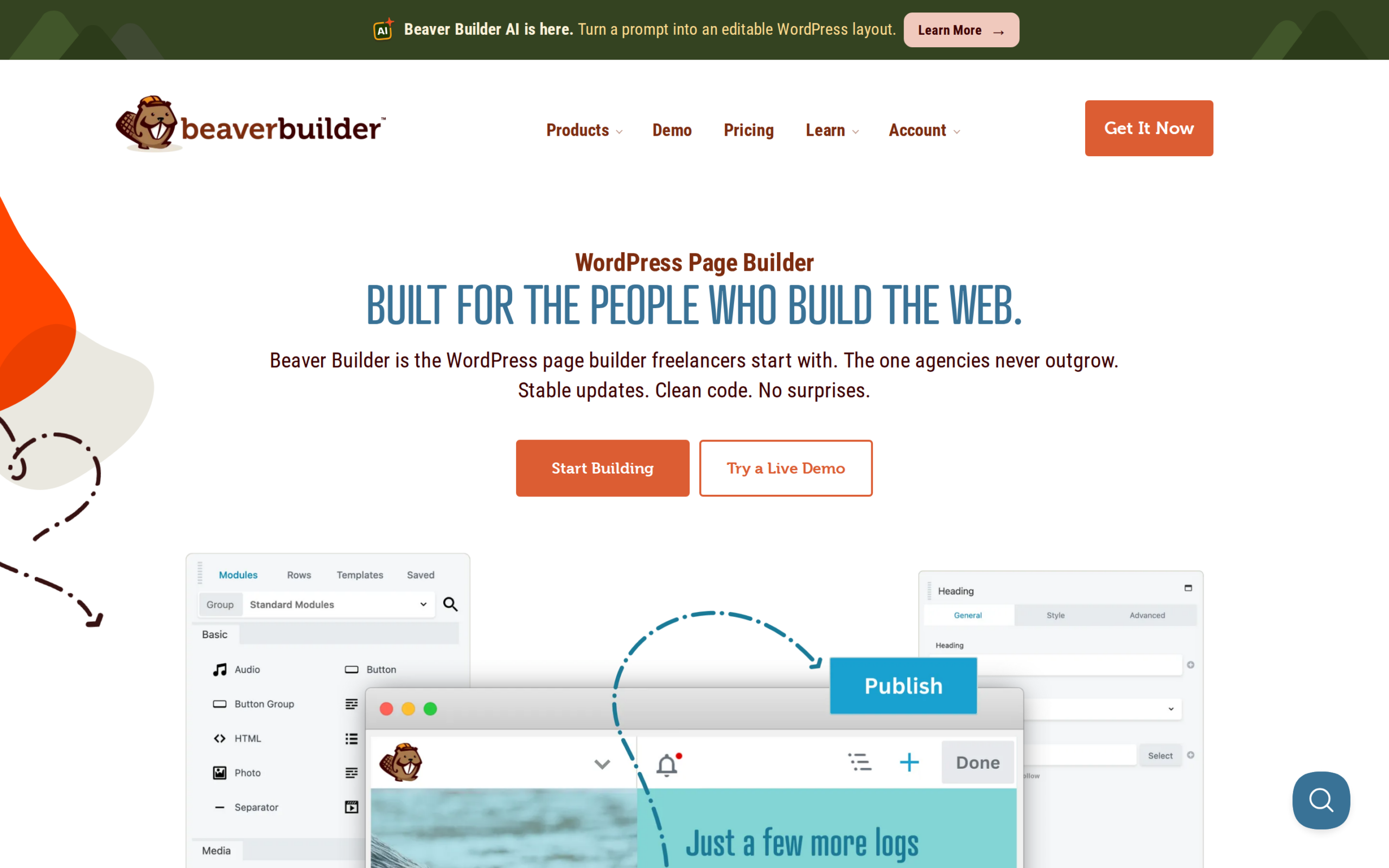
Match one of the listed modules to each element in your sample page before you build it. A landing page with a button and image has different requirements from a layout that needs a pricing table or a custom menu.
Test the editor against your active theme and extensions. Keep the trial page private until its published layout and responsive views are ready for review.
Map the available modules to the elements in your sample page before planning a layout that depends on a particular control.
Step 3: Match SeedProd to Landing Pages or Site Templates
SeedProd is a sensible candidate when the immediate job is a landing page, coming-soon screen, or maintenance page. Its WordPress.org listing describes those use cases, while the vendor’s documentation places its full Website Builder feature in named paid license plans.
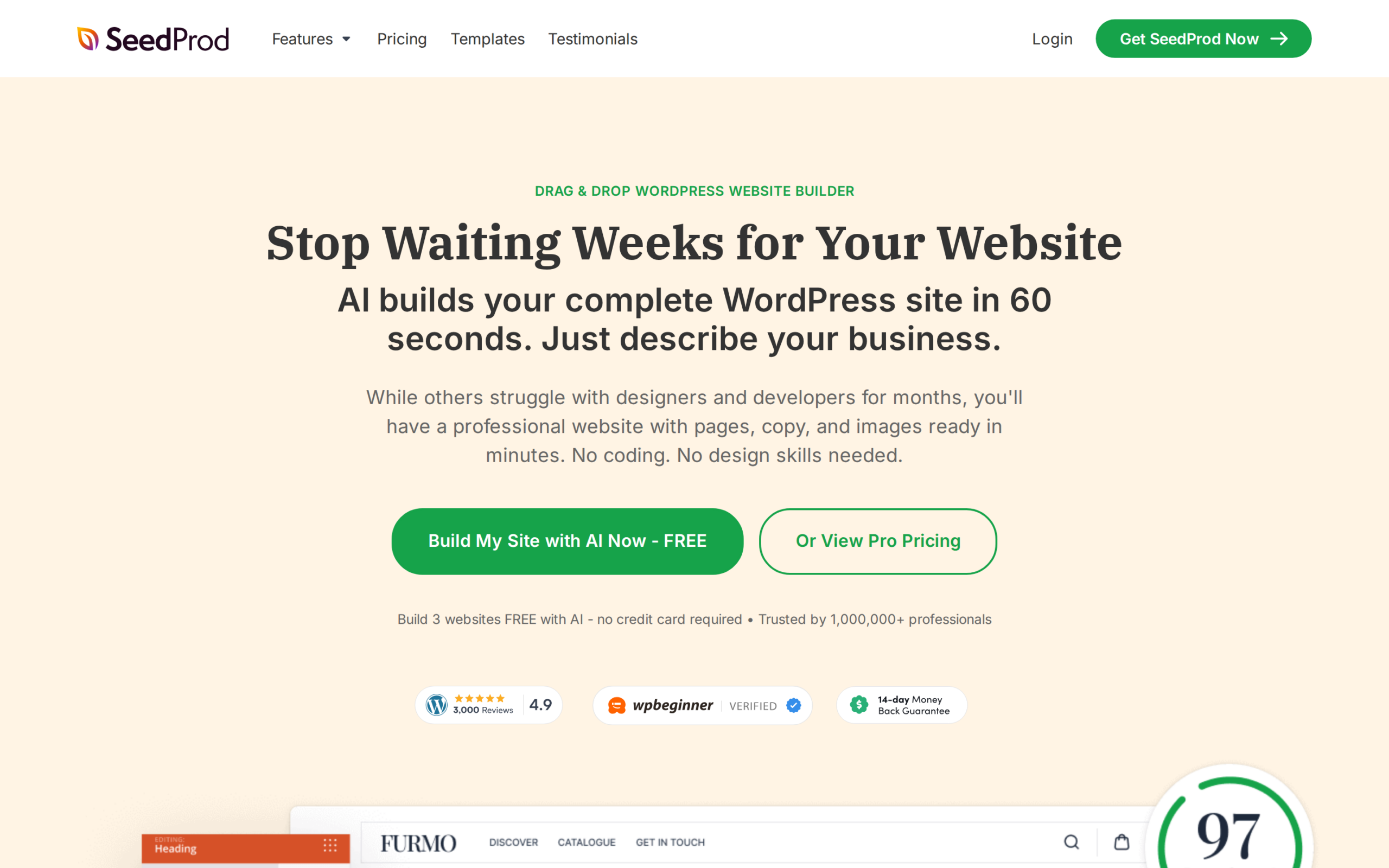
Write down the job before choosing from the product label. A temporary maintenance screen, a campaign page, and a set of site templates call for different capabilities.
Try the relevant template and check that any form or email connection used by your campaign works in the intended setup.
Use a staging copy to inspect how the builder’s pages interact with existing theme styles and site navigation. If the goal is a temporary maintenance screen, verify the behavior and access controls before enabling it for visitors. For a public campaign page, check the form or conversion element in a test submission flow without using sensitive customer data.
SeedProd’s WordPress.org listing says its maintenance mode returns an HTTP 503 status. That status signals temporary unavailability to clients and crawlers. Check the live response and the intended access path before turning the mode on, then turn it off after the maintenance window.
Step 4: Consider Divi Builder if You Want Elegant Themes’ Editor
Divi Builder suits a team that wants Elegant Themes’ visual editor and reusable layout library. It is a paid product obtained from the vendor.
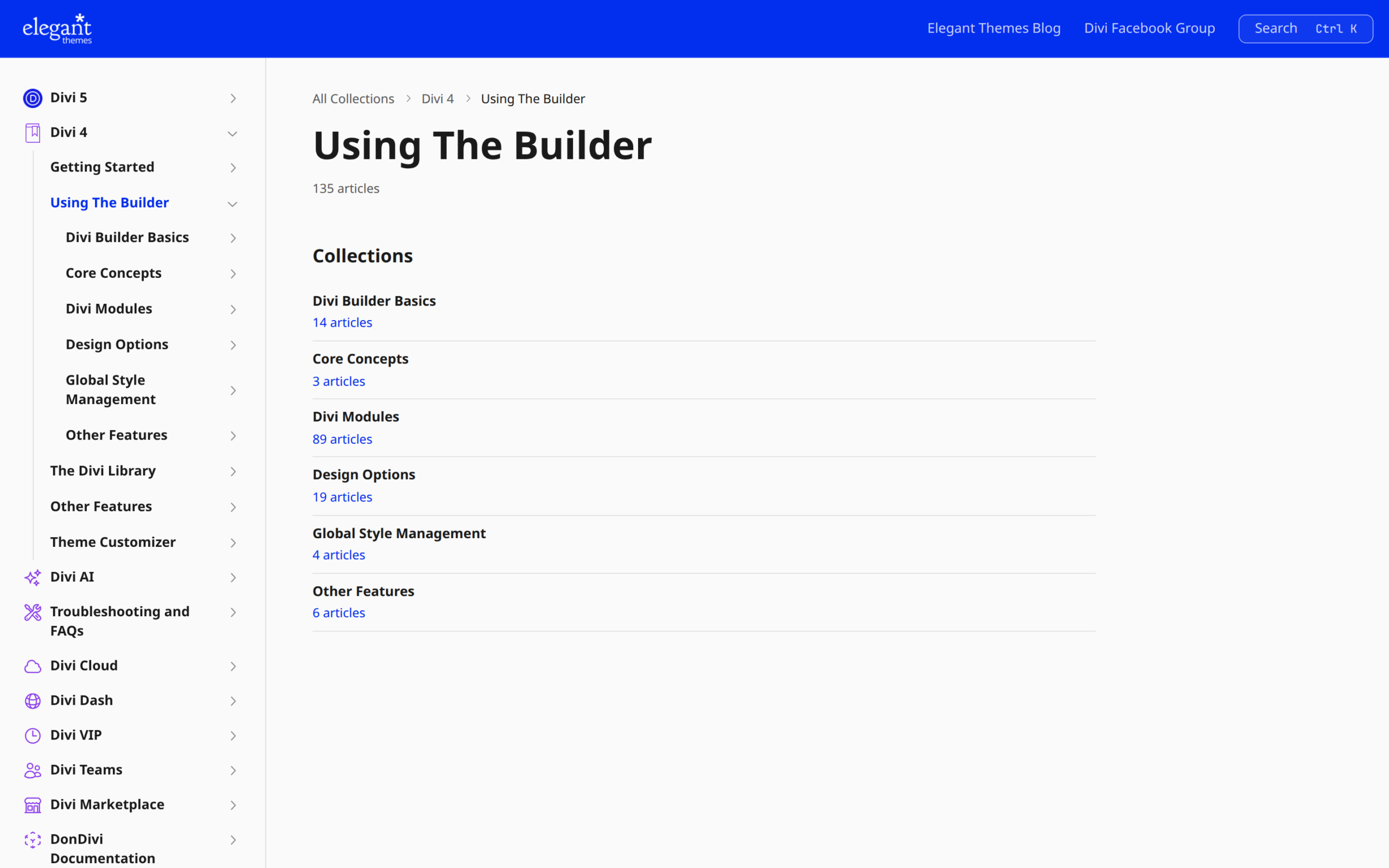
Elegant Themes includes the builder in the Divi theme, so the separate plugin is unnecessary when that theme is active. With another theme, the plugin can be installed separately and tested on staging.
For a separate theme, the vendor’s documented plugin route begins in the Elegant Themes member area, where the ZIP is downloaded. In WordPress, upload that ZIP from the Plugins screen, install it, and activate it. This is a vendor download path rather than the WordPress.org directory search used for Elementor.
Before paying, review the current membership terms and supported site count on Elegant Themes’ own site. These details determine whether the product fits a single-site project or a team managing several sites.
Compare the Four Options Against One Sample Page
Use the same small brief for each candidate: a title and introduction, a two-column section, one image, a button, and a mobile layout. This keeps the comparison about your task rather than about which demo looks more impressive.
- Record whether the needed blocks or modules are in the edition you can use.
- Check the editing flow on desktop and phone-sized previews.
- Ask another editor to make a small text change without rebuilding the layout.
- Compare the published page, not only the editor preview, on the same theme and staging setup.
Keep notes on setup time, features that require payment, and styling conflicts. Use these observations to compare the four candidates against the task you defined.
Check the Theme, Mobile View, and Editing Handoff
Use the same WordPress theme for each trial, because switching the theme at the same time as the builder makes it hard to tell which change caused a layout difference. Begin with a blank test page or a copy of a page that is safe to edit. Add only the elements in your sample brief, then open the published preview as well as the builder’s own preview.
Inspect the page at a wide desktop width, a tablet-sized width, and a narrow phone width. Look for text that becomes too small, columns that remain cramped, buttons that are hard to tap, and images that overflow their containers. These checks are more useful than assuming that a “responsive” label guarantees the exact layout your theme will render.
Ask the person who will maintain the page to change a heading, replace an image, and edit a button label. A designer may find a feature-rich panel comfortable while a site owner needs a short, predictable editing path. Include the handoff in the comparison if several people will use the site.
Review Licensing and the Cost of Leaving
Compare the fee with the features, support, and number of sites your project requires. Verify current terms on the vendor’s official page, including renewal terms and which premium features stop working when a license lapses. Avoid treating an introductory price or an old annual fee as the whole cost of ownership.
Then consider what happens if the site changes direction. Make a staging copy and inspect a representative page with the plugin disabled.
Note what stays readable, what loses styling, and what would need rebuilding. The result depends on the product and the content used.
When a site has many pages, test more than a single landing page before planning a migration. Include one ordinary post, one complex page, and any template-driven content. A clean test on a simple page does not prove that custom post types, forms, or archive templates will transfer in the same way.
Consider Whether a Different Builder Is a Better Match
The four plugins above keep the scope of this roundup, but search results also surface builders such as Bricks and Breakdance. They may suit a reader who is evaluating broader site-building workflows, yet their product models and licensing differ from the repository-first options. Check the official product documentation and current terms before adding either to a shortlist.
Bricks is sold as a visual builder tied to its own theme, while Breakdance offers its own WordPress builder product. Treat their marketing claims as a starting point for evaluation rather than measured proof of speed or portability.
That distinction changes the shortlist for an existing site. A theme-based product is straightforward to assess on a fresh staging installation. A plugin product may allow more flexibility with an existing theme, though its editor can affect page templates or styling.
If the project needs a custom visual design system and a developer is available, a theme-based builder may be worth comparing. A site owner who manages theme templates may want to compare whether Bricks or the WordPress Site Editor covers those template tasks.
Community threads raise practical questions about learning time, price, performance, and how much content survives a switch. Those comments help identify what to test, but they do not provide a controlled comparison of current versions. Use them to form a checklist, then verify behavior on your own staging site and confirm product details with the vendor.
Check Accessibility and Everyday Editing Tasks
Include keyboard use and readable contrast in the sample-page review. Move through links and buttons without a mouse, confirm that focus is visible, and check that images have useful alternative text. A builder’s controls can help construct a page, but the output still needs review for the people who will read and navigate it.
Try one content change that happens often, such as updating a service description or changing a call-to-action. Then preview the page as a visitor. A layout that takes minutes to create but requires a specialist for every routine update may not fit a small team’s maintenance needs.
Separate Performance Testing from Product Claims
Image size, third-party scripts, theme code, hosting, caching, and page structure all affect speed. A competitor’s score cannot predict a page built with different content and hosting.
For a useful comparison, create equivalent test pages and keep the theme, images, content, and hosting constant. Check the same measurements after each page has been published and cached. Inspect page output and loaded assets before attributing a difference to the editor.
WordPress Page Builder Plugin Limits to Check
A builder can save time in the editor and still create future work if its content format, tier limits, or theme interaction are not a fit. Check these cases before you move existing pages or enable a plugin for visitors.
| Case | What may happen | What to do |
|---|---|---|
| “Install Elementor without a WordPress plugin” | Elementor’s documented WordPress flow installs and activates its plugin from the dashboard. A separate standalone editor is not the listed route for a WordPress site. | Use Plugins > Add New on a self-hosted site where you have permission, or consult the hosting platform’s supported plugin options. |
| Divi theme already active | The separate Divi Builder plugin duplicates the builder already included with that theme. | Follow Elegant Themes’ installation notes and do not add the separate plugin unless the site uses another theme and needs it. |
| More than one visual builder on a page | Editors can compete over page content and make maintenance harder. Exact behavior depends on each product and setup. | Choose one editor per page on staging and inspect the rendered page before expanding the setup. |
| Builder disabled after a redesign | Builder-specific layout data may no longer render as the designed page. | Test deactivation on a copy, review the remaining content, and plan conversion before removing a builder from a live site. |
| Page looks different on mobile | Editor preview and published rendering can differ because of theme CSS, device settings, or other extensions. | Check the published staging page at several viewport widths and fix the cause before launch. |
| Performance claim from a roundup | A result from another site may use different content, hosting, theme, or caching. | Measure your own comparable pages with the same environment and content before attributing a speed change to the plugin. |
For an existing site, do not activate a second builder across all pages as a shortcut. Test one representative page first, keep a backup or staging copy, and confirm that normal editors can still find and update the content they own.
Keep a written inventory of the pages and templates that use the active builder. Include global headers, footers, archive layouts, forms, and reusable sections where relevant. A plugin might control more than the visible canvas of a single page, so note dependencies before planning a replacement.
On the staging copy, record the result of disabling the plugin and then restore it before making other changes. This makes the test reversible and gives the team a concrete view of what remains as normal text, what loses styling, and what depends on the editor.
The question “Can I overlap WordPress page builder plugins?” has no single answer for every combination. Separate plugins can coexist on a site, while multiple editors on the same page can create conflicting controls or layouts.
Check compatibility notes and test the planned arrangement before adopting it.
Conclusion
The useful WordPress page builder is the one that covers the page you need, fits your editing team, and leaves a maintenance path you accept. Compare Elementor, Beaver Builder Lite, SeedProd, and Divi Builder on a staging copy, and make the decision after checking the exact edition and the published mobile page.
If the native editor already covers the layout, start with WordPress blocks instead of adding another interface. For the next design decision, see CodeForGeek’s WordPress themes for blogs guide and compare themes against the builder you chose.
Readers considering a custom route can also review how to build a WordPress theme using Underscores. WordPress.org’s Site Editor documentation explains the core block-theme route.
FAQ
These short answers cover installation, choosing an option, and testing more than one builder.
How do I insert a page builder plugin into a WordPress post?
Install and activate the plugin through the WordPress dashboard if it is available there, then open the page or post and use the builder’s documented editing control. The precise control depends on the plugin.
Which WordPress page builder plugin should I try first?
Start with the builder whose features match the page you need and whose free or paid edition fits your budget. Test it on staging with your theme before moving a live page.
Can I use two WordPress page builders on one site?
Two plugins may be installed, but using separate visual editors on the same page can complicate editing and rendering. Verify compatibility and test the intended arrangement on staging first.
Can I install Elementor without a WordPress plugin?
Elementor’s WordPress.org instructions describe installing and activating its plugin, then opening a page in its editor. A separate, non-plugin Elementor installation is not the documented WordPress installation route.