New to Rust? Grab our free Rust for Beginners eBook Get it free →
Convert Express App into Desktop App Using Electron: A Step-by-Step Guide

Having built a web app with Express, you can turn it into a desktop app that opens in its own window. Electron supplies that window and runs your Express server inside the app, so nobody has to start a separate server first.
I’ll walk you through exporting the Express app and starting it from Electron.
What is an Express desktop app?
An Express desktop app is a desktop window that displays pages served by your Express application. Electron supplies the window and its JavaScript runtime, while Express keeps handling your web routes.
The server runs in Electron’s main process, which owns the application lifecycle. The renderer is the separate process that displays the page, so serving HTML over a local connection does not require giving that page access to Node.js.
| Component | Job in this example |
|---|---|
| app.js | Defines the Express route without opening a port |
| main.js | Starts the server and owns the desktop window |
| BrowserWindow | Loads the local page in a restricted renderer |
If your interface is entirely static HTML, Electron can load a local file directly without the Express server that a route-based application needs.
Prerequisites for the desktop conversion
Use a supported desktop operating system with Node.js and npm installed. The example uses CommonJS modules, so keep package.json set to type commonjs if your project otherwise uses ECMAScript modules.
- Node.js 26.10.0 was used for the command-line tests, with Express 5.2.1 and Electron 44.5.1 installed without version pins.
- The desktop integration ran on Linux ARM64 using a virtual display. Windows and macOS need their own launch and packaging tests.
- You need permission to install project dependencies and a graphical desktop for normal Electron use.
- Assume basic familiarity with Express routes and editing package.json. Express 5 requires Node.js 18 or later.
Electron includes its own Node.js runtime, which can differ from the Node.js executable in your terminal. Electron’s first-app tutorial explains why Electron is a development dependency even though its binary is bundled into the desktop app.
Run Express inside Electron
Keep server creation separate from your route definitions so Electron can own the listener without relying on a web server you launched in another terminal.
Step 1: Install the project dependencies
For a new demonstration project, create the folder and install Express as a production dependency. Install Electron as a development dependency because the packaging tool supplies its runtime binary.
mkdir electron-express-demo
cd electron-express-demo
npm init -y
npm install --no-package-lock express
npm install --no-package-lock --save-dev electron
For an existing project, install the dependencies in its root directory and retain its routes and middleware, but move the listen call into the Electron entry point.
Step 2: Export the Express application
Save this as app.js in the project root. The root route returns a complete HTML document, and the middleware adds a Content Security Policy (CSP) header that restricts scripts to this origin.
const express = require('express');
const webApp = express();

webApp.use((req, res, next) => {
  res.setHeader('Content-Security-Policy',
    "default-src 'self'; script-src 'self'; object-src 'none'; frame-src 'none'");
  next();
});

webApp.get('/', (req, res) => {
  res.send('<!doctype html><html><head><meta charset="utf-8">' +
    '<title>Express Desktop</title></head><body>' +
    '<h1>Hello World, Welcome to an Electron app</h1>' +
    '<p>Express is serving this page inside Electron.</p></body></html>');
});

module.exports = webApp;
Exporting webApp makes the routes available to main.js without immediately opening a network socket, and this script-free HTML response can render with Node.js integration disabled.
Export your configured Express application after its middleware and routes, and resolve asset paths from the source file’s directory because a packaged launch can use a different working directory.
Step 3: Create the Electron entry point
Save this as main.js beside app.js. Electron waits for its own readiness first, then the Express listening callback resolves before the window loads the page.
const { app, BrowserWindow } = require('electron');
const webApp = require('./app');
let server;
let localURL;
let closing = false;

function startServer() {
  return new Promise((resolve, reject) => {
    server = webApp.listen(0, '127.0.0.1', () => {
      localURL = `http://127.0.0.1:${server.address().port}`;
      console.log(`Express listening at ${localURL}`);
      resolve();
    });
    server.once('error', reject);
  });
}

async function createWindow() {
  const window = new BrowserWindow({
    width: 1000,
    height: 600,
    title: 'Express Desktop',
    webPreferences: {
      nodeIntegration: false,
      contextIsolation: true,
      sandbox: true
    }
  });
  window.webContents.setWindowOpenHandler(() => ({ action: 'deny' }));
  window.webContents.on('will-navigate', (event, url) => {
    if (new URL(url).origin !== localURL) event.preventDefault();
  });
  await window.loadURL(localURL);
}

app.whenReady().then(async () => {
  await startServer();
  await createWindow();
}).catch(error => {
  console.error(error);
  app.quit();
});

app.on('activate', () => {
  if (localURL && !closing && BrowserWindow.getAllWindows().length === 0) {
    createWindow().catch(error => {
      console.error(error);
      app.quit();
    });
  }
});

app.on('window-all-closed', () => {
  if (process.platform !== 'darwin') app.quit();
});

app.on('before-quit', event => {
  if (server && server.listening && !closing) {
    event.preventDefault();
    closing = true;
    server.close(() => app.quit());
  }
});
Port zero asks the operating system for an available port, and server.address().port supplies that assigned value. I ran the app without a separately started Express process, and the desktop renderer displayed the Hello World response.
Binding to 127.0.0.1 keeps the listener on the local machine without authenticating requests, so another local process can still reach the server.
The window keeps nodeIntegration disabled and uses context isolation with renderer sandboxing. Electron’s security guidance also recommends restricting navigation, which is why this example rejects other origins and denies new windows.
The before-quit handler pauses quitting long enough to close the server, then allows the second quit call through. On macOS, closing the last window leaves the app running. The activate handler opens a window using the same server rather than creating another listener.
Step 4: Launch the desktop window
Set main.js as the package entry point and add the start script. These commands modify the existing package.json instead of replacing its dependency declarations.
npm pkg set main=main.js scripts.start="electron ."
npm start
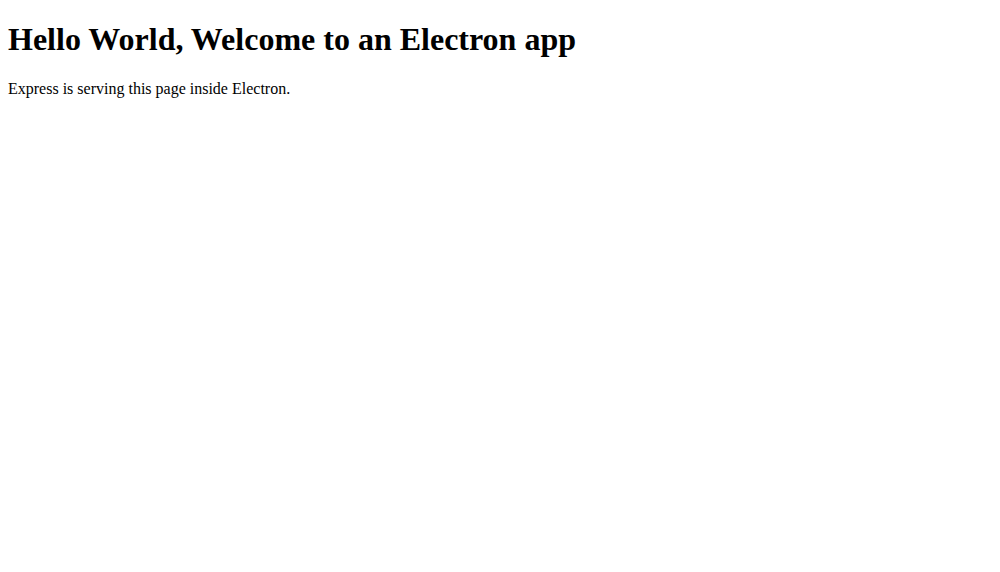
The terminal reports Express listening at a loopback address with an assigned port. The desktop page displays Hello World, Welcome to an Electron app, followed by the Express message.
Keep your existing application’s routes in app.js to display its interface, and bundle any frontend’s built assets so the desktop app does not depend on a development server.
Verify the route and shutdown behavior
The window appearing proves the page loaded, but the server also needs a working close path. Save the following test as verify.cjs to exercise the exported Express app without requiring a graphical desktop.
const assert = require('node:assert/strict');
const webApp = require('./app');

(async () => {
  const server = await new Promise((resolve, reject) => {
    const handle = webApp.listen(0, '127.0.0.1', () => resolve(handle));
    handle.once('error', reject);
  });
  const url = `http://127.0.0.1:${server.address().port}`;
  try {
    const response = await fetch(url);
    assert.equal(response.status, 200);
    assert.match(await response.text(), /Hello World, Welcome to an Electron app/);
    assert.match(response.headers.get('content-security-policy'), /script-src 'self'/);
    assert.equal((await fetch(`${url}/missing`)).status, 404);
    console.log('PASS: route returned 200 and expected HTML');
    console.log('PASS: CSP header present and missing route returned 404');
  } finally {
    await new Promise((resolve, reject) => server.close(error => error ? reject(error) : resolve()));
  }
  await assert.rejects(fetch(url));
  console.log('PASS: server closed and connection was refused');
})().catch(error => {
  console.error(error);
  process.exitCode = 1;
});
The test confirms the HTML response and CSP header before requesting an undefined route, then closes the listener in finally and requires a subsequent connection attempt to fail.
npm pkg set scripts.check="node verify.cjs"
npm run check
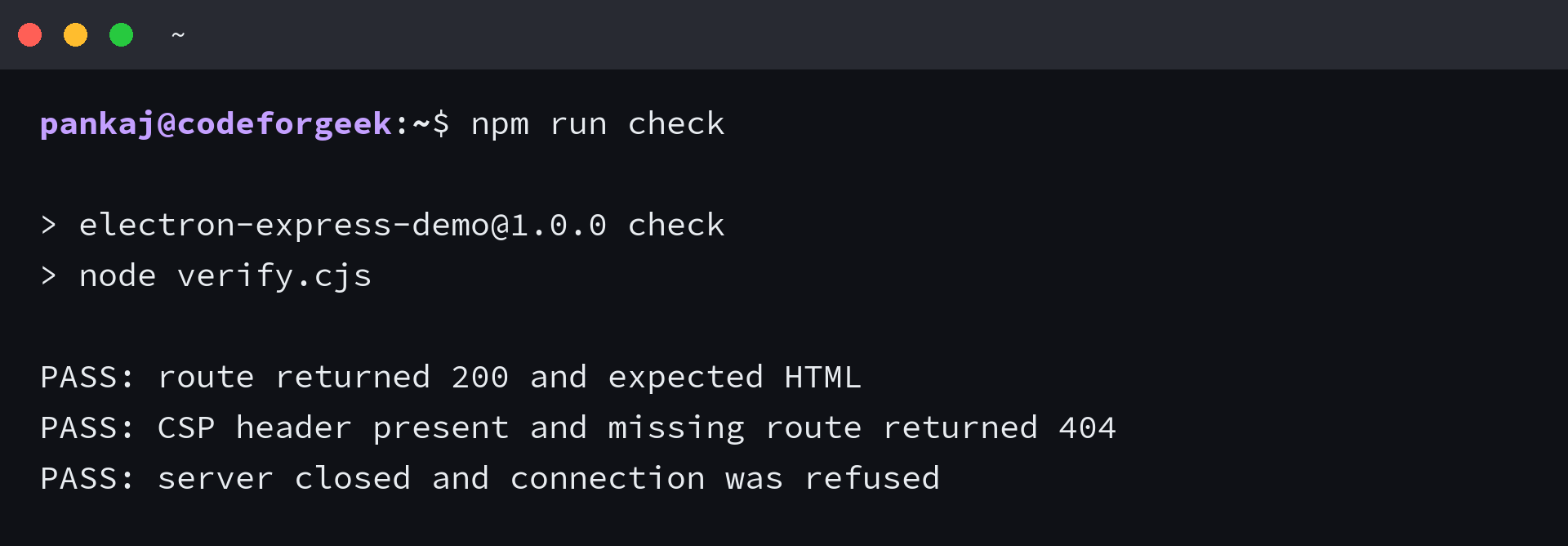
| Check | Expected result |
|---|---|
| Root route | HTTP 200 and the Hello World text |
| Undefined route | HTTP 404 |
| Request after close | Connection fails instead of serving another page |
I closed the Linux desktop window and the listening socket stopped accepting connections. This command-line test covers the Express listener independently, so also launch the desktop app to exercise the Electron lifecycle.
On macOS, use Quit to test application shutdown because closing the window intentionally keeps the app active for reopening without another server.
Troubleshoot startup and local-server errors
Match a load failure to the server lifecycle or the operating system’s Electron requirements before changing renderer permissions.
| Symptom | Cause to inspect | Action |
|---|---|---|
| ERR_CONNECTION_REFUSED | Window loaded before the server listened, or an incorrect address | Await listening and use the assigned loopback address |
| EADDRINUSE | An existing app still listens on a hard-coded port | Use port zero or close the listener your app owns |
| require is not defined in the page | Renderer has Node.js integration disabled | Keep it disabled and expose narrowly scoped functionality through a preload bridge if needed |
| SUID sandbox helper error on Linux | Sandbox installation or host policy prevents startup | Follow Electron’s supported Linux installation requirements rather than disabling sandboxing for distribution |
| Blank page or missing assets after packaging | Paths depend on the working directory or a frontend dev server | Resolve local assets from the application files and include built frontend output |
Move CPU-heavy jobs into a worker or a separate controlled process because synchronous computation in this Express server shares the main process event loop and can stall the desktop interface.
For routes that change local data, add authentication and request validation before distributing the application. Loopback binding alone does not prevent other local clients from sending requests, and a CSP header does not replace server-side authorization.
Package the server with the window
To create an application bundle beyond the npm start development launch, install the Forge command-line tool and run its package command from this project directory.
npm install --no-package-lock --save-dev @electron-forge/cli
npx electron-forge package
The package command produced a Linux ARM64 app directory under out in this example. Electron Forge separates application packaging from making installers, so test the packaged executable on the target desktop before adding a maker or code signing.
Keep Express in dependencies so it is included with the app, and avoid shipping server secrets in bundled files. A desktop window cannot make a remote database available offline.
Express and Electron questions
These questions concern the boundary between a working local application and a desktop release. The answers depend on what your Express routes actually need.
Does an Express desktop app work offline?
It can work offline when its routes and assets are bundled and its data is available locally. Requests to a remote service or database still need network access.
Can an Express app keep its existing templates?
Yes. Keep the template engine and route configuration in the exported Express app, and include the templates in the packaged files. Resolve template and asset paths relative to the application files.
Do users need to install Node.js separately?
A packaged Electron app includes its runtime, so users do not need a separate Node.js installation for this embedded server. This changes if your app explicitly launches an external Node.js executable.
Should the Express server use a separate process?
Use a separate managed process or worker when synchronous server work would block the Electron main process. The small HTML-serving example here keeps the listener in the main process and closes it with the app.