
New to Rust? Grab our free Rust for Beginners eBook Get it free →
Host a Node.js App on Clouding.io VPS

TCP 4317 can serve the app on loopback while staying closed to public traffic. That separation makes me curious about how Nginx can take public requests without making Node’s port the front door.
That boundary helps you judge how much of the setup you’ll manage. To plan the public route, pin down what Clouding.io provides at the VPS layer.
What Clouding.io provides for a Node.js app
Clouding.io provides an unmanaged virtual private server (VPS), a virtual machine (VM) you manage through Secure Shell (SSH). You maintain the Linux host and Node app yourself, as its Linux-server guide explains.
You manage the Node runtime and the route to the public web. Clouding’s guide describes the VM as unmanaged.
Prepare the app and server access
Keep the app source and startup command ready. You also need a tested SSH key and permission to edit the domain name system (DNS) records.
- A Linux image available in Clouding’s server panel.
- An SSH key and a trusted source address for administration.
- A Git repository or release bundle for the application.
- Environment settings and a domain name for the public site.
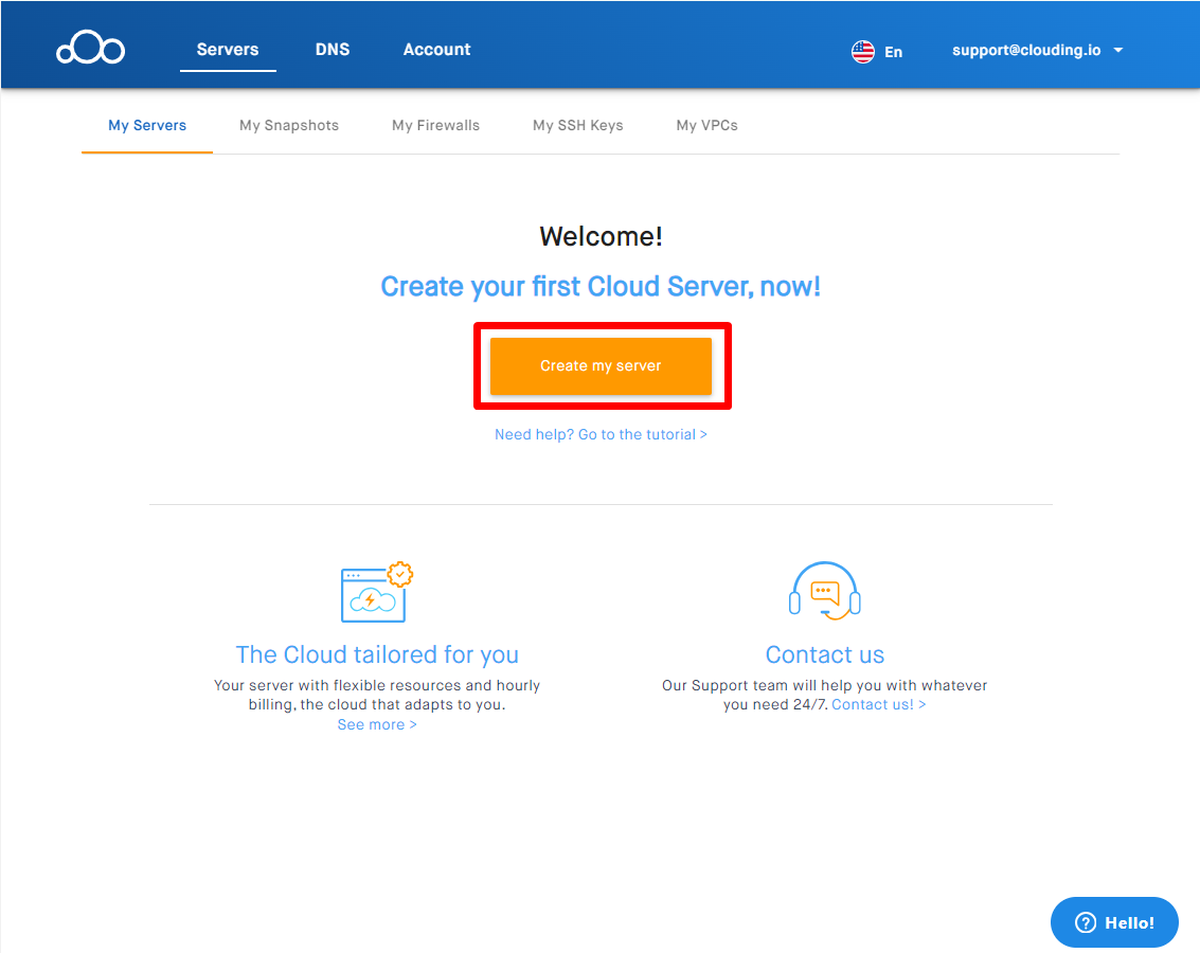
Clouding’s server form lets you choose a Linux image and compute resources. Attach an SSH key there too, then review the backup and firewall options in Clouding.io’s server-creation guide.
Clouding’s panel firewall profile can apply to several assigned VMs. Read its firewall-rule guidance before changing a shared profile.
Deploy the app on Clouding.io
Create the VM first, then connect over SSH. Install the runtime and check the app locally before you add a public route.
Step 1. Create a Linux server
Choose a Linux image in Clouding’s server panel and attach an SSH key. Select a firewall profile that allows SSH from your trusted address, then decide whether to enable backups.
Clouding describes the VM as unmanaged, so you configure the operating system but install and maintain the Node.js application yourself. Clouding recommends taking a snapshot or backup before important server changes.
Step 2. Connect and install a supported Node.js release
Connect over SSH with the server’s assigned username and the private key paired with the public key you added.
Node.js recommends an Active or Maintenance Long-Term Support (LTS) release for production, and the Node.js release page lists the supported lines. The nvm project can install the LTS alias without fixing this tutorial to a version number.
nvm install --lts
nvm use --lts
node --version
Use the same server account for nvm and PM2. A process manager started under a different account may not find the Node version or environment values your app needs.
Start the app from that account too.
Step 3. Bring the application to the VM
Clone the repository or upload a release bundle, then install dependencies from the project’s committed lockfile. Build the production files if the app’s documented start command expects them.
Keep service credentials outside source control. Provide them through the process environment or a protected environment file, not a source file you push to Git.
Step 4. Bind the app to loopback
The built-in HTTP module keeps this sample dependency-free and shows what a server needs to listen locally. The app binds to 127.0.0.1 and reads its port from the environment.
import { createServer } from 'node:http';

const host = '127.0.0.1';
const port = Number(process.env.PORT ?? 3000);

const server = createServer((request, response) => {
  if (request.url === '/health') {
    response.writeHead(200, { 'content-type': 'application/json; charset=utf-8' });
    response.end(JSON.stringify({ status: 'ok' }));
    return;
  }

  response.writeHead(200, { 'content-type': 'text/plain; charset=utf-8' });
  response.end('Node.js app is running\n');
});

server.listen(port, host, () => {
  console.log(`Listening on http://${host}:${port}`);
});
Save the sample as app.mjs and start it on a port Nginx can reach.
PORT=4317 node app.mjs
Use a second shell on the VM to request the health route before testing DNS or firewall rules. A status 200 with the JavaScript Object Notation (JSON) body confirms the process is listening.
curl --fail --silent --show-error -i http://127.0.0.1:4317/health
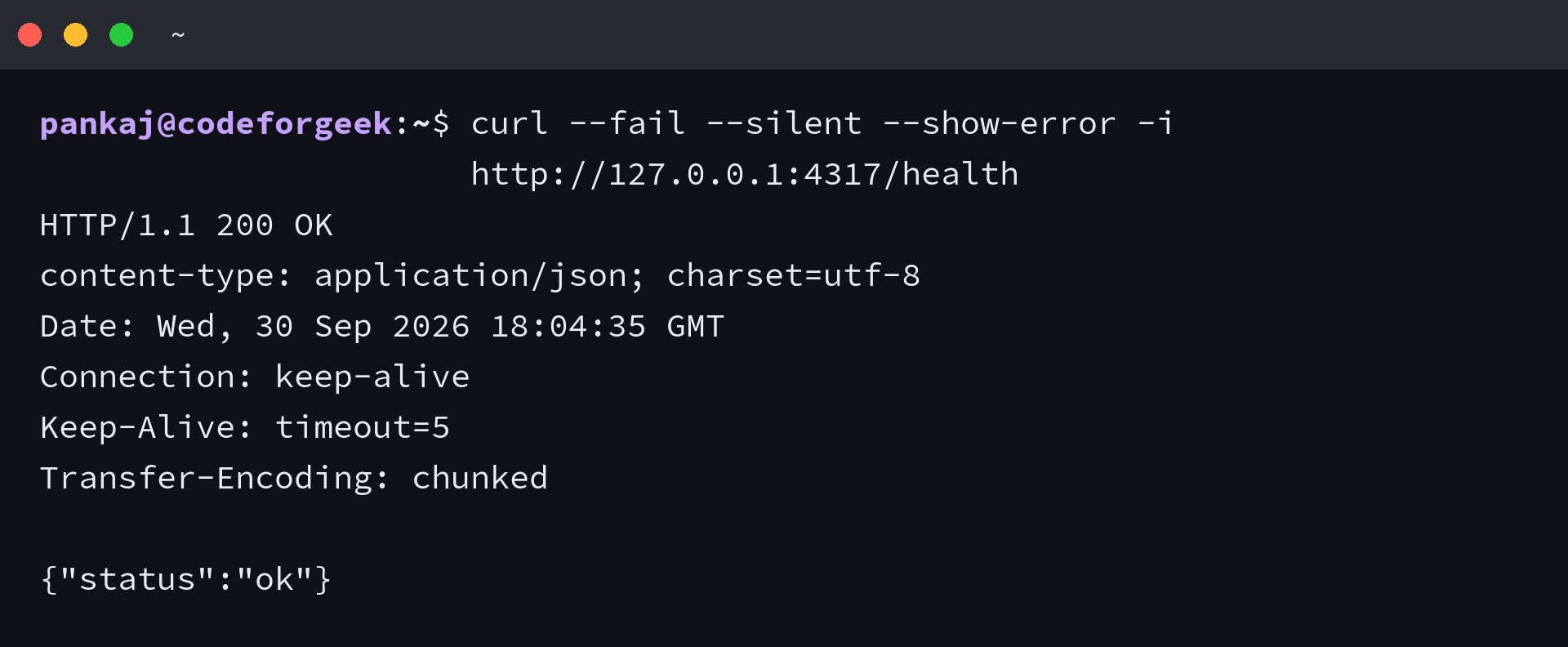
The loopback address keeps this health check on the VM, so fix the process or port if it fails.
Keep the Node process running
A foreground Node process belongs to the shell session that launched it, so closing SSH can end it or leave it unmanaged. PM2 is a Node.js process manager, but a separate startup hook is needed to restore it after a reboot.
Install PM2 without pinning a release, then start the app under the same account that owns its Node environment.
npm install -g pm2
PORT=4317 pm2 start app.mjs --name clouding-app
pm2 startup
pm2 save
pm2 ls
Run the systemd command PM2 prints when startup runs without root access, then return to the app account. PM2 requires elevated access for that command.
- Run PM2’s generated systemd command with sudo on the VPS.
- Run pm2 save after the app is started under the account that will own it.
- Check pm2 ls and confirm the app status is online.
PM2’s Quick Start documents the startup and save sequence. Express production guidance recommends supervising the app and using the OS init system at reboot, while PM2 itself does not configure the public route.
Route web traffic through Nginx
Nginx accepts public web requests and forwards them to the app’s loopback listener. Point the domain’s A record at the VM’s public Internet Protocol version 4 (IPv4) address before requesting a certificate.
Use the Nginx package instructions for your Ubuntu release if it is not installed. The Nginx Linux packages page lists supported Ubuntu versions and installation steps.
server {
    listen 80;
    server_name example.com;

    location / {
        proxy_pass http://127.0.0.1:4317;
        proxy_http_version 1.1;
        proxy_set_header Host $host;
        proxy_set_header X-Real-IP $remote_addr;
        proxy_set_header X-Forwarded-For $proxy_add_x_forwarded_for;
        proxy_set_header X-Forwarded-Proto $scheme;
    }
}
The Nginx Beginner’s Guide covers configuration tests and reloads, while the proxy module documents upstreams and forwarded headers. Check the Linux packages page for supported Ubuntu releases, then replace example.com with your domain.
Hypertext Transfer Protocol (HTTP) carries the port 80 challenge. Hypertext Transfer Protocol Secure (HTTPS) uses Transport Layer Security (TLS) for browser traffic on port 443.
The Ubuntu firewall guide covers guest rules, while Clouding’s panel profile is a separate layer. These examples use Transmission Control Protocol (TCP), and Node’s port 4317 stays closed to public traffic.
| Traffic | Firewall decision |
|---|---|
| SSH on TCP 22 | Allow only from a trusted administration address. |
| HTTP on TCP 80 | Allow public requests and HTTP certificate validation. |
| HTTPS on TCP 443 | Allow public TLS traffic to Nginx. |
| Node on TCP 4317 | Keep blocked from public sources. Nginx reaches the app over loopback. |
If Express reads forwarded client or protocol headers, configure its trust proxy setting for the path through Nginx, not arbitrary client headers. After DNS resolves and HTTP reaches Nginx, follow the Certbot user guide to issue and renew the certificate.
Diagnose an app that will not open
Trace the failure outward from Node toward the public address.
| Symptom | Check | Next action |
|---|---|---|
| Loopback health check fails. | Confirm PM2 reports the app online and the process uses the same port as the test. | Inspect the app’s startup output and correct its port or bind address. |
| Loopback works, but Nginx returns 502. | Compare proxy_pass with the app’s host and port. | Restart the app if it stopped, then test the local upstream again. |
| Local Nginx works, but the domain times out. | Check the DNS A record and both Clouding’s firewall profile and the guest firewall. | Allow TCP 80 and 443 to Nginx. Keep SSH restricted and the Node port closed. |
| HTTP works, but HTTPS fails. | Confirm the domain resolves to this VM and the certificate covers that name. | Check the Certbot renewal status and allow inbound TCP 443. |
Clouding’s server guide notes that a firewall profile can block application traffic even while the process runs. A public timeout does not prove Node is broken, so test the local endpoint first.
Keep the Node port private
Let Nginx own the public web entry point and keep the Node listener on loopback.
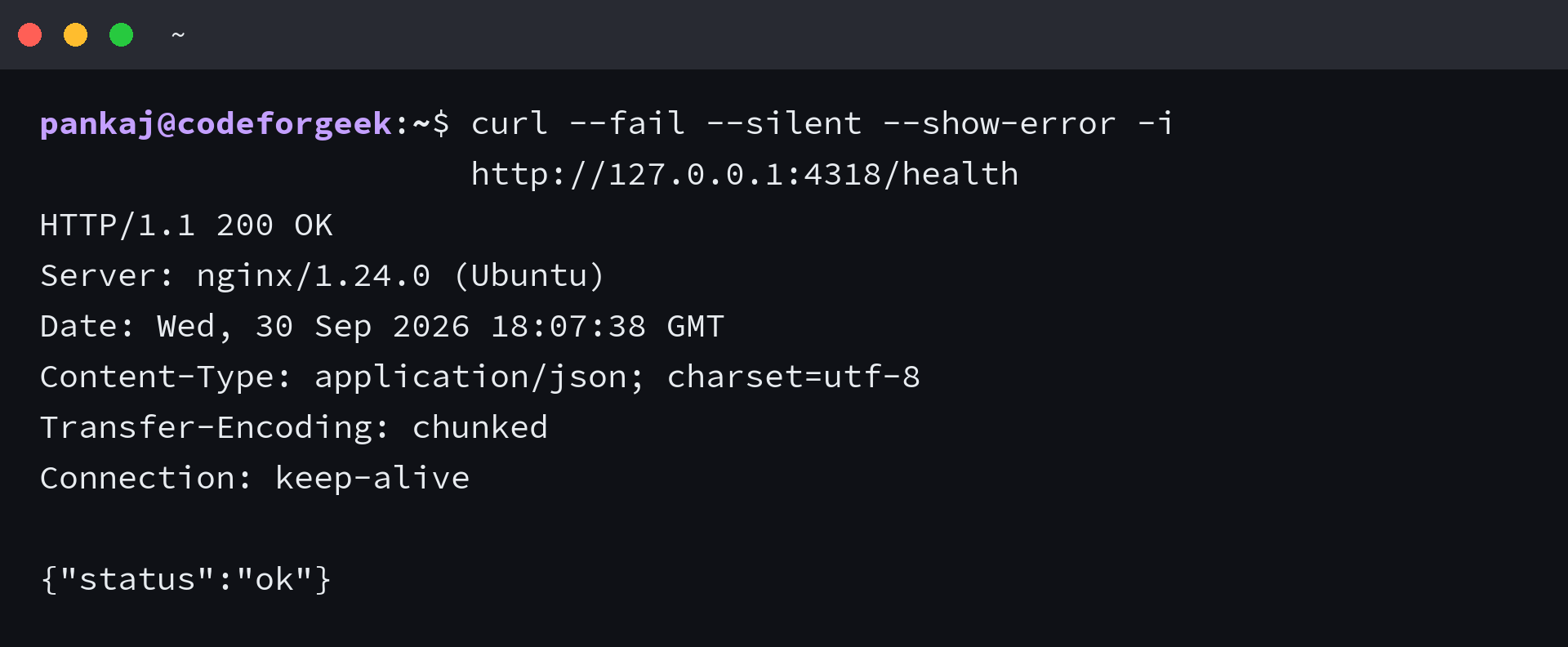
I ran the health route directly and through the local Nginx listener. Both returned HTTP 200, but only the proxy response showed an Nginx server header.
Common Clouding.io Node.js hosting questions
Is Clouding.io a managed Node.js hosting service?
No. Clouding.io describes its Linux servers as unmanaged VPS instances with SSH access. You install Node.js and maintain the app and public route yourself.
Does PM2 make a Node.js app start after a reboot?
Not by itself. Run PM2’s generated startup command to register its systemd hook, then run pm2 save to record the apps PM2 should restore.
Can I open the Node.js port to the internet instead of using Nginx?
You can, but this setup keeps the Node listener on loopback and exposes Nginx on TCP 80 and 443. That avoids adding the app port as another public entry point.
Can I request an HTTPS certificate before DNS points to the VM?
For HTTP validation, point the domain to the VM and make port 80 reachable first. Then follow Certbot’s Nginx guidance and allow HTTPS traffic on port 443.