Docker is one of the most popular tools in 2026 for running applications inside containers. Learning Docker commands helps you create, start, manage, and troubleshoot containers with ease.
Our goal is that instead of memorising these commands, you actually understand what each command does, why it exists, and when to use it in real projects. This way, you can start solo-leveling your Docker CLI skills with confidence.
Essential Docker Commands for Container Lifecycle
We use these fundamental Docker commands to manage the entire life of a container. This includes creating, starting, and removing containers.
docker run
This command creates and starts a new container from an image. It is the primary way to launch a container. We use it to run applications in an isolated environment. The result is a running container based on the specified image.
Example:
docker run -d -p 80:80 nginx
docker start
This command starts one or more stopped containers. It does not create a new container but restarts an existing one that is not running. We use this to resume work on a container we created earlier. The container enters the running state after execution.
Example:
docker start my_container
docker stop
This command stops a running container gracefully. It sends a signal to the process to allow it to shut down properly. We use this to turn off containers without causing data corruption. The result is a container in a stopped state.
Example:
docker stop my_container
docker restart
This command stops and then starts a container again. We use it when we need to apply configuration changes or fix minor glitches. It is a quick way to refresh a running service. The container is briefly down and then starts running again.
Example:
docker restart my_container
docker pause
This command suspends all processes in a container. It freezes the container in its current state. We use this to temporarily free up system resources. The container remains on the disk but stops using CPU cycles.
Example:
docker pause my_container
docker unpause
This command resumes all processes in a paused container. It unfreezes the container so it continues running from where it left off. We use this to restore services that we paused earlier. The container returns to an active running state.
Example:
docker unpause my_container
docker rm
This command removes one or more containers. It deletes the container permanently from the system. We use this to clean up old containers we no longer need. The result is more free disk space and a cleaner system.
Example:
docker rm my_container
docker kill
This command immediately stops a running container. It sends a signal that forces the process to quit instantly. We use this when a container is stuck or not responding to the stop command. The container shuts down immediately.
Example:
docker kill my_container
Docker Commands for Image Management
We need a good set of Docker commands to handle images effectively. Images are the blueprints for our containers, so managing them is key.
docker pull
This command downloads an image from a registry like Docker Hub. It saves the image to your local machine. We use this to get the latest version of an application before running it. The result is an image ready for use in containers.
Example:
docker pull ubuntu:latest
docker build
This command builds an image from a Dockerfile. It reads the instructions in the file and creates a custom image. We use this to create our own application environments. The result is a new image that includes our specific code and settings.
Example:
docker build -t myapp .
docker images
This command lists all images stored locally on your machine. It shows the repository, tags, and size of each image. We use this to see what we have available to run. The result is a table of all downloaded images.
Example:
docker images
docker rmi
This command removes one or more images from your system. It deletes the image files to free up disk space. We use this to clean up outdated or unused images. The image is permanently removed from local storage.
Example:
docker rmi ubuntu:old
docker tag
This command creates a new tag for an image. It is like adding a nickname or specific version label to an existing image. We use this to prepare an image for uploading to a registry. The result is the same image referenced by a new name.
Example:
docker tag myapp myrepo/myapp:v1
docker save
This command saves an image to a tar file. It creates a single file backup of an image. We use this to move images to computers that do not have internet access. The result is a portable archive file of the image.
Example:
docker save -o myimage.tar myapp
docker load
This command loads an image from a tar file into your local Docker. It is the opposite of the save command. We use this to restore images from a backup or transfer them. The result is the image appearing in your local list.
Example:
docker load -i myimage.tar
docker history
This command shows the history of an image. It displays the layers and commands used to build the image. We use this to debug how an image was created or find its size. The result is a list of past layers.
Example:
docker history myapp
Docker Commands for Information and Inspection
We must be able to see what is happening inside our system. These Docker commands help us inspect the state of containers and the Docker engine.
docker ps
This command lists running containers. It shows a summary of all active containers on the host. We use this to quickly see which applications are running. The result includes container IDs, names, and status.
Example:
docker ps
docker ps -a
This command lists all containers, both running and stopped. It gives a complete view of every container created. We use this to find old containers we might have forgotten. The result includes the entire history of containers.
Example:
docker ps -a
docker inspect
This command provides detailed low-level information on an object. It shows configuration data and status in JSON format. We use this to troubleshoot issues or find specific settings like IP addresses. The result is a large text output with every detail.
Example:
docker inspect my_container
docker logs
This command shows the logs generated by a container. It displays the standard output and standard error streams. We use this to debug applications that are crashing or misbehaving. The result is a text log of what happened inside the container.
Example:
docker logs my_container
docker top
This command displays the running processes inside a container. It is similar to the top command on Linux. We use this to see what the application is doing right now. The result is a list of active processes and their IDs.
Example:
docker top my_container
docker stats
This command shows a live stream of resource usage statistics. It displays CPU, memory, and network usage for all containers. We use this to monitor performance and find heavy users. The result is a live updating table of metrics.
Example:
docker stats
docker port
This command lists port mappings for a container. It shows which ports on the host map to ports inside the container. We use this to verify our networking configuration is correct. The result helps us access the application from the browser.
Example:
docker port my_container
docker diff
This command inspects changes to files or directories in a container. It compares the current state to the original image. We use this to see which files were created or modified during runtime. The result is a list of changed files.
Example:
docker diff my_container
docker events
This command shows real-time events from the Docker server. It displays information like container creation, starting, or stopping. We use this to monitor system activity live. The result is a continuous stream of system events.
Example:
docker events
docker info
This command displays system-wide information. It shows the number of containers, images, and storage drivers. We use this to check the health and configuration of the Docker installation. The result is a summary of the entire Docker environment.
Example:
docker info
docker version
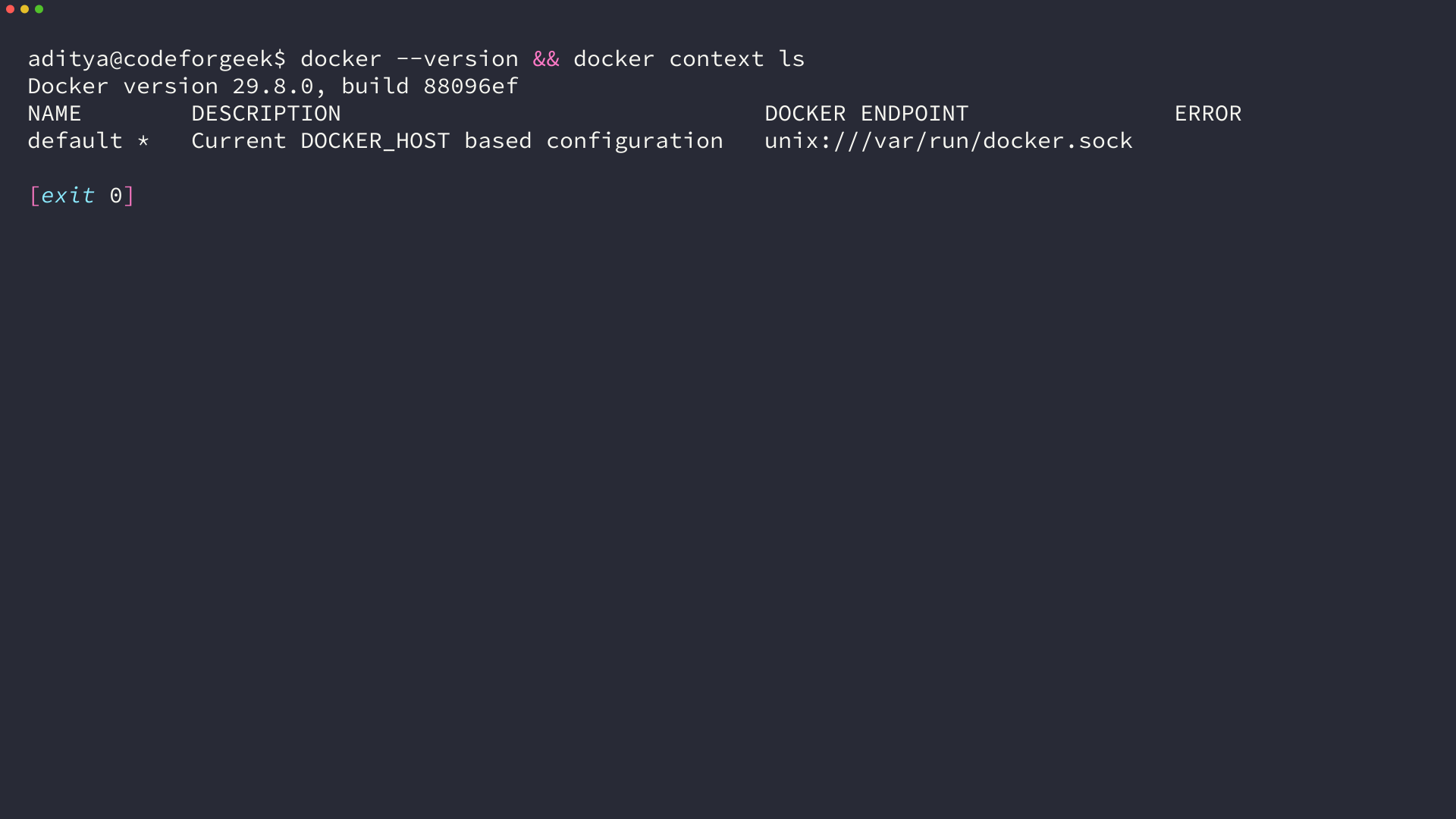
This command shows the Docker version information. It lists the version of the client and the server. We use this to check for updates or verify compatibility. The result is the specific version numbers for each component.
Example:
docker version
Docker Commands for System Cleanup
Keeping our system clean is important for performance. These Docker commands help us remove unused data and free up space.
docker system prune
This command removes unused data. It deletes stopped containers, unused networks, and dangling images. We use this to perform a quick cleanup of the system. The result is a cleaner environment with more free disk space.
Example:
docker system prune
docker system prune -a
This command removes unused data more aggressively. It also removes all unused images, not just dangling ones. We use this when we need a lot of disk space quickly. The result is a fresh start with only active images left.
Example:
docker system prune -a
docker system df
This command shows the amount of disk space used by Docker. It breaks down usage by images, containers, and volumes. We use this to understand what is taking up space. The result is a detailed report on disk usage.
Example:
docker system df
Docker Commands for Networking
Networking connects our containers to each other and the outside world. We use these Docker commands to manage networks effectively.
docker network create
This command creates a new network. It allows containers to communicate with each other securely. We use this to isolate groups of containers. The result is a new network segment we can attach containers to.
Example:
docker network create my_network
docker network ls
This command lists all networks on the Docker host. It shows the names and drivers of the networks. We use this to see what networks are available. The result is a list of all network configurations.
Example:
docker network ls
docker network inspect
This command displays detailed information on a network. It shows which containers are connected to it and their IP addresses. We use this to troubleshoot connectivity issues between containers. The result is a JSON view of the network settings.
Example:
docker network inspect my_network
docker network connect
This command connects a container to a network. It links a running container to an existing network. We use this to add a container to a specific communication group. The container can now talk to others on that network.
Example:
docker network connect my_network my_container
docker network disconnect
This command disconnects a container from a network. It removes the link between the container and the network. We use this to isolate a container or move it to another network. The container loses access to that specific network.
Example:
docker network disconnect my_network my_container
docker network rm
This command removes one or more networks. It deletes the network configuration completely. We use this to clean up networks we no longer need. The network disappears from the host system.
Example:
docker network rm my_network
docker network prune
This command removes all unused networks. It deletes networks that are not connected to any containers. We use this to keep the networking stack tidy. The result is a list of deleted network IDs.
Example:
docker network prune
Docker Commands for Volume Management
Volumes allow us to store data permanently outside the container. These Docker commands help us manage that data effectively.
docker volume create
This command creates a new volume. It sets up a storage area that persists even if the container is deleted. We use this to store databases or important user data. The result is a volume ready to be attached to a container.
Example:
docker volume create my_volume
docker volume ls
This command lists all volumes on the host. It shows the names and drivers of the volumes. We use this to see what data storage areas exist. The result is a list of all available volumes.
Example:
docker volume ls
docker volume inspect
This command displays detailed information on a volume. It shows the mount point and other configuration details. We use this to find where the data is stored on the host. The result is a JSON output with volume specifics.
Example:
docker volume inspect my_volume
docker volume rm
This command removes one or more volumes. It permanently deletes the volume and its data. We use this only when we are sure we do not need the data anymore. The result is the removal of the storage area.
Example:
docker volume rm my_volume
docker volume prune
This command removes all unused volumes. It deletes volumes that are not connected to any containers. We use this to clean up orphaned data storage. The result is a significant amount of recovered disk space.
Example:
docker volume prune
Docker Commands for Interaction and Execution
Sometimes we need to go inside a container to run commands. These Docker commands allow us to interact directly with the container.
docker exec
This command runs a command inside a running container. It lets us execute programs in the container’s environment. We use this to open a shell or run scripts inside the container. The result is the output of the command we ran.
Example:
docker exec -it my_container /bin/bash
docker attach
This command attaches your terminal to a running container. It lets you view the main process output and interact with it. We use this to see what the application is printing in real time. The result is a direct connection to the container.
Example:
docker attach my_container
docker cp
This command copies files between a container and the local filesystem. It moves data in and out of a running container. We use this to backup files or inject configuration changes. The result is the file appearing in the destination.
Example:
docker cp file.txt my_container:/path/to/file.txt
docker export
This command exports a container’s filesystem as a tar archive. It saves the current state of the container files. We use this to create a snapshot of a container. The result is a tar file of the container contents.
Example:
docker export my_container > backup.tar
docker import
This command imports the contents from a tarball to create a filesystem image. It is the reverse of the export command. We use this to restore a container snapshot as a new image. The result is a new image created from the tar file.
Example:
docker import backup.tar my_restored_image
Docker Commands for Registry and Login
We use these Docker commands to interact with image registries. They help us share our images with the world.
docker login
This command logs in to a Docker registry. It authenticates your user account so you can push and pull private images. We use this to access our private repositories. The result is a successful authentication session.
Example:
docker login
docker logout
This command logs out from a Docker registry. It ends the current session and removes credentials. We use this to secure our account on a shared computer. The result is a logged-out state.
Example:
docker logout
docker search
This command searches the Docker Hub for images. It looks for images that match your search term. We use this to find official or community images to use. The result is a list of matching images with descriptions.
Example:
docker search python
docker push
This command pushes an image or a repository to a registry. It uploads your local image to a remote server. We use this to share our applications with others or deploy to cloud servers. The result is the image available on the registry.
Example:
docker push myrepo/myapp:v1
Docker Commands for Swarm Services
For orchestrating multiple containers, Docker provides Swarm mode. These Docker commands help us manage services across many nodes.
docker swarm init
This command initializes a new swarm. It turns the current Docker engine into a swarm manager. We use this to start a cluster of Docker nodes. The result is a swarm ready to accept worker nodes.
Example:
docker swarm init --advertise-addr192.168.1.1
docker service create
This command creates a new service. It runs a specified number of replica containers across the swarm. We use this to deploy scalable applications. The result is a distributed service managed by Docker.
Example:
docker service create --name my_web --replicas 3 nginx
docker service ls
This command lists all services running in the swarm. It shows the name, replicas, and ports of each service. We use this to see what is deployed across the cluster. The result is a summary of active services.
Example:
docker servicels ls
docker service ps
This command lists the tasks of a service. It shows which nodes are running the containers for that service. We use this to check the distribution and health of the service. The result is a list of individual tasks.
Example:
docker serviceps ps my_web
docker service scale
This command scales one or more replicated services. It increases or decreases the number of running containers. We use this to handle more traffic or save resources. The result is the service running with the new number of replicas.
Example:
docker service scale my_web=5
docker service rm
This command removes one or more services. It deletes all containers and tasks associated with the service. We use this to stop and remove an application from the swarm. The service is no longer active.
Example:
docker servicerm rm my_web
docker stack deploy
This command deploys a new stack or update an existing stack. It uses a compose file to define multiple services. We use this to deploy complex applications with many parts at once. The result is a running stack of services.
Example:
docker stack deploy -c docker-compose.yml my_stack
docker node ls
This command lists all nodes in the swarm. It shows the manager and worker nodes. We use this to see the health and availability of the cluster. The result is a list of all participating machines.
Example:
docker node ls
Docker Commands for Docker Compose
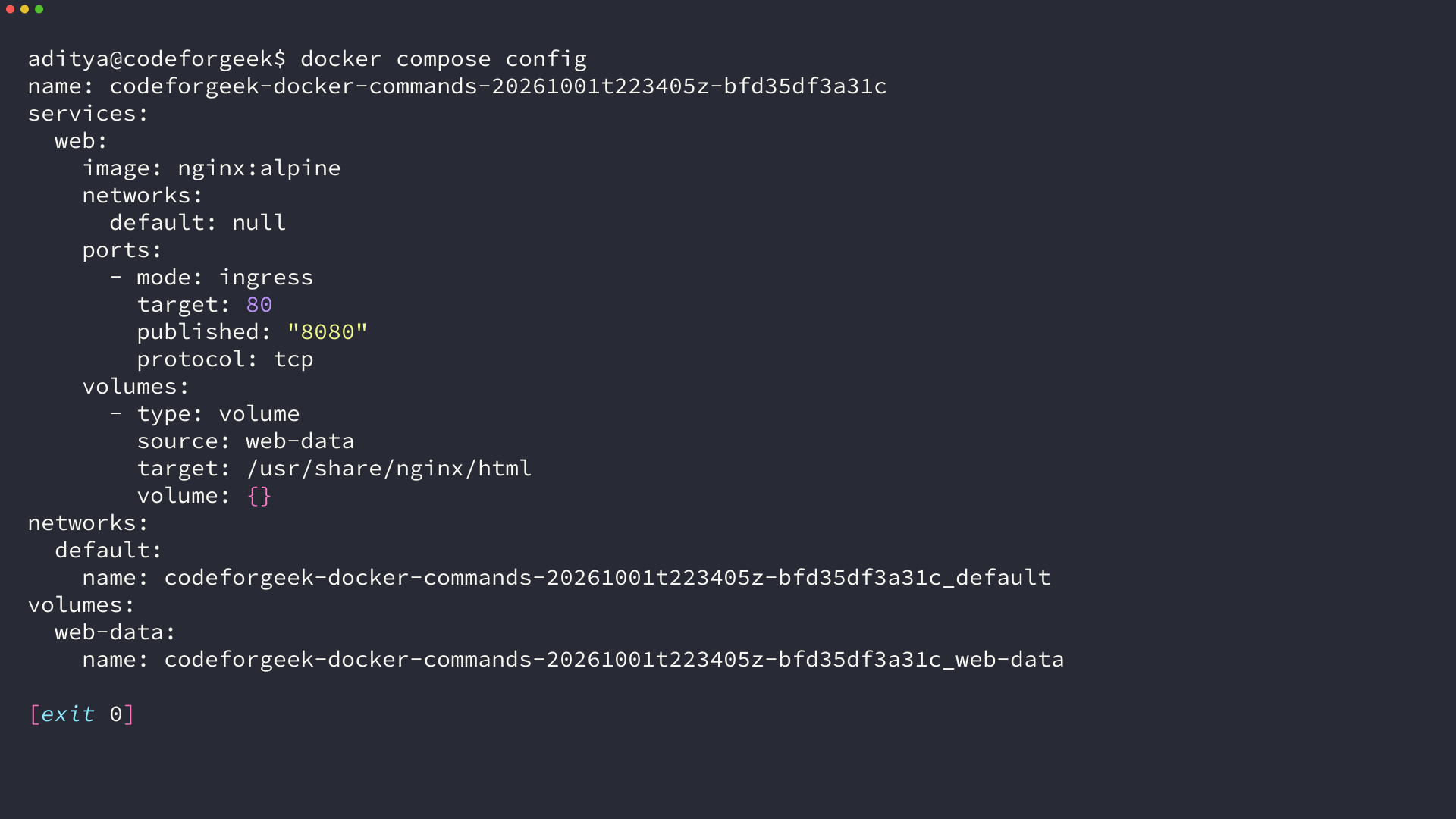
Most modern 2026 projects rely on Docker Compose to run multi-container applications. We use these Docker commands to manage the entire application stack easily.
docker compose up
This command creates and starts containers for a service. It reads the compose file to build and run the application stack. We use this to launch our entire project with one command. The result is a running group of connected containers.
Example:
docker compose up -d
docker compose down
This command stops and removes containers, networks, and images created by up. It cleans up the environment completely. We use this to shut down the project and free up resources. The result is a clean system with no compose containers running.
Example:
docker compose down
docker compose build
This command builds or rebuilds services for the project. It reads the compose file to create fresh images. We use this when we change our code or Dockerfile. The result is updated images ready for deployment.
Example:
docker compose build
docker compose ps
This command lists containers for the current compose project. It shows the status of each service defined in the file. We use this to check if our services are running correctly. The result is a status list of the application stack.
Example:
docker compose ps
docker compose logs
This command shows log output from services. It displays the standard output of all running containers in the project. We use this to debug issues across multiple services at once. The result is a combined stream of application logs.
Example:
docker compose logs -f
docker compose exec
This command executes a command in a running service container. It opens an interactive shell or runs a script inside a service. We use this to perform maintenance or access the database. The result is direct access to the service environment.
Example:
docker compose exec web bash
docker compose pull
This command pulls service images from a registry. It downloads the latest versions of images defined in the compose file. We use this to update our environment before starting services. The result is the newest images stored locally.
Example:
docker compose pull
docker compose push
This command pushes service images to a registry. It uploads the built images to a remote server like Docker Hub. We use this to share our images with a team or a server. The result is the images available in the cloud.
Example:
docker compose push
Docker Commands for Context and CLI Management
We use these Docker commands to manage different Docker environments. They help us switch between local machines and remote hosts easily.
docker context ls
This command lists all available contexts. It shows the names and descriptions of Docker endpoints. We use this to see which environments we can connect to. The result is a list of contexts like default and my-cloud.
Example:
docker context ls
docker context use
This command sets the default docker context. It switches the CLI target to a specific environment. We use this to change from a local Docker engine to a remote one. The result is all subsequent commands running on the new host.
Example:
docker context use my-cloud
docker context create
This command creates a new docker context. It adds a new endpoint configuration to the CLI. We use this to set up a connection to a remote Docker daemon. The result is a new context option available for use.
Example:
docker context create my-context --docker"host=tcp://my-server:2376"
docker context rm
This command removes one or more contexts. It deletes the configuration for a specific endpoint. We use this to clean up old or unused connection details. The result is the context disappearing from the list.
Example:
docker context rm my-context
Docker Commands for Plugin Management
Plugins extend the capabilities of Docker. We use these Docker commands to manage these extra extensions for special tasks.
docker plugin ls
This command lists all installed plugins. It shows the names, versions, and status of plugins. We use this to see what extra capabilities are available. The result is a table of loaded plugins.
Example:
docker plugin ls
docker plugin install
This command installs a plugin from a registry. It downloads and sets up the plugin extension. We use this to add specific features like storage drivers. The result is the plugin ready for use by Docker.
Example:
docker plugin install vieux/sshfs
docker plugin enable
This command enables a plugin. It activates a plugin that is currently disabled. We use this to start using the features of a specific plugin. The result is the plugin becoming active.
Example:
docker plugin enable vieux/sshfs
docker plugin disable
This command disables a plugin. It turns off the plugin so it is not used. We use this to troubleshoot issues or temporarily stop a feature. The result is the plugin becoming inactive.
Example:
docker plugin disable vieux/sshfs
docker plugin rm
This command removes one or more plugins. It deletes the plugin from the system. We use this when we no longer need the extension. The result is the plugin completely uninstalled.
Example:
docker plugin rm vieux/sshfs
Docker Commands for Buildx and Modern Builds
Modern applications often require images for different computer chips. We use these Docker commands to handle advanced building needs like multi-platform support.
docker buildx ls
This command lists the available builder instances. It shows the current and available build drivers. We use this to check the status of our build environments. The result is a list of builder setups.
Example:
docker buildx ls
docker buildx create
This command creates a new builder instance. It sets up a new environment for building images. We use this to configure a builder for multi-architecture builds. The result is a new builder ready for work.
Example:
docker buildx create --name mybuilder
docker buildx build
This command starts a build using Buildx. It can build images for multiple platforms at the same time. We use this to create images for both Intel and ARM chips. The result is a multi-architecture image or set of images.
Example:
docker buildx build --platform linux/amd64,linux/arm64 -t myapp:latest .
docker buildx inspect
This command inspects the current builder. It shows detailed configuration and status of the builder instance. We use this to verify the node status and platform capabilities. The result is detailed information about the builder.
Example:
docker buildx inspect mybuilder
Docker Commands for Manifests
Manifests allow us to manage image manifests and lists. We use these pro-level Docker commands to handle multi-platform images manually.
docker manifest create
This command creates a manifest list for local images. It groups images for different architectures under one tag. We use this to prepare a multi-platform image for distribution. The result is a manifest list pointing to specific images.
Example:
docker manifest create myapp:latest myapp:amd64 myapp:arm64
docker manifest inspect
This command displays detailed information on a manifest list or image. It shows the configuration and supported platforms. We use this to verify the contents of a manifest. The result is a JSON view of the manifest data.
Example:
docker manifest inspect myapp:latest
docker manifest push
This command pushes a manifest list to a repository. It uploads the multi-platform configuration to a registry. We use this to publish a single tag that supports multiple architectures. The result is users pulling the correct image automatically.
Example:
docker manifest push myapp:latest
Conclusion
We have covered a massive list of Docker commands in this guide. These tools give us the power to build, ship, and run any application anywhere. Keep practising these Docker commands and use this guide whenever you need a quick reference. You now have the knowledge to manage your Docker environment like a true professional.
To further improve your Docker skills, check out this step-by-step guide:
Dockerize NodeJS Application
Reference:
https://docs.docker.com/engine/reference/commandline/