New to Rust? Grab our free Rust for Beginners eBook Get it free →
Important Kubernetes kubectl Commands Explained with Examples (2026)

kubectl commands can return NotFound for a Pod that exists in another namespace because the lookup searches only the selected namespace. I found the same Pod name returned NotFound in one namespace and Running in another.
Your active context selects the cluster and may supply the namespace that scopes the API request. Examine how that context and namespace shape the request kubectl sends to the Kubernetes API.
What kubectl sends to the Kubernetes API
kubectl is the command-line client that sends requests to the Kubernetes API server. Its active context selects a cluster and user, and it can also set a default namespace.
The kubectl reference groups commands by the work they do, but each result answers a different question about your cluster.
| Task | Command family | What the result tells you |
|---|---|---|
| Find or inspect objects | get, describe | Which resources match, and what state or events they report |
| Compare or submit desired state | diff, apply | What the manifest would change, then whether the API accepted it |
| Check a Deployment | rollout status, rollout history | Whether its controller reached the requested replica state |
| Investigate a container | logs, exec | What the container printed or what a command reports inside it |
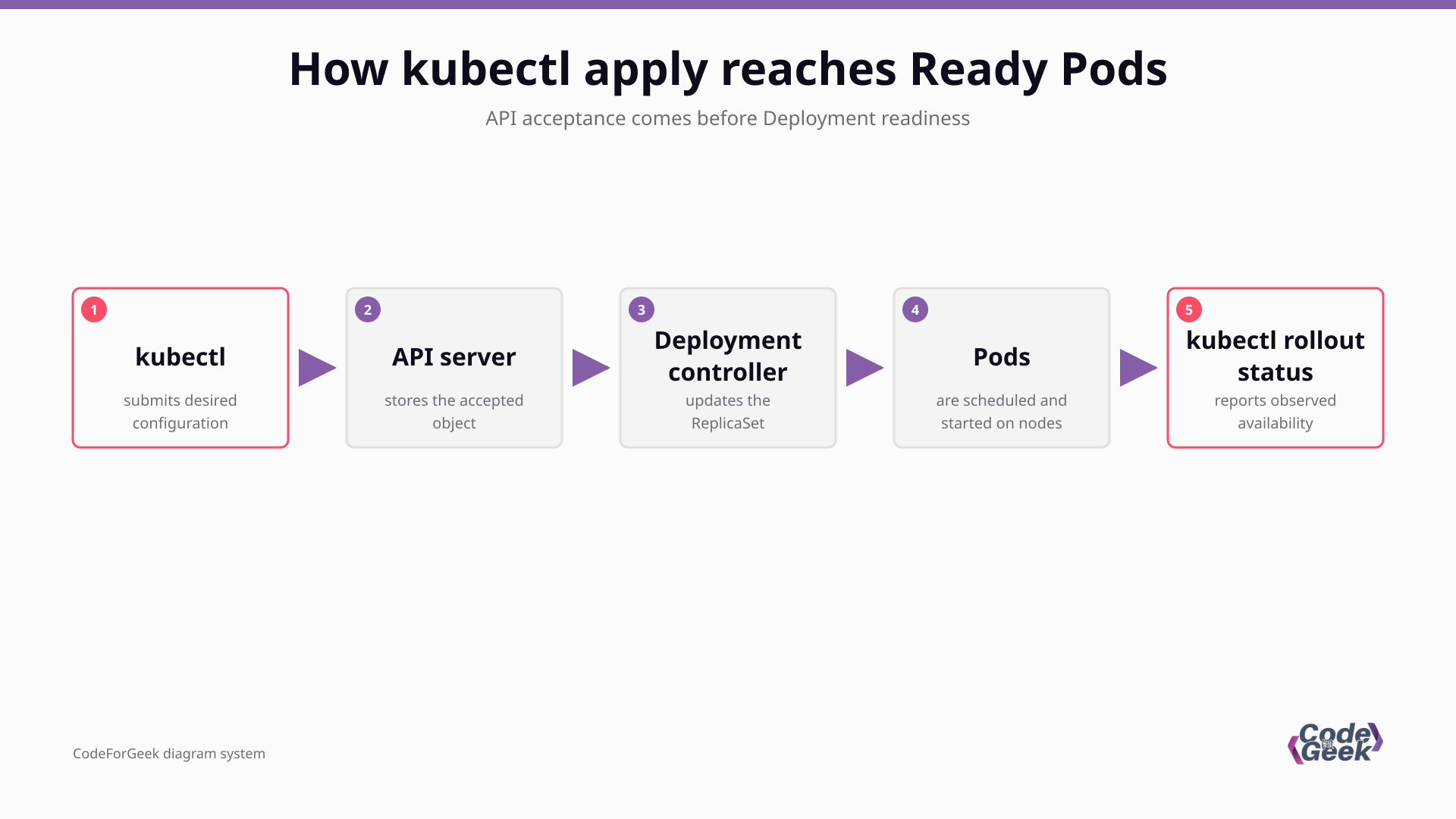
The API server accepts a desired-state request before controllers finish reconciling it. Rollout status reports whether the requested workload has reached its target state.
Check the cluster and namespace
kubectl uses the active context when a command does not name one. A context identifies a cluster and user, and may supply the namespace for namespaced resources.
A Pod with the same name can exist in another namespace, so an omitted namespace can make a valid resource look absent. The Kubernetes namespace guide explains which resources use namespace scope.
kubectl config current-context
kubectl config get-contexts
kubectl get namespaces
kubectl get pods -n production
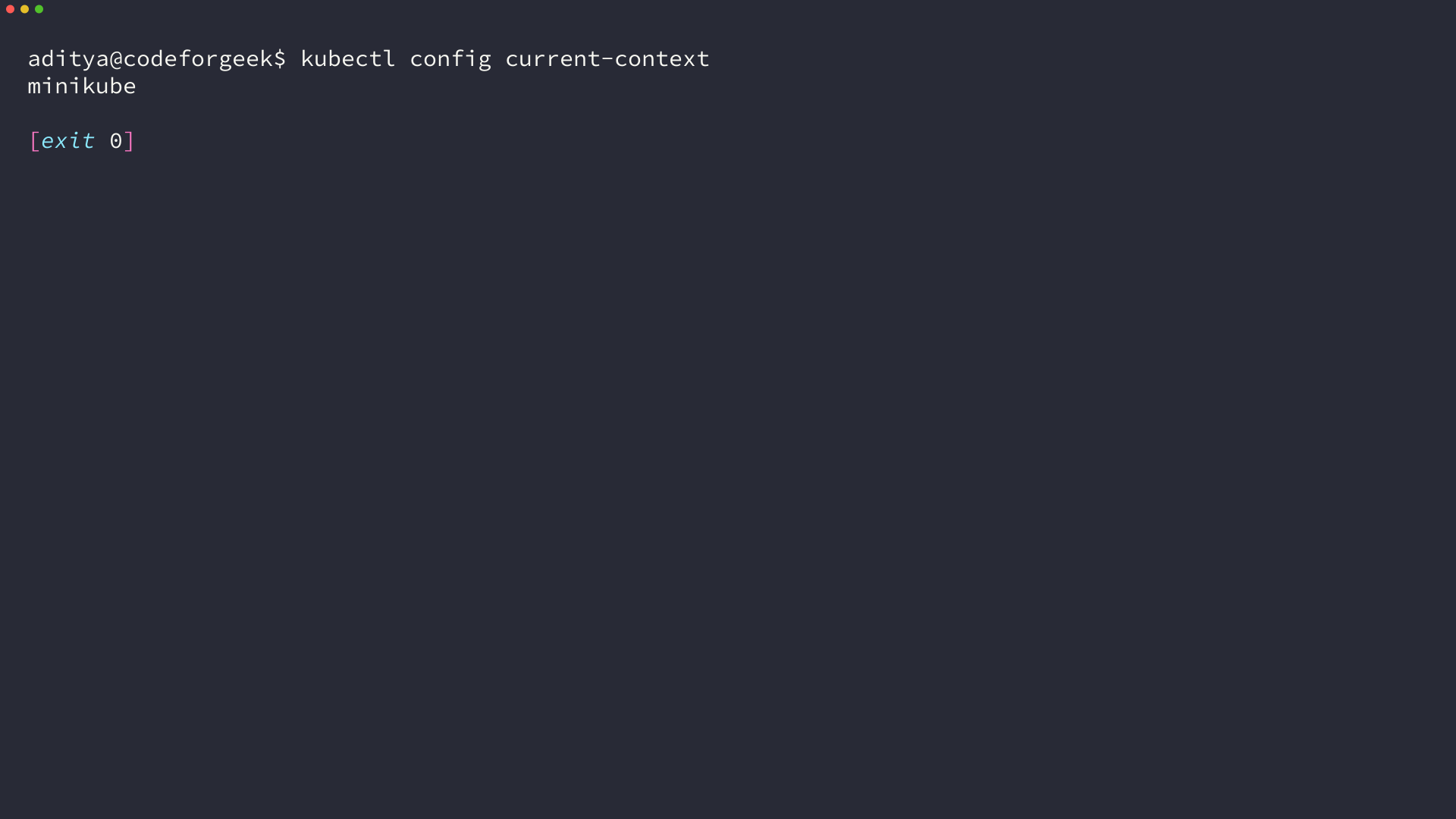
The output is a context name, not proof that a resource exists there. Confirm that it names the cluster you intend, then keep the namespace explicit when you inspect or change a namespaced object.
Find and inspect workloads
Use get to locate the object first. Add wide output when the node or Pod IP helps you distinguish replicas, then use describe for conditions and related events.
A Deployment can replace Pods with new names during reconciliation, so a label selector often gives you a steadier lookup than a copied Pod name. The official get and describe references list their output and selector options.
kubectl get deployments,pods -n production
kubectl get pods -n production -o wide
kubectl describe pods -n production -l app=api
kubectl get events -n production --sort-by=.metadata.creationTimestamp
| Command result | What to check next |
|---|---|
| Pod is absent from get | Check context, namespace and the current Pod name |
| Pod is Pending | Read describe output and recent scheduling events |
| Pod is Running but the app fails | Read container logs and application health |
Kubernetes events show how scheduling and controllers handled a Pod’s lifecycle, while container logs show output written by the application.
Apply a manifest and wait for the rollout
This file declares a Deployment named api with two Nginx replicas in the production namespace.
Replace production with the namespace you intend to change. Set the image and replica count to match the workload you plan to run.
apiVersion: apps/v1
kind: Deployment
metadata:
  name: api
  namespace: production
spec:
  replicas: 2
  selector:
    matchLabels:
      app: api
  template:
    metadata:
      labels:
        app: api
    spec:
      containers:
        - name: api
          image: nginx
          ports:
            - name: http
              containerPort: 80
Diff compares live configuration with the manifest and returns exit code 1 for differences, while higher codes indicate kubectl or diff failed, as the official reference documents.
kubectl diff -f deployment.yaml
kubectl apply -f deployment.yaml
kubectl rollout status deployment/api -n production --timeout=180s
kubectl rollout history deployment/api -n production
Apply returns after the API accepts the desired state. The Deployment controller and ReplicaSet then reconcile Pods, and rollout status waits for availability.
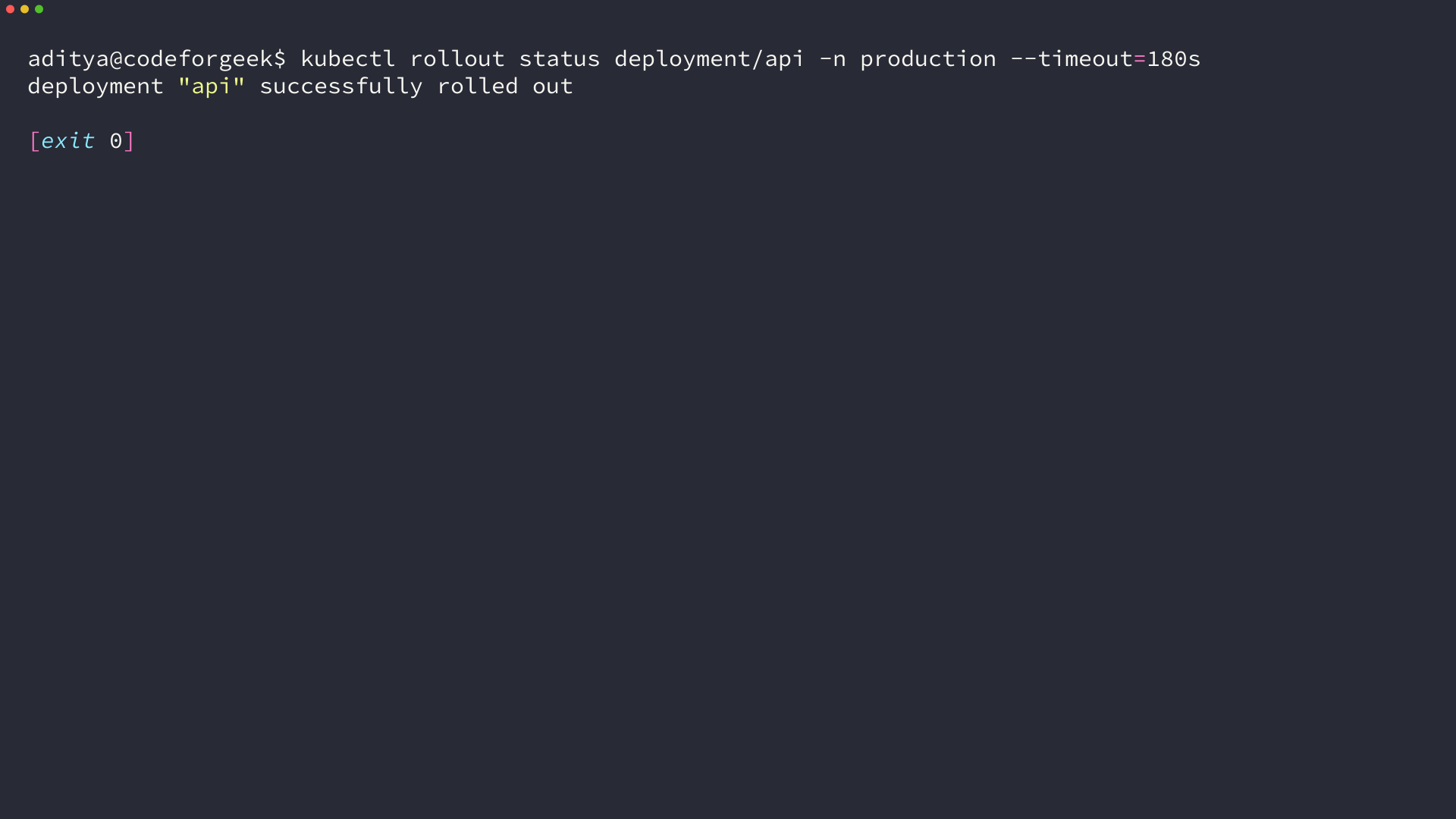
If rollout status times out, inspect the Deployment and its Pods before applying the same change again because reconciliation can continue after the wait ends.
Debug a Pod with logs and exec
Container logs show what the application writes to standard output and standard error. Describe output and Kubernetes events show the cluster’s response to a Pod’s lifecycle.
kubectl logs deployment/api -n production --tail=5
kubectl logs deployment/api -n production --all-pods=true --tail=5
kubectl logs previous-demo -n production --previous
kubectl exec deployment/api -n production -- nginx -t
kubectl auth can-i get pods -n production
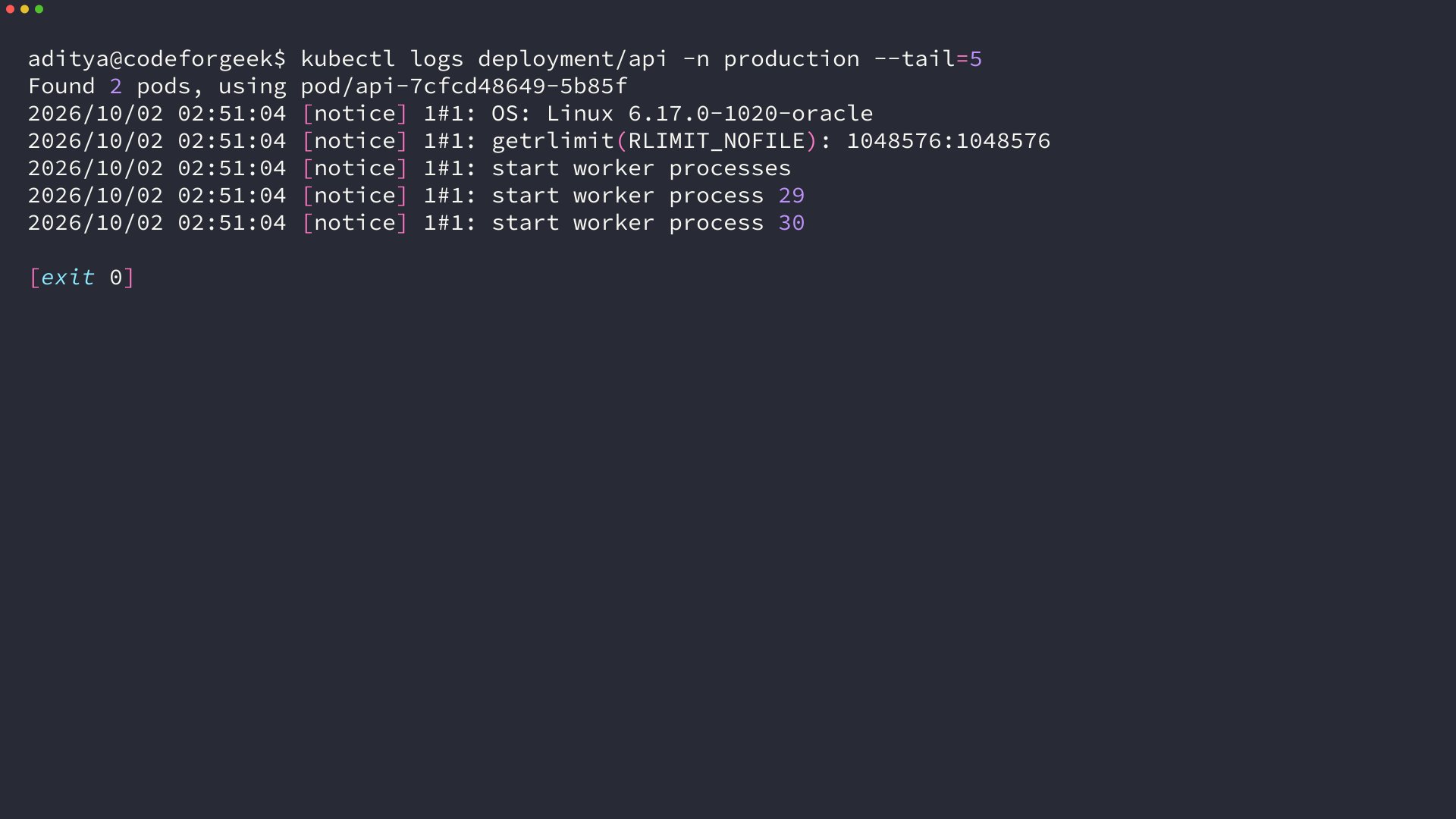
Use -c and the container name when a Pod has more than one container. The previous flag requests output from the last terminated container instance in that same Pod.
Exec runs the command after the double dash inside the selected container, so nginx -t checks that container’s Nginx configuration. The exec reference documents container selection and the command boundary.
Logs for a Deployment can select one Pod by default. Use the all-pods flag when you need output from every matching Pod, as described in the kubectl logs reference.
- If logs show an application error, use that output to locate the failing startup path.
- If the Pod never became ready, check describe output and namespace events instead of expecting application logs.
- If the API says the action is forbidden, use the authorization check to see whether the current identity may perform it.
The kubectl authorization check reports permission, not resource state. If these built-in signals do not explain the failure, see the existing Kubernetes troubleshooting tools reference.
Delete only the resource you intend
The Deployment controller creates a replacement Pod to restore its desired replica count. Deleting the Deployment removes that controller and its managed workload.
This sample uses a fresh namespace and a standalone Pod. The delete reference warns that force deletion does not confirm the container process has stopped.
kubectl create namespace kubectl-demo
kubectl run scratch --image=nginx --restart=Never -n kubectl-demo
kubectl wait --for=condition=Ready pod/scratch -n kubectl-demo --timeout=180s
kubectl get pod scratch -n kubectl-demo
kubectl delete pod scratch -n kubectl-demo
- Keep the resource name and namespace explicit.
- Check whether a controller owns the object before removing it.
- Reserve force deletion for a failure case you have diagnosed.
Keep the target visible in the next command
A context switch can change where the next command sends its request. Checking the active context before a state-changing command keeps the intended cluster visible.
kubectl config current-context
If kubectl config current-context names a context other than the one you intend, stop before a command changes an object.
Common kubectl questions
A missing Pod points back to the active context and namespace. A rollout timeout needs a different check from missing previous-container logs.
How do I list Pods across every namespace?
Run kubectl get pods -A. The result includes Pods in namespaces your current identity can list.
Why does kubectl return NotFound for a Pod?
Check the active context and namespace, then list Pods again. A Deployment may also have replaced the Pod name.
How do I know a Deployment finished rolling out?
Run kubectl rollout status deployment/api -n production –timeout=180s. A timeout means the wait ended, so inspect the Deployment and its Pods before applying the same change again.
What does kubectl logs –previous show?
It requests output from the last terminated container instance in the same Pod. The command can fail when no previous instance is available.