New to Rust? Grab our free Rust for Beginners eBook Get it free →
How to Take Screenshot on Mac

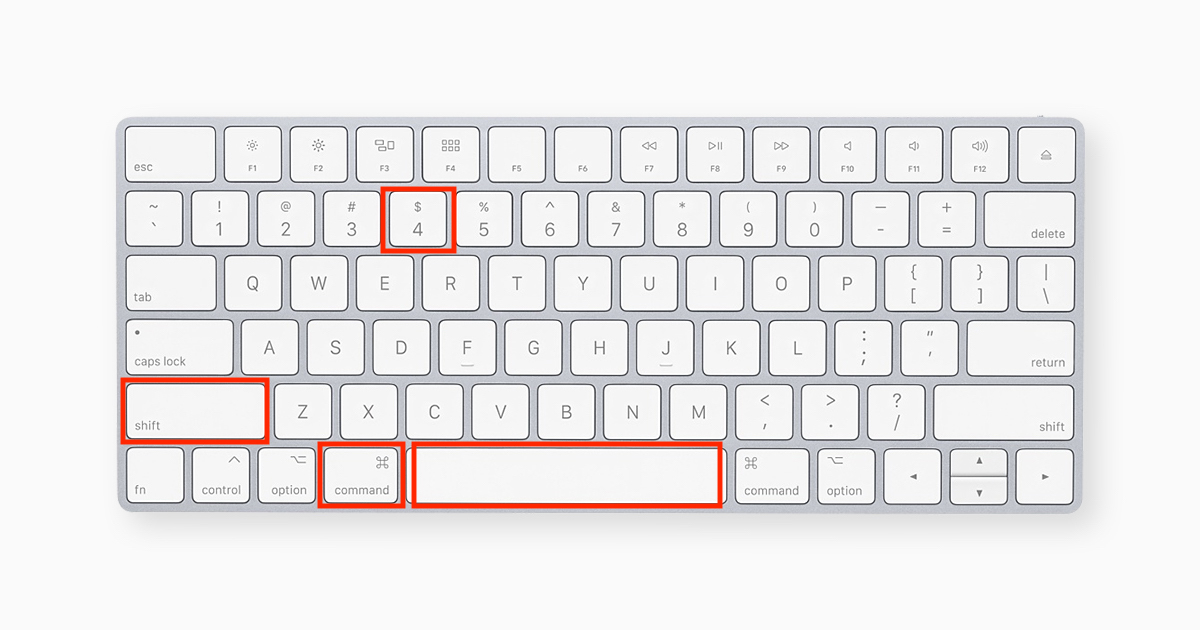
The easiest and efficient way to take Screenshot on your Mac is:
- Press Command + Shift + 4
- Press Space and the mouse pointer will change to the camera icon
- Click on the screen to take the screenshot, find it in Desktop with a .png extension
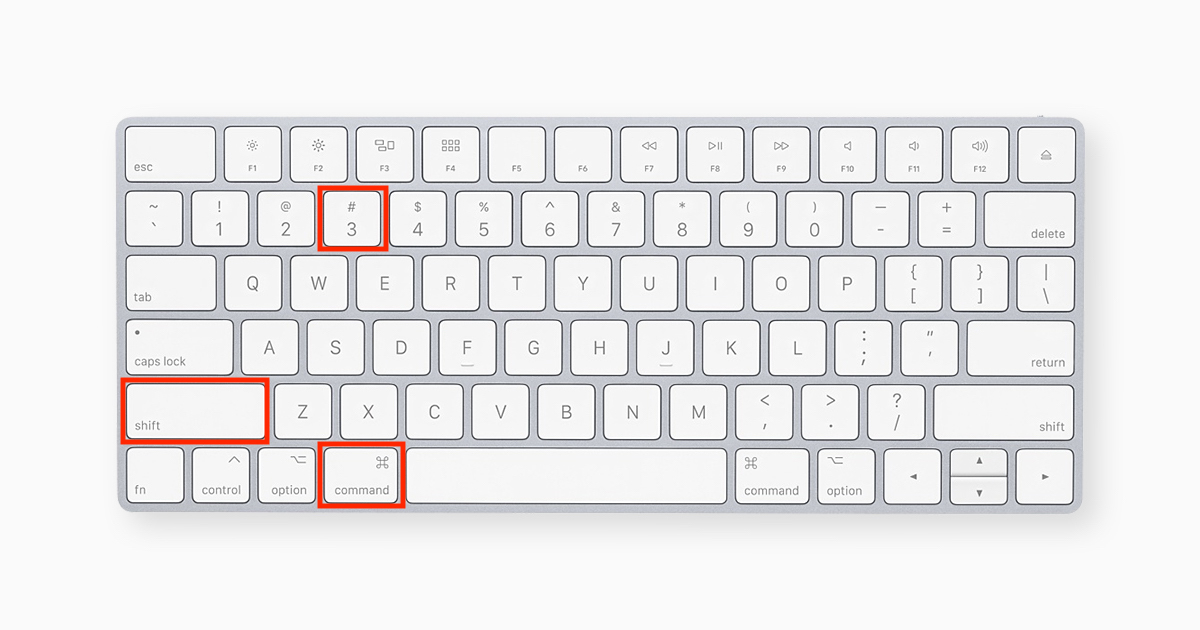
If you want to take a screenshot of the whole screen, just press Command + Shift + 3 and screenshot will be taken and saved to Desktop folder.
I used this command a lot to take a screenshot on my Mac. With the update of MacOS Mojave, Apple has provided few more options to take screenshot efficiently.
Press Command + Shift + 5.
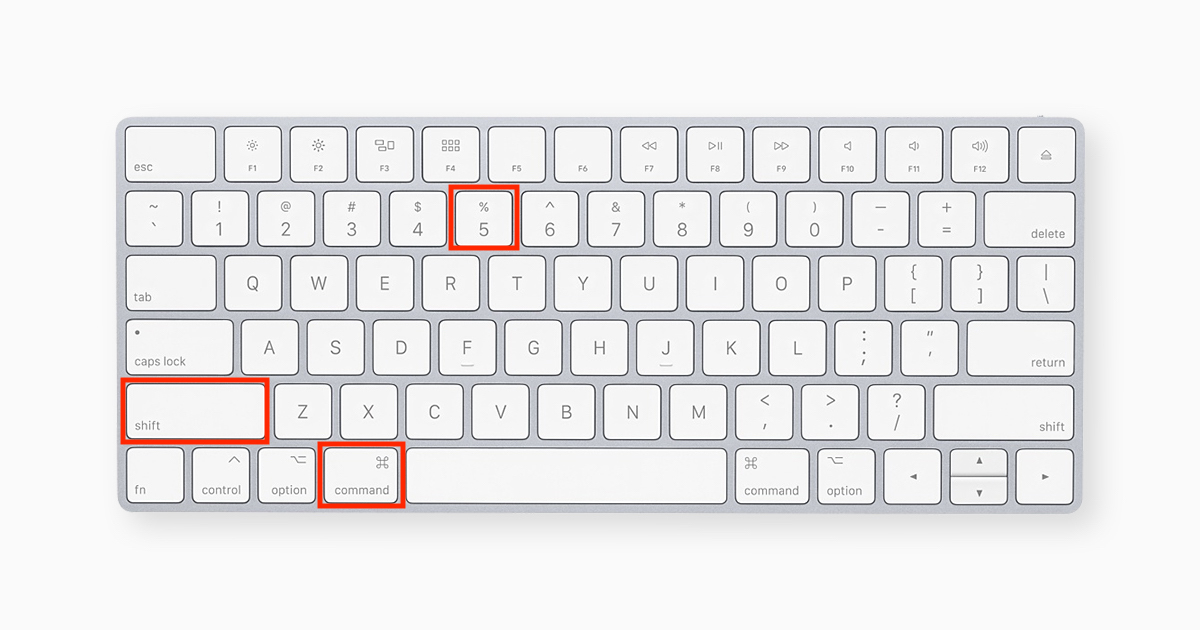
and a selection window will appear, something like this.
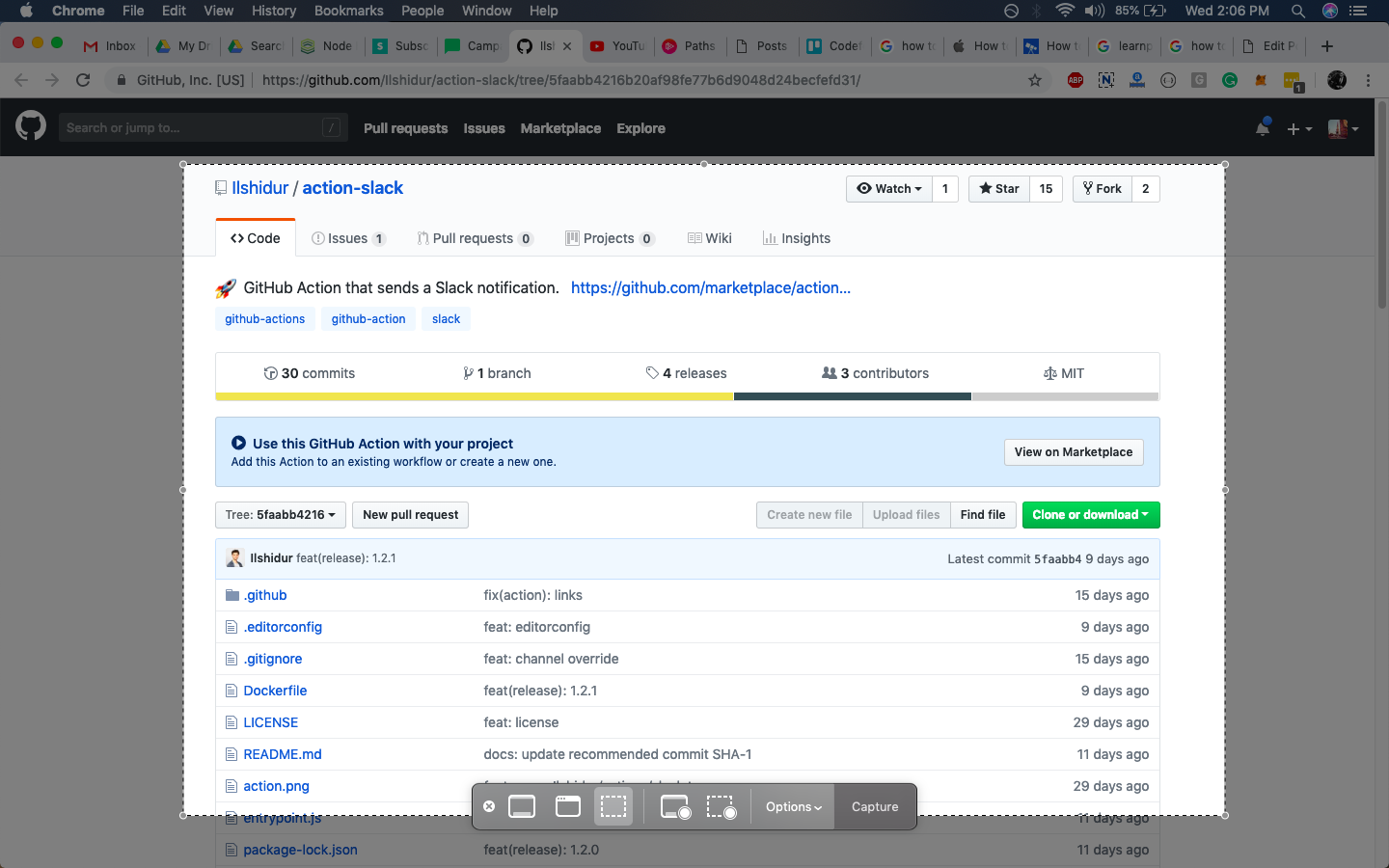
You can drag and move the selection window or choose the options such as Window, whole screen to capture the specific details. You can also record a video of the selected portion.