New to Rust? Grab our free Rust for Beginners eBook Get it free →
The 2026 Power User’s Toolkit: 100 Modern Linux Commands for Zsh, Fzf, and Raycast

In this guide, we explore the most essential modern Linux commands that define the 2026 Power User’s Toolkit. This reference is designed for developers who want to replace old utilities with faster, smarter, and more user-friendly alternatives. We will look at how to integrate these tools with Zsh, Fzf, and Raycast to build a workflow that saves time and reduces friction.
If you are on Windows but need Linux tools, an emulator is a great solution. Our guide on the Top 15 Best Linux Emulators for Windows reviews options like Hyper-V and Cmder. These tools let you run a Linux environment directly on your machine. This is perfect for testing scripts without the need for dual-booting.
What is the Modern Linux Commands Toolkit?
The toolkit is a collection of utilities that improve on the classic Unix philosophy. While old commands like ls and grep are still functional, they have not changed much in decades. The new wave of tools brings colors, Git integration, and speed to the forefront.
Modern File and Directory Navigation
In this section, we look at modern Linux commands that replace the traditional file management tools. These commands provide better visual feedback and faster navigation methods compared to their older counterparts.
eza
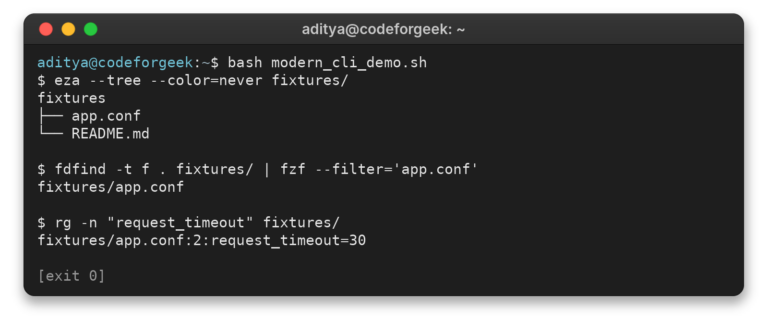
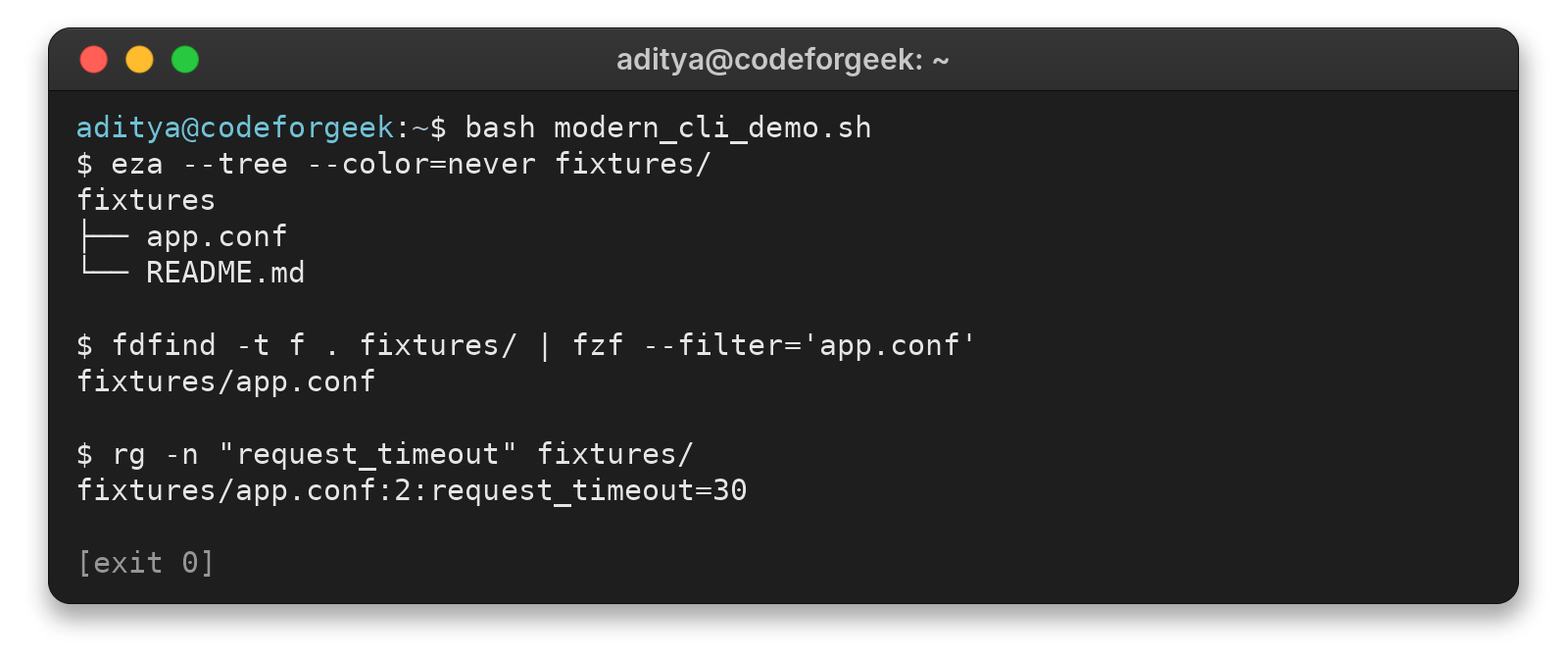
This command replaces the traditional ls command. It displays file lists with colors, Git status icons, and tree views by default. We use it to quickly understand the file structure without needing extra flags. It produces a clear and colorful output that makes directories easy to read.
Example: eza --long --git --icons
zoxide
This is a smarter cd command for your terminal. It remembers which directories you use most often and allows you to jump to them by typing just a few characters. We use it to navigate deep folder structures without typing full paths. It changes your current directory instantly.
Example: z my_project
broot
This tool helps you navigate directories and see their sizes at the same time. It opens an interactive tree view where you can preview files and folder sizes. We use it to find large files that take up too much space. It launches a navigable file tree in the terminal.
Example: broot
fd
This command serves as a modern replacement for find. It is faster and respects your .gitignore files automatically. We use it to locate files and directories with simple syntax. It outputs a list of matching file paths that you can pipe into other tools.
Example: fd "pattern"
ranger
This is a console file manager with VI key bindings. It provides a visual way to browse, open, and manage files from the terminal. We use it when we need to manage many files at once. It opens a three-column view of your file system.
Example: ranger
nnn
This is a tiny and lightning-fast file manager. It runs in the terminal and uses very little memory while offering powerful features. We use it on remote servers or low-power devices. It opens a minimalist file browser.
Example: nnn
mkdir
This command creates new directories. It can create parent directories recursively which prevents errors when the path does not exist. We use it to set up new project structures quickly. It creates the specified folders in your current location.
Example: mkdir -p src/components
rm
This command removes files or directories. The modern usage often includes interactive prompts to prevent accidental deletions. We use it to clean up disk space. It deletes the target files permanently.
Example: rm -rf build
cp
This command copies files or directories. Modern versions show a progress bar which is useful for large files. We use it to back up data or move files to new locations. It creates a duplicate of the original file.
Example: cp source.txt destination.txt
mv
This command moves or renames files. It is essential for organizing projects and renaming batches of files. We use it to restructure our codebase. It moves the file from the source to the destination.
Example: mv old_name.txt new_name.txt
Text Searching and Processing
Working with text is a daily task for developers. The modern Linux commands in this category are designed to handle large amounts of text data with speed and precision.
ripgrep (rg)
This tool searches for text patterns in files much faster than traditional grep. It respects .gitignore rules and skips hidden files automatically. We use it to find specific code variables across a project. It prints the file names and lines where the pattern exists.
Example: rg "function_name"
bat
This command replaces cat by adding syntax highlighting and Git integration. It shows non-printable characters and line numbers by default. We use it to read code files or scripts directly in the terminal. It outputs the file content with beautiful formatting.
Example: bat main.py
sd
This tool is an intuitive alternative to sed. It uses a simpler syntax for finding and replacing text strings. We use it to refactor variable names across multiple files. It modifies the text in place or prints the result to the screen.
Example: sd "old_name" "new_name" file.txt
jq
This command processes JSON data. It slices, filters, and maps JSON structures with a powerful query language. We use it to analyze API responses or configuration files. It outputs the processed JSON data in a clean format.
Example: jq '.data' response.json
fzf
This is a general-purpose command-line fuzzy finder. It reads the input list and lets you search through it interactively. We use it to find files, command history, or process IDs. It returns the item you selected.
Example: find . -type f | fzf
grep
This is the classic search tool that remains essential. It searches for patterns within text using regular expressions. We use it for simple searches where specific modern features are not needed. It outputs lines matching the pattern.
Example: grep "error" log.txt
sed
This is the standard stream editor for filtering and transforming text. It is powerful for automated text replacements in scripts. We use it for bulk editing tasks. It modifies the text stream as it passes through.
Example: sed 's/old/new/g' file.txt
awk
This tool is designed for pattern scanning and processing language. It excels at extracting columns of data from text files. We use it to format and analyze logs. It outputs the processed text based on the script provided.
Example: awk '{print $1}' file.txt
sort
This command sorts lines of text files. It can sort numerically or alphabetically and can handle large files efficiently. We use it to organize lists of data. It outputs the sorted lines.
Example: sort names.txt
uniq
This command filters out repeated lines in a file. It is often paired with sort to ensure all duplicates are adjacent. We use it to clean up data lists. It outputs only the unique lines.
Example: sort data.txt | uniq
cut
This command removes sections from each line of files. It is useful for extracting specific columns or bytes. We use it to parse CSV files or log formats. It outputs the specified sections of each line.
Example: cut -d ',' -f 1 data.csv
wc
This command counts lines, words, and characters. It provides a quick summary of file size in terms of content. We use it to track progress in writing or coding. It prints the counts for each file.
Example: wc -l script.py
tee
This command reads from standard input and writes to both standard output and files. It allows you to see the output of a command while saving it to a file at the same time. We use it to log process outputs. It splits the data stream.
Example: ls | tee file_list.txt
hexyl
This is a command-line hex viewer. It displays the binary content of a file in a colorful and readable format. We use it to inspect binary files or debug file formats. It renders a hex dump of the file.
Example: hexyl binary_file
System Monitoring and Management
Monitoring system resources is critical for performance tuning. The following modern Linux commands give us real-time insights into CPU, memory, and process usage.
btop
This tool provides a beautiful and resource-friendly system monitor. It shows CPU, memory, disks, and network usage in a graphical interface. We use it to get a complete overview of system health. It opens an interactive dashboard in the terminal.
Example: btop
htop
This is an interactive process viewer. It allows you to scroll vertically and horizontally to see all processes and command lines. We use it to find and kill unresponsive programs. It displays a dynamic list of running processes.
Example: htop
glances
This tool monitors system information in a single glance. It can run in client-server mode to monitor remote machines. We use it for a comprehensive overview of system load. It displays a dashboard that updates in real time.
Example: glances
neofetch
This command displays system information alongside the operating system logo. It is popular for sharing system specs in screenshots. We use it to quickly verify hardware and OS details. It prints a visual summary of your system.
Example: neofetch
duf
This is a modern disk usage utility. It displays disk usage in a table format with colors and mounts. We use it to check how much space is left on drives. It outputs a clear summary of disk usage.
Example: duf
dust
This tool gives an instant overview of disk usage by directory. It is faster than the traditional du command and uses a Rust-based engine. We use it to find the largest directories taking up space. It outputs a tree view of directory sizes.
Example: dust
ps
This command reports a snapshot of current processes. It helps identify what is running on your machine. We use it to find process IDs for specific applications. It lists the active processes.
Example: ps aux
kill
This command terminates processes manually. It sends signals to processes to stop them safely or forcefully. We use it when an application freezes. It stops the specified process ID.
Example: kill 1234
killall
This command kills processes by name. It is easier than finding the PID if you know the exact name of the program. We use it to stop all instances of a browser or server. It terminates all matching processes.
Example: killall node
systemctl
This command controls the systemd system and service manager. It starts, stops, and checks the status of background services. We use it to manage servers and daemons. It outputs the result of the service operation.
Example: systemctl status nginx
journalctl
This command queries the systemd journal. It collects and views logs from the kernel and services. We use it to troubleshoot boot errors or service crashes. It displays the log entries.
Example: journalctl -u nginx
uptime
This command shows how long the system has been running. It also displays the current time and system load averages. We use it to check server stability. It prints a single line of text with uptime stats.
Example: uptime
free
This command displays the amount of free and used memory. It helps diagnose memory leaks or low memory issues. We use it to check available RAM before running heavy applications. It outputs a table of memory usage.
Example: free -h
lscpu
This command displays information about the CPU architecture. It shows cores, threads, and model names. We use it to understand the processing power of a server. It prints detailed CPU specifications.
Example: lscpu
Networking and Web Tools
Connectivity is key in modern development. These modern Linux commands help us debug networks, download files, and interact with APIs securely.
curl
This tool transfers data to or from a server. It supports many protocols including HTTP and FTP. We use it to test APIs or download files from the web. It prints the response data or saves it to a file.
Example: curl https://api.github.com
wget
This command downloads files from the web. It works well for downloading large files or mirroring websites. We use it to retrieve datasets or assets. It saves the file to the current directory.
Example: wget https://example.com/file.zip
httpie (http)
This is a user-friendly HTTP client. It makes HTTP requests with a simple syntax and colorized output. We use it for debugging and interacting with REST APIs. It prints the formatted response from the server.
Example: http GET https://api.example.com
ping
This command checks network connectivity to another host. It sends packets and waits for a reply to measure latency. We use it to test if a server is online. It prints the round-trip time for each packet.
Example: ping google.com
netstat
This command prints network connections and routing tables. It shows which ports are open and active. We use it to troubleshoot connection issues. It lists active connections and their status.
Example: netstat -tuln
ss
This command is a modern replacement for netstat. It can display more TCP and state information. We use it to inspect socket statistics quickly. It outputs detailed socket information.
Example: ss -tuln
ip
This command shows or manipulates routing and network devices. It replaces the older ifconfig command. We use it to configure IP addresses and routes. It displays or changes network interface settings.
Example: ip addr
ssh
This is the secure shell client. It allows you to log into a remote machine and execute commands. We use it to manage servers remotely. It opens an encrypted shell session on the remote host.
Example: ssh user@server_ip
scp
This command copies files over SSH. It securely transfers files between hosts on a network. We use it to upload code to a server. It copies the file securely to the destination.
Example: scp file.txt user@server:/path
rsync
This tool syncs files and directories efficiently. It minimizes data transfer by only sending the changes. We use it to back up files or deploy websites. It updates the destination to match the source.
Example: rsync -avz local/ remote/
dig
This command is a flexible DNS lookup utility. It queries DNS servers for specific record types. We use it to troubleshoot domain name issues. It displays the DNS answer section.
Example: dig google.com
nmap
This tool is a network security scanner. It discovers hosts and services on a network. We use it to audit network security. It lists open ports and running services.
Example: nmap localhost
mtr
This command combines the functions of ping and traceroute. It diagnoses network issues in real time. We use it to find bad hops in a network route. It displays a continuously updated report.
Example: mtr google.com
iftop
This tool displays bandwidth usage on an interface. It shows which hosts are consuming the most bandwidth. We use it to monitor network traffic. It opens a real-time traffic display.
Example: sudo iftop
Git and Version Control
Version control is the backbone of coding workflows. We use these modern Linux commands to manage changes and collaborate with teams effectively.
git clone
This command copies a repository from a remote server. It downloads the entire history and all branches. We use it to start working on an existing project. It creates a local directory with the project files.
Example: git clone https://github.com/user/repo.git
git status
This command shows the state of the working directory. It lists changed files and files waiting to be committed. We use it before making a commit to review our work. It prints a summary of the current state.
Example: git status
git add
This command stages changes for the next commit. It tells Git to start tracking new files or changes. We use it to prepare a snapshot of our work. It updates the index.
Example: git add .
git commit
This command captures a snapshot of the staged changes. It saves the state of the project to the history. We use it to save progress with a descriptive message. It creates a new commit object.
Example: git commit -m "Add new feature"
git push
This command sends local commits to a remote repository. It updates the remote branch with your local changes. We use it to share work with the team. It uploads the data to the server.
Example: git push origin main
git pull
This command fetches changes from a remote repository and integrates them. It updates your current branch with remote updates. We use it to stay in sync with the team. It downloads and merges the changes.
Example: git pull origin main
git branch
This command lists, creates, or deletes branches. It helps manage parallel lines of development. We use it to isolate new features from the main codebase. It outputs the list of branches.
Example: git branch feature-login
git checkout
This command switches between branches or restores files. It navigates the history of the repository. We use it to change context between different tasks. It updates the files in the working directory.
Example: git checkout develop
git switch
This is a modern command specifically for changing branches. It is clearer than checkout and avoids confusion with file restoration. We use it to move between branches safely. It changes the active branch.
Example: git switch main
git restore
This command restores working tree files. It discards changes in the working directory. We use it to undo mistakes before committing. It resets the file to the last committed state.
Example: git restore filename.txt
git log
This command shows the commit history. It lists all previous changes made to the repository. We use it to understand the timeline of the project. It prints a chronological list of commits.
Example: git log --oneline
git diff
This command shows changes between commits or files. It highlights the lines added and removed. We use it to review code before committing. It outputs a text comparison.
Example: git diff
git stash
This command saves local modifications temporarily. It cleans the working directory without committing. We use it when we need to switch context quickly. It saves changes to a stack.
Example: git stash
git merge
This command joins two or more development histories together. It integrates changes from one branch into another. We use it to finalize a feature. It combines the branch histories.
Example: git merge feature-branch
git rebase
This command re-applies commits on top of another base tip. It maintains a linear project history. We use it to keep our feature branch up to date. It rewrites the commit history.
Example: git rebase main
tig
This is a text-mode interface for Git. It provides a visual browser for repository history. We use it to explore logs and diffs interactively. It opens a visual interface in the terminal.
Example: tig
lazygit
This is a simple terminal UI for Git commands. It makes staging and committing visual and easy. We use it to perform complex Git operations without typing commands. It opens an interactive Git dashboard.
Example: lazygit
Archive and Compression Tools
Handling compressed files is a common task. These modern Linux commands help us manage archives efficiently.
tar
This command archives multiple files into a single file. It is the standard utility for creating backups on Linux. We use it to bundle project folders. It creates a single archive file from many.
Example: tar -cvf archive.tar folder/
gzip
This command compresses files using the Lempel-Ziv coding. It reduces the size of single files. We use it to compress logs or backups. It replaces the original file with a compressed version ending in .gz.
Example: gzip file.txt
unzip
This command extracts files from a ZIP archive. It lists or tests and extracts compressed files. We use it to open downloaded archives. It recreates the files inside the archive.
Example: unzip archive.zip
7z
This command handles 7z archives and other formats. It has a high compression ratio. We use it to create highly compressed backups. It archives or extracts files efficiently.
Example: 7z a archive.7z folder/
zstd
This is a fast lossless compression algorithm. It provides better compression speeds than gzip. We use it for real-time compression needs. It compresses the file with the .zst extension.
Example: zstd file.txt
Data Management and Databases
When working with local or remote data, these commands provide a bridge between the file system and databases.
sqlite3
This command accesses SQLite database files. It is a self-contained, serverless SQL database engine. We use it to manage local data storage for applications. It opens a SQL shell or executes queries.
Example: sqlite3 database.db
mycli
This is a modern terminal client for MySQL. It offers auto-completion and syntax highlighting. We use it to manage MySQL databases more comfortably. It opens a connection to the database.
Example: mycli -u root -p
pgcli
This is a modern terminal client for PostgreSQL. It provides a better user experience than the standard client. We use it for interactive database sessions. It connects to the PostgreSQL server.
Example: pgcli -U postgres
redis-cli
This command accesses a Redis database. It allows you to set keys and values directly. We use it for caching and message brokering tasks. It opens an interactive Redis shell.
Example: redis-cli
Productivity and Zsh Enhancements
This section covers tools that fit perfectly into the Zsh ecosystem. These modern Linux commands improve your speed and workflow.
exa
This is a modern replacement for ls. It uses colors to distinguish file types and Git status. We use it to get a better overview of our files. It lists directory contents with enhanced visuals.
Example: exa --long --header
direnv
This tool augments existing shells with a new feature. It can load and unload environment variables depending on your current directory. We use it to manage project-specific environments. It hooks into the shell to change variables.
Example: echo "export API_KEY=123" >> .envrc
tmux
This is a terminal multiplexer. It lets you run multiple terminal sessions in a single window. We use it to keep sessions alive on remote servers. It opens a detachable terminal session.
Example: tmux new -s dev
zsh-autosuggestions
This Zsh plugin suggests commands as you type based on your history. It speeds up typing for repetitive commands. We use it to recall long commands instantly. It displays suggestions in a faded text.
Example: (Type a previous command prefix and press right arrow to accept)
history
This command shows the command history list. It helps recall and reuse previous commands. We use it to audit our own workflow. It prints a numbered list of past commands.
Example: history 10
alias
This command creates shortcuts for longer commands. It helps customize the shell environment. We use it to save keystrokes for common tasks. It defines a new command name.
Example: alias ll="eza -la"
man
This command displays the manual page for a command. It is the primary source of documentation. We use it to learn the options for a new tool. It opens the help page in a reader.
Example: man grep
tldr
This command shows simplified and example-focused help pages. It is a community-driven replacement for complex man pages. We use it to get straight to the point. It prints a concise summary of the command.
Example: tldr tar
ffmpeg
This tool handles video and audio conversion. It can record, stream, and edit multimedia files. We use it to compress videos or extract audio. It processes the media file as specified.
Example: ffmpeg -i input.mp4 output.mp3
pandoc
This is a universal document converter. It converts between Markdown, HTML, PDF, and Word formats. We use it to prepare documentation. It creates a new file in the target format.
Example: pandoc README.md -o README.pdf
cron
This service runs commands at scheduled times. It automates repetitive tasks like backups. We use it to run scripts every night. It executes the command in the background.
Example: crontab -e
parallel
This tool builds and executes shell command lines from standard input in parallel. It speeds up tasks that can run independently. We use it to process many files at once. It runs multiple jobs simultaneously.
Example: parallel gzip ::: *.txt
entr
This command runs arbitrary commands when files change. It watches for updates and triggers a build or test. We use it for automatic development testing. It blocks the terminal and runs the command on save.
Example: ls *.py | entr python test.py
Conclusion
Mastering these modern Linux commands will drastically improve your efficiency in the terminal. The command line is a powerful place, and with these modern upgrades, it becomes a friendly and productive environment for every developer.
If you are still torn between Linux and Windows in 2026, our article on Linux vs Windows explains why Linux wins for developers. It highlights benefits like open-source flexibility, enhanced security, and better privacy. You will learn how package managers make software installation safer. This helps you understand why many power users prefer Linux for work.