New to Rust? Grab our free Rust for Beginners eBook Get it free →
Visual Studio Code with Copilot: The Complete 2026 Setup and Workflow Guide

GitHub Copilot inside Visual Studio Code changed more over the past year than it did across all the years before it. Agent mode, custom instructions, Model Context Protocol (MCP) servers, and a standalone command line interface (CLI) all landed or matured in that stretch.
I wrote this guide to take you from a clean install to the features that change daily work, and to flag what older tutorials get wrong now that both the setup flow and the chat interface have shifted.
What You Need Before Installing Copilot
Copilot needs a current VS Code build, a GitHub account, and a Copilot plan. A free tier exists, so none of this sits behind a hard paywall.
VS Code. Download the latest stable build from code.visualstudio.com, since Copilot Chat ships in lockstep with VS Code releases and an old editor build can pin you to an old Copilot Chat too.
A GitHub account. Sign up at github.com if you do not have one already.
A Copilot plan. As of mid 2026, GitHub offers Copilot Free, Pro at $10 a month, Pro+ at $39, Max at $100, Business at $19 per seat, and Enterprise at $39 per seat. The Free plan gives you a monthly allowance of completions and chat requests with no card required, which is enough to decide whether paying makes sense.
Weighing an AI subscription tier has become a routine chore for developers, and the tradeoffs here mirror the ones I walked through when comparing ChatGPT Go, Plus and Free. Note that new sign ups for the Pro, Pro+, Max and Student plans were paused temporarily on April 20, 2026, so check GitHub’s plans page before assuming a paid tier is open to new users right now.
GitHub also moved Copilot to usage based AI Credits billing on June 1, 2026. Code completions stay unlimited on every paid plan, but chat, agent mode and code review now draw from a monthly credit pool tied to token usage rather than a flat request count.
That change matters mostly if you run agent mode for long stretches, since extended agent sessions burn credits fastest.
Installing and Signing In to Copilot Using VS Code
The setup flow changed in 2026, and older tutorials still show a Marketplace search followed by a separate sign in step through a Copilot icon in the Activity Bar. The current flow is shorter.
Step 1: Turn On AI Features
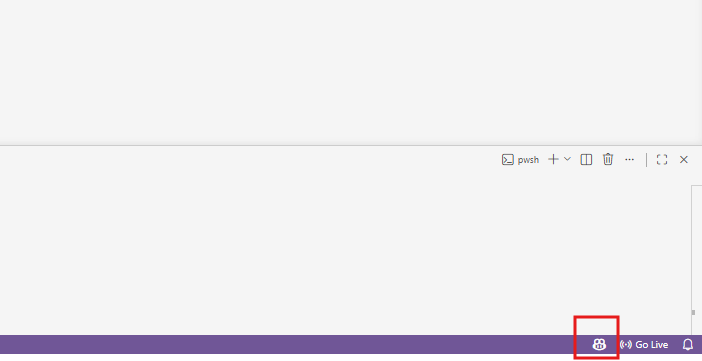
Open VS Code and look at the status bar along the bottom of the window. Hover over the Copilot icon there and select Use AI Features.
Step 2: Sign In
Choose a sign in method and follow the prompts.
- If you already have a Copilot subscription tied to your GitHub account, VS Code picks it up automatically.
- If you do not have one yet, you get signed up for the Copilot Free plan on the spot, with a monthly allowance of completions and chat credits.
If your subscription lives on a GitHub Enterprise (GHE) account rather than a regular GitHub.com account, choose Continue with GHE.com in the sign in dialog and enter your GHE instance URL.
Step 3: Set Up Your Project
Once you are signed in, open a chat session and type the slash init command. Copilot scans your codebase and generates a custom instructions file it reads on every future request, so its suggestions match your project’s conventions instead of generic defaults.
The step takes seconds and measurably improves output quality, and it is easy to skip if you do not know it exists.
Switching GitHub Accounts
You can point Copilot at a different GitHub account per workspace and per profile, which helps when work and personal accounts share one machine. Open the Accounts menu in the Activity Bar, select Manage Extension Account Preferences, choose GitHub Copilot Chat from the extension list, and pick the account for that workspace.
How GitHub Copilot Works in VS Code
Before touching the interface, it helps to know that Copilot is built on large language models trained on public code, the same generative technology behind chatbots, which I cover more broadly in the ChatGPT complete guide.
Copilot does not search a database of existing snippets and paste them back at you. It predicts the most statistically likely continuation of your code given what it can see, meaning your current file, your open tabs, and in agent mode your whole workspace.
That prediction step is also where the limits come from, since the model works from statistical regularities in training data rather than reasoning about whether the code fits your project. The related distinction between chat style systems and content generating systems matters here too, and I unpack it in conversational AI vs generative AI.
Treat every suggestion as a draft to review, not a finished answer.
Inline Completions: The Original Copilot Feature
Inline completions remain the simplest way to use Copilot, and their mechanics have not changed in years. Start typing and Copilot shows a gray ghost text suggestion for the rest of the line or block.
- Accept a suggestion: press Tab.
- Reject it: press Esc, or just keep typing your own code.
- Cycle through alternatives: Alt + ] (Windows/Linux) or Option + ] (macOS).
Type this and pause, and it behaves the same whether you have the usual Python extensions for VS Code installed or a fresh editor:
def add_numbers(a, b):
Copilot typically suggests a one line body that returns the sum, sometimes with a docstring, from the function name and parameters alone. A comment gives it an even clearer target:
# Create a list of squares from 1 to 10
squares = [
Copilot completes the list comprehension because the comment names the goal. A clear name or comment produces a clear completion, and a vague one produces a vague guess.
VS Code also ships next edit suggestions, a newer layer on top of ghost text that predicts where your next change lands rather than just what follows the cursor. Rename a variable in one spot and next edit suggestions flag the other spots that need the same change, ready to Tab through.
Using Copilot Chat
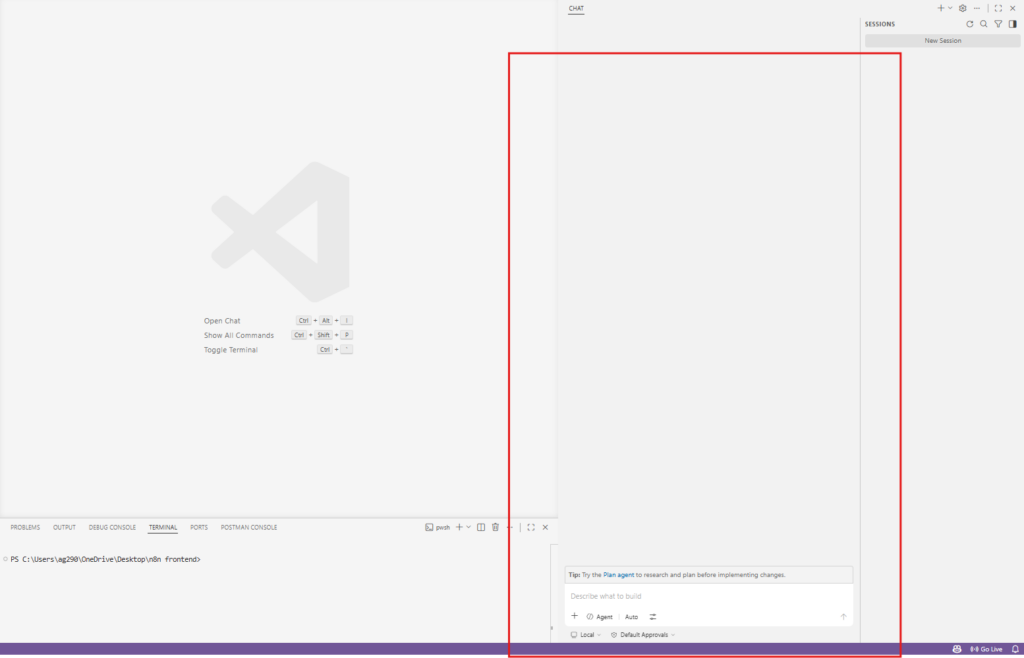
Chat is where most of Copilot’s problem solving lives, and it is also where the interface has shifted the most. Open the Chat view with Ctrl+Alt+I (Windows/Linux) or ⌃⌘I (Mac), or use inline chat in the editor with Ctrl+I / ⌘I for a quick edit without leaving your file.
Chat Modes
A mode dropdown sits at the bottom of the Chat view. Two modes matter day to day.
- Ask mode answers questions without touching your code. Good for “what does this regex do,” “how do I structure this SQL query,” or working through an error message before you decide how to fix it.
- Agent mode takes a task description and runs with it. It finds the relevant files, edits them, runs terminal commands, and iterates on errors until the task is done or it needs more input from you.
Older guides also describe a separate Edit mode that sat between Ask and Agent, for applying a described change across a handful of picked files. That three way split was genuinely how Copilot worked in 2025, and the functionality has mostly folded into agent mode’s options today, so a guide referencing Edit mode by name may not match a current install.
A model picker in the Chat view also lets you switch the underlying model, with options across OpenAI, Anthropic and Google families depending on your plan. Choosing between model families is its own topic, and my DeepSeek vs ChatGPT comparison shows how differently two frontier models can handle the same prompt.
Adding Context
Chat is only as good as what it can see. A few ways to point it at the right material:
- Type a hash character followed by a filename to pull that file into context.
- Use the at-workspace mention in a prompt to give Copilot awareness of your entire project rather than just the open file, useful for questions like “where is authentication handled” that a single file cannot answer.
- Drag and drop a file into the chat input, or use the Add Files button, for the same effect as a hash mention.
Workspace wide retrieval leans on embeddings under the hood. My walkthrough of how code embeddings work explains why that search finds relevant code even when your wording does not match the variable names.
Slash Commands
Type a forward slash in the chat input to see shortcuts for common requests, like the init command from earlier or the new command that scaffolds a project from a description. Shortcuts save you from retyping the same boilerplate prompt every time.
Agent Mode: Letting Copilot Work Autonomously
Agent mode separates current Copilot from the autocomplete tool people still picture when they hear the name. Rather than generating one suggestion and stopping, it loops through reading files, proposing edits or terminal commands, checking results, and continuing until the task is finished.
A Worked Example
Suppose your code has a bug:
def divide(a, b):
    return a / b

result = divide(10, 0)
print(result)
Switch to agent mode and ask it to fix the division by zero crash. Copilot reads the function, spots the missing guard, and proposes something like:
def divide(a, b):
    if b == 0:
        return "Cannot divide by zero"
    return a / b
Agent mode applies the edit directly to your file rather than showing a snippet to copy, and you review the diff in the changes panel to keep or discard each change.
Reviewing What Agent Mode Does
Every tool call agent mode makes shows up in the UI as it happens, and it asks for approval before running a terminal command or using any tool that is not built in. Two views help when you want to know exactly why it made a particular choice.
- Agent Logs shows a timeline of tool calls, model requests, and which instruction files got loaded.
- Chat Debug view shows the raw system prompt, your prompt, and the full context sent to the model for a given turn.
Neither view is something you will open often, but both earn their keep whenever agent mode does something unexpected.
Running Multiple Sessions
Several agent sessions can run in parallel, and starting a new one does not kill the previous one. A long refactor can keep going in the background while you work on something else, and you can switch back later without losing context.
Subagents
A chat session can delegate a piece of work to a subagent, an isolated agent with its own context window that works independently and reports back the final result. Delegation helps when a sub task like writing a batch of unit tests or researching an unfamiliar API would otherwise flood your main conversation with details you do not need to see directly.
Customizing Copilot for Your Project
Out of the box, Copilot does not know your team’s conventions. A few features close that gap.
1. Custom Instructions
Custom instructions are project wide guidelines Copilot reads on every request, the same file the init command generates automatically. You can write or edit them by hand to pin down naming conventions, the testing framework to use, or architectural rules you want followed consistently.
Instructions steer the model at prompt time without changing its weights, which is a different lever from training the model itself. I compare those levers in instruction tuning vs fine tuning for code models if you want the deeper distinction.
2. Agent Skills and Custom Agents
Agent skills are folders of instructions, scripts, and resources Copilot loads when a task matches their description, close in spirit to handing a new teammate a runbook for one kind of job. Custom agents go further as specialized personas with their own access to a defined set of tools and instructions.
You can define a refactor specialist agent or a test writer agent, then invoke it directly or let Copilot delegate to it automatically when a prompt matches.
3. MCP Servers
Model Context Protocol servers extend Copilot’s reach beyond your codebase. An MCP server is a small program that exposes tools, data, or APIs in a format the agent can call directly, so Copilot can pull from a database, query an internal API, or read project management tickets without you pasting that material into chat.
Agent mode has to be active for MCP tools to work at all. A growing public registry of community and partner built servers exists if you would rather not write your own.
GitHub Copilot CLI: Copilot Outside the Editor
The CLI generates the most confusion of anything in the Copilot lineup, and the recurring question across developer forums is whether to use the CLI, VS Code chat, or both. The answer deserves a direct treatment, so here it is.
What the CLI Actually Is
Copilot CLI brings the same agentic coding capability you get in VS Code’s agent mode into a standalone terminal tool, in the same spirit as terminal native coding agents like Claude Code and Aider. There is no separate competing product here, just the same underlying agent behind a different interface.
Install it with:
npm install -g @github/copilot
Node.js 22 or later is required, and Homebrew, WinGet, and a shell install script also work depending on your platform. On first launch, run the login command and follow the prompts to authenticate with your GitHub account.
When the CLI Actually Helps
The honest answer to CLI or VS Code is that they are not competing tools, since VS Code can call Copilot CLI for you directly when you set a chat session to run in the background. A terminal also lives inside VS Code itself, so wanting a terminal centered workflow does not strictly require leaving the editor.
That said, the CLI earns its place in a few situations:
- Editors without a Copilot extension. The CLI operates independently of any IDE (integrated development environment), so it fits editors without official Copilot support.
- Headless and scripted use. Pass a prompt with the -p flag to get a one shot answer without starting an interactive session, which works well inside scripts and automation.
- Long running background tasks. Autopilot mode, reached by cycling with Shift+Tab, lets Copilot keep working without stopping for step by step approval, suited to tasks you kick off and check on later rather than babysit.
- GitHub native operations. Dedicated slash commands cover pull requests and coordinating multiple subagents on a multi step plan, which can feel more natural from a terminal than clicking through a chat panel.
If your day to day is mostly edit, test, repeat, staying in VS Code’s agent mode is simpler because you get the diff view and inline review for free. If you script things, work without an IDE, or want a task to run unattended, the CLI fits better, and plenty of developers switch between both based on the task in front of them.
Copilot Studio Extension vs. GitHub Copilot
One source of naming confusion deserves a direct answer, because the Microsoft Copilot Studio extension for VS Code is a different product from GitHub Copilot. Copilot Studio is Microsoft’s low code platform for building conversational agents, the kind behind customer support bots and internal helpdesk assistants.
Its VS Code extension, generally available since January 2026, lets you clone an agent definition locally, edit it with syntax highlighting and IntelliSense, and sync changes back to the cloud through standard Git workflows. You can use GitHub Copilot inside that extension to help write the agent’s logic, but the two tools solve separate problems.
If you searched for a Copilot extension expecting GitHub Copilot and landed on Copilot Studio instead, the overlapping name is why.
Limitations to Keep in Mind
Copilot is a strong assistant, not a replacement for knowing your own code.
- Accuracy is not guaranteed. Suggestions come from statistical prediction, not verification against what your project needs, so they can be subtly wrong even when they compile and run.
- Context has limits. Even with workspace mentions and custom instructions, Copilot’s grasp of a very large or unusually structured codebase stays incomplete, so bigger projects need more course correction.
- An internet connection is required. Completions and chat both depend on a live connection to Copilot’s service, and no fully offline mode exists.
- Review before you ship. Treat every suggestion, especially agent mode’s multi file edits, as something to read and test rather than accept on faith because it looks plausible.
None of this makes Copilot less useful day to day, it just means the productive workflow keeps you in the loop. Once Copilot itself is dialed in, comparing it against other AI extensions for VS Code is worth a separate look.
Key Takeaways
- Copilot setup in 2026 runs through the status bar’s Use AI Features option, not the old Marketplace search and separate sign in flow.
- A Copilot Free plan needs no card, alongside Pro, Pro+, Max, Business and Enterprise tiers, though new sign ups for several paid tiers were paused starting April 20, 2026.
- Billing moved to usage based AI Credits on June 1, 2026, with completions staying unlimited and chat plus agent mode drawing from a monthly credit pool.
- Inline completions accept with Tab, reject with Esc, and cycle with Alt+], and they remain the easiest entry point.
- Chat offers Ask mode for questions and agent mode for autonomous multi file work, with the older Edit mode mostly folded into agent mode.
- Custom instructions, agent skills, custom agents, and MCP servers shape Copilot around your project and connect it to outside tools and data.
- Copilot CLI brings the same agent to any terminal and complements VS Code rather than replacing it, useful for headless scripts, non IDE editors, and long unattended tasks.
- The Copilot Studio extension is a separate Microsoft product for building conversational agents, despite the similar name.
- Every suggestion deserves review and testing before it ships, especially agent mode output.
Frequently Asked Questions (FAQs)
Here are quick answers to the questions I see come up most often about Copilot in VS Code.
Is GitHub Copilot free to use in VS Code?
Yes, GitHub offers a Copilot Free plan with a monthly allowance of code completions and chat requests, and no payment card is required to start. Paid tiers begin at Copilot Pro for $10 a month if you outgrow the free allowance.
What’s the difference between Copilot CLI and Copilot in VS Code?
They are the same underlying AI agent accessed through two different interfaces. VS Code’s agent mode gives you inline diff review inside your editor, while Copilot CLI runs in any terminal, works with editors that lack a Copilot extension, and supports scripted one shot prompts.
Do I need agent mode to use MCP servers in VS Code?
Yes, MCP server capabilities are only available while agent mode is active, since MCP tools are designed to be called autonomously by an agent. Ask mode cannot invoke them manually.
Why does Copilot sometimes suggest outdated or incorrect code?
Copilot predicts likely code from its training data rather than verifying correctness against your project. Clear names, descriptive comments, and custom instructions improve results, and every suggestion still deserves review and testing before merging, particularly larger agent mode edits.
Is the Copilot Studio extension the same as GitHub Copilot?
No, Copilot Studio is a separate Microsoft product for building and managing conversational agents, with its own VS Code extension that reached general availability in January 2026. GitHub Copilot can assist you inside that extension, but the two serve different purposes.
Can I use GitHub Copilot with languages other than Python and JavaScript?
Yes, Copilot works with any language represented in public code repositories, including Java, C#, Go, Ruby, PHP and C++. Suggestion quality tracks how much of a language appears in public code, so widely used languages generally get stronger completions than niche ones.
How do I switch between different GitHub accounts for Copilot?
Open the Accounts menu in the Activity Bar, select Manage Extension Account Preferences, choose GitHub Copilot Chat, and pick the account you want active for that workspace and profile. The choice is saved per workspace, so a work project and a personal project can use different accounts without re-authenticating each time.
Copilot in VS Code has grown into something closer to a development partner than an autocomplete tool. The gap between using it well and merely tolerating its suggestions usually comes down to setup, custom instructions, the right chat mode for the task, and knowing when agent mode or the CLI fits better than typing it all out yourself.