New to Rust? Grab our free Rust for Beginners eBook Get it free →
100 AI CLI Agent Commands: Guide to Claude Code, Aider, and Cursor CLI


AI CLI agents put a pair programmer inside your terminal. They understand natural language, write code from a sentence, and run the same shell commands you already know.
This is a working reference for the most useful Claude Code, Aider, and Cursor CLI commands, organized by what you actually do with them: install, edit, debug, ship, and clean up. Each command has a one-line description and a runnable example. The package managers and tool flags still match the 2026 docs, and the commands below are the ones I reach for weekly.
What Are AI CLI Agents?
Before we dive into the specific AI CLI agent commands, we need to understand what these tools are.
An AI CLI agent is a program that runs in your terminal and uses Artificial Intelligence to understand your requests. Unlike traditional commands that require strict syntax, these agents understand natural language. You can tell them to “fix the bug in app.js” or “create a new python file for data processing,” and they will write the code for you. They act as a pair programmer that lives inside your computer’s command line.
How to Install and Set Up AI CLI Agents
Getting started is usually the hardest part for beginners. We have grouped these initial AI CLI agent commands to help you set up your environment quickly. You will need Node.js or Python installed on your system for most of these tools to work.
npm install -g @anthropic-ai/claude-code
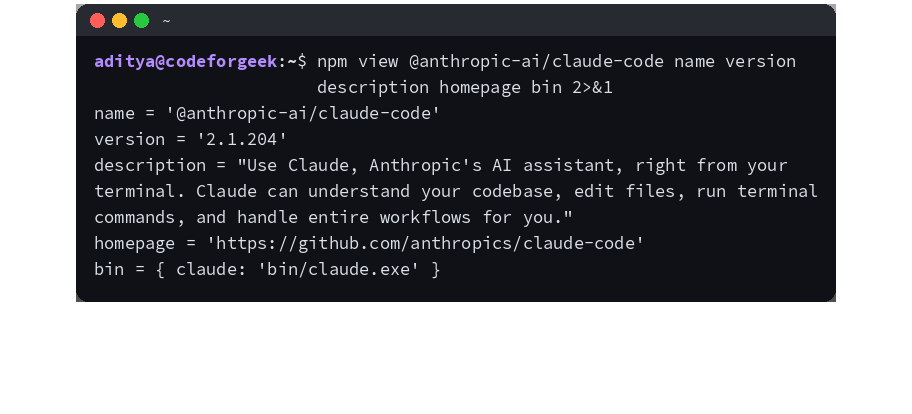
This command downloads and installs the official Claude Code tool globally on your computer. The -g flag ensures you can run the tool from any folder in your terminal. We use this when we want to access Claude’s coding abilities directly from the command line without opening a browser.
Example: npm install -g @anthropic-ai/claude-code
pip install aider-chat
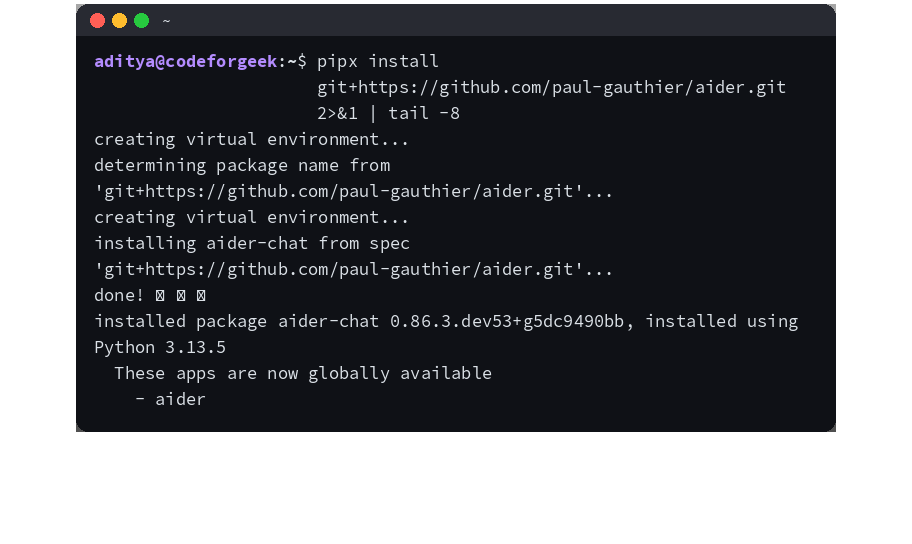
This command installs Aider, which is a popular open-source AI coding tool. It uses Python’s package manager to download the necessary files. You use this if you prefer working within a Python environment or want an AI that works well with git.
Example: pip install aider-chat
npm install -g @cursor/cli
Note: as of mid-2026, @cursor/cli is not published on the npm registry, so this command returns a 404 instead of installing the package. The screenshot below shows the real error from a fresh attempt. Cursor now distributes its CLI through the Cursor desktop app or its own installer rather than a public npm package.
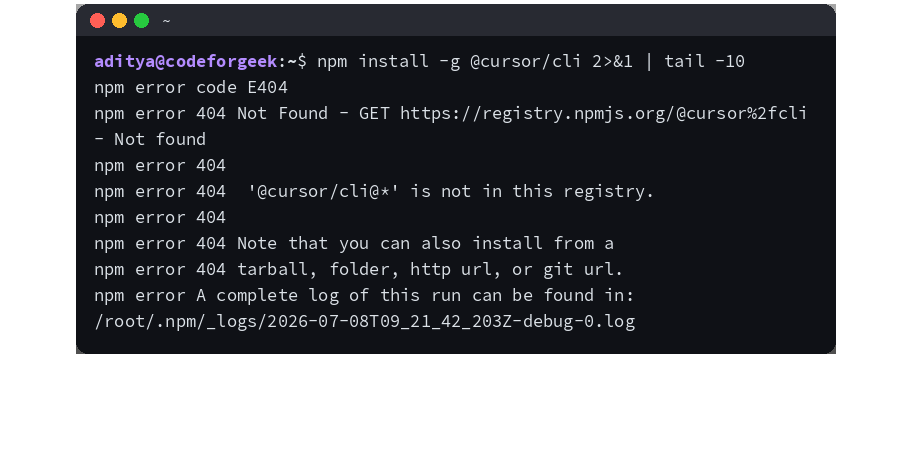
This command installs the command line interface for Cursor, an AI-first code editor. While Cursor is primarily a desktop application, this CLI tool allows you to launch it or interact with it from the terminal. It is useful for developers who switch between different projects.
Example: npm install -g @cursor/cli
claude auth login
This command initiates the login process for the Claude Code CLI. It will open a browser window where you can sign in to your Anthropic account. We must run this once to verify our identity and allow the tool to send requests to the AI model.
Example: claude auth login
aider –anthropic-api-key
This command sets your API key for Aider so it can communicate with the AI model. You can also set this as an environment variable, but passing it as a flag is useful for temporary sessions. It tells Aider which account to bill for the AI usage.
Example: aider --anthropic-api-key sk-ant-xxxxx
export ANTHROPIC_API_KEY
This is a standard shell command used to save your API key as an environment variable. This makes the key available to all AI tools in that terminal session without typing it every time. It is the safest way to handle keys if you add them to your profile configuration.
Example: export ANTHROPIC_API_KEY='sk-ant-api03-xxxxx'
claude config set model
This command changes the specific AI model that Claude Code uses for processing your requests. You might switch between faster, cheaper models and smarter, more expensive ones depending on the task. This allows you to balance cost against performance.
Example: claude config set model claude-3-opus-20240229
aider –model
This flag specifies which Large Language Model Aider should use for the current session. You can choose models from OpenAI, Anthropic, or local models if you have them set up. It gives you flexibility in choosing the brain behind your code assistant.
Example: aider --model gpt-4o
claude update
This command checks for new versions of the Claude Code CLI and updates it automatically. Keeping your tools updated ensures you have the latest features and security patches. It is good practice to run this weekly.
Example: claude update
aider –upgrade
This command updates your Aider installation to the latest version available on the Python Package Index. It ensures you have the most recent fixes and capabilities. We run this whenever we see announcements about new features.
Example: aider --upgrade
General Launch and Session Commands
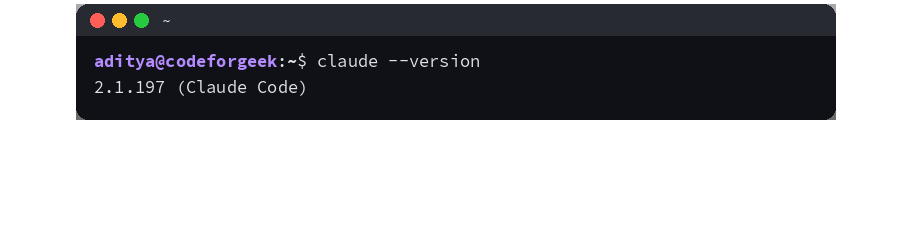
Now that we have installed the tools, we can start using them. These AI CLI agent commands are used to start a session, load your project files, and begin interacting with the AI. This is where the actual work happens.
claude
Typing just the name of the tool launches an interactive chat session. The AI will look at files in your current directory and wait for your instructions. This is the primary way to start coding with Claude in the terminal.
Example: claude
aider
This launches the Aider AI assistant in your current directory. It will automatically detect your git repository and prepare to edit files. You start here for a standard pair programming session in the terminal.
Example: aider
aider –git
This explicitly tells Aider to use git for managing changes. While Aider usually detects git automatically, this flag forces the behavior. It ensures that all AI edits are tracked and can be easily undone.
Example: aider --git
claude –file
This command allows you to specify a particular file for Claude to read or edit immediately upon startup. It saves time because you do not have to tell the AI which file to look at first. It focuses the context window on that specific file.
Example: claude --file server.js
aider file1.py file2.py
You can list specific files after the command to add them to the “chat” immediately. Aider will only edit files that you have explicitly added. This prevents the AI from changing unrelated parts of your project.
Example: aider main.py utils.py
claude –print
This flag tells Claude to output the result to the console without entering an interactive chat mode. It is perfect for piping the output to other commands or scripts. We use this for automation where no human feedback is needed.
Example: claude "Write a hello world function in python" --print
aider –message
This command sends a single instruction to Aider and then exits. It is similar to the print flag in Claude but specifically for applying changes. It is useful for one-off commands in automated scripts.
Example: aider --message "Add comments to the calculate function" main.py
cursor .
This command opens the current directory in the Cursor editor from the terminal. The dot represents the current folder. It is a quick way to jump from the command line into the full visual editor.
Example: cursor .
claude –quiet
This flag suppresses the loading messages and extra output text. It provides a cleaner interface for users who want to focus on the code. It reduces visual noise in the terminal.
Example: claude --quiet
aider –no-pretty
This command disables the colorful, formatted output in Aider. It shows plain text results which can be easier to read in some terminals or easier to process by scripts. It removes formatting characters that might cause issues.
Example: aider --no-pretty
Claude Code Specific Workflow Commands
Claude Code has a unique set of instructions that act as AI CLI agent commands inside the chat. These commands control how the AI interacts with your file system and memory.
/init
This command initializes a new project configuration for Claude Code. It creates a CLAUDE.md file where you can store project-specific instructions. We use this to teach the AI about our project architecture.
Example: /init
/help
Typing this inside Claude Code displays a list of all available commands and their usage. It is the first place to look if you forget how to do something. It provides quick documentation.
Example: /help
/cost
This command calculates and displays the estimated cost of the current session. It helps you keep track of API usage and spending. We check this frequently to avoid surprise bills.
Example: /cost
/clear
This command wipes the conversation history and starts a fresh session. It is useful when you want to change topics completely without old context confusing the AI. It gives you a clean slate.
Example: /clear
/compact
This command summarizes the conversation history to save memory space. The AI keeps the important details but forgets the exact wording of old messages. It helps prevent the context window from filling up.
Example: /compact
/permissions
This command manages what actions Claude Code is allowed to perform automatically. You can restrict file access or network requests for security. It gives you control over the tool’s autonomy.
Example: /permissions
/config
This opens the configuration settings for the current session. You can adjust model parameters or output preferences. It allows you to fine-tune the behavior of the agent.
Example: /config
/doctor
This command runs a diagnostic check on your Claude Code installation. It verifies that all dependencies are installed and that the API connection is working. We use this for troubleshooting setup errors.
Example: /doctor
/review
This command asks the AI to review the changes it just made or the current state of the file. It acts as a second pair of eyes to catch potential bugs. It is a great way to verify code quality.
Example: /review
/commit
This command instructs Claude to stage and commit the changes it has made to your git repository. It creates a descriptive commit message based on the work done. It streamlines the git workflow.
Example: /commit
/undo
This command reverts the most recent changes made by the AI. It is a safety net for when the AI breaks something or makes a change you do not like. It restores the previous state of the file.
Example: /undo
/copy
This copies the last code block generated by Claude to your clipboard. It is useful when you want to paste the code into another application or file manually. It saves you from selecting text with your mouse.
Example: /copy
/paste
This pastes content from your clipboard into the chat for the AI to analyze. It is useful for bringing in error logs or code snippets from other sources. It allows the AI to see external context.
Example: /paste
/save
This command saves the current conversation history to a file. You can reload this session later to continue working. It is great for preserving complex problem-solving sessions.
Example: /save session_1.json
/load
This command loads a previously saved conversation history. It restores the context and memory of a past session. It allows you to pause and resume long-term projects.
Example: /load session_1.json
Aider Specific Chat Commands
Aider uses slash commands similar to Claude Code but has its own flavor. These AI CLI agent commands are essential for managing files and git history within the Aider interface.
/add
This command adds specific files to the active chat context so the AI can edit them. Aider will not modify files that have not been added. We use this to grant permission to the AI for specific files.
Example: /add styles.css
/drop
This command removes files from the chat context. The AI will no longer see or edit these files. It helps focus the AI’s attention and saves token usage on irrelevant files.
Example: /drop temp.py
/read
This adds a file to the context as read-only. The AI can see the contents for reference but cannot change them. This is useful for providing documentation or reference code.
Example: /read README.md
/diff
This command shows the differences between the current file state and the original state. It highlights exactly what the AI changed. We use this to verify edits before accepting them.
Example: /diff
/git
This runs a git command inside the Aider interface. You can do things like check status or view logs without leaving the AI chat. It keeps your workflow in one place.
Example: /git status
/undo
This reverts the last change made by Aider. It uses git to undo the specific commit or edit. It is your primary tool for correcting AI mistakes.
Example: /undo
/clear
This clears the conversation history in Aider. It does not change the files but resets the chat context. We use this to start a new logical task within the same session.
Example: /clear
/voice
This command activates voice input if your system supports it. You can speak your coding requests instead of typing them. It offers a hands-free way to interact with the AI.
Example: /voice
/code
This asks the AI to output only the code changes without extra explanation. It makes the output concise and easier to copy. It is designed for users who just want the solution.
Example: /code
/ask
This forces Aider into a question-answering mode where it will not edit files. It is useful when you just want information or an explanation. It prevents accidental code changes.
Example: /ask How does this function work?
/map
This displays the repository map that Aider has built. It shows the list of files and functions the AI is currently aware of. It helps you understand what the AI “knows” about your project.
Example: /map
/map-refresh
This forces Aider to rescan the repository and update its internal map. It is useful if you have added or deleted files outside of the AI session. It keeps the AI’s knowledge up to date.
Example: /map-refresh
/run
This runs a shell command and lets the AI see the output. It allows the AI to use the output to fix errors or understand the environment. It bridges the gap between chat and system operations.
Example: /run npm test
/help
This displays the help menu for Aider. It lists all available slash commands and keyboard shortcuts. It is the go-to resource for learning the interface.
Example: /help
Cursor CLI and Editor Integration
Cursor is an AI editor, but its CLI tools are powerful for launching and managing contexts. These AI CLI agent commands help integrate the terminal with the editor.
cursor –new-window
This opens a new window of the Cursor editor. It is useful if you want to start a completely separate project while keeping another one open. It manages your workspace isolation.
Example: cursor --new-window
cursor –goto
This opens a specific file and jumps to a specific line number. It is perfect for immediately navigating to an error or specific function. It saves time hunting through code.
Example: cursor --goto app.js:25
cursor –diff
This opens a comparison view between two files directly from the terminal. You can see differences side by side. It is a fast way to compare versions.
Example: cursor --diff old.js new.js
cursor –wait
This opens a file in Cursor and waits for you to close the window before returning control to the terminal. It is useful for scripts that need to pause until you finish editing. It creates a blocking process.
Example: cursor --wait config.txt
cursor tunnel
This creates a secure tunnel to share your local development environment over a URL. It is useful for showing your work to others or testing on mobile devices. It allows external access to your localhost.
Example: cursor tunnel
cursor –list-extensions
This prints a list of all installed extensions in your Cursor editor. It is useful for backing up your setup or debugging extension conflicts. It provides a snapshot of your environment.
Example: cursor --list-extensions
cursor –install-extension
This installs an extension from the command line using its ID. It is faster than searching in the marketplace UI. We use this to script our editor setup.
Example: cursor --install-extension ms-python.python
cursor –uninstall-extension
This removes an extension using the command line. It helps clean up your environment without opening the editor. It is efficient for maintenance.
Example: cursor --uninstall-extension ms-python.python
cursor –status
This displays the current status of the Cursor editor process. It tells you if it is running and how many windows are open. It helps manage system resources.
Example: cursor --status
cursor –verbose
This runs cursor with detailed logging output. It shows exactly what the editor is doing in the background. We use this to diagnose performance issues.
Example: cursor --verbose
Advanced Configuration and Flags
For power users, fine-tuning the behavior of these agents is key. These AI CLI agent commands let you adjust context limits, formatting, and debugging options for better performance.
aider –context-limit
This sets the maximum number of tokens or characters the AI can hold in its memory. Lowering this can save money on API costs. Increasing it allows the AI to understand larger projects.
Example: aider --context-limit 4000
claude –max-tokens
This limits the length of the response the AI generates. It prevents the AI from writing excessively long outputs. It helps control costs and keeps answers concise.
Example: claude --max-tokens 500
aider –no-auto-commits
By default Aider commits changes automatically. This flag disables that behavior so you can review changes first. It gives you manual control over your git history.
Example: aider --no-auto-commits
aider –auto-test
This command tells Aider to run your test suite after making changes. If tests fail, the AI tries to fix the code immediately. It ensures code quality remains high.
Example: aider --auto-test
claude –temperature
This adjusts the randomness of the AI’s output. A lower number makes it more focused and deterministic. A higher number makes it more creative. We adjust this for different coding tasks.
Example: claude --temperature 0.2
aider –edit-format
This changes the format the AI uses to suggest edits. Some formats are better for specific languages or models. It gives you control over how the AI writes code.
Example: aider --edit-format diff
aider –show-repo-map
This prints the repository map to the console on startup. It helps you verify that Aider understands your project structure. It confirms the AI has the right context.
Example: aider --show-repo-map
claude –debug
This runs Claude Code in debug mode. It prints detailed logs about API calls and internal processing. It is essential for reporting bugs or understanding failures.
Example: claude --debug
aider –yes
This automatically says yes to all confirmation prompts. It is useful for running Aider in automated pipelines where no human is present. It speeds up the workflow significantly.
Example: aider --yes
aider –no-stream
This waits until the AI finishes generating the entire response before printing it. It prevents the typing animation effect. It can be faster for large outputs.
Example: aider --no-stream
claude –output-format
This changes how the result is displayed, such as JSON or Markdown. It makes it easier to parse the output with other scripts. It aids in integration with other tools.
Example: claude --output-format json
aider –message-file
This loads a prompt from a text file instead of typing it out. It is useful for long and complex instructions. It allows you to save and reuse detailed prompts.
Example: aider --message-file prompt.txt
claude –no-interactive
This runs the tool without requiring user input. It relies entirely on initial flags and prompts. It is designed for non-interactive script environments.
Example: claude --no-interactive
aider –cache-prompts
This saves the AI’s analysis of files to a local cache. It speeds up future sessions because the AI does not need to re-read the files. It improves performance on large projects.
Example: aider --cache-prompts
Model and Provider Management
One of the most powerful aspects of these tools is the ability to swap “brains.” These AI CLI agent commands let you switch between different AI models and providers.
aider –3.5
This shortcut sets the model to GPT-3.5 Turbo. It is a fast and cheap option for simple tasks. We use this for quick fixes that do not require complex reasoning.
Example: aider --3.5
aider –4
This shortcut sets the model to GPT-4. It is the most capable model for complex logic and architecture. We use this for difficult debugging and writing new features.
Example: aider --4
aider –opus
This sets the model to Claude 3 Opus. It is a top-tier model known for nuance and instruction following. It is excellent for refactoring and detailed documentation.
Example: aider --opus
aider –sonnet
This sets the model to Claude 3.5 Sonnet. It is widely considered the best balance of speed, cost, and intelligence. It is the default recommendation for most coding tasks.
Example: aider --sonnet
aider –haiku
This sets the model to Claude 3 Haiku. It is extremely fast and cheap. It is best for simple autocomplete or syntax correction.
Example: aider --haiku
aider –openai-api-base
This changes the endpoint URL for API requests. It allows you to use OpenAI-compatible APIs from other providers. It gives you access to custom or local models.
Example: aider --openai-api-base http://localhost:1234/v1
claude –provider
This switches the backend provider if using a tool that supports multiple clouds. It directs your requests to the correct API server. It is necessary for enterprise setups.
Example: claude --provider anthropic
aider –openrouter
This configures Aider to use OpenRouter, a service that aggregates many different AI models. It gives you access to dozens of models with a single subscription. It simplifies model management.
Example: aider --openrouter
aider –azure
This sets the endpoint to use Microsoft Azure’s OpenAI service. It is required for companies that have security rules against using the public API. It ensures data compliance.
Example: aider --azure
aider –list-models
This prints all available models you can choose from. It helps you discover new options or verify spelling. It shows exactly what your API key can access.
Example: aider --list-models
File System and Context Control
Managing which files the AI sees is critical for getting good results. These AI CLI agent commands focus on context management and file operations.
aider –read
This adds a file as a read-only reference when launching the tool. The AI will use it for context but promises not to edit it. It is great for providing style guides.
Example: aider --read config.yaml
claude –exclude
This tells Claude to ignore specific files or folders. It prevents the AI from reading sensitive data or large generated files. It keeps the context clean and relevant.
Example: claude --exclude "node_modules/*"
aider –file
This specifies a file to edit when launching Aider. It adds the file to the editable context immediately. It is the standard way to start working on a specific module.
Example: aider --file app.js
aider –gitignore
This tells Aider to respect the rules in your .gitignore file. It ensures the AI does not try to add ignored files to the context. It mimics standard developer behavior.
Example: aider --gitignore
aider –watch-files
This enables a mode where Aider automatically reloads files if you change them in another editor. It keeps the AI in sync with your manual edits. It is useful for hybrid workflows.
Example: aider --watch-files
claude –include
This forces Claude to include specific files in its analysis, even if it thinks they are irrelevant. It is useful for ensuring the AI sees a dependency. It overrides the AI’s filter.
Example: claude --include "types.ts"
aider –subtree
This limits the AI’s view to a specific subdirectory. It prevents the AI from seeing the entire repository. It focuses the context on a specific module or service.
Example: aider --subtree src/components
claude –context-file
This loads a list of files from a text file to set the context. It is useful for saving a specific “scope” of work. It allows you to switch between different project views quickly.
Example: claude --context-file scope.txt
Git Integration and Automation
Since these agents edit code, version control is vital. These AI CLI agent commands help manage git operations and automate workflows safely.
aider –git-name
This sets the name used for automated git commits. It ensures the commit history shows that the AI made the change. It helps track which changes were manual vs automated.
Example: aider --git-name "Aider Bot"
aider –git-email
This sets the email address for automated git commits. It works alongside the git name flag. It keeps your commit authorship consistent.
Example: aider --git-email "[email protected]"
aider –commit-dirty
This tells Aider to commit changes even if there are unstaged changes in the working directory. Usually, it prefers a clean state. This forces the commit through.
Example: aider --commit-dirty
aider –no-pretty-diff
This outputs the git diff in a standard plain text format instead of a colored view. It is better for piping output to other tools. It removes color codes.
Example: aider --no-pretty-diff
claude –branch
This tells Claude to switch to a specific git branch before starting work. It ensures you are not working on the main production line. It automates branch safety.
Example: claude --branch feature/new-login
aider –restore-chat-history
This reloads the previous chat session from the git history. It allows you to resume a task exactly where you left off. It persists the conversation across restarts.
Example: aider --restore-chat-history
claude –pr
This command can generate a pull request description based on the changes made. It summarizes the code changes into readable documentation. It saves time on paperwork.
Example: claude --pr
aider –apply
This applies a diff file to the codebase automatically. It is useful if you have saved an AI suggestion to a file. It automates the patching process.
Example: aider --apply changes.diff
Voice, Vision, and Multimodal Inputs
Modern AI agents can see and hear. These AI CLI agent commands unlock capabilities beyond text, allowing for voice coding and image analysis.
aider –voice
This enables voice input mode during the session. You can speak your requests into a microphone. It supports a hands-free coding experience.
Example: aider --voice
aider –image
This adds an image file to the chat context. The AI can “see” the image to analyze screenshots or diagrams. It is useful for converting designs to code.
Example: aider --image mockup.png
claude –vision
This enables vision capabilities in Claude Code. It prepares the agent to accept image inputs for analysis. It allows the AI to understand visual context.
Example: claude --vision
aider –screenshot
This takes a screenshot of your screen and sends it to the AI. It is incredibly useful for debugging UI errors. The AI can see exactly what you see.
Example: aider --screenshot
claude –audio
This attaches an audio file for the AI to transcribe or analyze. It can be used for verbal notes or meeting recordings. It expands the types of input data.
Example: claude --audio meeting.wav
FAQ
A few things readers ask most after working through the commands above.
Do I need to install all of these tools?
No. Claude Code covers most day-to-day work on its own. Add Aider when you want a tighter git workflow or a Python-native agent, and add Cursor CLI only if you want the same editing experience from the command line that the IDE offers. Three tools is a sensible ceiling. More than that and you start paying for overlap.
Are these commands still accurate in 2026?
Most of them are. The package install commands and core flags (claude, aider, cursor) move slowly, and the patterns here match the current Anthropic, Aider, and Cursor docs. Where a flag has changed, the running tool will print the new spelling in its help output. Run tool-name –help when something looks off.
Which commands actually save the most time?
The diff and review commands do the heaviest lifting. claude /review, aider –diff, and the commit-message helpers cut the most repetitive minutes out of a normal workday. Once those feel automatic, the test-generation and screenshot commands are the next big time-saver.
Is it safe to give an AI agent write access to my repo?
For local development, yes, with normal precautions. Run the agent in a feature branch, review every diff before you commit, and never point it at a directory that holds secrets you do not want read. For shared or production repos, keep the agent in read-only mode and let a human push.
Conclusion
By learning these AI CLI agent commands, you empower yourself to code faster, debug smarter, and automate the tedious parts of development. We encourage you to try these commands in your own projects and see the difference they make.
For a closer look at how these agents compare on the same sample app, the AI coding agent comparison walks through each tool with the same commands.
Official Reference: For more detailed technical documentation on Claude Code, visit the official Anthropic Documentation.
Want to learn more about AI agents?
👉 https://codeforgeek.com/what-are-ai-agents/
Want to build one yourself?
👉 https://codeforgeek.com/create-ai-agents-javascript-tutorial/